

Appearance
Truetask Desktop
Truetask Desktop is a small native app that wraps your workspace. It is not a different product: the web app is not bundled, so the window always loads your workspace's own version and never falls behind it.
It builds for macOS, Windows and Linux from one codebase, and works with both Truetask Cloud and a self-hosted workspace.
Why install it
The web app can do almost everything. The desktop app adds the four things a browser cannot.
| What it gives you | |
|---|---|
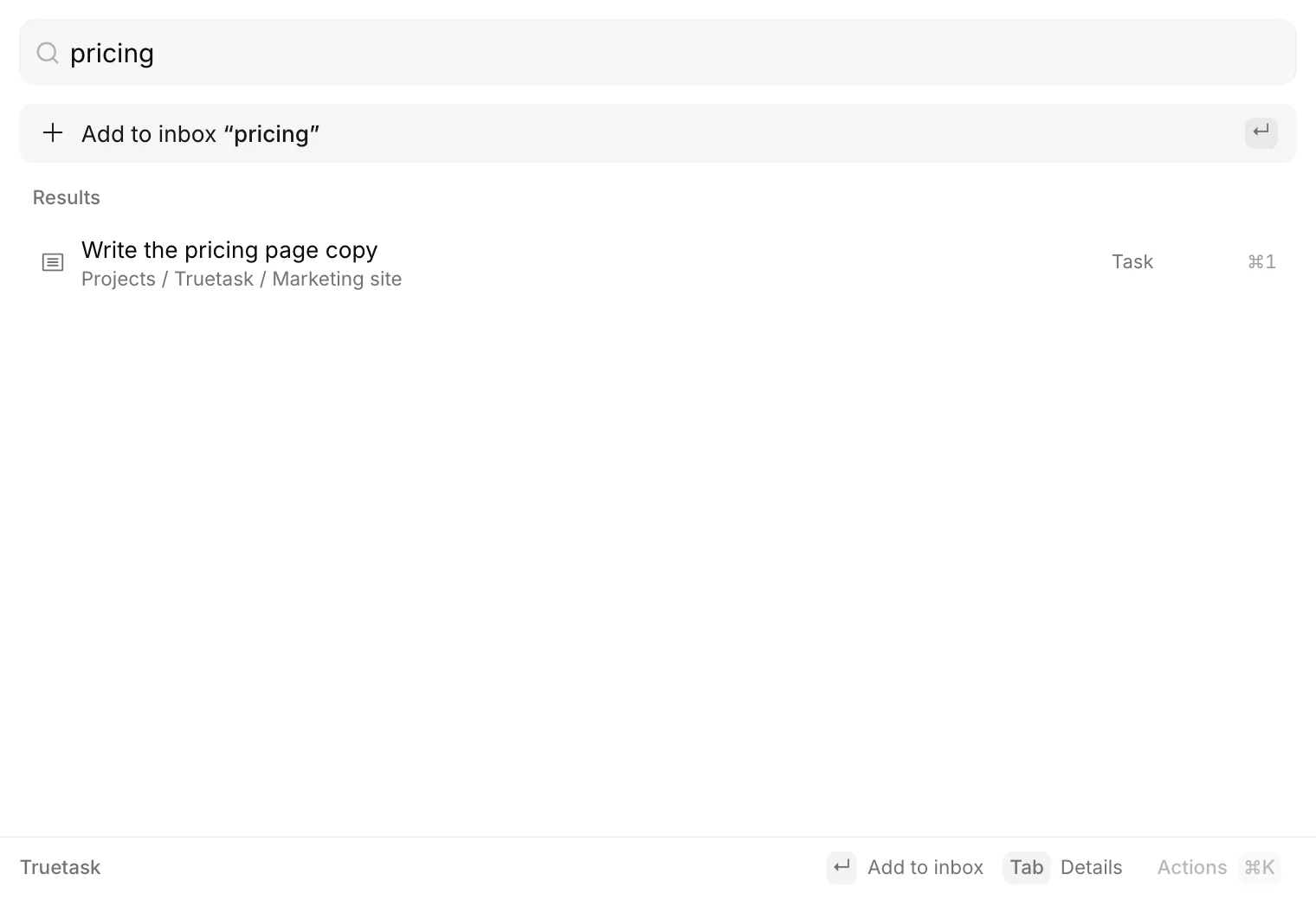
| A global palette | Alt+Space (Option+Space on macOS) searches your tasks, boards and notes and captures a new task from anywhere, without switching apps. See Palette. |
| Native coding tool launches | Claude Code, Codex CLI, Cursor, VS Code and Zed open on a real local checkout, with the repository and branch verified first. Terminal agents open in a real terminal. See Coding tools. |
| Local agents | An agent can run on your computer with your own Claude or Codex subscription, reading and editing local files with your permission. See Desktop agents. |
truetask:// links | Links from the web app hand work straight to the app instead of round-tripping through the operating system. See Settings and links. |
Install it
Download it from truetask.io/download. The avatar menu inside the web app also has Download app, which points at the same page. That row disappears once you are inside the desktop app.
First run
- The app asks for your workspace URL: the same address you use to open Truetask in the browser. It checks that the address answers before it continues.
- The main window loads your workspace, and you sign in with your normal account.
- The shell picks up that session and stores the token in your operating system's keystore: Keychain on macOS, Credential Manager on Windows, Secret Service on Linux.
Everything else unlocks once a session exists. Until then the palette refuses to open and tells you to sign in first, and the settings window shows the sign-in step instead of its panes.
Changing the workspace later, from the settings window, signs you out and clears the stored token.
What it does with your workspace
The main window is confined to your workspace's own origin.
- Links inside the workspace navigate normally.
- External
httpandhttpslinks open in your default browser. truetask://links are handled by the app itself, with no operating system round trip.- Any other scheme is blocked.
The wrapped page knows it is running inside the app, which is how the web app can offer native launches and a local agent where a browser cannot.
The tray
The app keeps a tray icon with five entries: Open Truetask, Quick Capture (labelled with your current shortcut), Connect an Agent, Settings and Quit Truetask.
Whether closing the window quits the app or leaves it in the tray is a setting. See Settings and links.
Connecting an agent
Connect an Agent opens a window where you pick a vendor and sign in through that vendor's own flow. Claude Code, Codex and Gemini CLI are the three. Your agent runs on this computer with your own subscription, and Truetask never sees your credentials.
Back in the web app, a task or board chat then offers Where should this chat run? with two answers: On your computer, which reads and edits local files with permission, and In Truetask, which works on your boards, tasks and notes. See Desktop agents.