

Appearance
Desktop agents
Local access is the power that puts an agent on your own machine. The conversation, the run and the results stay in Truetask where your team can read them. The model call and the file work happen on your computer, through Claude Code or Codex, paid for by the subscription you already have.
It needs Truetask Desktop, the app wrapper for macOS, Windows and Linux. See Truetask Desktop.
What runs where
| Part | Where it lives |
|---|---|
| The chat, the task, the run, the log | Truetask |
| The model call | Your coding tool, on your computer |
| Files, terminal, code | Your computer, inside the working folder |
| Your Claude or ChatGPT credentials | The coding tool itself; Truetask never sees them |
Connecting a tool
Open the desktop app and use Connect an agent. Pick the tool and complete that vendor's own sign-in. The embedded terminal is only the surface: the CLI owns the flow and its own credentials, and Truetask never sees or stores them.
Claude Code and Codex are the two tools an agent's Local access runs with. The connect window also handles Gemini CLI, which stores an API key in this computer's keychain and hands it only to the local agent.
Each tool reports its own state: Connected, Sign-in needed, Installed on this computer, or Not installed on this computer.
Linking an agent
Connecting a tool signs you in. Linking ties one of your agents to it.
Open Agents, open the agent, and tap Local access. The panel walks the steps: get the desktop app, connect the tool, then Link now, which sends one quick test message. When it succeeds the profile reads Working on your computer and tells you to pick the agent in any chat to use that computer.
Unlink from your computers reverses it. The agent keeps working in Truetask, it just cannot use your computers until you link it again.
See Creating an agent for the whole panel.
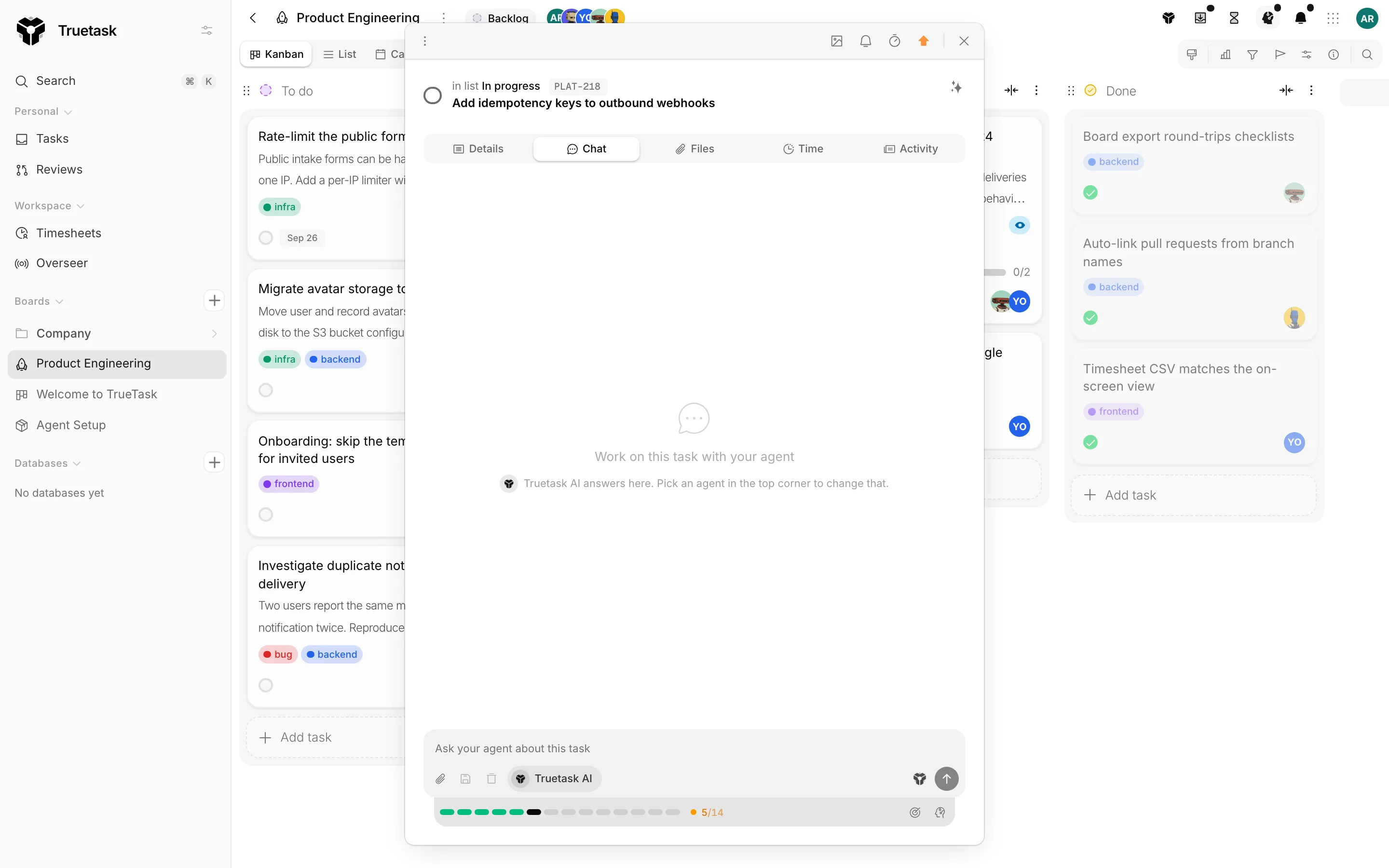
Where should this chat run?
Every chat surface carries a small dial in the composer's control row, right before Send. The icon is the current place, and the popover offers both.
| Place | What it means |
|---|---|
| On your computer | Reads and edits local files with permission. |
| In Truetask | Works on your boards, tasks and notes. |
An unavailable place is shown with the reason rather than hidden: "Pick one of your agents to work locally", or "Connect the Truetask desktop app first". Switching says so: "Now running on your computer" or "Now running in Truetask".
The same dial is on the task Chat tab and on the Truetask AI window.
Permission modes
A local agent asks before it does things, and how much it asks is the permission mode. Open the shield control on the chat to see the modes the connected tool offers. Modes appear once the agent starts, so send a message first.
The three Truetask uses in workflow policy map onto whatever the tool calls them.
| Mode | What it allows |
|---|---|
| Ask every time | Commands and edits wait for a person to approve them. |
| Accept edits | File edits are approved automatically; commands still ask. |
| Autonomous | Every tool call is approved automatically, only inside the board's mapped folder. |
When the agent needs permission, the chat shows a request with three answers: Allow once, Always allow or Reject. Commands say what they are, for example "Runs a shell command on this computer", and Copy command puts it on your clipboard.
An unanswered permission does not hang forever. Half way through the workflow's Permission timeout, it becomes a question on the task so anyone can answer it; at the full timeout the run stops.
See Agent workflows for where those policies are set.
The working folder
The folder control on the chat says where your agent works, and clicking it changes that.
| Option | What it is |
|---|---|
| Board repository | The board's linked repository on this computer. |
| Scratch folder | A scratch folder on this computer. |
| Choose a local folder | Any folder you pick. |
| Reset to automatic | Back to the default for this board. |
Mapping a folder per board matters for unattended runs. Autonomous is scoped to the mapped folder, so a scratch session runs one rung tighter, at Accept edits, and the chat says so: "No folder is mapped for this board, so this run uses Accept edits instead of Autonomous."
Model, effort and steps
The chat's agent control carries Agent, Model and Effort. The options come from the connected tool, and Auto leaves the choice to it. Effort is how hard the agent thinks: higher is slower and more thorough.
While it works you see its thinking and its tool steps inline, collapsed into rows you can expand with Show all steps. When it proposes a plan you get Run plan, with the step count, or Cancel.
A turn that hits the tool's per-turn request limit pauses and says so: "The agent paused at its per-turn limit. Ask it to continue if you want more." The workflow's Continue rounds setting decides how many times a kickoff turn keeps going by itself.
If the connected tool is too old for the model you picked, the chat says which version it needs and which it found, and suggests updating the adapter or picking another model.
When the agent is on another machine
Agents follow the computer, not the browser tab.
If your agent is connected on a different machine, Truetask relays to it when that machine is reachable and says so: "Your agent on" that machine "answers here". When it is not reachable you get an explanation rather than silence: the agent runs on the other machine and only answers there for now, Truetask server AI replies on this device instead, and to use the agent here you open Truetask on that computer or connect one here with the desktop app.
Truetask falls back to server AI rather than failing the turn, and marks the answer: "Your local agent was unavailable, so server AI answered this turn." A relay that nobody picks up times out, and the thread says that machine did not pick it up so server AI answered instead.
Running while you are away
A kickoff can reach your desktop with nobody at the keyboard, but only if the machine is set up for it. The agent's profile carries a Runs while you are away checklist for exactly this: the desktop app running and signed in, Launch Truetask at login, Keep running in the tray when the window is closed, Keep the computer awake while an agent works, a folder mapped for the board, and a workflow policy that does not wait for approval.
The first three are in the desktop app's own settings.