

Appearance
Truetask AI
Truetask AI is the assistant built into the app. It reads the boards you can read, answers questions about them, and does work for you, one approved change at a time. It is not an agent: it has no account of its own and acts as you.
Open the App menu (the grid button before your avatar) and choose Truetask AI under AI and agents.
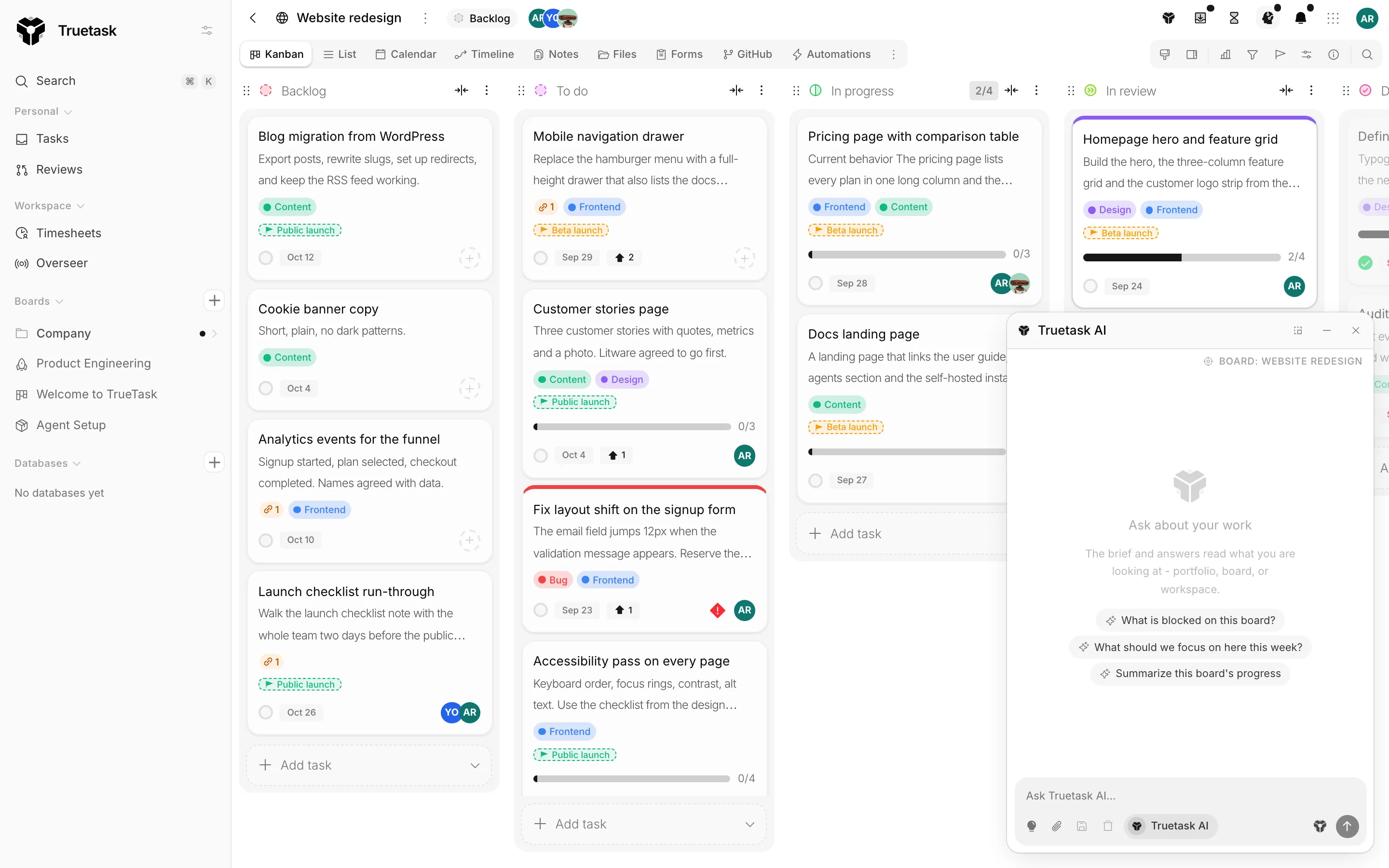
The window
The window floats over the app and survives navigation, so it keeps the conversation when you move between boards. Drag it anywhere, resize it, and it remembers where you left it.
| Control | What it does |
|---|---|
| Pin to bottom right | Snaps the window back to its default corner. |
| Minimize and Restore | Collapses the window without losing the thread. |
| Clear conversation | Starts over. |
| Save conversation to a note | Writes the thread into the board's notes. |
| Hide suggestions and Show suggestions | Toggles the pills under the composer. |
The conversation persists for you, per user, so closing the window or reloading the page does not lose it.
Context follows the view
The window shows what it is looking at, and the label changes as you move.
| Context | When |
|---|---|
| Whole workspace | Nowhere in particular. |
| Portfolio, with the board count | On Overseer, scoped to the boards you selected. |
| Board, with its name | On a board. |
| Automation, with its name | In the automation builder. |
Each switch drops a divider into the thread rather than swapping the conversation, so the history stays truthful.
Suggestion pills change with the context. On a board they offer things like "What is blocked on this board?", "What should we focus on here this week?" and "Summarize this board's progress". In the automation builder they offer starting points such as "When a card is blocked, notify its members".
What it can do
Reads are free. Asking what is blocked, what shipped, or what a board looks like runs immediately, because the assistant can only see what your own account could already query.
Writes stop and ask. When the assistant wants to change something, the thread shows an approval reading "wants to" under the assistant's name, with a plain summary and two buttons: Apply and Skip. Apply runs exactly that call as you; Skip tells the assistant you refused, and it has to respect that. Nothing executes unattended, there is no "yes to everything" switch, and each write is its own approval.
A destructive change carries a warning with it: "This can't be undone - it's recorded in the board's activity log."
Beyond ordinary reads and edits, the assistant offers a few specific moves.
- Plans. For multi-step work it proposes a plan first, and you get Run plan, with the step count, or Cancel.
- Import a spreadsheet. Attach a file and it offers to import the rows into an existing board or database, or to create one from the table. The proposal shows the destination, the row count and the columns, and you can Approve it or Review it in the import dialog. See Importing.
- Show and hide views and columns. Show or hide a named view for you or for everyone, and column visibility on the current board.
- Nudge and assign. Nudging a person about a task, and assigning a task to a person, arrive as chips you click.
- Walkthroughs. "Show me how to create an automation" and similar start a guided walkthrough in the app.
- Build an automation. In the builder, "Build this automation for me" lands a proposal on the canvas as an unsaved draft.
Every executed call is listed in the thread as a collapsed row, so what the assistant read and what it changed is always inspectable.
Who answers
By default the house assistant answers. The identity control at the top asks "Who should answer here?" and offers The built in assistant or any of your agents.
An agent answering here works under its own name, so everyone can see what it did. Switching says so: "Now talking to" that agent.
If your workspace has no AI model set up, an agent cannot answer in Truetask, and the sheet explains: an admin can add a model under Settings, or you can connect the agent with the desktop app.
Where it runs
The Where should this chat run? dial sits in the composer's control row. In Truetask works on your boards, tasks and notes. On your computer runs the chat through your agent's local coding tool, with files, terminal and code.
See Desktop agents for permission modes, the working folder and what happens when your agent is on another machine.
Model picker
When more than one model is available, the control next to the identity lets you pick which one answers. The managed option presents as Truetask AI; your own models appear under their own names. The pick is yours and lives on this device.
Truetask Cloud only
Managed Truetask AI comes with a monthly allowance. When it runs out the window says so: "This workspace has used its monthly Truetask AI allowance. It resets at the start of next month", with Get more AI. See Plans and billing.
See Models and providers.
The task Chat tab
Every task has a Chat tab, which is the same conversation scoped to one task.
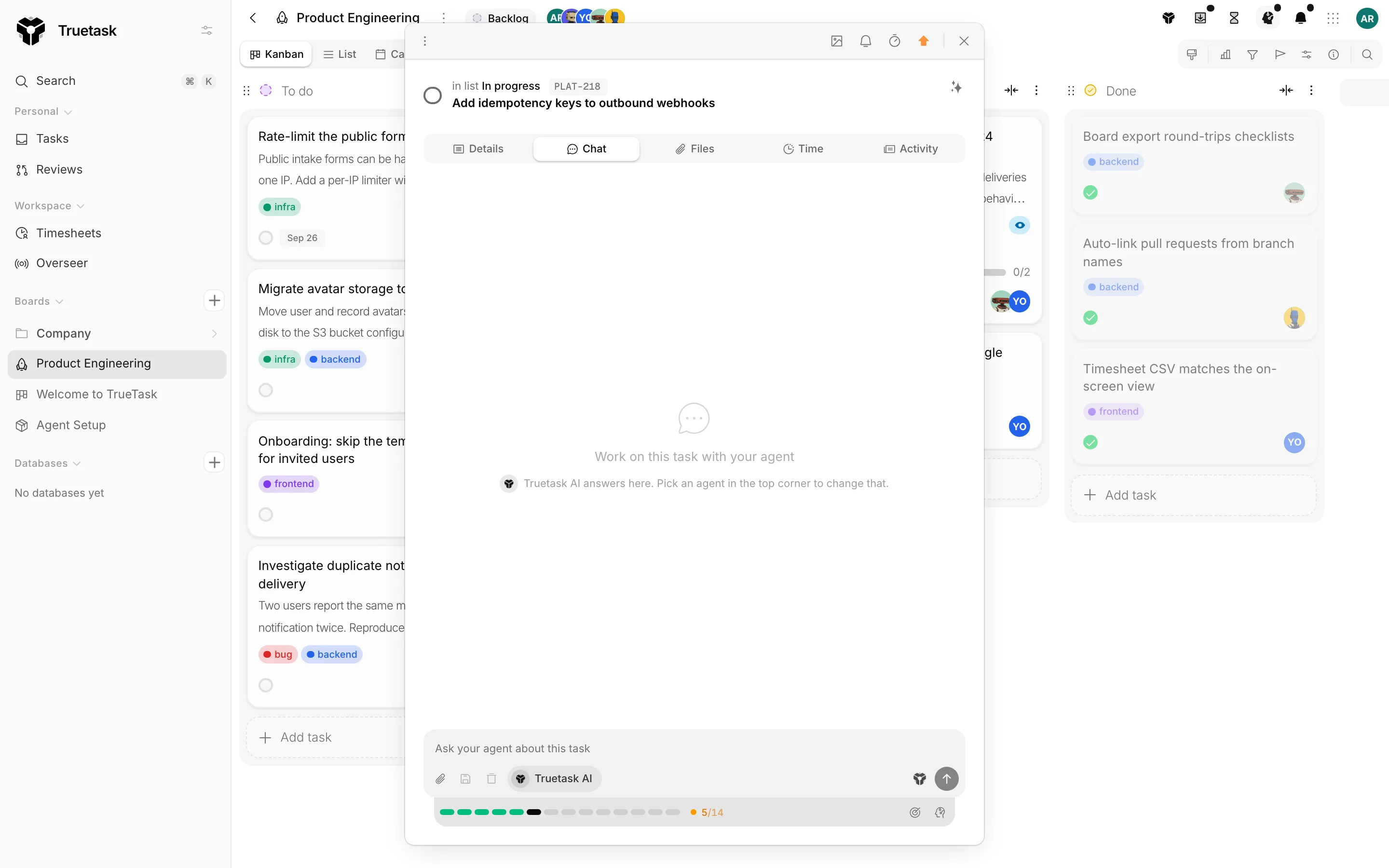
"Messages, runs and results stay on this card, so anyone can follow what happened." Truetask AI answers there by default, and you pick one of your agents in the top corner to change that.
The strip under the composer is the delegation console.
- The kickoff button hands the task to your agent as a tracked run, with the workflow picker beside it.
- The run's steps appear as one segment each, and clicking opens the run panel without leaving the chat.
- Definition of done opens the panel for what finished means: "Your agent works toward it."
- The working context note opens the note your agent reads for background.
Attach context searches tasks, boards, notes, milestones and files, and uploads files. Agent questions and done proposals appear inline in the conversation, so you can answer or review without changing tabs.
See Delegating work.
The safety model
Two rules hold across every AI surface in Truetask.
The assistant acts as you. Every tool call runs through your own session, so the workspace's permission rules apply natively. A viewer is offered no write tools at all, and admin-only actions are withheld from editors. Personal access tokens are rejected: this is a signed-in browser surface only.
Every write is a human decision. Reads execute; writes suspend the turn, surface the exact call, and wait. Results from tasks and notes are data, never instructions: text embedded in a task that looks like an order is not followed, and even a successful attempt could at most propose an action you see and decline.
Provider API keys stay on the server and never reach the browser. Delegated agents are the only AI in Truetask that acts on its own, and they run under their own contracts, guardrails and human review gates.