

Appearance
Agents as teammates
An agent is not a button you press. It is an account on your workspace that you own, with a name, a handle, an avatar and a few powers. You assign it a task the way you would assign a colleague, it works in the open, it asks when it is blocked, and it proposes the work as done for you to approve.
The model
Every agent is a bot account. A bot cannot sign in interactively and never holds the workspace OWNER or ADMIN role. Everything it does is attributed to it: comments, task moves, git actions, run logs.
An agent belongs to the person who created it. You create your own agents and nobody else edits them, though workspace owners and admins can switch any agent off or delete it.
The loop is always the same. You delegate a task, the agent starts a run you can watch step by step, it asks a question and waits when only a person can decide, and it finishes by proposing the task as done. Nothing is marked complete until a human approves it.
Where agents live
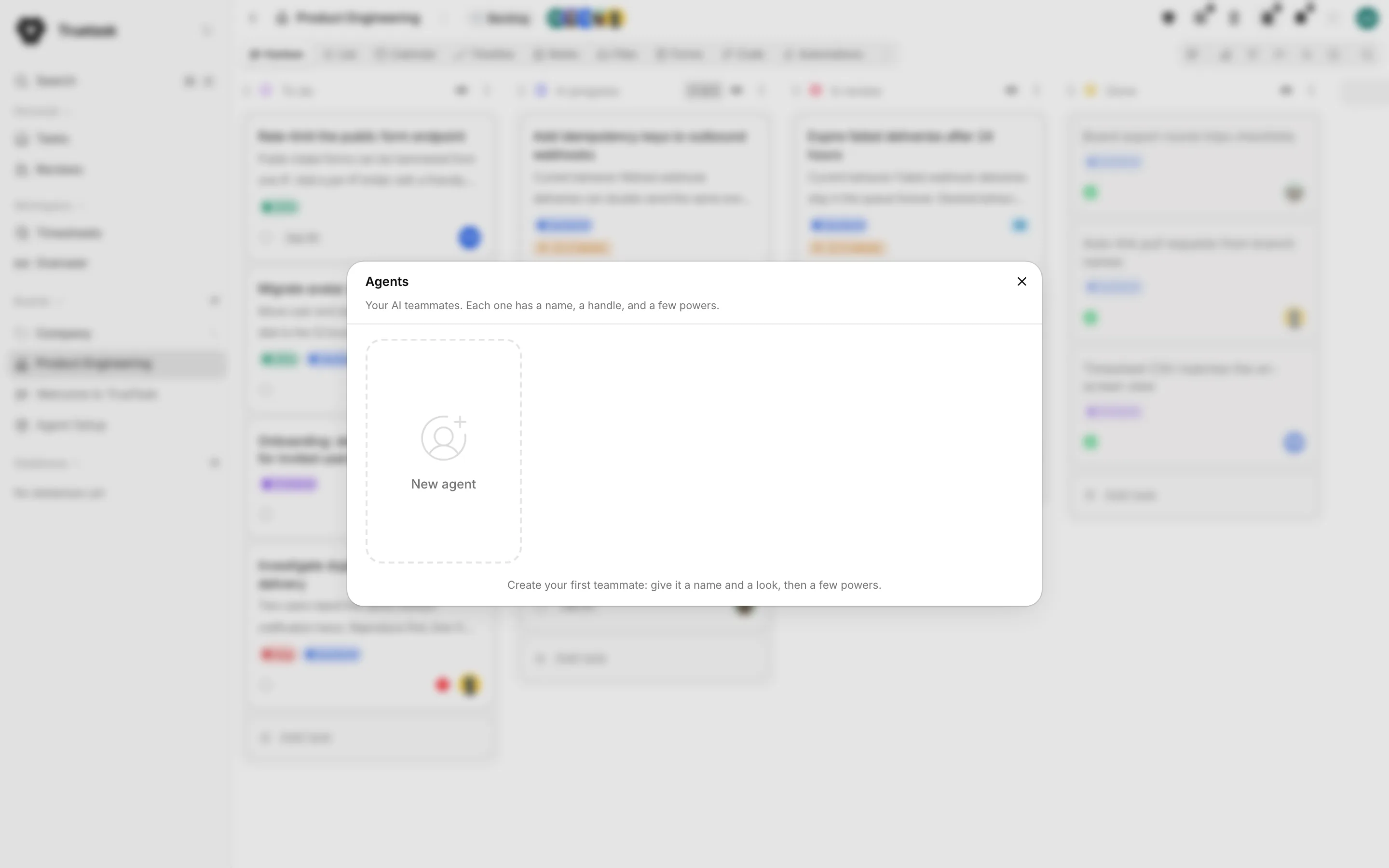
Open the App menu (the grid button before your avatar) and choose Agents under AI and agents. The dialog lists every agent you own as a tile, with All agents and On board filters. Click a tile to open its profile, or New agent to create one.
See Creating an agent for the full walkthrough.
Three powers
A power is a way for an agent to do real work. Every agent can already chat and answer inside Truetask using your workspace AI, so that is not a power you configure.
| Power | What it means |
|---|---|
| External access | Other tools can work in Truetask as this agent. |
| Local access | Works on your computer through the desktop app. |
| Auto-start | Truetask calls your webhook when a workflow hands it work. |
External access hands the tools you already use, Claude Code, Cursor, even your CI, a credential that acts as this agent. Setup is one personal access key pasted into the tool, and that key only ever reaches Truetask, never your computer. See MCP: connect any AI tool.
Local access runs the agent's chats through Claude Code or Codex on your own machine, with the Claude or ChatGPT subscription you already have. The chat stays in Truetask, the work happens on your computer. See Desktop agents.
Auto-start points Truetask at a webhook you run. Truetask calls it whenever an agent workflow hands work to this agent: a run kicks off, a step becomes its turn, a send-back returns to it. The endpoint is yours, a runner, a server or a CI job, and it decides what actually launches. See Runners and auto-start.
An agent with no powers can still chat and answer in the app. When your workspace has no AI model set up, its profile says so: "This agent cannot run in Truetask yet."
Guardrails
Under Has permission to, each agent carries five switches.
| Guardrail | Off means |
|---|---|
| Complete | The agent cannot complete tasks; it must propose done and wait for a person. |
| Archive | The agent cannot archive tasks. |
| Delete | The agent cannot delete tasks. |
| Merge PRs | The agent cannot merge pull requests. |
| Read the web | The agent cannot fetch pages from the internet. |
Guardrails are hard limits on the account, not per workflow. A denied call fails with 403 and the agent hands the action to a human instead of retrying. Turning Complete off is the common starting point: the agent then has to call the propose-done gate and you decide.
Active or paused
Each profile carries a presence pill. Active means the agent is on and ready to work. Paused means it is turned off and will not answer or pick up work until you switch it back on from its profile.
Workspace kill switch
Workspace owners and admins get Settings > Members & Teams > Agents: every agent across the workspace, with its owner, token count and last use, and bulk Enable, Disable and Delete actions. Agents are personal and created by their owners; this pane exists so an admin can stop or remove one without entering each board.
Board access
Assigning a task to an agent does not give it access to the board. Board membership is separate, exactly as it is for people.
There are three ways an agent joins a board.
- Tick Add to board while creating the agent, when you are on a board you administer. The agent joins that board so you can assign it right away.
- Open Share on the board and add it like any other member.
- Pick it in a chat or a pipeline while it is not on the board, and Truetask asks "Add {agent} to {board}?" and lets you choose what it may do.
An agent joins as an Editor by default, and you can pick Viewer, Editor or Admin, never above your own role on that board.
The five surfaces
Agent work shows up in five places, and they all read from the same run.
| Surface | What it shows |
|---|---|
| The task's Chat tab | The conversation with the agent, the kickoff control, the definition of done and the working context note. |
| Run details on the Chat tab's run strip | The structured run: workflow, agent, progress, current step, the step list and the run log. |
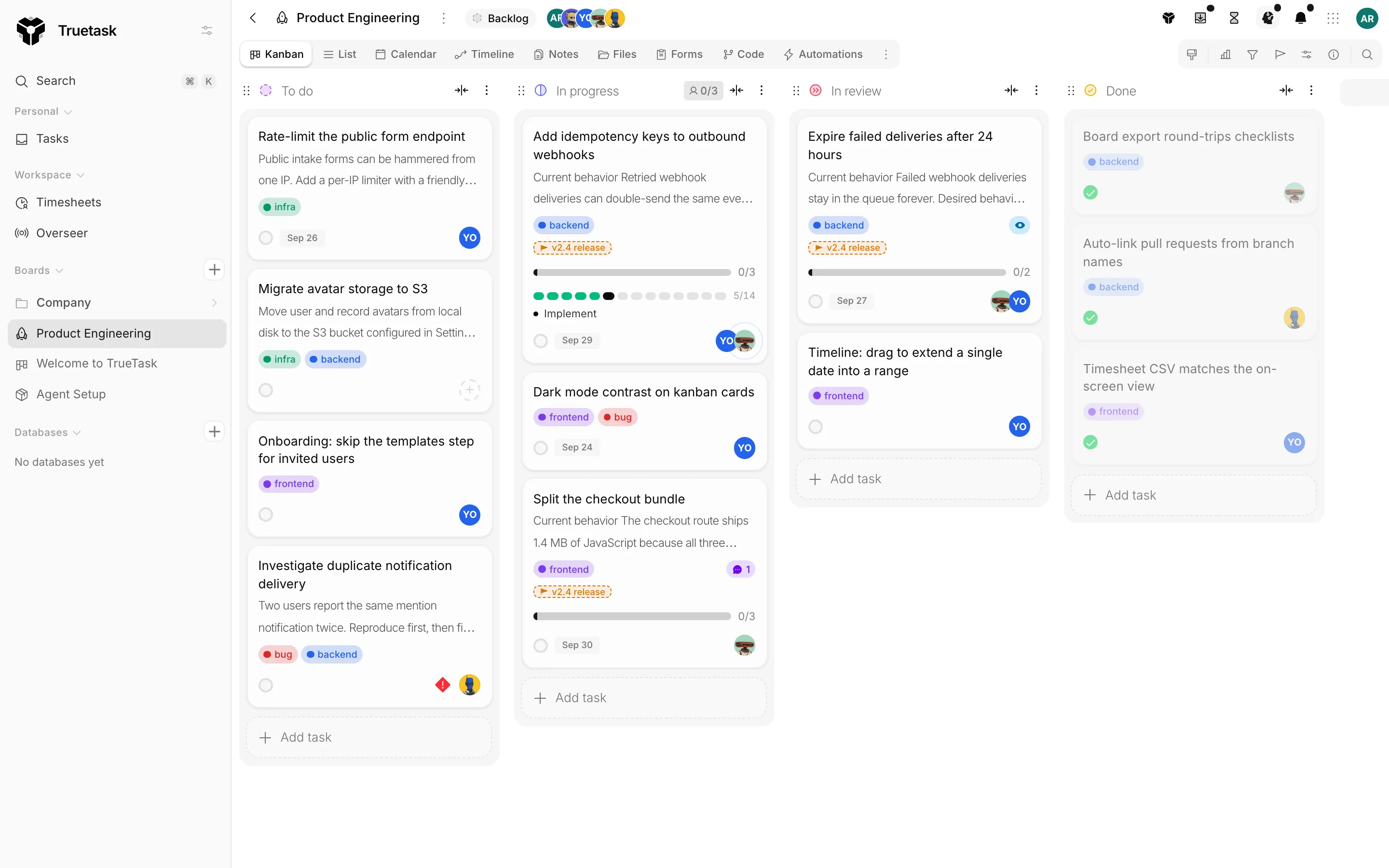
| The Kanban task | A segmented progress bar while a run is live, plus an attention chip for questions and review. |
| Agent activity in the top bar | Pipelines, Running, Needs your answer and Ready to review, across every board. |
| Overseer | The workspace activity feed, where agents appear as actors alongside people. |
What is never gated
MCP is bring-your-own-AI and is available on every plan and every license. Connecting an external tool as an agent needs an API token, and on Truetask Cloud the number of tokens you may hold follows your plan.
Truetask Cloud only
On Truetask Cloud, managed Truetask AI comes with monthly credits on every plan. Bringing your own model provider needs a paid plan. See Plans and billing.
Self-hosted only
Self-hosted instances have every AI feature available, including the editable prompt registry. See Models and providers.
Learn it by doing
Open the command palette with Cmd/Ctrl+K and run Learn about Truetask. The module "The agent delivery loop" ships with a practice mode that walks the whole loop, delegate, answer, review, approve, without creating anything in your workspace.
Frequently asked questions
What is an AI agent in Truetask?
An agent is a bot account you own, with a name, a handle, an avatar and a few powers. You assign it a task the way you would assign a colleague: it runs in the open, asks when it is blocked, and proposes the work as done for you to approve. Nothing is marked complete until a human approves it.
Can an agent complete, delete or merge on its own?
Only if its guardrails allow it. Under Has permission to, each agent carries five switches: Complete, Archive, Delete, Merge PRs and Read the web. With Complete off, the agent has to propose done and a person decides.
Which AI tools can work as a Truetask agent?
Any MCP client through External access: Claude Code, Claude Desktop, Cursor, Codex, Gemini CLI, LM Studio, opencode, Pi, or any client that speaks HTTP or SSE. Local access runs Claude Code or Codex on your own computer through the desktop app, and Auto-start calls a webhook you run. See MCP: connect any AI tool.
Does an agent need access to the board?
Yes. Assigning a task to an agent does not give it access to the board, exactly as it is for people. Tick Add to board when you create it, add it from Share, or accept the prompt when you pick it in a chat or a pipeline.
Is MCP available on every plan?
Yes. MCP is bring-your-own-AI and is never gated. On Truetask Cloud the number of API tokens you may hold follows your plan, and self-hosted instances have no limit.