

Appearance
Plans and billing Cloud
Settings > Site > Plan is where a Cloud workspace's plan, limits, usage and billing live. Owners and admins can open it, and it is the only place in the app that changes what a plan allows.
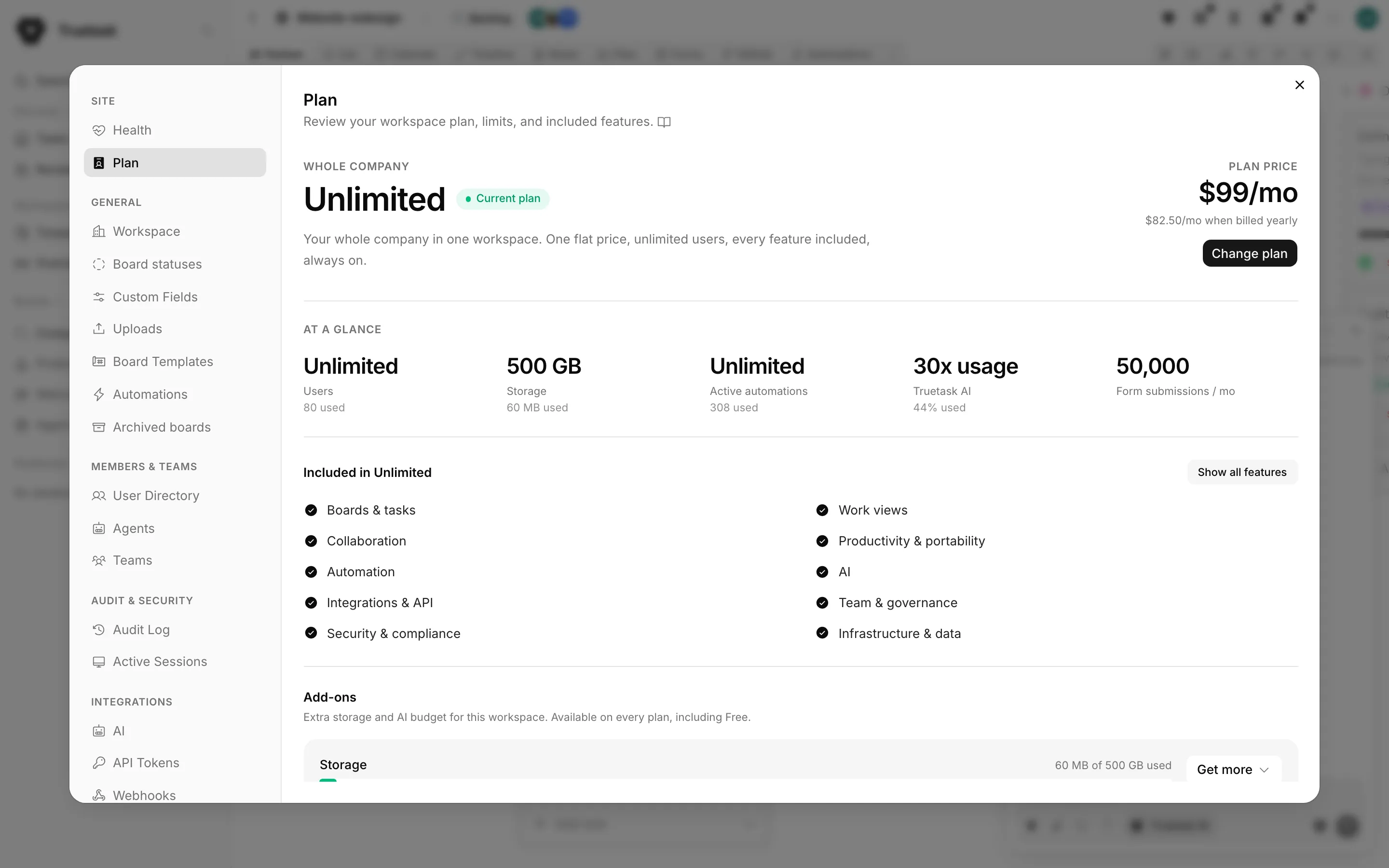
The Plan pane is the source of truth
Plans and their limits come from the Truetask catalog and can change. Read the numbers in the pane rather than trusting a table written elsewhere, and see truetask.io for pricing.
The current plan
The top of the pane names your plan, describes it in a line, marks it Current, and shows its price.
Two buttons sit beside it:
| Button | What it does |
|---|---|
| Change plan | Opens the plan catalog. |
| Manage billing | Opens the billing portal. Shown once the workspace has a subscription. |
Use Manage billing for anything about an existing subscription: payment method, invoices, cancelling.
Two notices can appear under the header:
- A cancelled plan says when it ends and that the workspace moves to Free after that date.
- A failed payment says the last payment did not go through and asks you to update your billing details to keep the plan.
At a glance
A row of numbers reports the plan's limits, each with live usage under it where Truetask can measure it.
| Metric | Meaning |
|---|---|
| Users | Seats. The User Directory refuses to create another person past it. |
| Storage | File storage across the workspace, shown used against the limit. |
| Active automations | How many automations may be enabled at once. |
| Truetask AI | The managed AI allowance, shown as a share of this month's budget used. |
| Form submissions / mo | Public form submissions per month. |
Truetask AI is expressed relative to the Free allowance rather than in currency. The underlying budget is deliberately never shown in dollars anywhere in the product.
Included
Under the limits, an Included in heading names your plan and lists the capability areas it covers. Show all features opens the full breakdown, grouped by area, as the catalog defines it.
Add-ons
Add-ons are available on every plan, including Free. Each sits under a live meter, so you buy against a number you can see.
| Add-on | What it does |
|---|---|
| 100 GB storage | Adds file storage. Renews monthly. |
| 1 TB storage | Adds file storage. Renews monthly. |
| $5 AI top-up | A one-time boost to this month's Truetask AI budget. |
| $10 AI top-up | A one-time boost to this month's Truetask AI budget. |
Get more beside either meter opens the list with current prices and takes you to checkout.
Changing plan
Change plan opens the catalog. A Monthly / Annual switch at the top of the hosted plans sets the billing interval, and annual is preselected. One plan is marked Recommended.
Choosing a paid plan without a subscription sends you to checkout. If the workspace already has one, the same button opens the billing portal so the change happens against the existing subscription.
After checkout, Truetask waits for the purchase to land and tells you when it has. Payment is captured either way; if the new plan does not appear immediately, the pane says it is finalizing and updates shortly.
Compare
Compare all features expands a table of every plan side by side. It compares limits, not feature ticks, because the hosted plans carry the same capabilities and differ in how much of each you get: users, storage, maximum upload, active automations, Truetask AI, form submissions per month and API tokens.
Downgrading with automations running
If the plan you pick allows fewer active automations than you currently have enabled, Truetask stops and asks first. The dialog names the limit and your current count, and says plainly that switching disables all active automations.
Confirming switches the plan and disables them. A toast then tells you how many were disabled, with a shortcut to Settings > General > Automations where you re-enable up to the new limit. See Workspace.
Prefer to run it yourself
The catalog also carries a Self Hosted band. It has no checkout: Contact us opens a short form for email, phone, what you are trying to achieve, and whether you want to talk about private deployment requirements, migration planning, or both. The form starts a conversation about fit and deployment rather than a purchase.
See Self-hosted overview.
Limit notices
You do not have to watch the meters. Truetask warns owners and admins before something runs out and tells them what to do about it:
| Notice | When |
|---|---|
| Storage nearly full | Around 90% of storage used. Offers a storage pack or an upgrade. |
| Storage full | The limit is reached. Uploads stop until you add space. |
| Truetask AI nearly used | Around 90% of this month's AI budget used. Offers a top-up or an upgrade. |
Hitting a hard limit anywhere in the app produces the same kind of notice. For an owner or admin who has not used the trial yet, it offers to start it; otherwise it links straight to this pane. Members only see the message, never an upgrade prompt.
The crown
A settings pane, or a control, whose feature is not part of your plan is not hidden. It carries a small crown, and opening it names the plan that unlocks it and offers a way to get there.
Self-hosted only
There is no plan gating and no crown. Every feature is available, and the Plan pane does not exist. See License.