

Appearance
S3 storage Self-hosted
By default a self-hosted instance keeps uploaded files and backup archives on the local disk, inside your data directory. Settings > Server > S3 Storage moves either or both to object storage.
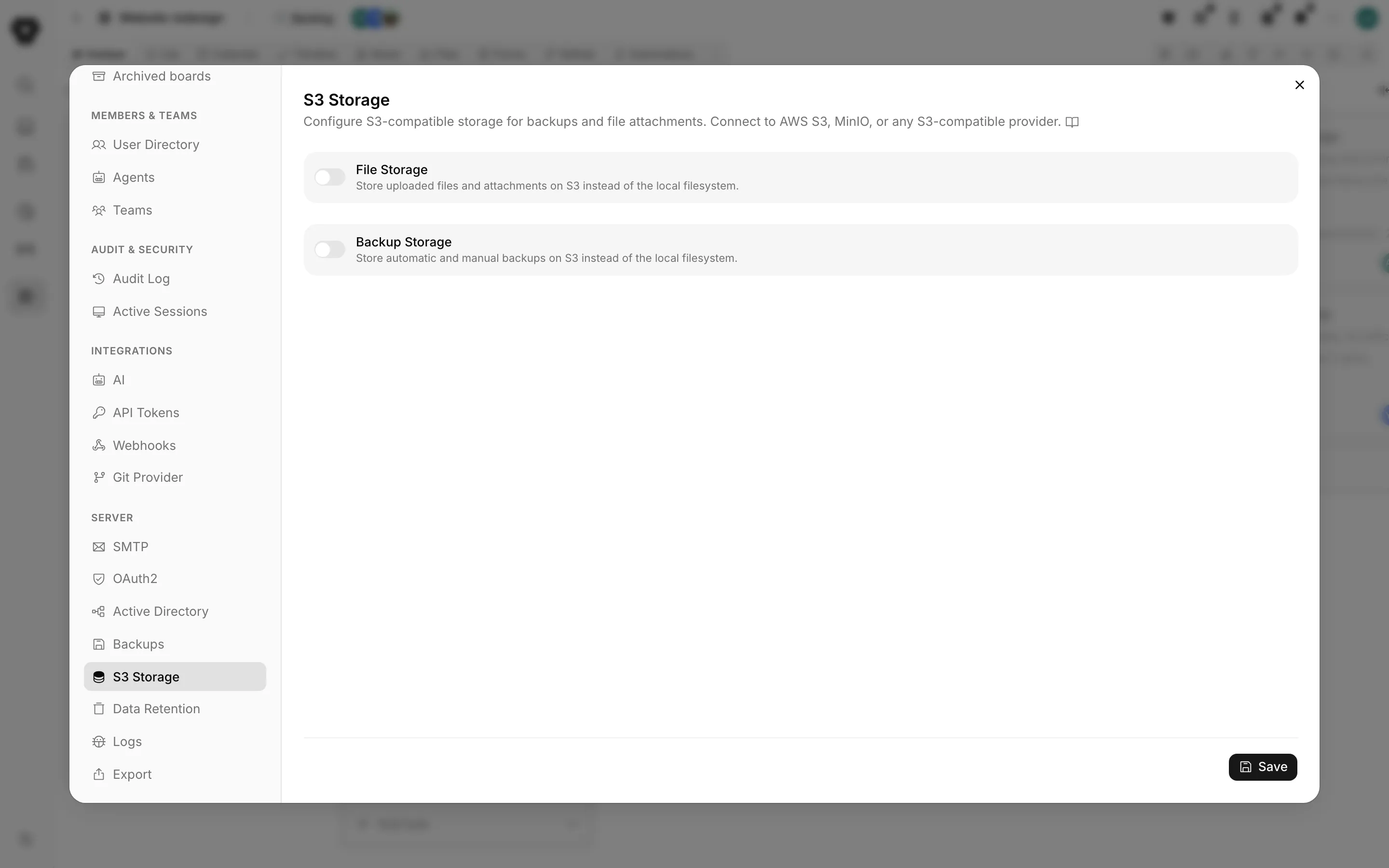
The pane holds two independent sections. Each has its own switch, its own credentials and its own Test Connection button, and you can enable one without the other.
| Section | What it moves |
|---|---|
| File Storage | Uploaded files and attachments, instead of the local filesystem |
| Backup Storage | Automatic and manual backup archives, instead of the local filesystem |
The fields
Both sections take the same six settings.
| Setting | Required | What it is |
|---|---|---|
| Bucket | Yes | The bucket name, for example my-bucket |
| Region | Yes | The region, for example us-east-1 |
| Endpoint | Yes | The full endpoint URL, for example https://s3.amazonaws.com |
| Access Key | Yes | The access key ID |
| Secret Key | Yes on first save | The secret access key. Stored write-only and shown as ******** afterwards |
| Force Path Style | No | Use path-style URLs instead of virtual-hosted |
The endpoint is not optional here even for AWS, so fill it in with your provider's URL. Anything S3-compatible works: MinIO, DigitalOcean Spaces, Backblaze B2 and the rest.
Turn Force Path Style on for MinIO and for any other provider that does not serve virtual-hosted bucket URLs.
The secret comes back masked after a save. Leave the mask alone to keep the stored value; type a new secret to replace it.
Save, then test
One Save button in the footer saves both sections.
Test Connection checks the settings that are already saved, not what is in the boxes. Save first, then test. A success toast means Truetask reached the bucket; a failure toast means it did not.
Moving existing files
Nothing is migrated for you
As soon as you change either switch, the pane raises it: "If you have existing uploaded files, you'll have to migrate them manually from the local file system to the S3 storage."
Turning File Storage on tells Truetask to read and write in the bucket from that moment. Files already on local disk stay there and stop resolving.
Before you flip the switch on an instance with content in it:
- Take a backup and download it.
- Stop the stack with
scripts/management/truetask-stop.sh. - Copy the storage tree out of
<DATA_DIR>/pb_data/storage/into the bucket, keeping the directory layout exactly as it is. - Start the stack, enable File Storage, save, and test the connection.
- Open a task with an attachment and a note with an image and confirm both still load before you delete anything local.
Backup Storage is easier. Existing archives on local disk are simply not listed once the bucket takes over, and new ones are written to the bucket. Copy the old archives across if you want to keep them visible in the pane.
Which one you want
Backup Storage is the one worth turning on almost always. An archive on the same disk as the database it protects does not survive that disk.
File Storage pays off when uploads are large or numerous, when you want the host's disk to stay small, or when your object storage already has the durability and lifecycle rules you need. Remember that once it is on, a Truetask backup no longer contains your attachments; the bucket does.