

Appearance
Sign-in and identity
Truetask accepts four ways in: a password, a one-time code by email, an external OAuth2 provider, and an Active Directory or LDAP bind. Password and one-time codes work out of the box. The other two are set up in the Server group of Settings.
Password and one-time codes
The sign-in page leads with Email me a sign-in code. Enter your email, Truetask mails an 8-digit code, and the code expires after 10 minutes. Use password instead switches to the classic email or username plus password form, and the page remembers nothing between the two.
Both the one-time code and Forgot your password? depend on the instance being able to send mail. When it cannot, the page says so rather than pretending the message went out, and points the person at their administrator.
Self-hosted only
Email delivery is your SMTP server. Until it is configured, sign-in codes and reset links do not arrive and everyone must use a password. See SMTP.
Forced password change
When an admin sets a temporary password for someone and ticks Require a password change on next sign-in, that person's next sign-in lands on a short screen instead of the app. It asks for the temporary password they just used and a new one of their own, minimum 8 characters. They cannot reach the workspace until they set it.
See Members and agents for how an admin sets that password.
OAuth2
Settings > Server > OAuth2 turns on sign-in with an external provider.
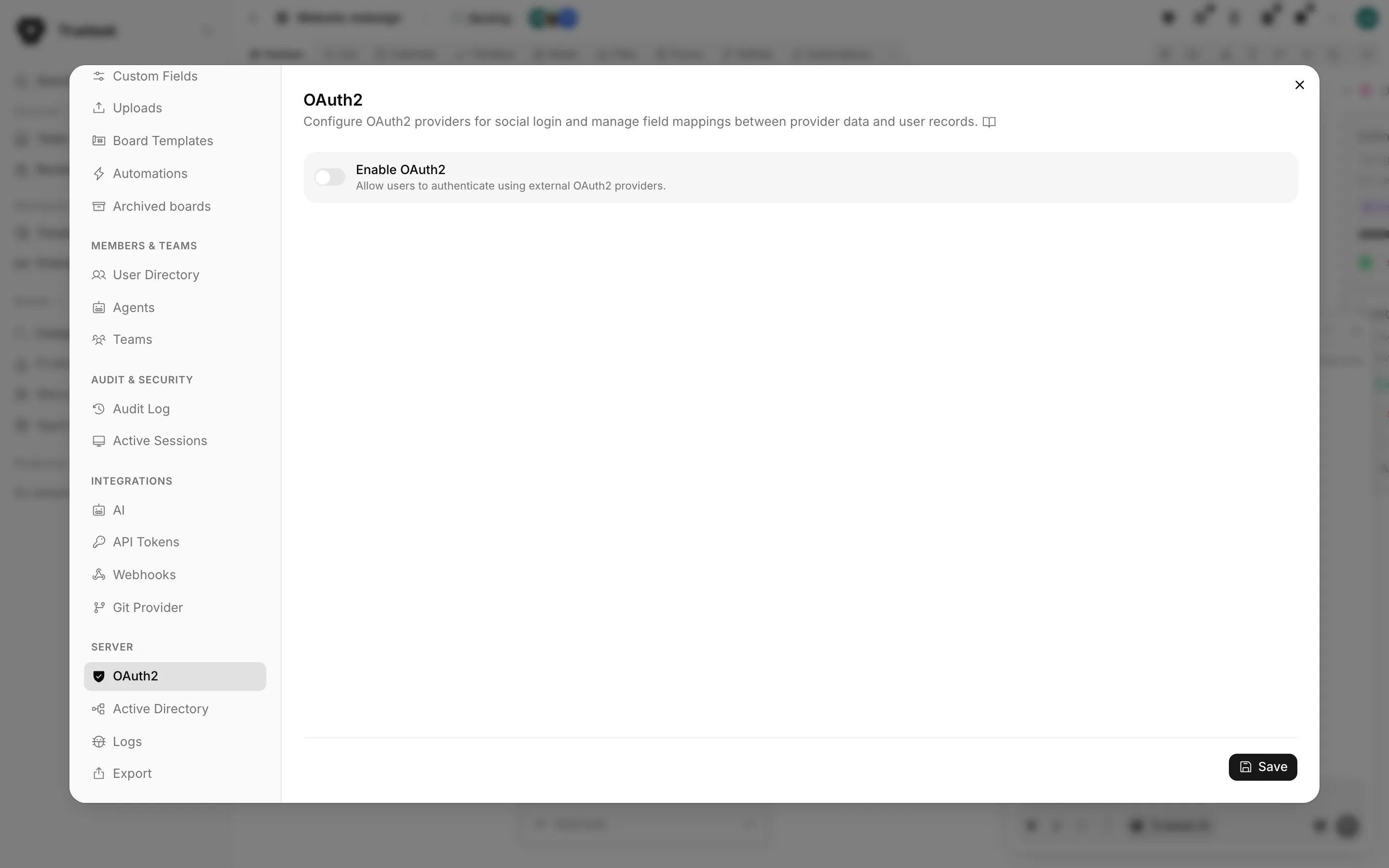
Flip Enable OAuth2 first, then configure at least one provider. A provider only appears on the sign-in page once it has a client ID, and the pane marks each one Configured or Not configured so you can see at a glance which are live.
Providers you can configure:
- GitHub
- GitLab
- Gitee
- Gitea
- Linear
- Notion
- OIDC 2
- OIDC 3
The two OIDC slots are for any standards-compliant provider that is not in the list by name.
Per-provider fields
| Field | Notes |
|---|---|
| Client ID | From the app you registered with the provider. |
| Client Secret | From the same app. |
| Auth URL | Leave empty for the provider's default. Required for a generic OIDC provider. |
| Token URL | Leave empty for the provider's default. |
| User Info URL | Leave empty for the provider's default. |
| Display Name | A custom label for the sign-in button. |
Field mappings
Field Mappings tells Truetask which key in the provider's response carries which piece of the user record. Leave a field empty to use the default.
| Mapping | Typical value |
|---|---|
| ID | sub |
| Name | name |
| Username | login |
| Avatar URL | avatar_url |
Accounts created this way are recorded with the source OAuth, which is filterable in the User Directory.
Active Directory
Settings > Server > Active Directory syncs accounts from an LDAP or Active Directory server and lets those people sign in with their directory password. Sign-in is a bind against the directory, so the directory stays the source of truth for the password.
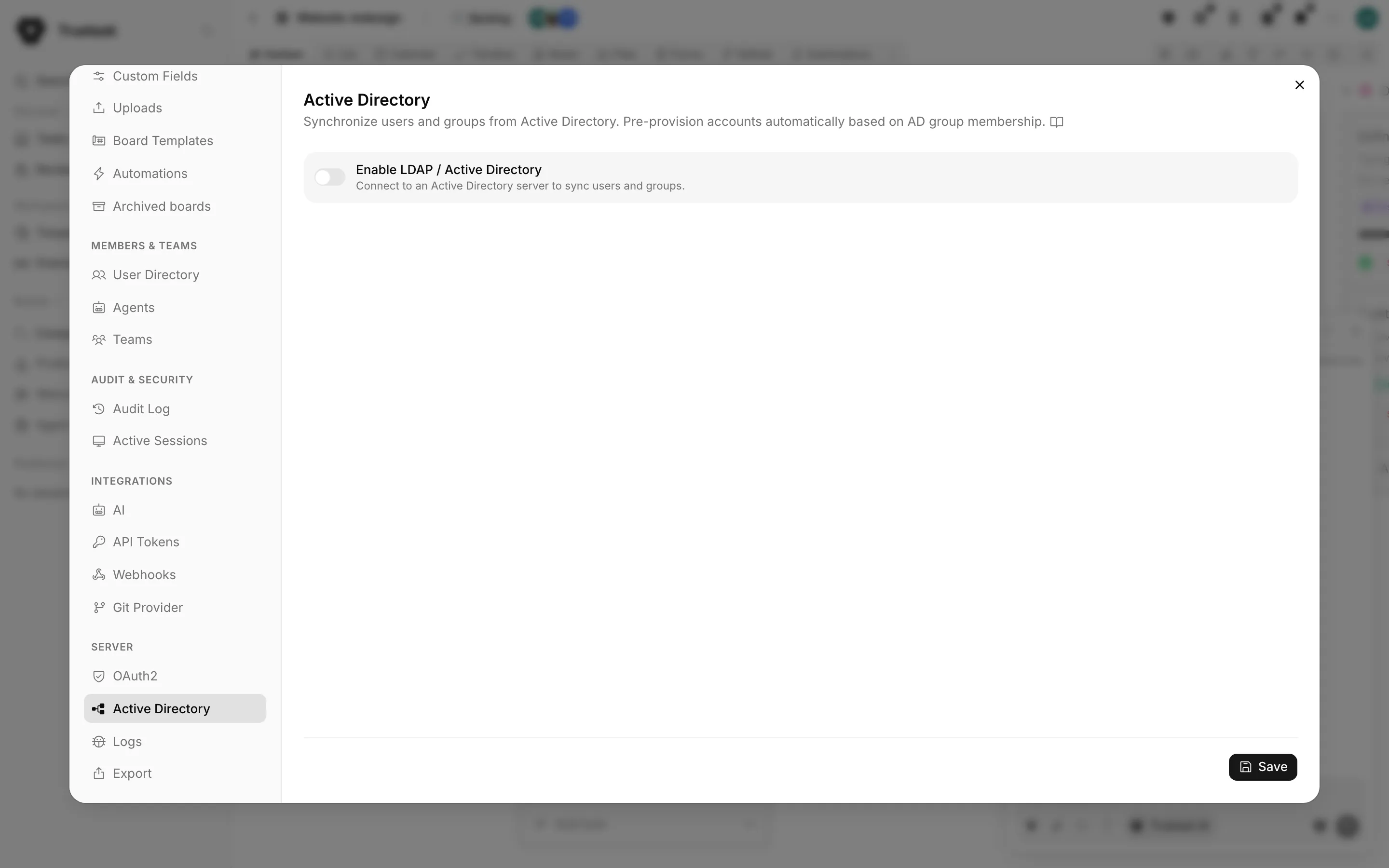
Connection
Turn on Enable LDAP / Active Directory, then fill in:
| Field | Notes |
|---|---|
| LDAP URL | ldap:// on port 389, or ldaps:// on port 636 for an encrypted connection. |
| Base DN | Where the search starts. |
| Bind DN | A service account, either user@domain or a full DN. |
| Bind Password | Saved once. Leave it empty afterwards to keep the stored password. |
Test Connection checks the credentials before you save anything else.
User filter
| Field | Notes |
|---|---|
| LDAP Filter | Selects which users to sync. The default excludes disabled accounts. |
| Email Attribute | The directory attribute used as the person's email in Truetask. |
Organizational units
Discover OUs reads the organizational units and containers from the directory and lists them with a checkbox each. Unticking one excludes its users from the sync, which is how you keep service accounts and computer objects out of the workspace. The pane shows how many OUs are currently excluded.
Admin groups
Promote AD admins to Truetask Admin role assigns the Admin role instead of the default User role to anyone in the groups you pick. Discover Groups fetches the directory's security groups so you can select them.
Sync
Two buttons:
| Button | What it does |
|---|---|
| Preview | A dry run. Shows how many users would be synced and how many the OU filter excludes, without writing anything. |
| Sync Now | Runs the sync and reports Created, Updated, Unchanged and Excluded counts. |
Everyone arrives with the User role unless an admin group promotes them. Adjust roles afterwards in the User Directory.
Automatic Sync then keeps it current on a schedule: Manual only, Every hour, Every 6 hours (recommended), Every 12 hours, or Daily.
Every sync and every directory sign-in is written to the audit log with its own action, so you can see when accounts appeared and who signed in through the directory. See Audit, sessions and logs.
Both panes exist on Cloud
OAuth2 and Active Directory are in the Server group but they are not self-hosted only. A Truetask Cloud workspace has both.
Sessions
Every successful sign-in is recorded, and an admin can sign a person out of every device at once. See Audit, sessions and logs.