

Appearance
Members and agents
The Members & Teams group is the one place that lists every person and every agent in the workspace. Owners, admins and leads can open it.
User Directory
Settings > Members & Teams > User Directory is a table of people. Agent accounts are not listed here; they have their own pane.
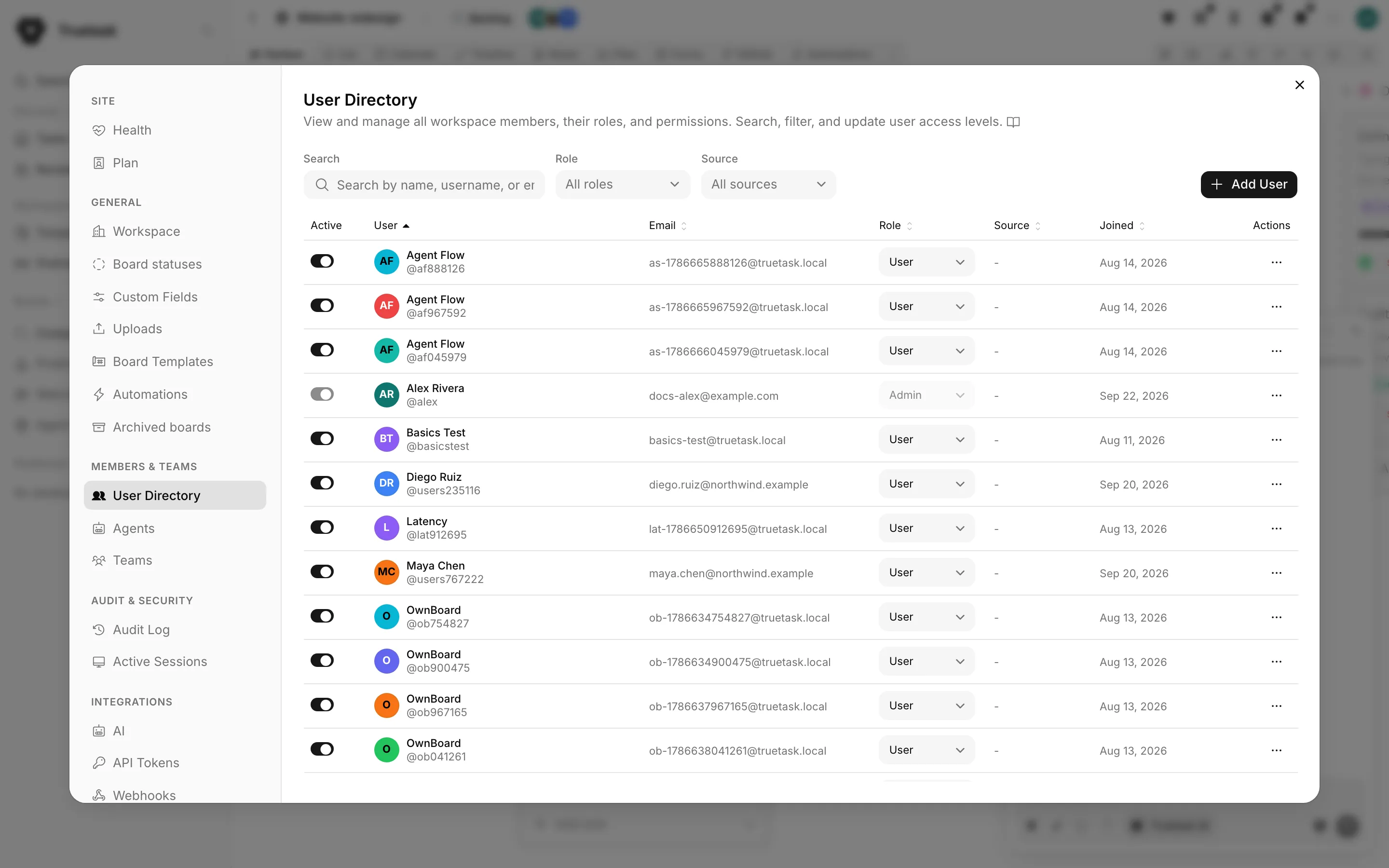
Search matches name, username or email. Two filters narrow the list further:
| Filter | Options |
|---|---|
| Role | Owner, Admin, Lead, User, Guest |
| Source | Local, LDAP, OAuth |
The columns are Active, User, Email, Role, Status, Source, Joined and Actions. Status shows whether the account's email is Verified or still Pending. Source records how the account was created, so a directory-synced person is obvious at a glance.
Site roles
| Role | What it can do |
|---|---|
| Owner | Everything, including transferring ownership. One per workspace. |
| Admin | Everything except taking ownership away from the owner. |
| Lead | Settings is limited to Members & Teams. Can invite people, manage teams, and create, share and delete boards. |
| User | Creates and edits boards and tasks, comments. No Settings. |
| Guest | Can view boards they are added to. No task creation, no comments. |
Site owners and admins are always board admins on every board, whatever the board's own member list says. For the board-level roles see Roles and permissions.
Two rules the directory enforces:
- You cannot change your own role.
- Only the owner can grant the Owner role, and granting it is a transfer.
Add a user
Click Add User and fill in name, username, email, role and a password. A password is required for a new account.
You can also turn on Require a password change on next sign-in, which forces the person to choose their own password the first time they sign in. Use it whenever you type the password yourself.
Truetask Cloud only
Creating a user fails once you reach the user limit on your plan. See Plans and billing.
Passwords
Open Edit on a row and you get two paths.
| Path | When to use it |
|---|---|
| Send password reset email | The normal path. The person sets their own password from an emailed link and you never see or handle it. |
| Set a password manually | When email is not configured or is not being delivered. Type one, or use Generate password and copy it. |
The dialog knows whether the instance can actually deliver mail and says so. If email is off, or configured but failing, it tells you the reset link would never arrive and offers the manual path instead, with a shortcut to the email settings when you can reach them.
A generated password is shown once, so copy it before saving. To change your own password, open your profile instead: it asks for your current password.
Self-hosted only
Reset emails, sign-in codes and board invitations all depend on your own mail server. See SMTP.
Disable or delete
Active is a per-row switch. A disabled account cannot sign in, and all of its data stays exactly where it is. You cannot disable your own account.
Delete is permanent. The dialog says plainly that all of the user's data, including their boards when nobody else is a member, their notifications and their assignments, is removed, and it suggests disabling instead.
What happens to their boards is decided per board:
- If they were the only member left, the board is deleted with everything on it.
- If other members remain, the user simply leaves, and ownership of the board passes to a member who stays.
The owner's account cannot be deleted, and neither can your own.
Transfer ownership
Setting another person to Owner is a transfer, not a copy. The dialog states it clearly: that person becomes the workspace owner and you become an admin. It cannot be undone from your side afterwards.
Agents
Settings > Members & Teams > Agents lists every agent in the workspace. Agents are personal: each person creates their own from the App menu > Agents. This pane exists so an admin can reach any of them without joining each board.
The columns are Agent, Owner, Tokens, Last used and State. Filter by state (All states, Active, Disabled) or search by agent name or owner.
Two actions, both available in bulk:
| Action | Effect |
|---|---|
| Disable | The kill switch. The agent stops working immediately and its owner keeps the definition. |
| Delete | Permanent. Tokens are revoked, the agent is removed from every board, its runs are deleted, and anything it created is handed back to you. |
Use Disable first when something is misbehaving; it is reversible and Delete is not.
See Creating an agent for powers and guardrails, and Agent activity for what agents are doing right now.
Teams
Settings > Members & Teams > Teams creates groups of people you can mention in a comment to notify everyone in them at once. Create a team, give it a name, and add members. Deleting a team removes the group only; its members keep their accounts and their board access.
See Working together and Comments and mentions.