

Appearance
Creating an agent
An agent takes about a minute to create and a few more to connect. This page walks the Agents dialog end to end: identity, powers, guardrails, and what happens when you pause or delete one.
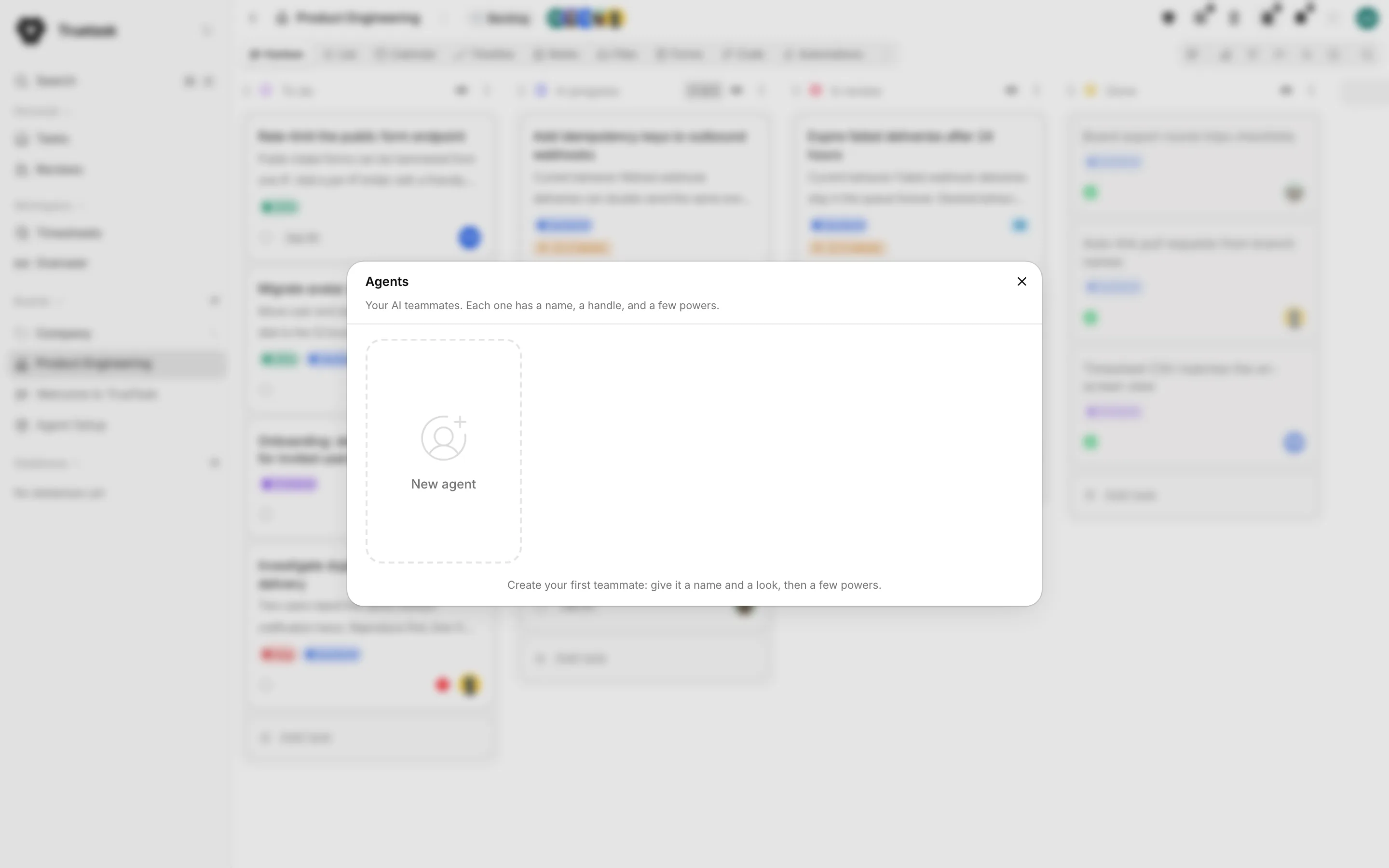
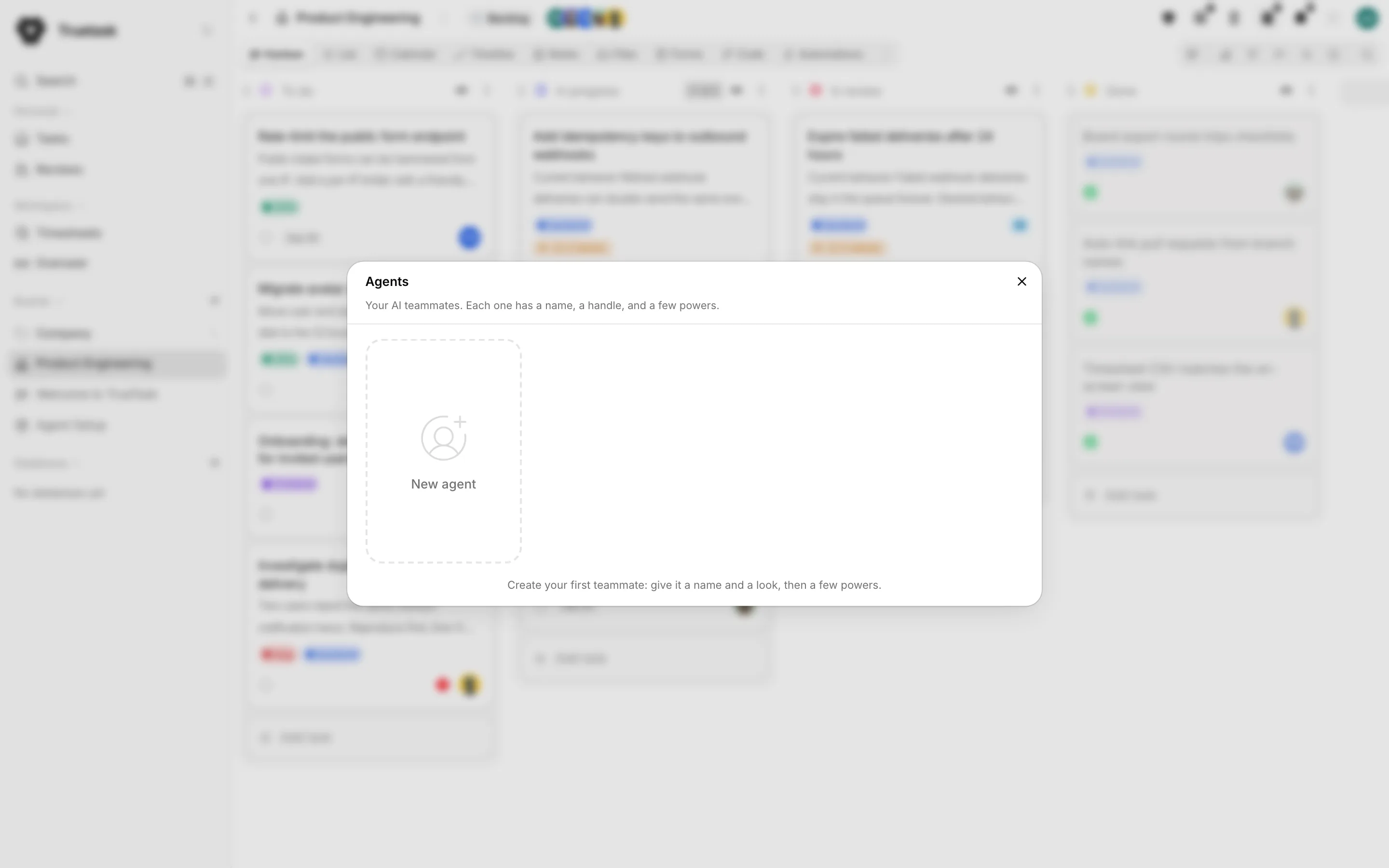
Open the App menu (the grid button before your avatar) and choose Agents, then New agent.
Identity
Name is what people see, for example Nova. Username is the handle the agent wears across the workspace. The handle follows the name until you edit it: spaces become hyphens, so "Nova QA" becomes nova-qa.
Handles use lowercase letters, numbers and hyphens, start with a letter or a number, and are between 2 and 30 characters. If the handle is taken the form says so before you can save.
Pick a look offers a set of ready-made avatars, and Upload takes your own image. You can also set a colour, which is what an agent without an avatar wears.
When you create an agent while viewing a board you administer, the form offers Add to board. Leave it on and the agent joins that board as an Editor so you can assign it a task straight away. Turn it off and the agent has no board access until you add it yourself through Share, then Add member.
Powers
A power is how the agent actually does work. Open its profile and tap a power tile to switch it on.
External access
This is the power that lets the tools you already use act as this agent.
- Tap External access. The Connect your AI tool panel opens.
- Pick the tool under Which tool runs this agent?
- Use Copy setup & paste in, followed by the tool's name, to copy a prompt the tool executes itself: it writes its own MCP configuration, adds the instructions line and verifies with a real call. Set up manually shows the raw configuration block instead.
- Paste it into the tool.
The panel then shows Waiting for its first call. Send any message from your tool and it flips to Connected. From there, Connect another tool adds a second credential, and Disconnect revokes the credential that tool uses, so it stops acting as this agent until you connect again.
Truetask Cloud only
On Truetask Cloud, connecting your own AI tool needs a plan with API access. The panel says so instead of minting a credential. See Plans and billing.
The credential is an API token that acts as the agent, not as you. The full picture, endpoints, scopes and per-client instructions, is on MCP: connect any AI tool.
Local access
Local access runs the agent's chats through a coding tool on your own computer, using your own subscription. The profile walks four steps.
- Get the Truetask desktop app. It runs Claude Code or Codex right next to Truetask. Download the app, or open it if you already have it on that computer.
- Connect the tool. Open the connect window and sign in with your own account. Truetask never sees your credentials, and the sign-in opens in its own small window.
- Link the agent with your local account. Link now sends one quick test message that links the agent to that tool on this computer. It then reads Linked.
- Once linked, the profile reads Working on your computer and tells you to pick the agent in any chat to use that machine.
Each tool on the computer reports its own state: Available, Sign-in needed, Installed or Not found. Switch account and Unlink from your computers are on the same panel. Unlinking keeps the agent working in Truetask, it just cannot use your computers until you link it again.
Runs while you are away
Under Runs while you are away the profile lists what this computer needs so a routine can start here with nobody at the keyboard.
| Check | What it wants |
|---|---|
| Desktop app | The desktop app is running and the coding tool is signed in. |
| Launch at login | Turn on Launch Truetask at login in the desktop app settings. |
| Tray | Turn on Keep running in the tray so closing the window keeps Truetask running. |
| Stay awake | Turn on Keep the computer awake so the machine does not sleep mid-run. |
| Folder | Map a folder for this board on this computer, or autonomous runs fall back to Accept edits. |
| Workflow policy | The board's workflow decides whether an unattended run waits for approval, accepts file edits, or runs autonomously. |
See Desktop agents for the permission modes and the working folder, and Agent workflows for the policy that sets them.
Auto-start
Auto-start hands the agent's work to an endpoint you run.
- Tap Auto-start and fill in Webhook URL, the address Truetask should call. It saves as you type; clearing it switches the power off.
- Pick a Signing secret. New then Generate creates a random value, copies it for you, and stores it encrypted. Nobody, including you, can read it back afterwards. Only workspace owners and admins can create signing secrets.
- Under Events, narrow which nudges this URL receives. The kickoff and the test call are always sent.
- Press Send a test call. That is a real
agent_run.wake_testcall, signed exactly like the live ones.
The panel then keeps a Last call line with the status and how long ago it was. A 401 comes back with a hint that the runner rejected the signature, so check that both sides hold the same secret.
Rotate without a gap
Replacing a secret in place breaks calls until your runner has the new value. Instead: create a new secret and add it to your runner, then switch this agent to the new secret and delete the old one.
The wake payloads, the acknowledgement contract and a reference implementation are on Runners and auto-start.
Guardrails
Has permission to is a row of five switches: Complete, Archive, Delete, Merge PRs and Read the web. They are hard limits on the account. A blocked call fails and the agent hands the action to a human rather than retrying.
Switching Complete off is the safest default for a delegated coding agent. It then has to finish with a done proposal that you approve or return.
Editing, pausing and deleting
Everything on the profile saves with Save agent. Right-click an agent tile for Powers, Pause or Activate, and Delete agent.
Pause turns the agent off. It will not answer or pick up work until you switch it back on from its profile.
Delete agent is permanent. It deletes the agent and revokes all its tokens, removes it from every board, deletes its runs, and hands anything it created back to you.
Admins can step in
Workspace owners and admins can disable or delete any agent from Settings > Members & Teams > Agents, without opening each board.