

Appearance
Connect a repository
Truetask mirrors a repository's pull requests, issues and commits next to the work they belong to. This page covers connecting a provider, linking a repository to a board, and the workspace settings that go with it.
What you get
Once a repository is linked to a board:
- The board gets a Code view listing the repository's pull requests and issues.
- Tasks get a Code tab for branches, issues and pull requests.
- Pull requests can be reviewed inside Truetask, with a cross-board Reviews page.
- Every task can launch your coding tool with the repository, branch and task loaded.
Providers
| Provider | Instances |
|---|---|
| GitHub | github.com or GitHub Enterprise |
| GitLab | gitlab.com or a self-managed GitLab |
| Gitea | your own Gitea instance (the server URL is required) |
Connecting a provider and linking a repository are workspace jobs: you need the site role OWNER or ADMIN. An admin can link a board they are not a member of, because linking only wires the repository to it. See Roles and permissions.
Open the wizard
The whole setup lives in one dialog, Connect a repository, with two phases: Connect and Link. Its subtitle says what it does: "Your app, your control".
You can open it from three places:
| Where | How |
|---|---|
| Settings | Settings > Integrations > Git Provider, then Connect a provider |
| A board | Open the board's Code view before any repository is linked, and follow the two setup steps |
| The board page menu | The dots next to the board title, then Board setup > Link a repository |
You can also open the App menu (the grid button before your avatar) and choose Integrations, where the GitHub, GitLab and Gitea entries hand over to the same connect panel.
Step 1: connect the provider
Choose a provider, then choose how to connect.
OAuth is the recommended method. You register an OAuth app on your own provider account, so the credentials and tokens stay yours and Truetask never sees your client secret. Token pastes a personal access token instead.
Register the OAuth app
The wizard shows the exact values to enter on the provider's new-app form, each with a one-line reason. Every provider names the fields differently, and the wizard mirrors their wording.
| Value | What to enter |
|---|---|
| Authorization callback URL, or Redirect URI | The callback the wizard shows, copied exactly. It is <your workspace URL>/v1/git/oauth/<provider>/callback. |
| Homepage URL (GitHub) | Your workspace's address. |
| Enable Device Flow (GitHub), Device authorization grant (GitLab) | Leave off. Truetask uses standard browser sign-in. |
| Confidential (GitLab), Confidential Client (Gitea) | On. It keeps the client secret server-side, which this flow requires. |
| Scopes (GitLab only) | The recommended scopes the wizard lists. GitHub and Gitea have no scopes field on the form: they ask for the scopes at sign-in instead. |
The scopes Truetask requests are repo read:org read:user on GitHub, api read_user on GitLab, and read:user write:repository write:issue on Gitea.
Then paste the app's client ID and client secret and authorize Truetask on the provider. The provider sends you back to Truetask and the wizard resumes on the link step.
Or paste a token
If you pick Token, paste a scoped personal access token. It is stored encrypted and is never shown to other users.
| Provider | Required token permissions |
|---|---|
| GitHub | A classic token with repo and admin:repo_hook, or a fine-grained token with read/write on Contents, Pull requests, Issues and Webhooks. |
| GitLab | A personal access token with the api scope (read/write). The account needs the Maintainer role to register the project webhook. |
| Gitea | A token with read and write on Repository and Issue, which covers code, pull requests and webhooks. |
Step 2: link a repository to a board
Pick a repository and the board to mirror it to. You can also create a board from the linker with Create board and link it in the same step.
One repository belongs to one board. If the repository is already linked elsewhere, Truetask tells you to unlink it there first.
Before you confirm, the linker offers a set of Recommended automations for this board and repository. Tick the ones you want and they are installed with the link.
| Automation | What it does |
|---|---|
| PR opened | Moves linked tasks to In progress when a pull request opens. |
| Changes requested | Moves linked tasks back to In progress when a review requests changes. |
| CI failed | Comments on linked tasks when a commit or pull request status fails. |
| Issue opened | Creates a task when a git issue opens. |
| Issue reopened | Moves linked tasks back to Open when a git issue reopens. |
They are ordinary automations afterwards, and you can install, disable, reset or delete them later from the repository settings in the Code view. See Automations for how they are built.
Linking also pulls the repository's open issues and pull requests right away, so the Code view is populated without a manual sync.
Your own git account
The workspace connection is shared. Sign in with your own provider account so the reviews, comments, issues and pull requests you make from Truetask post as you on the provider.
Open the avatar menu and choose {Provider} account, then Sign in with {Provider} or Use a token. A green check on that row means you are signed in. This is your personal sign-in, separate from the repositories an admin links to boards.
The first time you make a git write-back without a personal account, Truetask asks once: Act as yourself? You can connect your account, or choose Continue as workspace, which is remembered for that connection on all your devices. Disconnecting your account makes the question come back once.
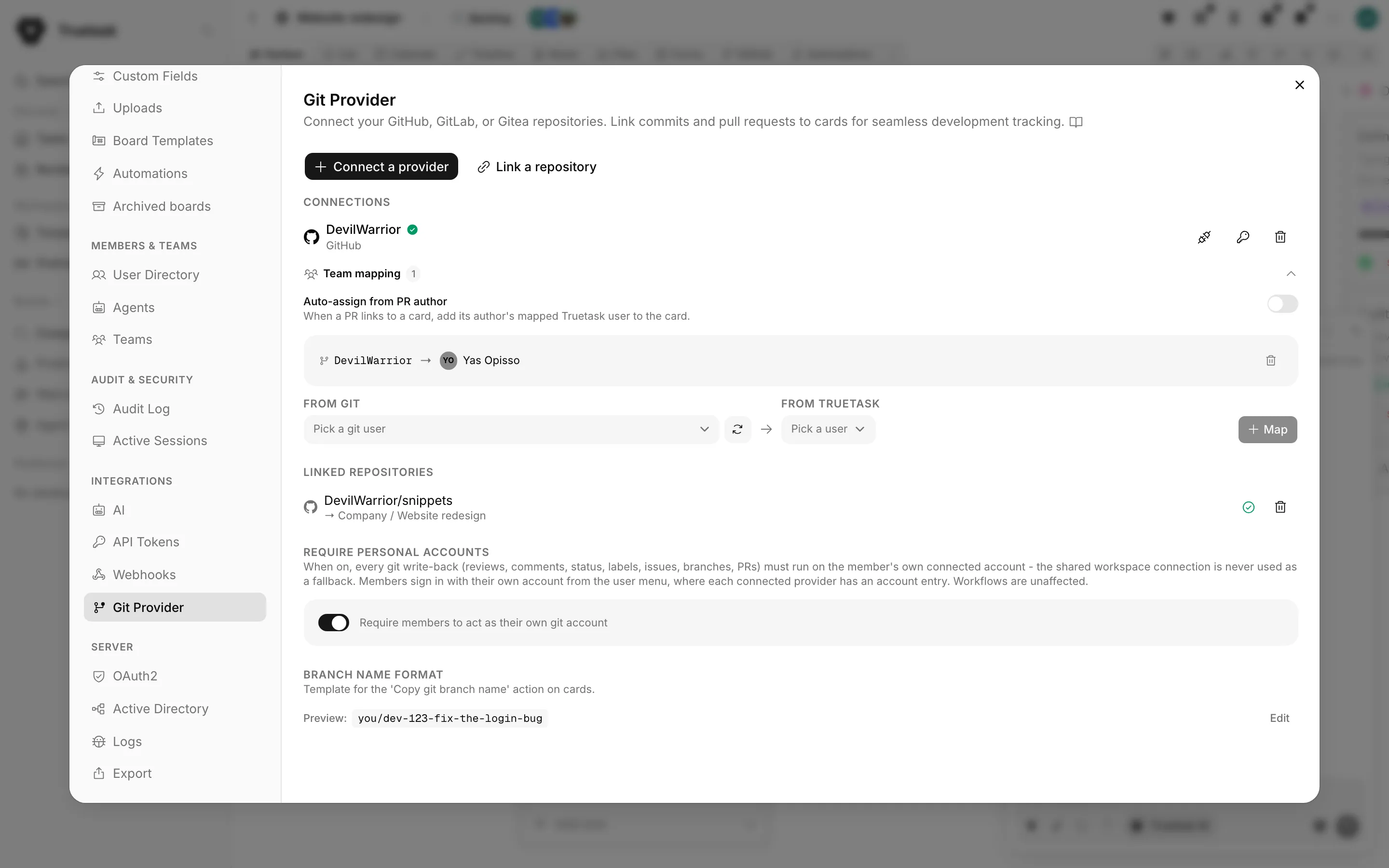
Admins can make personal accounts mandatory. In Settings > Integrations > Git Provider, turn on Require members to act as their own git account. Every git write-back then has to run on the member's own account, with no fallback to the shared connection. Automations and workflows are unaffected.
Team mapping
Under each connection, Team mapping links git identities to Truetask users. Truetask suggests matches from the git activity it has already seen, so the common case is one click plus confirm. You can map From Git (pick an unmapped git user, then a Truetask user) or From Truetask (pick a user, then type their git username).
Mapping is what makes git authors render as teammates, and what fills the Reviews page.
Auto-assign from PR author is a per-connection switch: when a pull request links to a task, its author's mapped Truetask user is added to the task.
Branch name format
Branch name format sets the template behind the Copy git branch name action on tasks and the Create branch action on the Code tab. The setting rests as a live preview; click Edit to change it.
| Placeholder | Becomes |
|---|---|
{user} | your username, slugified |
{key} | the task key, lowercased |
{number} | the task number |
{prefix} | the board key prefix, lowercased |
{title} | the task title, slugified |
The default is {user}/{key}-{title}, which produces something like yopisso/dev-123-fix-the-login-bug. Click a placeholder to insert it at the cursor.
Webhooks from your provider
Truetask registers the inbound webhook on the provider automatically when you link a repository. Live pull request, issue, review, comment and CI events then arrive as they happen.
The linked repositories list shows Webhook active or Webhook not registered per repository. Status, the callback URL, Test delivery and Re-register live in the repository settings inside the Code view.
A repository without a working webhook is not stranded. Truetask falls back to polling the repositories that have no inbound hook, on a run that fires every 15 minutes with per-repository backoff.
Self-hosted only
Registration needs a public URL the provider can reach, which is the PUBLIC_URL you set when you configured the stack. Without one the status reads "No public URL is set for this instance". See Install.
Slack and Teams notifications
Each linked repository can post its events to a team channel. The setting lives in the repository settings panel in the Code view, and covers 15 events: PR opened, PR merged, PR closed, Review requested, PR approved, Changes requested, Issue opened, Issue closed, Issue reopened, CI failed, CI passed, CI started, Commit pushed, PR comment and Issue comment.
Keeping a connection healthy
Each connection row in Settings > Integrations > Git Provider carries three actions.
| Action | What it does |
|---|---|
| Test connection | Re-pings the provider with the stored credential and updates the row's health. |
| Re-enter token | Swaps the token in place. Unlike disconnecting and reconnecting, this keeps the repositories linked to boards. |
| Disconnect | Removes the connection. Its linked repositories are unlinked and git activity stops syncing. |
If the git host's IP address changes, Truetask re-validates the connection by itself and comes back online. When that fails the connection is blocked and the toast offers Renew token, which opens the re-token panel on the right row.
Turn the Code surfaces off
Code & reviews in the Features dialog hides the Reviews page in the sidebar and the Code tab on tasks. Board Code views stay.