

Appearance
Palette
The palette is the desktop app's fastest surface. One shortcut anywhere in the operating system and you can find a task or add one, without leaving what you were doing.
Press Alt+Space, or Option+Space on macOS. The shortcut is configurable; see Settings and links.
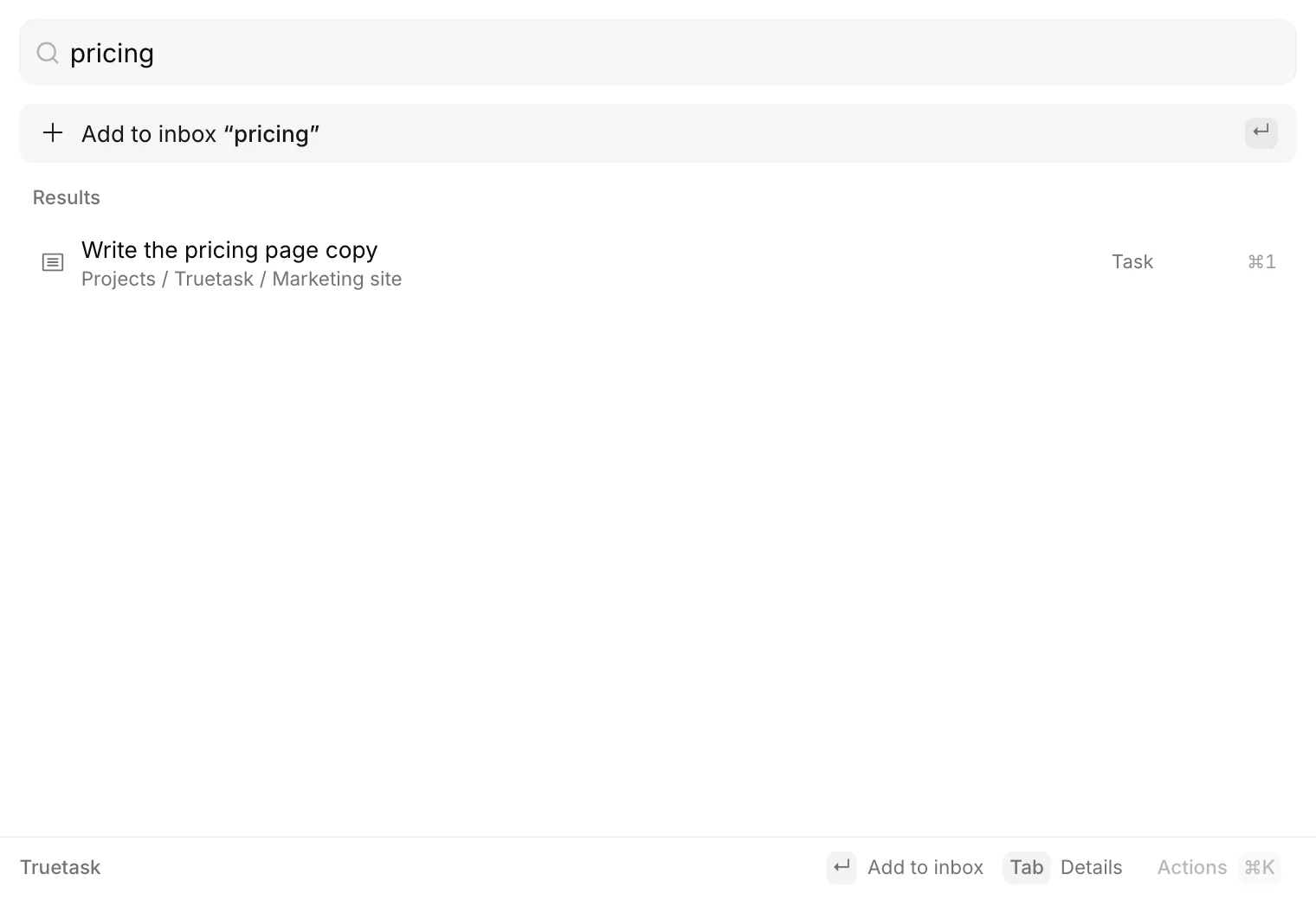
It only opens when you are signed in. If there is no session yet, the app opens the main window and tells you to sign in first, because capture uses your workspace session.
Search
Type to search across tasks, boards and notes. Results carry their kind and a crumb saying where they live, and are ranked with the ones you actually use first.
With an empty query the palette shows your Starred items, then your Recent picks. Star a result from its row, or from the actions menu, to pin it there.
| Key | Does |
|---|---|
| Up / Down | Move through results |
| Enter | Open the selected result in the Truetask window |
| Cmd/Ctrl+1 to 9, 0 | Open a numbered row directly |
| Cmd/Ctrl+K | Open the actions menu for the selected row |
| Cmd/Ctrl+Shift+C | Copy the selected row's link |
| Esc | Clear the query, then clear attachments, then hide the palette |
The actions menu offers Open, Star or Unstar, Copy link and Copy title.
Capture a task
The top row of the results is always Add to inbox, carrying whatever you typed. Press Enter and the task is in your inbox in one step, with no board to pick.
For more than a title, press Tab or Cmd/Ctrl+N to open the composer with your text as the title. It has a title, a details box, and a destination.
The destination starts as Inbox. Choose board (or Tab again) swaps it for a board and list picker, and the tray icon next to them goes back to the inbox. Boards you mark as favorites sort to the top of the picker.
Enter creates the task, except inside the details box where it makes a newline. Cmd/Ctrl+Enter always creates. Esc goes back to search.
After a capture, a green line confirms it with an Open button that jumps to the new task in the Truetask window.
Attach context
The palette collects context as chips, and everything you attach rides along with the next capture.
| What | How |
|---|---|
| A link | Paste a URL. It becomes a link chip rather than a line of text. |
| A file | Paste it, or drop it onto the palette. It is uploaded to the task after the task exists, and images show a thumbnail. |
| A folder | Drop it. Its path becomes a "From:" line in the task's details. |
| Multi-line text | Paste it outside the details box. The first line becomes the title and the rest the details. |
Each chip has a remove button, and everything clears once the task is created.
How it behaves per platform
On macOS the palette is a non-activating panel, the way Spotlight is. Summoning it never steals focus from the app in front, it joins all Spaces, and it shows over full-screen apps.
On Windows and Linux there is no equivalent primitive, so the palette is a focused always-on-top window over all workspaces, which is the launcher idiom there.
Either way the window floats free of any frame: you can move it by an empty area, resize it from its visible edge, and its position and size are remembered.
Opening it from elsewhere
The tray menu has Quick Capture, labelled with your current shortcut.
A truetask://capture link also opens the palette prefilled. It accepts a title, a description, a board and a URL. See Settings and links.