

Appearance
Search and command palette
Truetask has one global search and one per-board search. The global one is the command palette: a "go anywhere" door that also runs commands. The per-board one filters whatever view you are looking at.
Opening the command palette
Press Cmd/Ctrl+K anywhere, or click Search, the first row of the sidebar, above the nav sections. That row carries the shortcut as a chip so you only need to find it once. Pressing the shortcut again closes the palette.
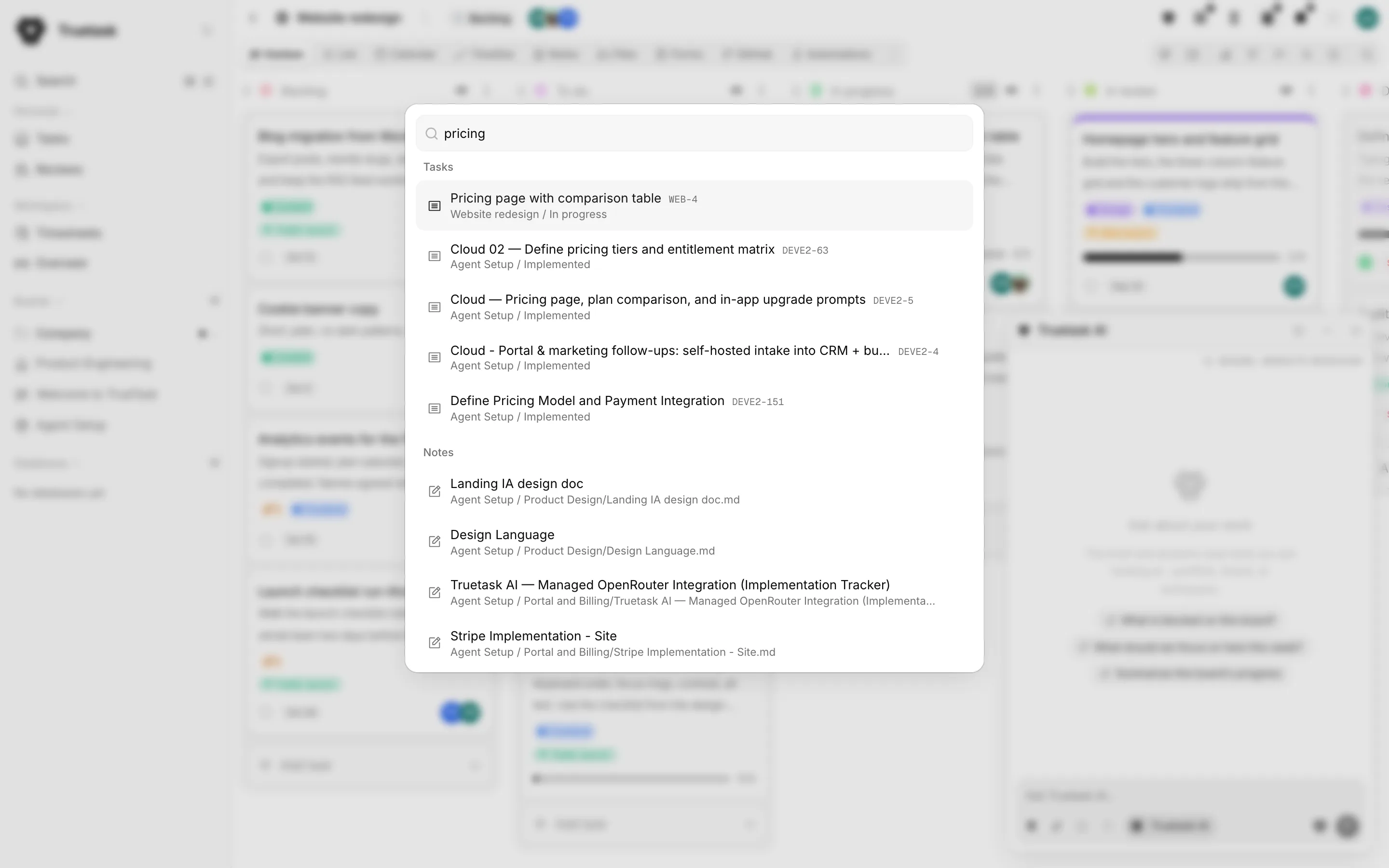
The binding is remappable in Customize interface, and it belongs to the app rather than the sidebar, so a hidden sidebar never disables it.
What you get before you type
The palette opens with the things you reach most, grouped:
| Group | What is in it |
|---|---|
| Navigation | Tasks, Timelogs, Timesheets and Overseer, filtered to the ones your role and plan actually allow. |
| Favorite Notes | The notes you starred, across every board you belong to. |
| Favorites | The tasks you starred, with the board each one is on. |
| Boards | Every board you are a member of. |
| Databases | Every database you are a member of, listed separately. |
| Run automation | On an open board: its active automations that can be run on demand. |
| Automations | On an open board: open the Automations view, or browse the automation templates. |
| Integrations | Create API token, Add webhook, and AI & integrations. Only the ones your role can reach. |
| Actions | Open Settings, Learn about Truetask, Toggle theme, Toggle Sidebar. |
Everything the palette lists is scoped to boards you are a member of. It never shows you something you could not open by hand.
What it searches
Type two characters or more and Truetask runs a search alongside the lists above.
- Tasks by title. Archived tasks are excluded, and so are other people's drafts.
- Notes by title, by body text and by path.
- Boards and Databases by name, matched as you type.
- Settings sections by name. These appear only while you are searching. Typing "settings" lists every section you can reach.
- Automations on the open board by name, including event-triggered ones, which jump straight to that automation in the builder.
- Learn entries, which open the matching lesson or guided tour.
Up to ten task results and ten note results come back, most recently updated first.
Search by task key
Type a task key such as DEVE-412 and that exact task is resolved and pinned above the title matches. The key is the board's prefix plus the task's number, and it is what you see on the task itself.
Quick capture
The palette is for finding and jumping, not for writing things down. To capture something on the spot, use the Inbox: press I and it opens beside whatever page you are on with the composer already focused.
Board quick search
Every board view has its own search in the toolbar. Click the magnifier, or press / anywhere on the board page.
The field names the view it looks in, so it reads "Search in Kanban..." or "Search in Automations...". It filters the current view rather than searching the workspace, and Esc clears it and closes it again.
On the Notes view the same control becomes find-in-note: Enter steps to the next match and Shift+Enter steps back.
For narrowing a board by field rather than by text, see Filters and search.
Searching from outside the app
The REST API exposes the same search across collections at GET /v1/search. Pass q for the query and types to choose which collections to search. Tasks, boards, comments and notes are searched by default, and tags and checklists can be added. Add board to scope the search to one board you are a member of, and per_page to widen each group up to fifty results. A task-key query works there too.
See REST API for authentication and MCP for the equivalent agent tool.