

Appearance
Kanban
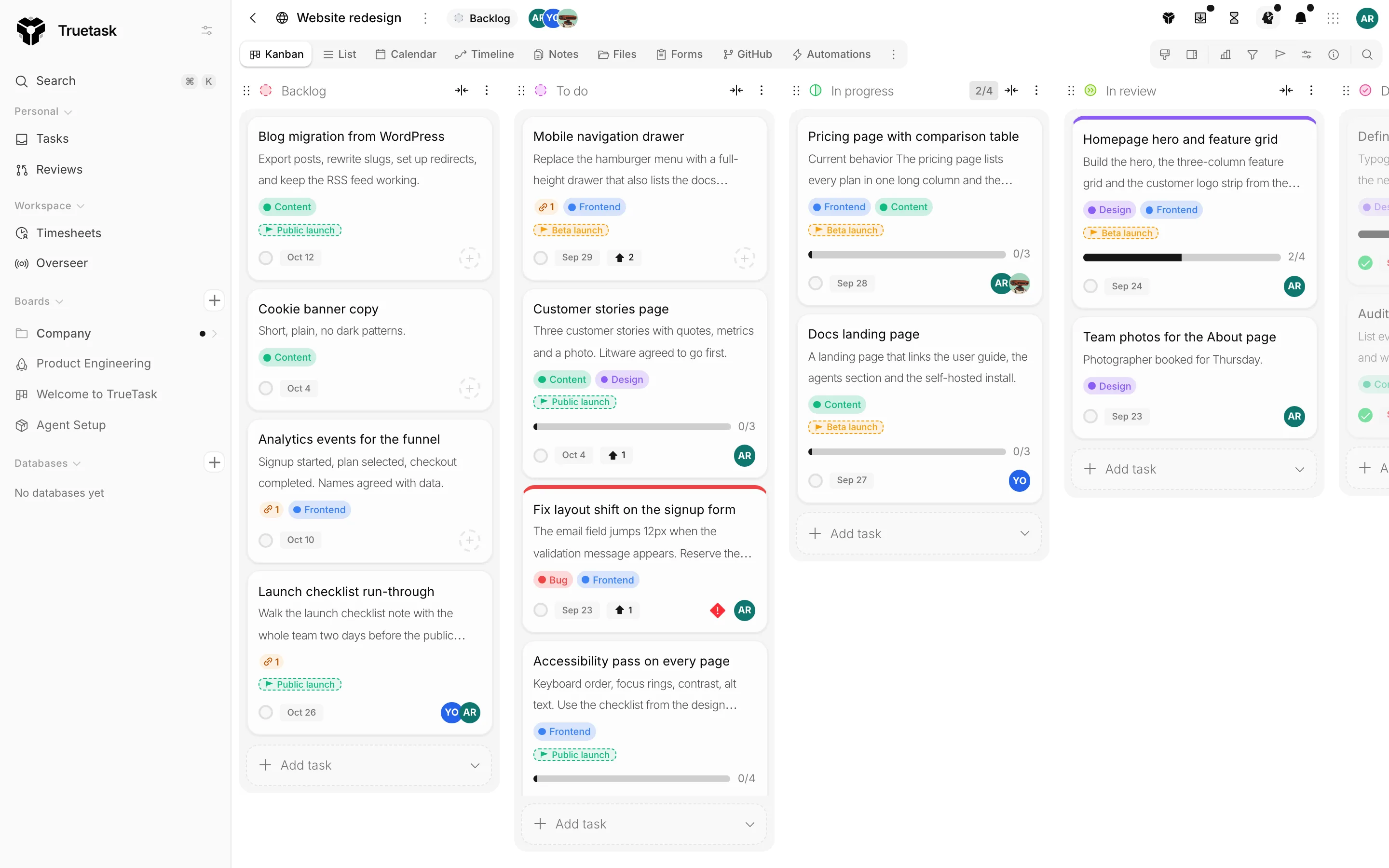
Kanban shows the board's lists as columns and its tasks as tiles you drag from one column to the next. This page covers the column, the task face, and the controls around both.
Columns
Each list is a column. A column header carries, in order: a drag grip, the flow state glyph painted in the list's colour, the list name, the work in progress badges, a collapse button and the list menu. While a filter is hiding tasks, a badge shows how many of the column's tasks are visible out of the total.
Board admins get the grip, the colour and the name: drag the grip to reorder the board, click the glyph to recolour the list, and click the name to rename it in place. Everyone else sees the same header without those controls.
Click the collapse button to fold a column down to a narrow strip. Collapsing is per person, so folding a column does not fold it for anyone else.
Add List at the right end of the board creates a new column. Drag a task to move it within a column or across to another.
The list menu
| Item | What it does |
|---|---|
| Sort | Manual order, or Due date, Priority, Assignee and Votes, each with Ascending and Descending. |
| Automate list | Opens the automations builder with this list in hand. Board admins. |
| Board flow | Opens the Board flow dialog. Board admins. |
| Delete | Deletes the list. Board admins. |
A sort other than Manual order puts a dot on the menu button so you can tell at a glance that the column is not in hand order. Sorting is a display order for you: only manual order is the stored order that everyone shares.
Deleting a list that still has tasks asks what to do with them first: move them to another list, archive them, or delete them permanently. Votes only appears as a sort when the board has voting switched on.
The flow state of a list (Idle, In Progress, Review, Done or Cancelled) is set in the Board flow dialog, not in this menu. See Board flow and WIP limits.
Adding a task
Click Add task at the bottom of a column, type a title and press Enter.
Press / in the composer to pick a task template or one of the board's in-app forms, when the board has either. The composer's placeholder tells you which are available, and a caret button next to Add task opens the same menu with the mouse.
A Draft toggle sits at the right edge of the field. Draft tasks are only visible to you until you publish them.
When AI is on for the workspace, typing at least three characters brings up title suggestions under the field. Pick one to replace what you typed.
The task face
What a task shows on the board is up to you. Open Kanban style in the board tools tray.
Style applies a curated look to the whole board: Dense, Comfy, Airy or Vast. You can save your own arrangement as a named style and reuse it on other boards.
Fine-tune opens the individual switches, under Card Elements.
| Setting | What it shows |
|---|---|
| Show done marker | The completion checkbox on each task. Click it to mark a task as done. |
| Cover color | The coloured strip at the top of a task when a cover colour is set. |
| Priority | The critical priority indicator (a warning diamond) on tasks at the highest priority level. |
| Tags | Tag labels on each task. Remove labels replaces the text with small coloured dots to save space. |
| Members | Assigned member avatars at the bottom of each task. |
| Due date | The due date badge. Overdue dates appear in red. |
| Milestone | The milestone a task is working toward, as a marker on the task face. |
| Checklists | The checklist progress bar on tasks that have checklist items. |
| Description | A preview of the task description, one to five lines. |
| Show card aging | Dims tasks that have not been updated in a while so stale work is easy to spot. Completed lists are never dimmed. |
Card Style below it sets the spacing inside a task, the corner roundness, the list width and the gap between lists.
Some chips appear on their own and are not switchable: a cover image, the dependency chip on a blocked or blocking task, the pipeline chip, the agent chip, and the live progress bar on a task an agent is working. A vote count appears when the board has voting on and the task has votes.
Work in progress
When the board sets a WIP limit, the column header carries a count badge. It turns amber at the limit and red over it. A second badge with a person glyph shows your own count against the per-person limit.
On a Block board, dropping a task into a full In Progress column is refused and a toast says who is at their limit. On a Warn board the badge changes colour and nothing is stopped.
If the board has Require an assignee on, dragging an unassigned task into In Progress opens the owner gate first: Assign an owner, with you pre-selected and every board member listed with their own count. Pick yourself or a teammate and the task moves with that owner set. With the option off, whoever moved the task is assigned automatically.
See Board flow and WIP limits for both settings.
Selecting and acting on tasks
Shift, Cmd or Ctrl click selects tasks instead of opening them. Shift extends the selection from the last task you clicked. With a selection made, a bar appears with the bulk actions: complete, mark incomplete, move, archive and delete. See Bulk actions.
Right-click a task for its own menu. See Tasks.
A plain click opens the task. Where it opens (floating, centered or in the side panel) is set per view under Preferences > Task open mode. See Views.
Agent work on the board
A task an agent is working carries a progress bar on its face. Hold Shift and hover it to peek at the run: the workflow name, the agent, and the steps with their status, fetched only when you actually hold the key. See Delegating work.
The Unlinked rail
When the board has a git repository linked, a toggle in the board tools tray opens the Unlinked rail beside the board: git issues and pull requests from your repository that are not linked to a task yet. Drag one onto a list to make it a task, or right-click to triage it. See Branches, issues and pull requests.
Related
- Board flow and WIP limits for lanes, caps and the owner gate
- Filters and search for narrowing what the columns show
- List for the same tasks as a table
- Tasks for what opens when you click one