

Appearance
Automation builder
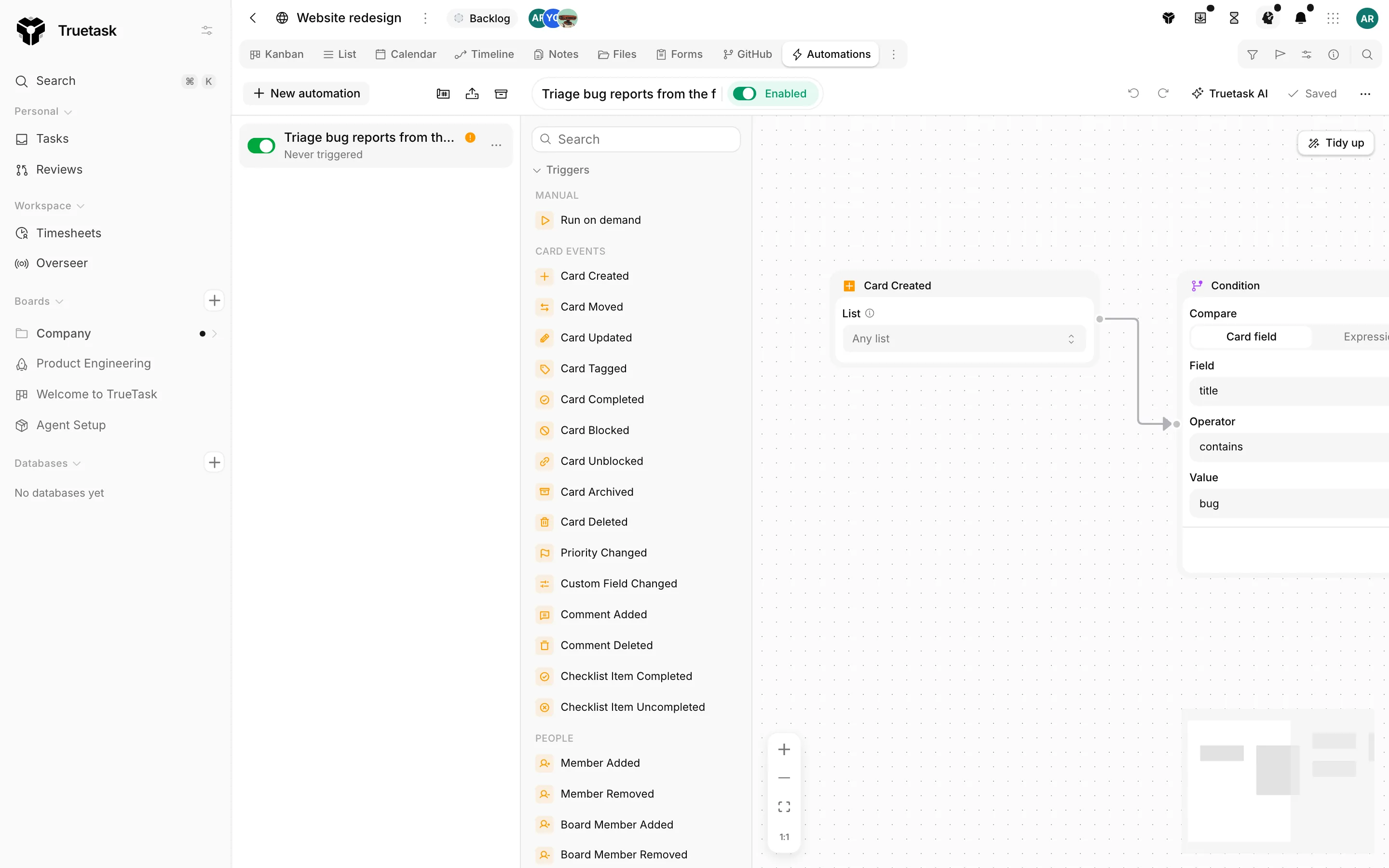
The builder is the board's Automations view: a list of the board's automations on the left, the node palette next to it, and the canvas filling the rest. It saves itself as you work, so the only explicit act is switching the automation on.
The list
The rail on the left is every automation on this board. Each row has a switch, the automation's name, and a status line: Paused, Never triggered, or a run count with how long ago the last one was. An amber warning circle on a row means the graph has an error that would keep it from running. Click a row to open it on the canvas.
New automation creates an untitled automation right away and opens it with the name field focused. Three icon buttons sit at the right of the rail header: the templates gallery, Import, and Archived.
The kebab on a row (and its right-click menu) offers:
| Action | What it does |
|---|---|
| Open | Loads the automation on the canvas |
| Enable / Disable | Flips the switch, with the same validation as the switch itself |
| Duplicate | A copy on this board |
| Clone to Board | A copy on another board, paused |
| Export | Downloads the automation as JSON |
| Archive | Takes it out of the list and stops it running |
| Delete | Removes it and its run history for good |
Rename happens on the canvas, not in the rail: the automation's name is the editable field in the builder toolbar.
Truetask Cloud only
When your plan caps active automations, the rail footer shows the count against the cap and New automation is disabled once you are at it.
Adding nodes
The palette groups every node into Triggers, Actions, Logic, AI, Tools and Organization, with subgroups inside each. Search at the top of the palette filters across all of them. Sections collapse, and a node your workspace cannot use is shown locked with a reason, never hidden.
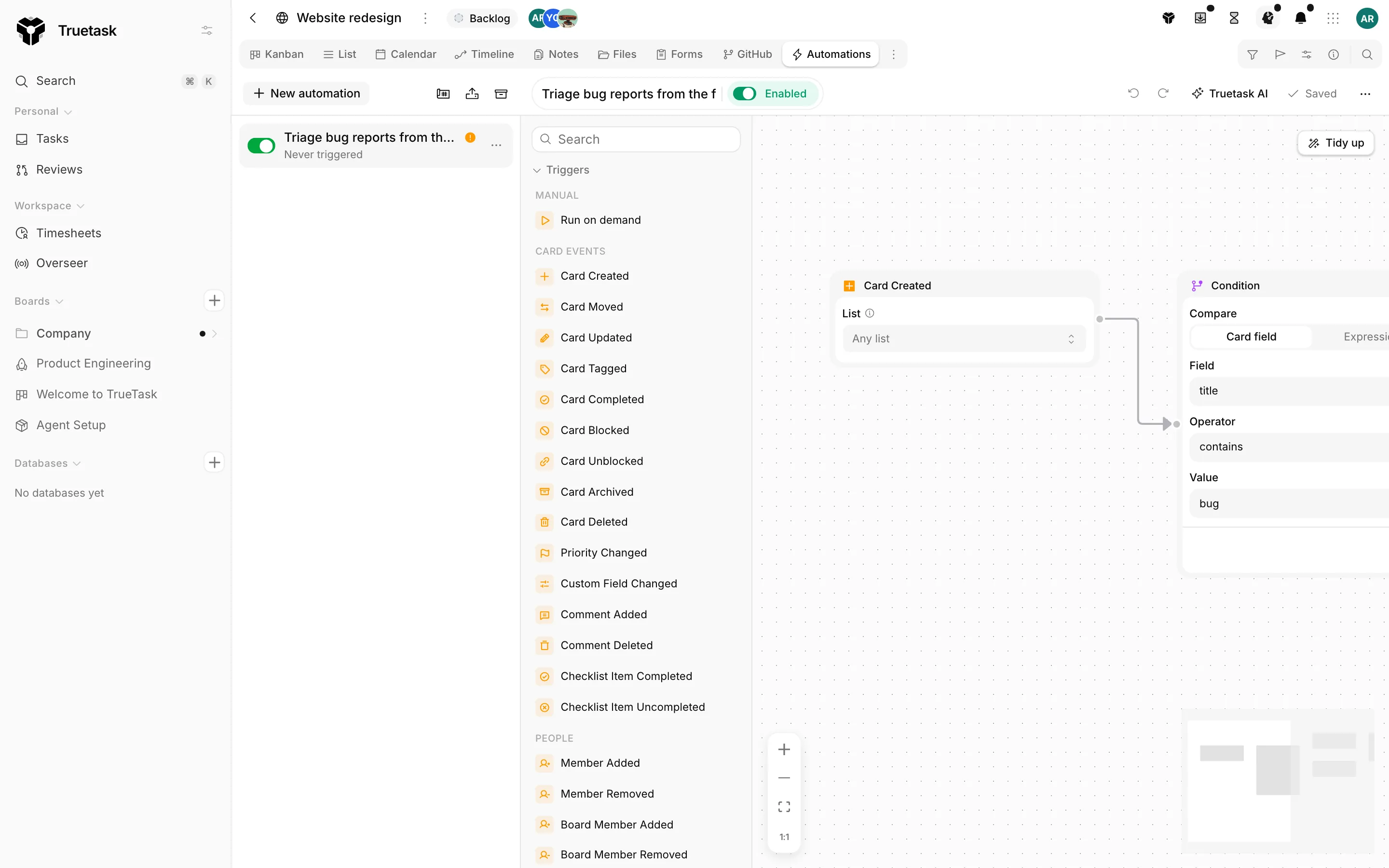
There are three ways to place a node.
- Click it in the palette.
- Hold Shift over the canvas to open the quick-add menu right where you are pointing.
- Drop a node onto an existing edge: the quick-add menu opens and the new node is spliced into that connection.
Right-clicking the canvas offers Add node, Sticky note, Tidy up and Download as image. Right-clicking a node offers Duplicate and Delete.
An automation holds exactly one trigger. The palette says so when you try to add a second.
Configuring a node
Selecting a node opens the config panel on the right. Its header shows the node's category (Trigger, Action, Logic or AI) and the node's name, and the panel's left edge drags to resize it between roughly 240 and 640 pixels. The width is remembered per device.
Every node except Sticky note and Group has a Node name field at the top. That name is how other nodes address this one in placeholders, for example {http.<name>.body} or {parsed.<name>.<variable>}. Names are lowercase snake_case, and spaces and hyphens become underscores as you type. Two nodes cannot share a name.
Text fields that accept placeholders carry a picker button. It lists the task, board, actor, clock, trigger-specific and custom-field tokens, plus a group for each upstream node that produces output (an HTTP Request, a Parse JSON, a Read Note). See Placeholders.
A Delete button sits at the bottom of the panel. Cmd/Ctrl+Z undoes canvas changes and Cmd/Ctrl+Shift+Z redoes them.
Saving and enabling
There is no Save button. The canvas writes itself to the server a moment after every change, and the toolbar shows Saving then Saved. If a write fails it says Not saved and offers Retry. Leaving the view lands the current state first, so nothing is lost.
Enabled is the switch in the toolbar, and it is where the graph is checked. If the check finds anything, an Automation issues dialog lists it. A warning offers Enable anyway; an error does not, because an automation that cannot fire must not be switched on.
These are the checks:
| Issue | Type | Meaning |
|---|---|---|
| No trigger node | Error | Nothing tells the automation when to run |
| No custom field selected | Error | A Custom Field Changed or Board Field Changed trigger has no field picked |
| Required configuration missing | Error | A node is missing a field it cannot run without, for example Move Card with no list or Add Comment with no message |
| A node can trigger itself | Error, cannot be bypassed | The graph listens to an event it also causes, so it would loop forever |
| No action nodes | Warning | The trigger fires but nothing happens |
| Nodes not connected | Warning | One or more nodes hang off the graph |
The self-triggering check is the strict one. Writing a comment on every comment, creating a task on every task created, updating the same field a Custom Field Changed trigger watches, or setting the board status the board-status trigger listens for are all blocked outright.
If the automation reaches outside Truetask or destroys data, enabling asks once more before it goes live.
Organizing the canvas
Group frames a set of nodes under a label and a colour tint. Sticky note leaves a note for whoever opens the automation next. Neither one runs.
Tidy up, at the top right of the canvas, re-lays the graph left to right. Press 0 over the canvas to reset the zoom to 100%. More in the builder toolbar offers Export and Download as image.
Building with AI
The toolbar has a Truetask AI button. While the builder is open the assistant switches context to this automation: describe what you want in plain language and it designs a graph. Suggested openers are on offer, such as "When a card is blocked, notify its members".
The result arrives as a plan with any warnings and open questions, and an Apply to canvas button. Nothing is saved until you apply it, and nothing is enabled until you flip the switch. You can also ask for a change to the automation already on the canvas, and the assistant starts from it.
AI needs to be available for the workspace. See AI settings.
Starter automations
A new board can arrive with one automation already installed: Hydrate new cards. It fires on every task created on the board and fills in a description and tags from the title in a single AI call.
Workspace owners control this under Settings > Integrations > AI, in the Features section, with Install starter AI automations on new boards. The new-board wizard also lets you turn it off for that board. Once installed it is an ordinary automation: edit it, pause it or delete it from the Automations view.