

Appearance
Building a form
The settings pane on the left of the Forms view edits the selected form; the preview on the right redraws as you type. Nothing is written until you press Save.
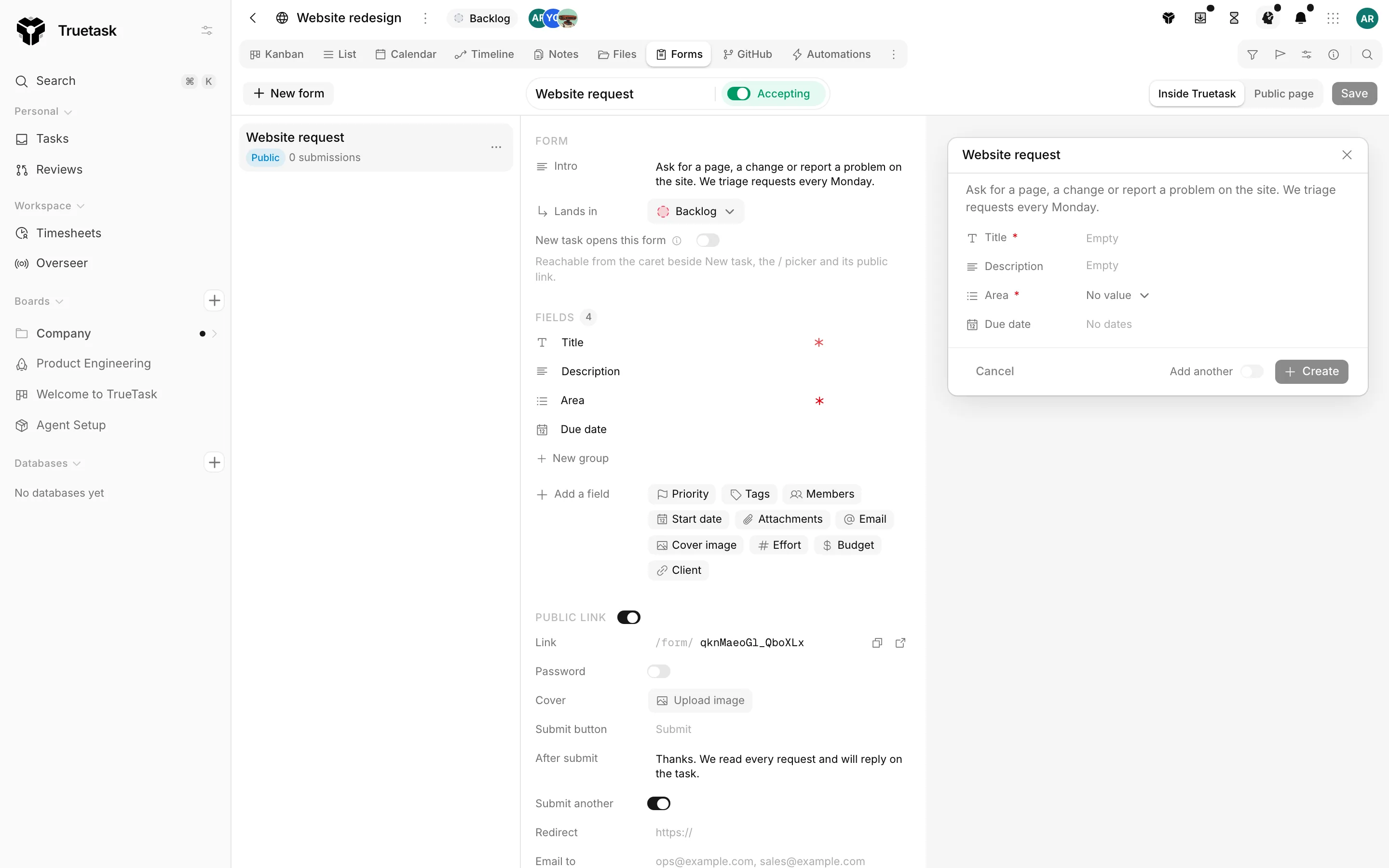
Form
| Setting | What it does |
|---|---|
| Intro | Text shown above the fields. Plain text or Markdown |
| Lands in | The list submissions become tasks in, unless the form was opened from another list |
| New task opens this form | Makes this the form behind the board's add button |
On a database the Lands in row is gone (records have no lists) and the switch reads New record opens this form.
Only one form per board can be the default. Turning it on here turns it off on any other form of the board.
Under the section, one line says where this form is reachable from right now: the add button or its caret, the / picker, its public link, and the relation pickers of any board that links here. A paused form says so instead.
Fields
Every form asks for a title, and a title is always required. A description row is optional: remove it and add it back from the field palette.
On a task board you can also add a Cover image; on a database you can add a Picture. Those rows sit above the title, because that is where the app draws them.
Adding fields
Add a field shows a chip per available field. Click a chip to append it, or drag it straight into a group.
The built-in fields are Priority, Tags, Members, Start date, End / due date, Attachments and Email, plus the picture row for the board's kind. Databases leave out Priority, Start date, End / due date and Cover image, since records do not use them.
Any of the board's custom fields can go on a form except the computed ones: Created on, Updated on, Rollup and Formula. A relation field qualifies only when it points at one specific database of tasks.
See Custom fields for the field types themselves.
Row controls
Hover a field row and four controls appear on the right.
| Control | What it does |
|---|---|
| Required | The submitter cannot file without it. A ticked checkbox counts as required only when it is actually ticked |
| Folded behind Show more | Moves the row behind the surface's one "Show more fields" row |
| Field options | Expands the row's settings |
| Remove field | Takes the row off the form |
Drag the handle on the left of a row to reorder it, or to move it into another group.
Field options
| Option | What it does |
|---|---|
| Public label | What the public page calls this field. Inside Truetask it keeps its own name. Only shown when the public link is on |
| Help text | A line under the label |
| Show when | Shows the row only when another field's value matches |
A Show when condition names another field on the form and one of five tests: is, is not, contains, is filled and is empty. The first three take a value to compare against.
Conditional rows are evaluated in the browser and again on the server, so a hidden row is never required and never written.
Groups
New group adds a named section. Name it, drag fields into it, reorder groups with Move up and Move down, and delete one when you are done with it. Fields that are in no group render first, in the unnamed section at the top. A form can carry up to 20 groups.
Relation intake
A relation row asks the submitter for a record on another database, and there are two ways to do that.
| Intake | What the submitter sees |
|---|---|
| Match by text | A plain text box. The server links the matching record and reveals nothing |
| Pick from list | A searchable list of the database's records |
Match by text is the default, and it is the safe one. Pick from list publishes the titles of those records to anyone with the link, and the builder warns you about that on the row.
With match mode you also choose Match by: the record's title, or any text-like field of that database (text, long text, number, email, phone or URL). Auto-create adds a record to the target database when nothing matches, instead of leaving the link empty.
Public link
The whole section has a switch. Turn it off and the form exists only inside Truetask.
| Setting | What it does |
|---|---|
| Link | The address under /form/. 8 to 32 characters, letters, numbers, _ and -. Leave it blank to generate one |
| Password | One shared password. Submitters enter it once and the form remembers them for 30 minutes |
| Cover | A banner across the top of the form page. PNG, JPG, WebP or GIF, up to 5 MB, cropped to a wide banner |
| Submit button | The button's text. Defaults to "Submit" |
| After submit | The thank-you message. Leave it blank for "Your submission has been received." |
| Submit another | On by default. Turn it off when each submitter should file only once |
| Redirect | Send submitters to this URL instead of showing the thank-you message |
| Email to | Comma-separated addresses notified on each submission |
Once the form is saved, the link row carries Copy link and Open page buttons.
See Sharing and submissions for what happens on the other side of that link.
Submissions
The last section is read-only. It shows the form's views, its submissions and the conversion between them, then the ten most recent tasks the form created. Click one to open it.
Saving
Save refuses the form until three things hold.
- The title is not empty.
- A list is picked for submissions to land in.
- A password is set, if the password toggle is on.
Preview both audiences
The toolbar's Inside Truetask and Public page tabs draw the same form in its two framings. The public preview is the exact chrome the public page uses, so what you see is what a submitter gets.