

Appearance
Board templates
A template is a whole board shape: its lists and their flow states, its fields, its forms, its automations and more. This page covers the built-in gallery, the AI describe flow, and saving your own.
The gallery
Open the App menu and choose New board (Alt+B). The Start step is the gallery.
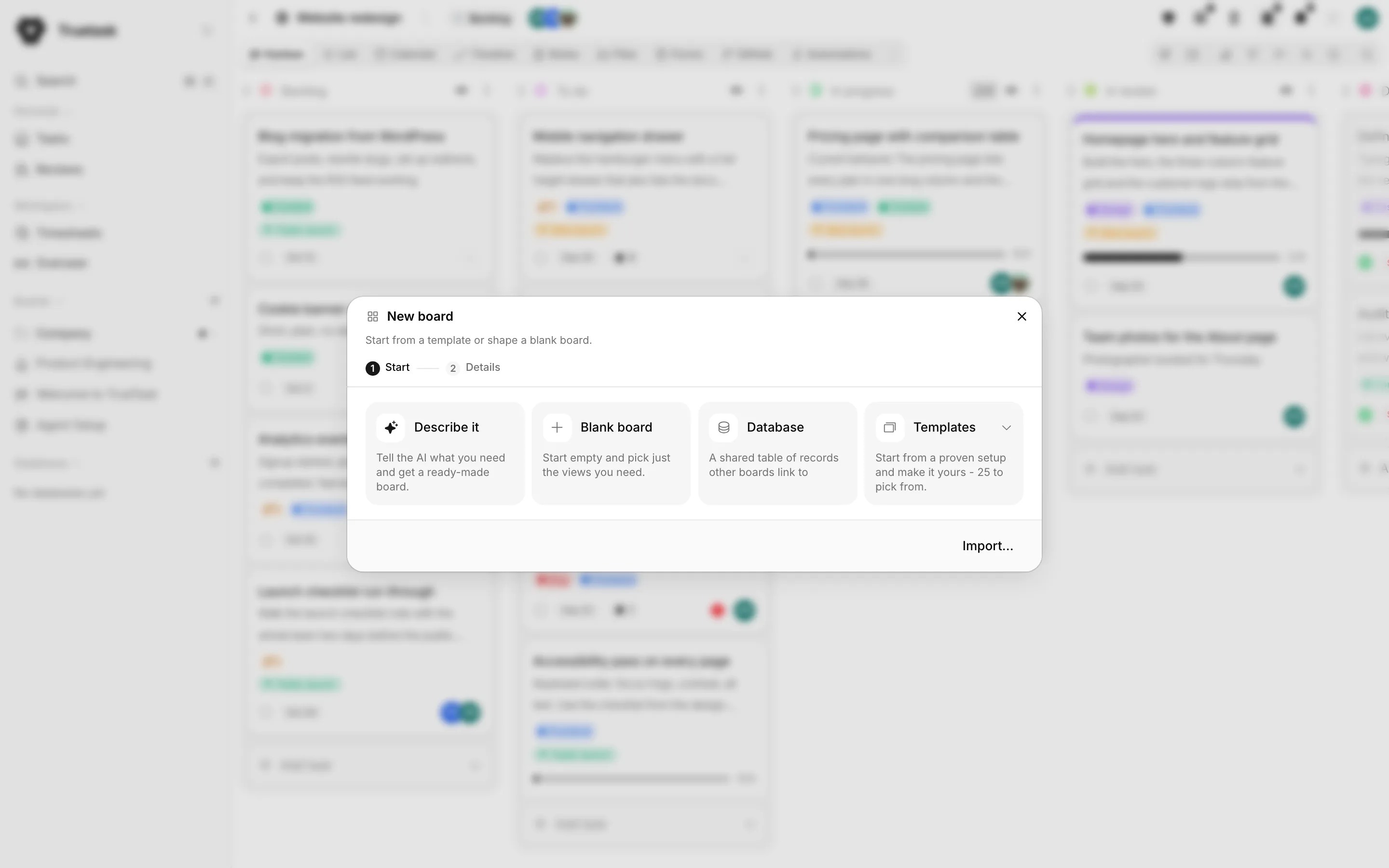
It has three sections.
| Section | What it holds |
|---|---|
| By Truetask | The built-in templates. |
| Workspace | Templates shared with the workspace by someone on your team. |
| Yours | Templates you saved and kept private. |
A search field narrows by name, and the category chips filter to Software, Operations, People, Business, Marketing, Databases or Personal. Each tile shows a miniature of the structure it will build.
Built-in templates
Task boards
| Template | What it sets up |
|---|---|
| Software project | Plan, build, and review software work, hands-on or delegated to coding agents with or without git. |
| Bug tracking | File, triage, and fix issues in one place, with a severity field. |
| Sprint board | Scrum delivery: sprint backlog, WIP, review, and a daily standup task. |
| Project plan | Dates, milestones, and dependencies for a single project. |
| Cross-functional launch | One timeline for engineering, design, and marketing workstreams. |
| Goals & OKRs | Objectives with measurable key results, reviewed weekly. |
| New hire onboarding | From day one to month one, as tagged checklists. |
| Content calendar | Plan content by channel and publish date. |
| Marketing campaign | Plan and run a campaign across channels, with budget, goal, and a timeline. |
| Knowledge base | Only the Notes view: docs, wikis, and meeting notes in one calm place. |
| Personal tasks | A personal planner: this week, in focus, done, and a someday backlog. |
Databases
| Template | What it sets up |
|---|---|
| Contacts | People directory with email, phone, company and status. |
| Companies | Account directory with website, industry and size. |
| Customers | Accounts with plan, monthly value, contact email and status. |
| Positions | Open roles with department, hiring manager, headcount and status. |
| Assets | Devices with serial, model, warranty dates, owner and cost. |
| Inventory | Items with SKU, opening quantity, unit cost, location and reorder point. |
| Suppliers | Suppliers with contact details and lead times. |
See Databases.
Bundles
A bundle builds more than one board at once and wires them together with relation fields and rollups.
| Template | What it sets up |
|---|---|
| Sales CRM | A deals pipeline with Contacts and Companies databases wired together. |
| Client work & billing | Deliverables per client over a Companies database, with timers, billable hours and timesheet approvals. |
| Feedback & roadmap | Requests by form, votes, Now / Next / Later, and the customers asking. |
| Support queue | Support intake, triage and resolution with an SLA clock, tied to Customers. |
| Hiring pipeline | Candidates from application to offer, each linked to an open position. |
| IT assets | Equipment requests tied to an Assets database with warranty and cost. |
| Inventory system | Purchase orders over an items ledger, with suppliers and stock movements. |
On the Details step a bundle lets you Create new for each database it needs, or reuse one you already have. Add example records seeds the template's sample rows into the databases you reuse, so the example is complete. If you are not an admin on a database you reuse, its rollup columns are skipped and the wizard says how many template details it had to leave out.
What a template carries
| Carried | Notes |
|---|---|
| Lists | With their flow state and colour. |
| Tags | Name and colour. |
| Custom fields | Including relations, rollups and formulas. |
| Tasks | With their checklists, field values and relation links. |
| Forms | Field specs included. |
| Automations | Materialized switched off; the wizard arms them after the board is created. |
| Agent workflows | With their steps and their task effects. |
| Notes | The board's Markdown vault. |
| Field layout | The task panel's sections and show rules, and the record picture rule. |
| Task templates | The shapes new tasks start from. |
| Milestones | Planning scaffolding, so the timeline and the milestones panel are useful from day one. Built-in templates do not ship any; the describe flow can add them. |
| Board settings | The icon, the voting flag, the default view and the visible views. |
Way of working
Software project asks one more question before the Details step: How does work get done here?
| Mode | What it builds |
|---|---|
| Hands-on | You and your team do the work yourselves. A classic team board, no AI agents. |
| Agents with pull requests | AI coding agents do the tasks for you and send each change back as a pull request for your team to review. Needs a connected code repository (GitHub, GitLab or Gitea). |
| Agents, review on the board | AI coding agents do the tasks on your computer and report back here. You try out the changes locally, then approve or send them back from the board. |
The answer swaps the entire structure, not just a setting.
Describe it
The Describe it tile builds a board from a plain-language brief.
Write what the board should manage: what you track, the stages it moves through, the fields that matter, who submits work and what should happen on its own. Two helpers sit next to the composer. Examples fills the composer with a brief written the way a manager would, and Include adds a sentence for each capability you want: a public form, AI triage, WIP limits, deadlines, a stale nudge, a recurring task, databases, calculated fields, an import, milestones, voting, task templates or an agent teammate.
Add your data attaches spreadsheets, CSV files or documents. Tables become databases with fields named after your columns, and their rows land as records when the board is created. Documents are read as part of your brief.
Generate board produces a Plan: the flow, the fields, the tags, the views and everything else it intends to build, plus any questions it needs answered. Nothing is created yet. Write in the box underneath what to change and the AI rewrites the plan. Continue takes you to the Details step, and the board is only built when you press create.
AI features
The describe flow needs AI to be switched on for the workspace. See Models and providers.
Save your own
Open the page menu on any board and choose Save as Template.
| Option | What it does |
|---|---|
| Template name, Description, Category | How the template shows in the gallery. |
| Include AI context | Copy the AI context settings from the original board. |
| Include cards | Carry up to 50 open tasks and their checklists as skeleton work. |
| Include automations | Copy the board's automations. |
| Include agent workflows | Copy the agent workflows. Step agent assignments do not travel. |
| Save views | Copy the saved board views (grouping, columns, sorting, filters) into the template. |
| Save forms | Copy the board's intake forms. Each gets a fresh link; passwords and counters do not travel. |
| Save task templates | Copy the shapes new tasks start from, with their checklists and fields. |
| Save notes | Copy the board Markdown notes vault into the template. |
| Share with all users | Other workspace members can use this template to create new boards. |
Saved templates appear in the gallery under Workspace or Yours.
Workspace owners and admins manage them all in Settings > General > Board Templates, where each one shows its list, tag and field counts and a Shared or Private badge. From there you can rename a template, share it with everyone or make it private again, and delete it.
Clone instead
To make one more board exactly like this one, Clone from the page menu is quicker than saving a template. See Boards.
Related
- Boards for the rest of the wizard and the page menu
- Databases for what the database templates build
- Automations for the rules a template installs
- Importing for starting from a file instead