

Appearance
Navigation
Truetask has four places you navigate from: the sidebar, the top bar, the App menu and a board's own chrome. This page names every part of them so the rest of the docs can point at things by name.
The sidebar
The sidebar is the left column, and it holds everything global. Press b to open and close it.
From the top:
| Row | What it is |
|---|---|
| Workspace mark and name | Your workspace logo and name. Administrators can replace both. |
| Customize | The sliders button beside the name. It opens the Customize dialog on its Sidebar tab. |
| Search | Global search. Clicking it opens the command palette, and so does Cmd/Ctrl+K. |
| Personal | Tasks, your work from every board. Any work view you pin sits under it as a child row. Reviews joins it once you are on a board with a repository linked and the Code & reviews feature is on. |
| Workspace | Timesheets for owners, admins and leads, and Overseer for owners and admins. |
| Boards | The tree of boards and folders. |
| Databases | The tree of databases and their folders. |
Both trees behave the same way. Drag a board or a folder to move it, right-click for Open, Rename, Change icon, Pin, Clone, Archive and Delete, and use the section heading to add a board, a database or a folder.
Tree order is shared
Reordering boards and folders in the sidebar changes them for everyone in the workspace, not just for you. Truetask warns you the first time.
Hiding rows and collapsing the sidebar
Customize > Sidebar lists the rows above the trees with a switch each, and a handle to drag them into the order you want. The choices follow your account across devices rather than sitting on one computer.
A row you could never reach, because of your role or your plan, is not listed at all. A row you switched off under Features is still listed, greyed out, with a note naming the feature to turn back on.
The same pane decides what happens when you collapse the sidebar:
- Icon rail keeps a narrow strip of icons, with a boards menu and your pinned boards below it. Drag a pinned icon to move it.
- Hidden slides the sidebar fully out of view.
Pinned boards only apply in Icon rail mode, and the pane says so when you are in the other one.
The top bar
The top bar runs across the width of the window on every page. The sidebar toggle sits at the left, the page's own controls fill the middle, and a cluster of buttons sits at the right.
| Button | What it does | Shown when |
|---|---|---|
| Truetask AI | Opens the Truetask AI window. | AI is on for the workspace. |
| Inbox | Opens the inbox beside the page. i does the same. | Always, unless you hide it. |
| Timer | Starts and stops a timer. | Time tracking is available and on. |
| Agents | Opens the Agent Command Center: live runs, questions waiting on you, and work proposed as done. | Always, unless you hide it. |
| Notifications | Opens the notifications panel. | Always. |
| App menu | The grid button. Opens the App menu described below. | Always. |
| Your avatar | Opens the profile menu. | Always. |
Right-click the cluster to hide a button, or to jump to Customize > Toolbar. Notifications and the profile menu always stay. The Timer button comes back on its own while a timer is running, whatever you set. The Inbox can show as an icon on its own or as an icon with its label, and the Agents button can be set to Show when badged so it only appears while something is waiting on you.
Global search is deliberately not here. It is the sidebar's first row and Cmd/Ctrl+K.
The App menu
The App menu is the same on every page. It gathers the things that belong to the workspace and to you rather than to whatever you have open.
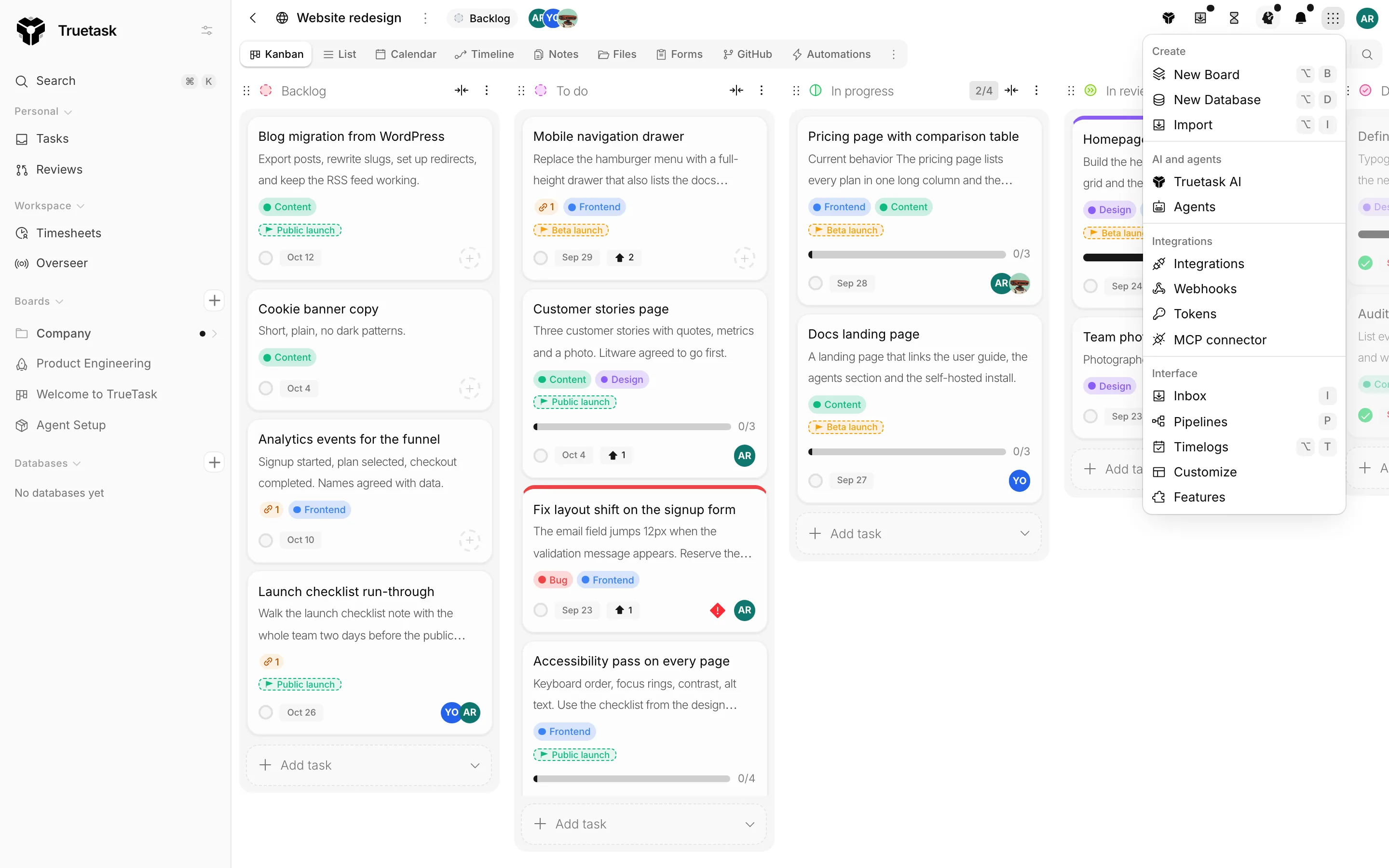
| Section | Item | What it opens | Shortcut |
|---|---|---|---|
| Create | New board | The new board wizard. | Alt+B |
| Create | New database | The same wizard on the Database tile. | Alt+D |
| Create | Import | The Import dialog, with no destination preset. | Alt+I |
| AI and agents | Truetask AI | The Truetask AI window. Only when AI is on. | |
| AI and agents | Agents | The Agents dialog, where you create and configure agents. | |
| Integrations | Integrations | The Integrations dialog. Everyone can look; administrators connect. | |
| Integrations | Webhooks | Outgoing subscriptions and incoming endpoints. Owners and admins only, and it needs the saved-webhooks entitlement. | |
| Integrations | Tokens | Your personal API tokens. | |
| Integrations | MCP connector | The guided setup for connecting an MCP client. | |
| Interface | Inbox | The inbox dock. | i |
| Interface | Pipelines | The pipeline drawer along the bottom of any page. Only when AI is on. | p |
| Interface | Timelogs | The Timelogs week frame. Greyed out with a hint when you have switched Time tracking off. | Alt+T |
| Interface | Customize | What shows in your sidebar and toolbar, which tabs a task frame offers, and your keyboard shortcuts. | |
| Interface | Features | The four feature switches. |
The profile menu
Your avatar opens the profile menu, which keeps your account and your session. It starts with who is signed in, then:
| Item | Notes |
|---|---|
| Profile | Name, username, photo, colour, password, language and start page. |
| Shortcuts | Jumps to the Shortcuts tab of Customize. |
| Prompts | Edits the prompts behind the AI features. Owners and admins, and only when at least one AI model is enabled. Self-hosted |
| Change plan | Opens the Plan settings. Administrators only. Cloud |
| Settings | Workspace settings. Owners, admins and leads. |
| Theme | Light, Dark or System, as three buttons you press without leaving the menu. |
| {Provider} account | One row per git provider the workspace connected, with a green check once you are signed in to it. |
| Code tools | Your defaults for opening tasks and reviews in a coding tool. Appears once a board you are on has a repository. |
| MCP connector | The same wizard as the App menu row. |
| Tokens | Your personal API tokens. |
| Download app | The desktop app. Hidden when you are already inside it. |
| Help | Documentation, the Admin guide for administrators, and the API reference your workspace serves at /v1/docs. |
| Sign out | Ends the session. |
See Profile and account and Administration.
A board page
A board fills the window with its own chrome.
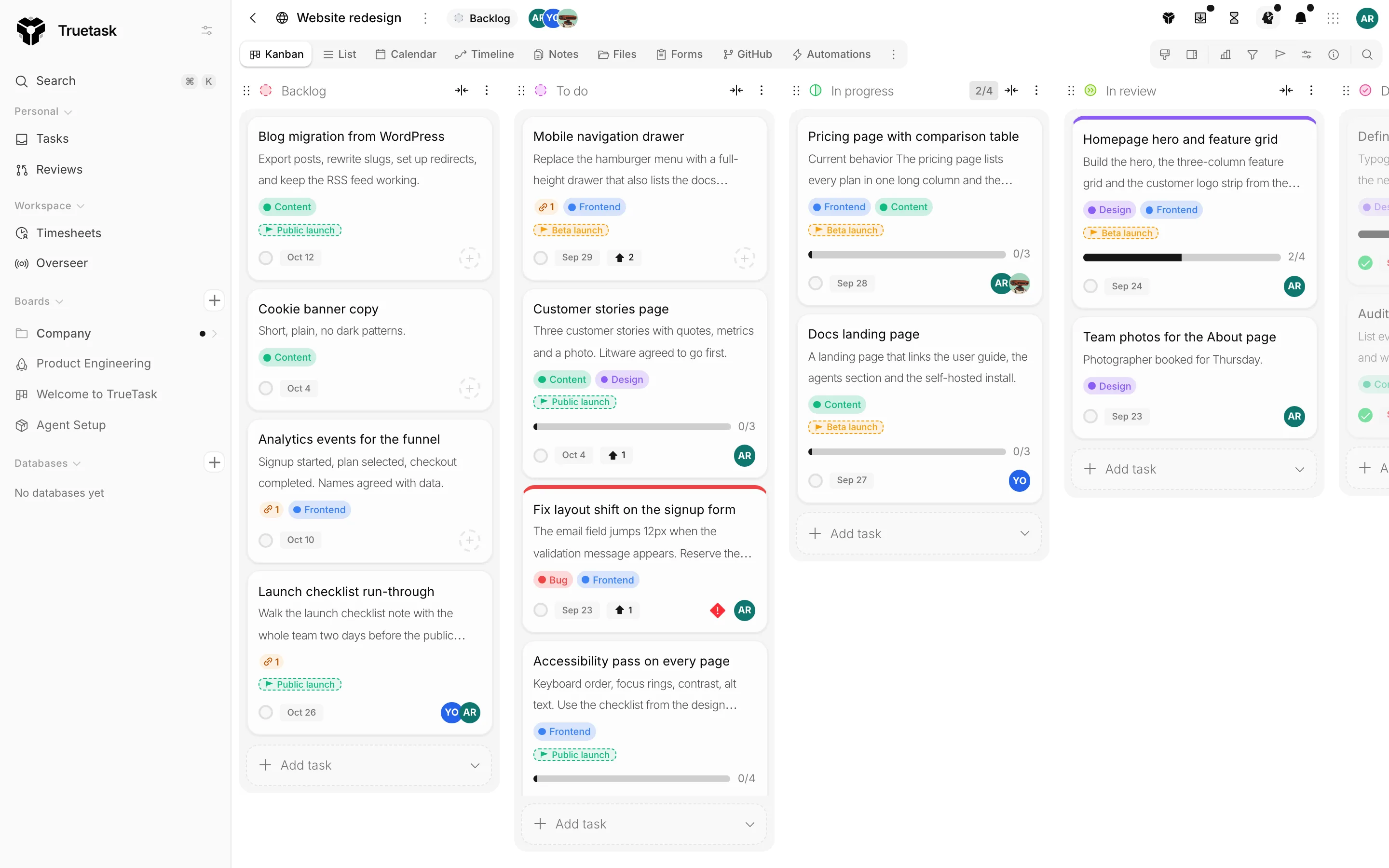
Across the top bar, from the left:
- The board title, which admins rename in place.
- The page menu, the dots after the title.
- The status pill, the board's project status. Board admins change it, everyone else reads it. Databases have none.
- The member stack, which opens the Share dialog.
- Run automation, only when the board has an automation you can run by hand.
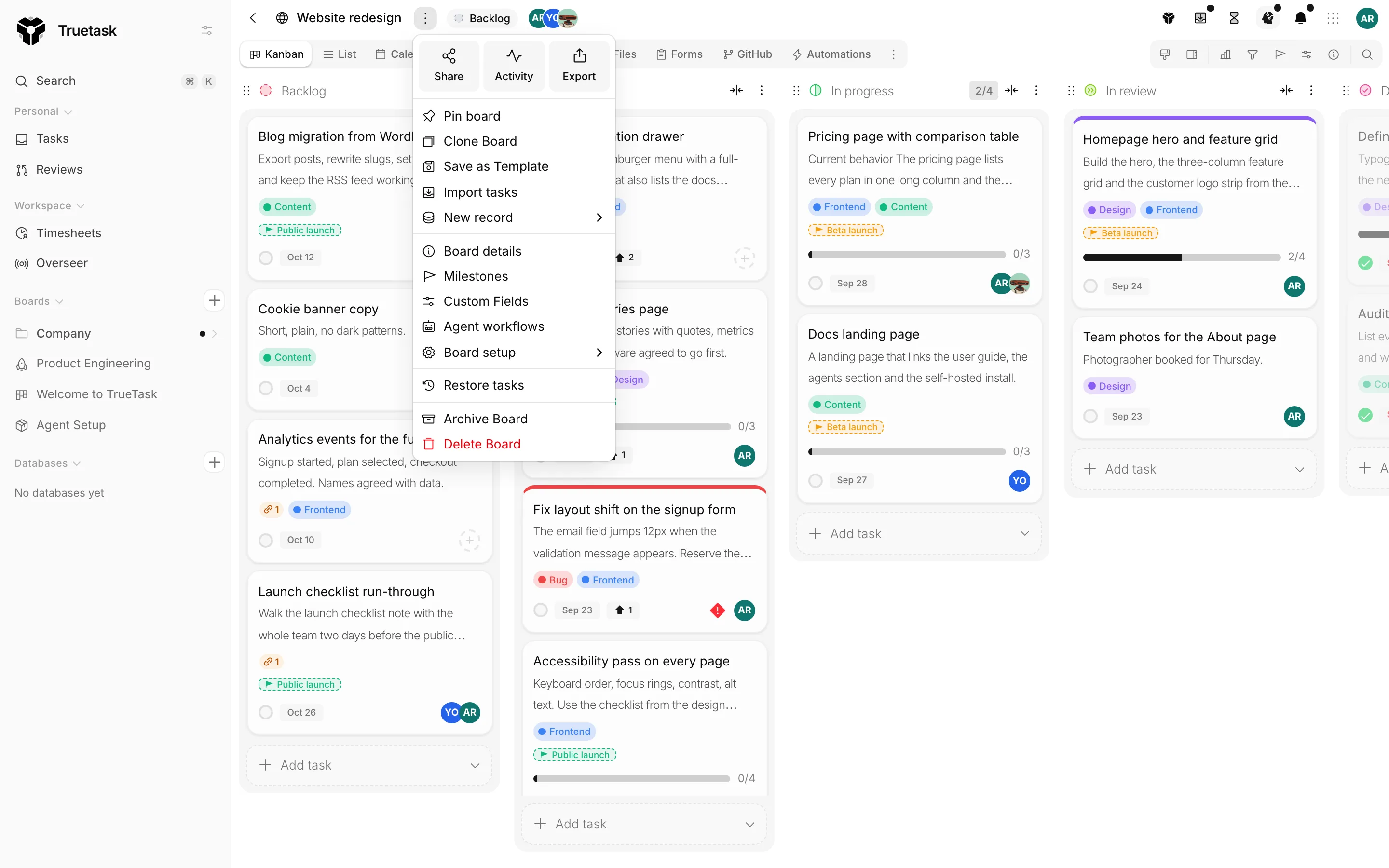
The page menu is where the board is configured. It opens on quick tiles for Share, Activity and Export, then lists Pin board, Clone board, Save as template and Import tasks, then Board details, Milestones, Custom fields and Agent workflows. A Board setup submenu holds Board flow, Voting, Create intake form, Manage webhooks, the repository rows, Agent behavior and Subscribe to digests. Restore tasks, Archive board and Delete board close the list.
Below it sits the view row. On the left, the view tabs, one per view this board offers, with a menu handle at their right end. That handle toggles which tabs you see, carries the current view's own tools, and opens View preferences.... On the right, the view toolbar: the Stats toggle on task views, filters, Milestones, Preferences, Board details, and search.
On the List, Timeline and Files views a status bar runs along the bottom with the counts for what is currently on screen.
Views covers the tabs, and Filters and search covers the toolbar.
Keyboard
These are the defaults.
| Keys | What it does |
|---|---|
| b | Show or hide the sidebar |
| i | Open or close the inbox |
| p | Open or close the pipeline drawer |
| q | On a board, filter to your own tasks, and press again to clear it |
| Alt+B | New board |
| Alt+D | New database |
| Alt+F | New folder |
| Alt+I | Import |
| Alt+T | Timelogs |
| Cmd/Ctrl+K | Command palette |
| Cmd/Ctrl+Shift+, | Settings |
| Cmd/Ctrl+Alt+O | Open the coding tool you used last |
The single-letter shortcuts never fire while you are typing in a field. Every binding in this table except q can be changed in Customize > Shortcuts, and a row you cannot use, because of your role or your plan, is not listed there at all.
See Keyboard shortcuts and Search and command palette.