

Appearance
Customize the interface
Truetask ships with more surfaces than most people need at once. Two dialogs let you put away the parts you do not use: Customize interface for individual pieces of chrome, and Features for whole areas at a time.
Both change how the app looks for you only. Nothing is switched off for anyone else, and nothing stops working behind the scenes: the API, MCP, automations and deep links all keep going.
Customize interface
Open the App menu (the grid button before your avatar) and choose Customize. The dialog has four tabs and no Save button: every pick applies and is stored the moment you make it.
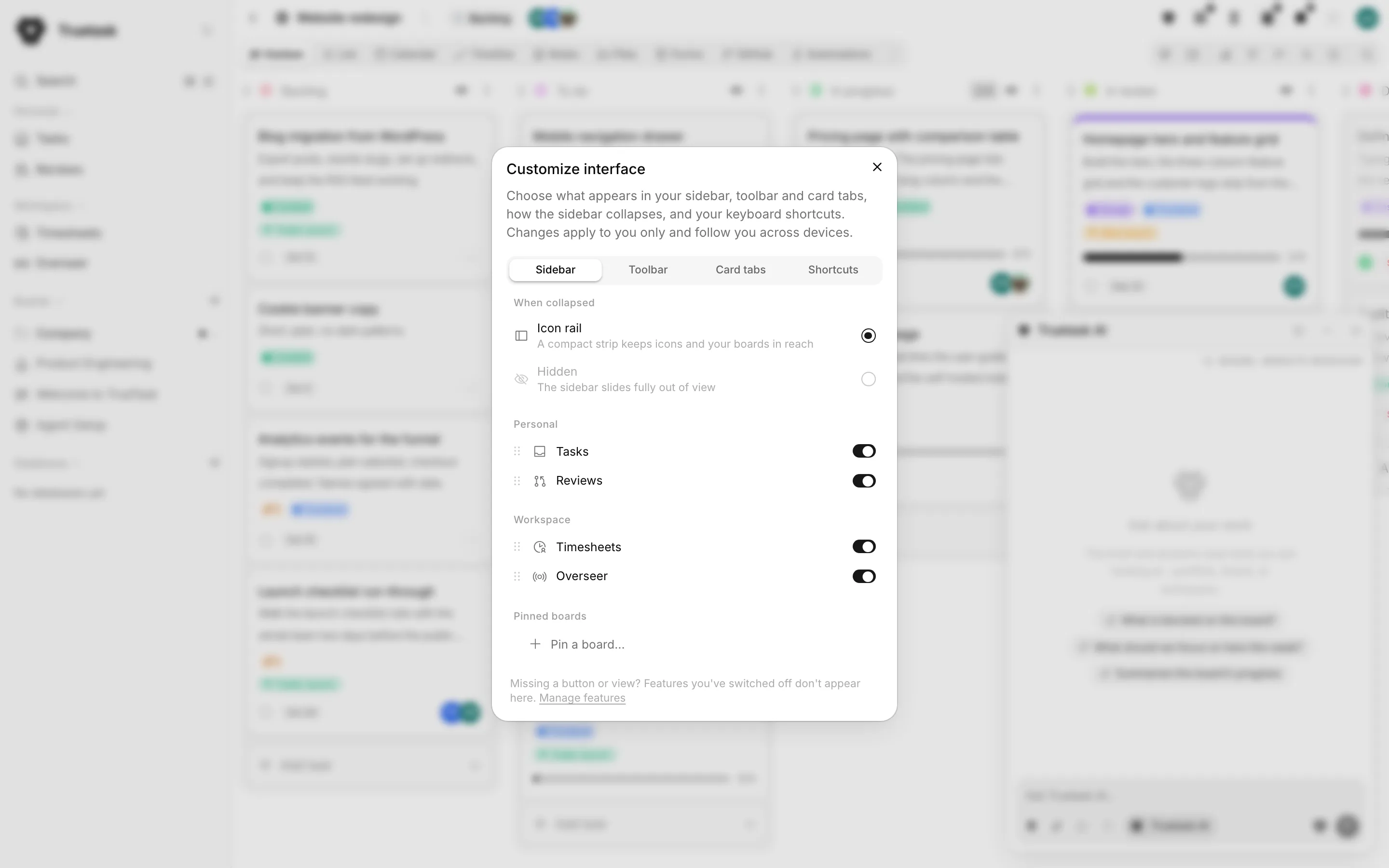
Sidebar
The tab starts with When collapsed, which decides what the sidebar toggle shrinks to:
| Option | What happens |
|---|---|
| Icon rail | A compact strip keeps icons and your boards in reach. |
| Hidden | The sidebar slides fully out of view. |
Below that come the nav sections, Personal and Workspace, with every item you are allowed to see. Each row has a switch and a six-dot handle: the switch is Always show or Don't show, and the handle drags the row into a different position within its section.
Last is Pinned boards. Reorder your pins by dragging, unpin one with the button on its row, or add more with Pin a board..., which stays open so you can pin several in one visit. Pins live in the icon rail, so the whole section goes inert if When collapsed is set to Hidden.
Toolbar
The hideable buttons in the top right: Truetask AI, Inbox, Timer and Agents.
The Inbox is the one that can also carry a text label, so its row is a dropdown with Icon only, Icon and label and Don't show. The Agents button can be set to Show when badged, so it only appears when something is waiting for you.
Two things are deliberately not listed. Notifications and the profile menu always stay visible, and global search is the sidebar's first row rather than a toolbar button. One more behaviour overrides your choice: the Timer button comes back on its own while a timer is running.
Task tabs
This tab is labelled Card tabs in the dialog. It lists the tabs of the task frame you can hide: Chat, Code, Files, Time and Activity. Details is not in the list, because a task always needs somewhere to land.
Hiding a tab is purely cosmetic. The task's data is unchanged, and you can toggle the same tabs from the right-click menu on the tab strip itself.
Shortcuts
The keyboard bindings, one row each. See Keyboard shortcuts for how remapping works.
Features
Open the App menu and choose Features. Each row is a whole area of the product, with a switch.
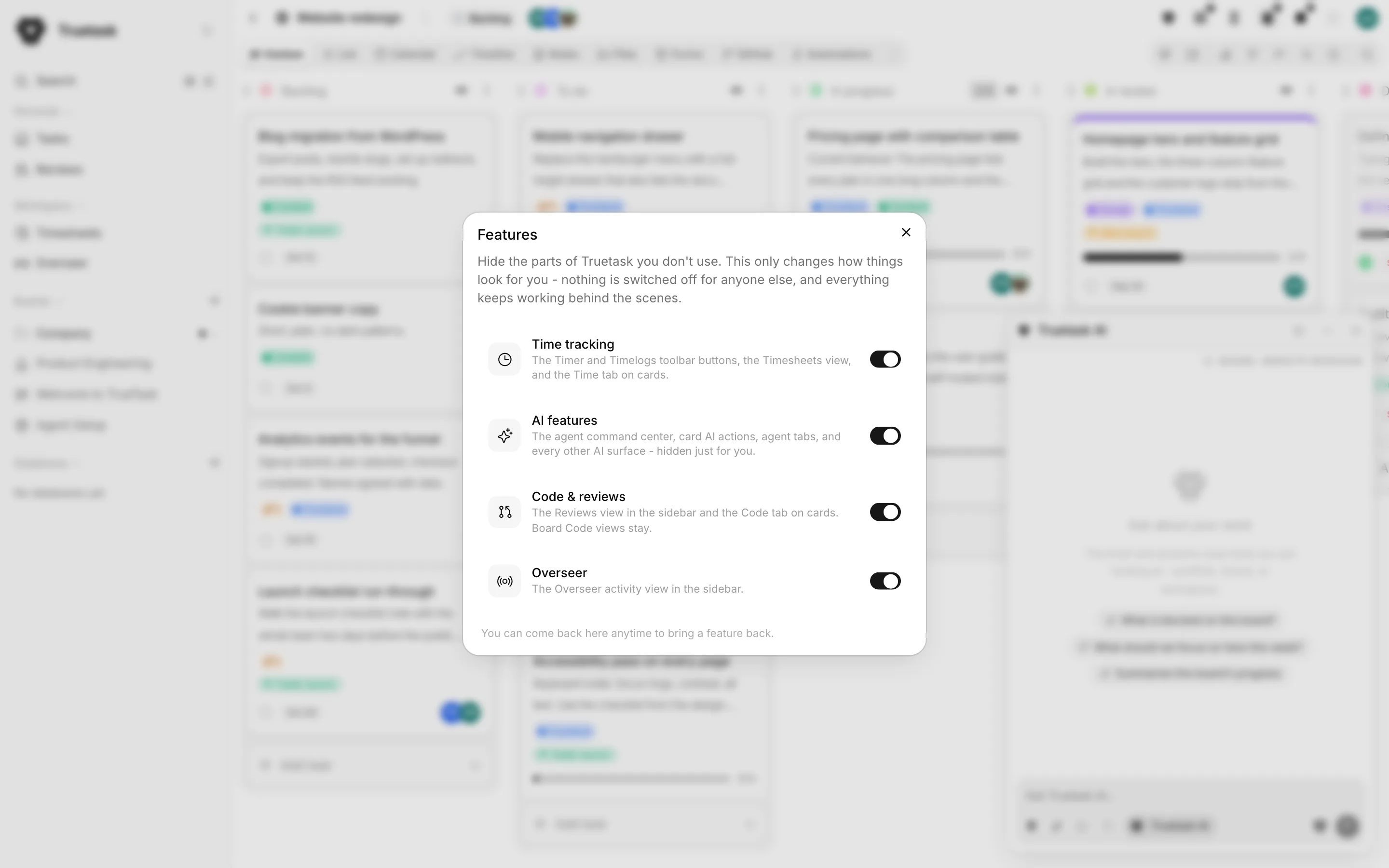
| Feature | What it hides when you switch it off |
|---|---|
| Time tracking | The Timer and Timelogs toolbar buttons, the Timesheets view, and the Time tab on tasks. |
| AI features | The agent command center, task AI actions, agent tabs, and every other AI surface. |
| Code & reviews | The Reviews view in the sidebar and the Code tab on tasks. A board's Code view stays. |
| Overseer | The Overseer activity view in the sidebar. |
A row only appears when the feature exists for you at all. Overseer is owner and admin only, AI needs the workspace AI switch on, and time tracking needs the plan to include it.
Two things happen when you switch a feature off:
- If you are standing on a page that feature owns, Truetask moves you to your startup page so you are not parked on chrome that no longer exists.
- If that page is your startup page, a prompt asks you to pick a replacement first. Cancelling keeps the feature on.
You can come back to this dialog at any time to bring a feature back.
Missing a row in Customize?
Rows owned by a switched-off feature stay listed in Customize interface, greyed out, with a tooltip naming the feature to re-enable. A row that vanished entirely is one your role or plan does not include.
Per board: view preferences
Sidebar, toolbar and tab choices are global to you. Which views a board shows, which one opens by default, and how its tabs are labelled are set per board in its View preferences. See Board views.
Per view: the Tasks page
The Tasks page keeps its own display settings. Grouping, sorting and a Compact density toggle are part of a work view, so they are saved with the view rather than with you.
Where these settings live
Everything in Customize interface and Features is stored on your account, so it follows you to every computer you sign in from. Your personal board view preferences do too.