

Appearance
Filters and search
Filters live on the board, not on a view: narrow the board on Kanban and the same tasks are hidden on List, Calendar and Timeline. This page covers the quick search, the filters dropdown, saved filters and the status bar.
Quick search
The magnifier at the right end of the board tools tray opens a search field. Its placeholder names the view you are on, so it is clear where it looks.
A query matches a task's title or its key, so typing SALE-5 jumps straight to that task. Search is case-insensitive and matches anywhere in the text.
On the Notes view the same button opens find-in-note instead, with match counts and next and previous arrows. For searching across the whole workspace, use the command palette. See Search and command palette.
The filters dropdown
The funnel button next to it opens the filters. It carries a dot while any filter is active.
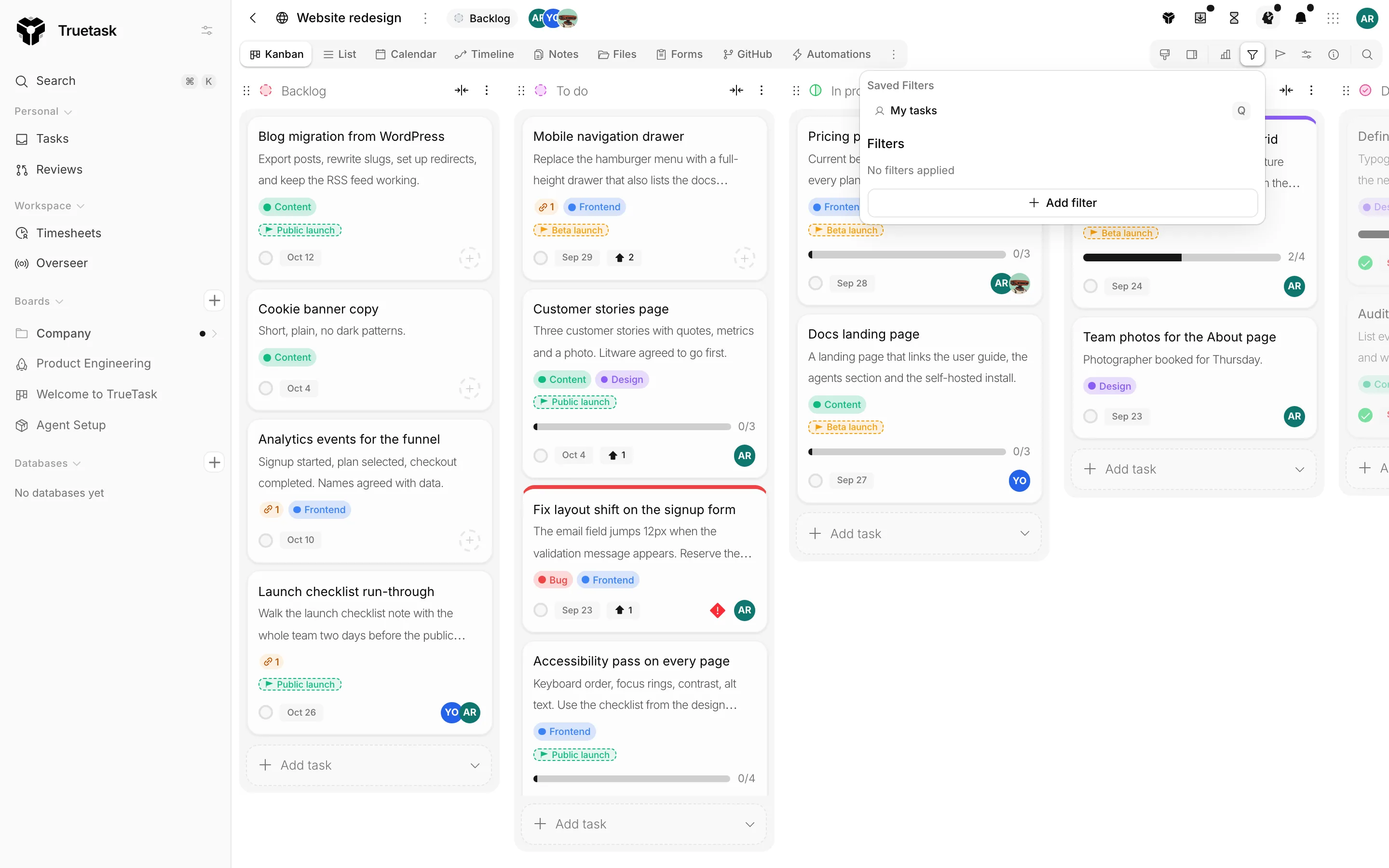
Add filter adds a row. Each row is a field, an operator and a value. All rows have to pass, so adding a second row narrows the result further.
Clear all drops every row.
What you can filter on
| Field | Notes |
|---|---|
| Title | Text. |
| Priority | The board's priority levels. |
| Members | The assignees. |
| Status | Which list the task sits in. |
| Start, Due | The task dates. |
| Tags | The board's tags. |
| Completed, Cancelled | Whether the task reached a terminal state. |
| Overdue | Open and past its due date. |
| Actionable (not blocked) | Nothing is blocking the task. |
| Blocked by (count), Blocks (count) | Dependency counts. |
| Votes | Only on boards with voting on. |
| Source form | Which form the task came from. |
| Custom fields | Every custom field on the board, with the operators its type supports. |
Operators
| Field type | Operators |
|---|---|
| Text and URL | contains, does not contain, equals, not equals, is empty, is not empty |
| Number | equals, not equals, greater than, less than, greater or equal, less or equal, is empty, is not empty |
| Date | equals, before, after, is empty, is not empty |
| Checkbox | is checked, is not checked |
| Select, priority, list, tags, members, user, source form | includes, includes any of, does not include, is empty, is not empty |
On a database board the picker only offers what a record has: Name, Owner, Tags, Source form and the database's own fields. See Databases.
Saved filters
The top half of the dropdown lists the filters saved on this board.
Save current filters names what you have set up and stores it. A saved filter belongs to you until you Share with everyone, and it then shows for everyone on the board with your name next to it.
From a saved filter's menu you can Rename it, Update with current filters, share or unshare it, and delete it.
My tasks is always at the top and is not a stored filter: every user gets it on every board. It filters the board to tasks assigned to you, and Q toggles it without opening the dropdown. The key is remappable under Customize > Shortcuts. See Keyboard shortcuts.
The status bar
The bar at the bottom of the window reports what the current view is showing. On List it is the task count, on Timeline the scheduled and unscheduled counts, and on Files the file and folder counts with their total size.
The red overdue count doubles as a switch: click it and the board filters down to exactly those tasks, click it again to clear. It adds an ordinary Overdue filter row, so you can see it in the dropdown and edit or remove it there.
Nothing showing?
When a search or a filter hides every row on the List view, the table says No tasks match your search and offers Clear filters.
Related
- Views for saving a whole arrangement, filters included
- List for the saved views the List toolbar keeps
- Search and command palette for searching across boards
- Custom fields for the fields the picker offers