

Appearance
Profile and account
Everything about you sits behind your avatar in the top right of the app. This page covers that menu and the Edit Profile dialog it opens.
The profile menu
Click your avatar to open it. The top of the menu shows the name and email you are signed in with. Below that, the rows you always get plus a few that only appear when they apply to you.
| Item | What it does |
|---|---|
| Profile | Opens the Edit Profile dialog described below. |
| Shortcuts | Opens Customize interface on its Shortcuts tab. |
| Prompts | Edits the wording of the built-in AI prompts. Owners and admins only, and only while AI is on. |
| Change plan | Opens the Plan pane. Cloud admins only. See Plans and billing. |
| Settings | Opens the workspace settings. Only for roles that can see them. |
| Theme | Light, dark or system, as three buttons on one row. |
| {Provider} account | One row per git provider your workspace connected, so you can sign in as yourself. See Git integration. |
| Code tools | Your coding tool preferences. Appears once you are on a board with a linked repository. See Coding tools. |
| MCP connector | The setup wizard for connecting an AI client. See MCP. |
| Tokens | Your API tokens. See REST API. |
| Download app | Opens the desktop download page. Hidden inside the desktop app itself. See Desktop app. |
| Help | Documentation, the admin guide (admins only) and the API reference. |
| Sign out | Signs you out after a confirmation. |
Self-hosted only
The Prompts dialog is only available on self-hosted instances.
Edit Profile
The dialog has four sections down the left: Profile, Security, Notifications and Language. One Save button at the bottom commits the whole dialog, and Cancel discards what you changed.
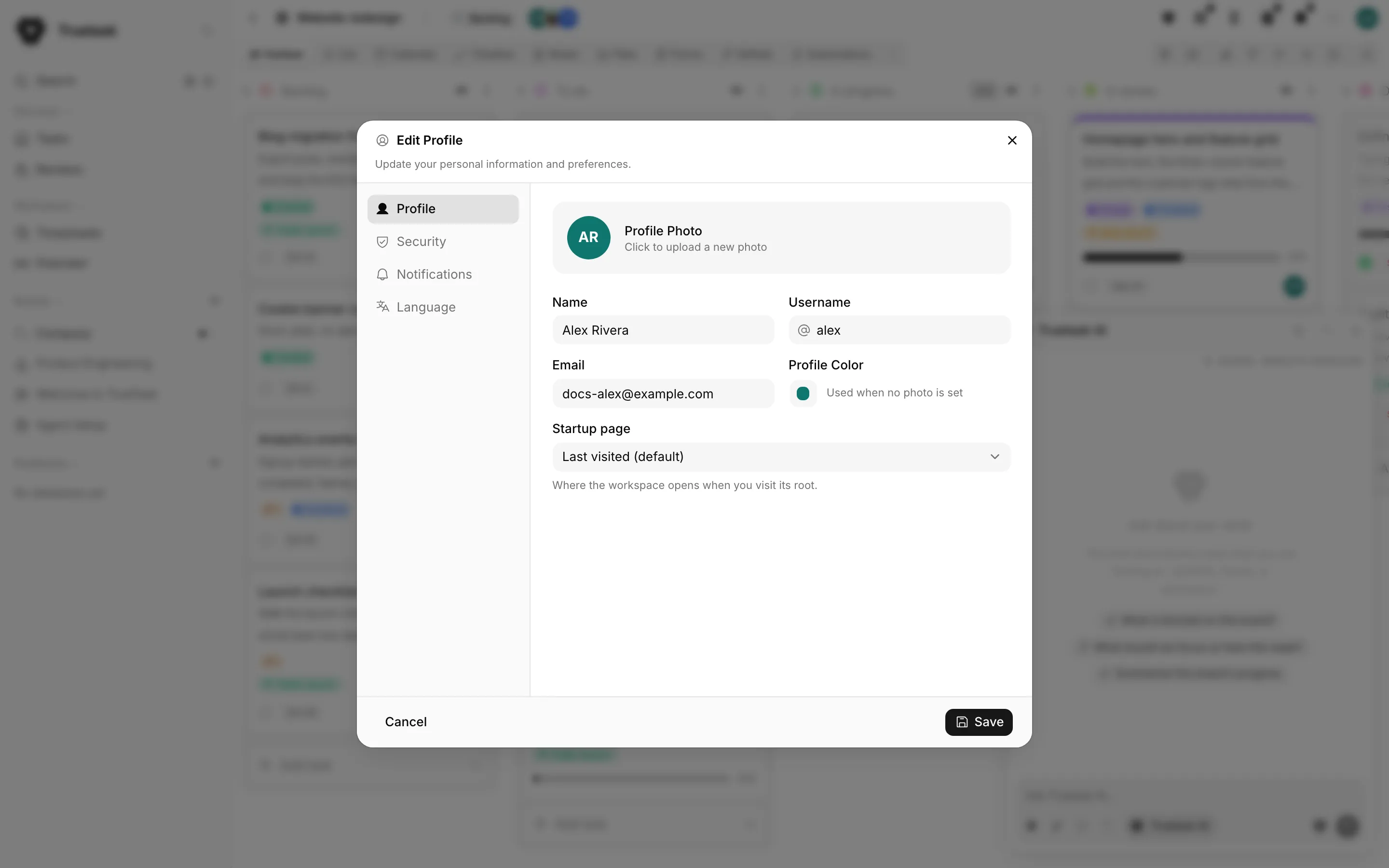
Profile
| Field | What it does |
|---|---|
| Profile Photo | Click the avatar to pick an image. You crop it to a square before it is used, and the small button beside it removes the photo again. |
| Name | Your display name everywhere in the workspace. |
| Username | Your handle. A leading @ is stripped when you save. |
| Changing it sends a verification email to the new address. The change only takes effect once you confirm it there. | |
| Profile Color | The colour of your avatar when no photo is set. |
| Startup page | Where the workspace lands when you open its root address. |
The startup page applies the moment you pick it, without waiting for Save. The picker offers Last visited (default), then your sidebar views, then every board you can open, each with its folder path so two boards with the same name stay apart.
If you later hide the view you chose as your startup page, Truetask asks first and then sends you back here to pick a new one.
Security
This section holds one thing: changing your password. Fill in Current Password, New Password and Confirm Password, then press Update Password.
You are signed out
Changing your password signs you out immediately, on purpose. Sign in again with the new one.
There is no "sign out everywhere" button for your own account. Revoking every session of a user is an admin action in Settings > Audit & Security > Active Sessions.
Notifications
Three groups, each with the same four categories: Assignments, Mentions, Due Dates and Agents.
- Push Notifications is per device, and reaches you even when the app is closed. If your browser has blocked notifications, the row says so and you fix it in the browser.
- Web Notifications are the ones shown inside the app.
- Email Notifications are sent to your address.
Below them sits the Daily brief: a summary of what needs you, with a Frequency (daily or weekly), a Delivery (in the app, by email, or both) and an hour to send it. Brief hours follow the workspace timezone, not yours.
For what each notification actually means, see Notifications.
Language
Truetask ships in English, Español, Français, Deutsch and Português. Pick one and press Save: the page reloads to apply it.
Theme
The theme row in the profile menu has three buttons: light, dark and system. System follows whatever your operating system is set to. The command palette also carries a Toggle theme action, so Cmd/Ctrl+K then "theme" flips it without leaving the keyboard.
What follows you and what does not
Your name, photo, colour, language, notification choices and startup page live on your account, so they are the same on every computer you sign in from. So do the visibility choices in Customize interface.
Push notifications are the exception: they are granted per browser, so enabling them on your laptop does nothing for your phone.