

Appearance
Notes
Every board has a Notes view: a folder tree of Markdown notes that live with the work they describe. Use it for specs, meeting notes, decisions and the standing instructions your agents read.
Open a board and pick Notes in the view tab strip. Databases do not have a Notes view.
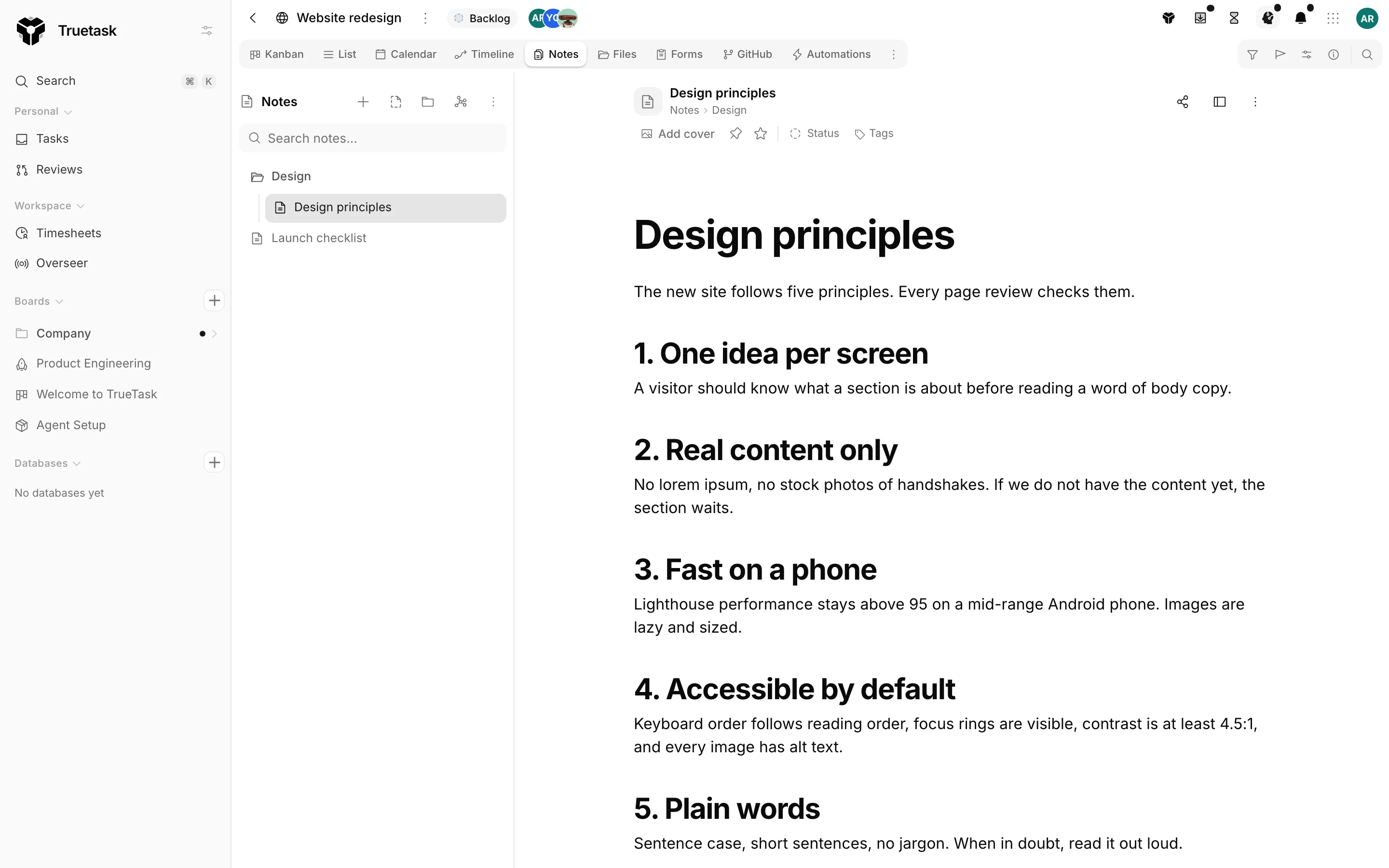
The browser
The left column is the notes browser. Folders nest as deep as you like, and you can drag a note or a folder onto another folder to move it. Select several notes and drag the selection to file them together.
Pinned notes float to the top of their folder, then favourites, then everything else.
The search box above the tree filters the board's notes by title, path and body once you type two characters. It lists the matches with their folder path instead of the tree.
Find inside a note
The search box in the board toolbar switches to find-in-note on the Notes view. Press / to open it, then Enter and Shift+Enter to step through matches.
Creating notes
| Action | Where |
|---|---|
| New note | The browser header, the Views menu, or right-click a folder |
| New folder | The browser header, the Views menu, or right-click a folder |
| Today's note | The caret beside New note |
| New from template | The caret beside New note |
New note and New folder add a row to the tree and put the cursor in it, so you name the note where it will live.
Four built-in templates seed the body: Meeting notes, To-do list, Spec and Weekly review. Today's note is a quick-capture note titled with today's date.
Note properties
Under the title sits the properties strip.
| Property | What it does |
|---|---|
| Cover | One colour or one image, not both. Picking a colour clears the image and an upload clears the colour |
| Pin note | Floats the note to the top of its folder, and makes it agent reference material |
| Favorite | Floats the note below the pinned ones |
| Status | Draft, In progress, In review, Done or Archived, or no status |
| Tags | The board's shared tags, the same ones tasks use |
Use the note icon button beside the title to give a note its own glyph.
The side panel
The panel to the right of the editor carries three tabs.
- Outline lists the note's headings so you can jump around a long document.
- Comments holds the threads anchored to passages of text, with Linked mentions and Linked tasks under them.
- Version history lists the automatic snapshots.
Toggle the panel with the button in the note header. The same menu carries Readable line length, which narrows the text column to a comfortable measure.
Working together
Notes are collaborative. Two people editing the same note see each other's changes as they type, and the header shows how many people are in the note. When the collaboration server is not reachable the note keeps working and the header says Solo mode.
The header also reports the save state: Saved, Saving, Unsaved or Conflict.
Version history saves snapshots as you edit, and every snapshot records who made it. Alongside people, the list names AI assistant, Automation, MCP and System so you can tell a teammate's edit from an agent's. Restoring a snapshot writes a new version rather than rewinding the note.
Trash
Move to trash on a note or folder is a soft delete. Deleting a folder takes its child notes with it.
Open Deleted notes from the browser's more menu to see what is in the trash and restore it.
Import and export
Import Obsidian vault takes a whole vault folder. Drag the folder onto the panel or choose it from disk. Truetask imports every .md file and recreates the folder structure.
Export notes downloads the board's live vault as a zip of Markdown files, folders included. Images and other files that belong to a note ride along under assets/ and the exported Markdown points at them with relative paths.
Notes your agents read
Agents working on a board read two kinds of note as standing instructions: every pinned note, and every note inside a folder named Agent context. Put your conventions, your definition of done and your house rules there and every delegated run starts with them.
See Delegating work to an agent for how a run uses them.
Permissions
Any board member can read the board's notes. Creating, editing and deleting notes needs board Editor or Admin. A note or folder can also be restricted to named people: see Access and publishing.