

Appearance
Boards
A board holds the work for one team, one project or one process. This page covers creating boards, where they live, the board details panel, sharing, and every action in the board page menu.
Create a board
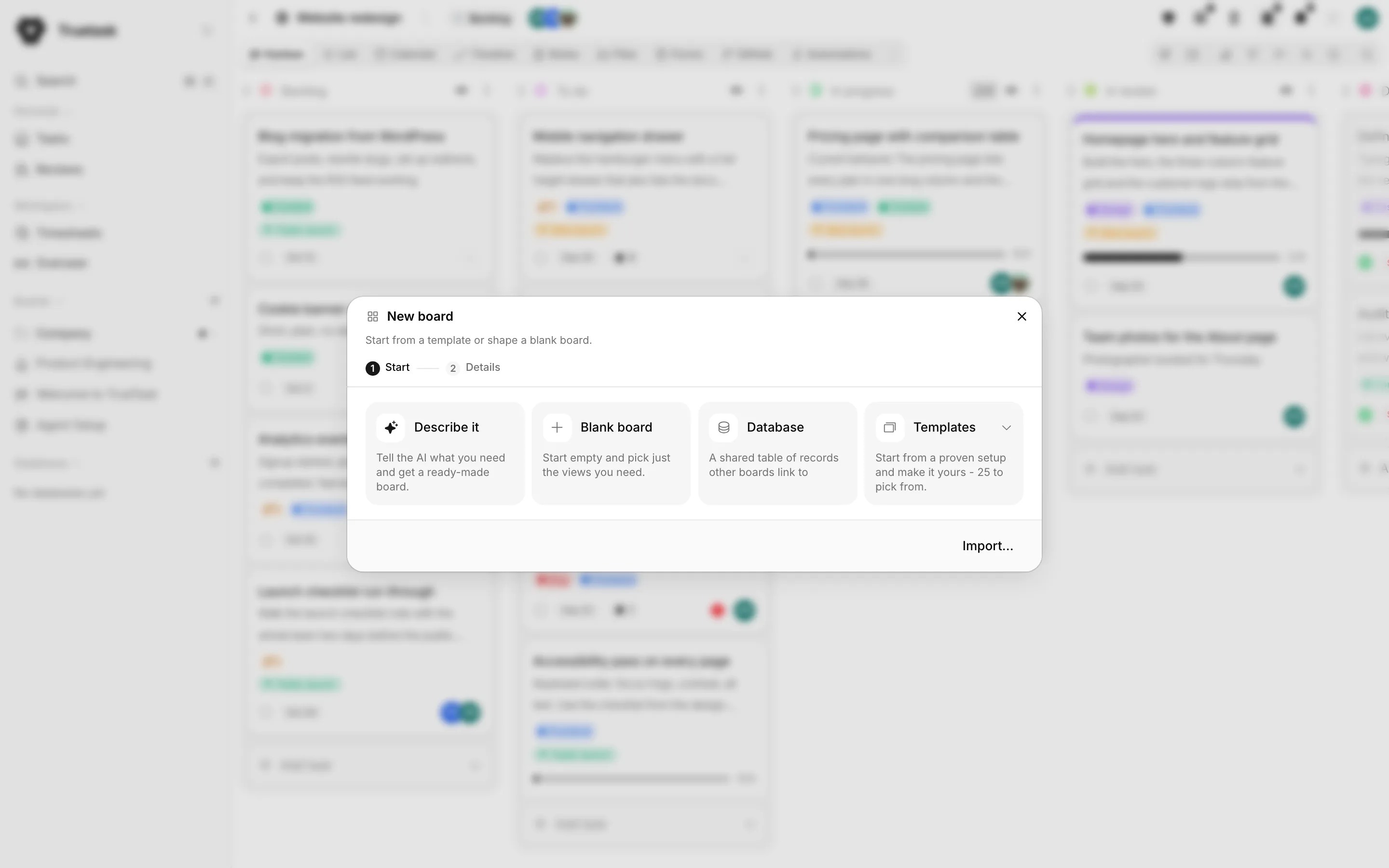
Open the App menu (the grid button before your avatar) and choose New board (Alt+B). You can also use Add board or folder, the + next to the Boards section in the sidebar.
The wizard opens on the Start step, where you pick what the board starts from.
| Tile | What it does |
|---|---|
| Blank board | Start empty and pick just the views you need. |
| Describe it | Tell the AI what you need and get a ready-made board. |
| Database | A shared table of records other boards link to. |
| A template | Sections By Truetask, Workspace and Yours, filtered by the search field and the category chips. |
The footer also carries Import..., which hands you to the import dialog.
The Details step is the same for every path:
| Field | What it sets |
|---|---|
| Name & Icon | The board name and the icon shown in the sidebar. |
| Location | The folder the board lives in, when you have folders. |
| Status | The board status, when your workspace defines any. Change it later from Board details. |
| Opens in | The view members land on first. |
| Views | The tabs this board shows. You can add or remove any of these later. |
| Pin to the icon rail | Pinned boards show as icons in the collapsed sidebar. |
| Describe new cards with AI | Shown when your workspace installs the "Hydrate new cards" automation on new boards. |
| Hide from Overseer | Leaves this board out of portfolio stats and the Overseer list. |
You have to keep at least one view enabled. The Describe it path adds two steps before Details: a composer where you write the brief, and a Plan step that shows what will be built and lets you ask for changes before anything is created. The Software project template adds a Way of working step that swaps the whole structure for the delivery mode you pick.
See Board templates for what each template carries, and Databases for the Database tile.
Where boards live
Boards sit in the sidebar under Boards, inside folders you create. Databases sit in their own Databases section, in their own folders. Drag a board or folder to move or reorder it.
Pin from the page menu keeps a board at the top of the tree, and pinned boards show as icons when the sidebar is in icon rail mode.
Board key and task numbers
Every board gets a key prefix when it is created: up to the first four letters and digits of its name in capitals, made unique across the workspace by adding a number if it clashes. A board with no letters or digits in its name gets TT.
Each task on the board gets its own number, counting up per board, so tasks read as WEB-12. The key shows on the task, matches in board search, and is what git branches, commits and pull requests use to link back. You can read the prefix on the Key row of Board details.
Board details
Open the page menu (the dots next to the board title) and choose Board details, or use the info button in the board toolbar. The panel is read-only for viewers and editable for everyone else.
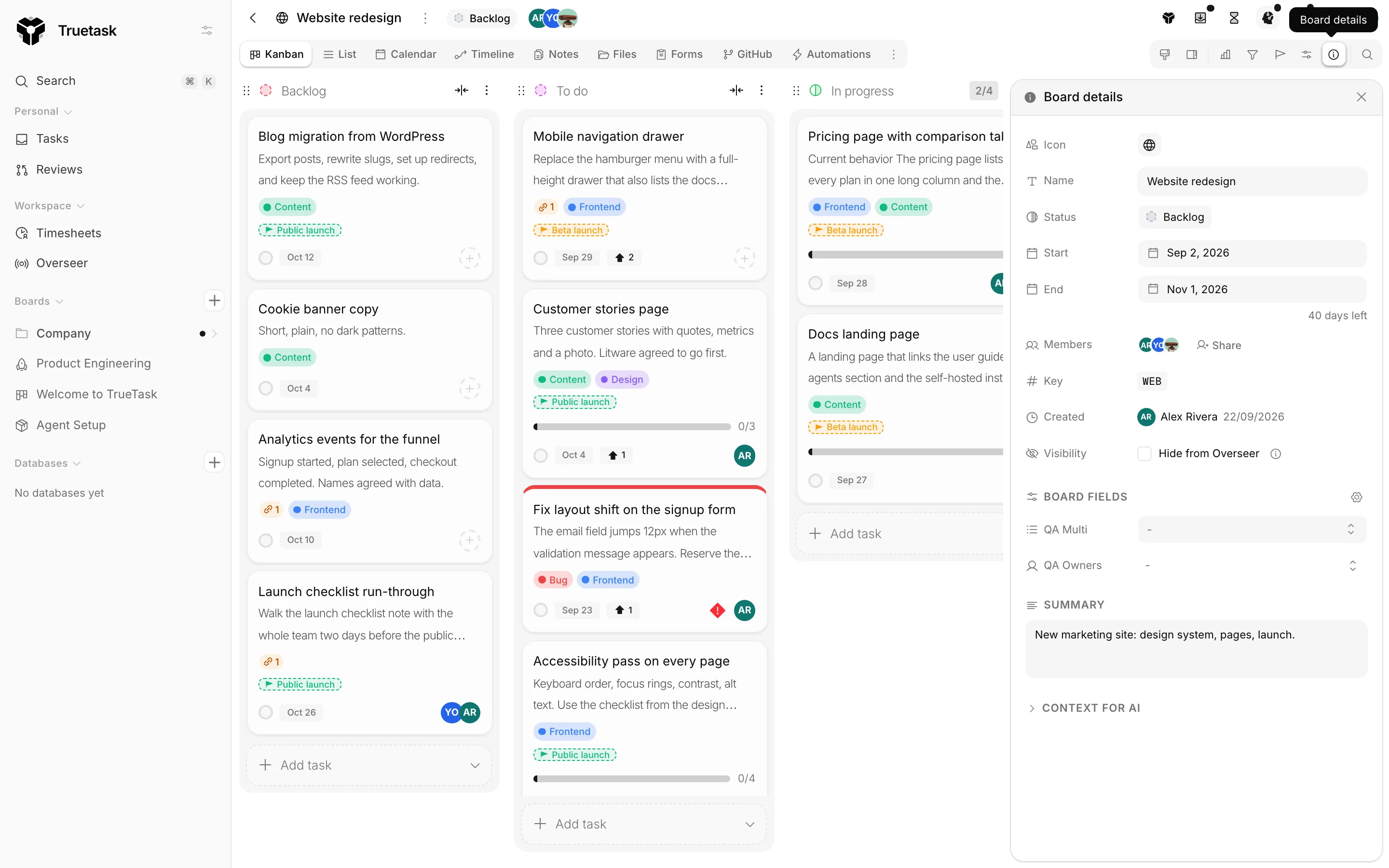
| Row | What it holds |
|---|---|
| Icon, Name | The board identity, editable in place. |
| Status | One of the workspace board statuses (Settings > General > Board statuses). |
| Start, End | The board schedule, with a line underneath saying how many days are left or overdue. |
| Members | How many people are on the board. |
| Key | The board's key prefix. |
| Created | When the board was created. |
| Visibility | Hide from Overseer, for personal boards, notes and scratch work. |
| Board fields | Board-scoped custom fields. See Custom fields. |
| Summary | One line about this board. |
| Context for AI | Background the AI and agents read when they work on this board. |
Board status, dates and summary are what Overseer reports on.
Share a board
Open the page menu and click the Share tile.
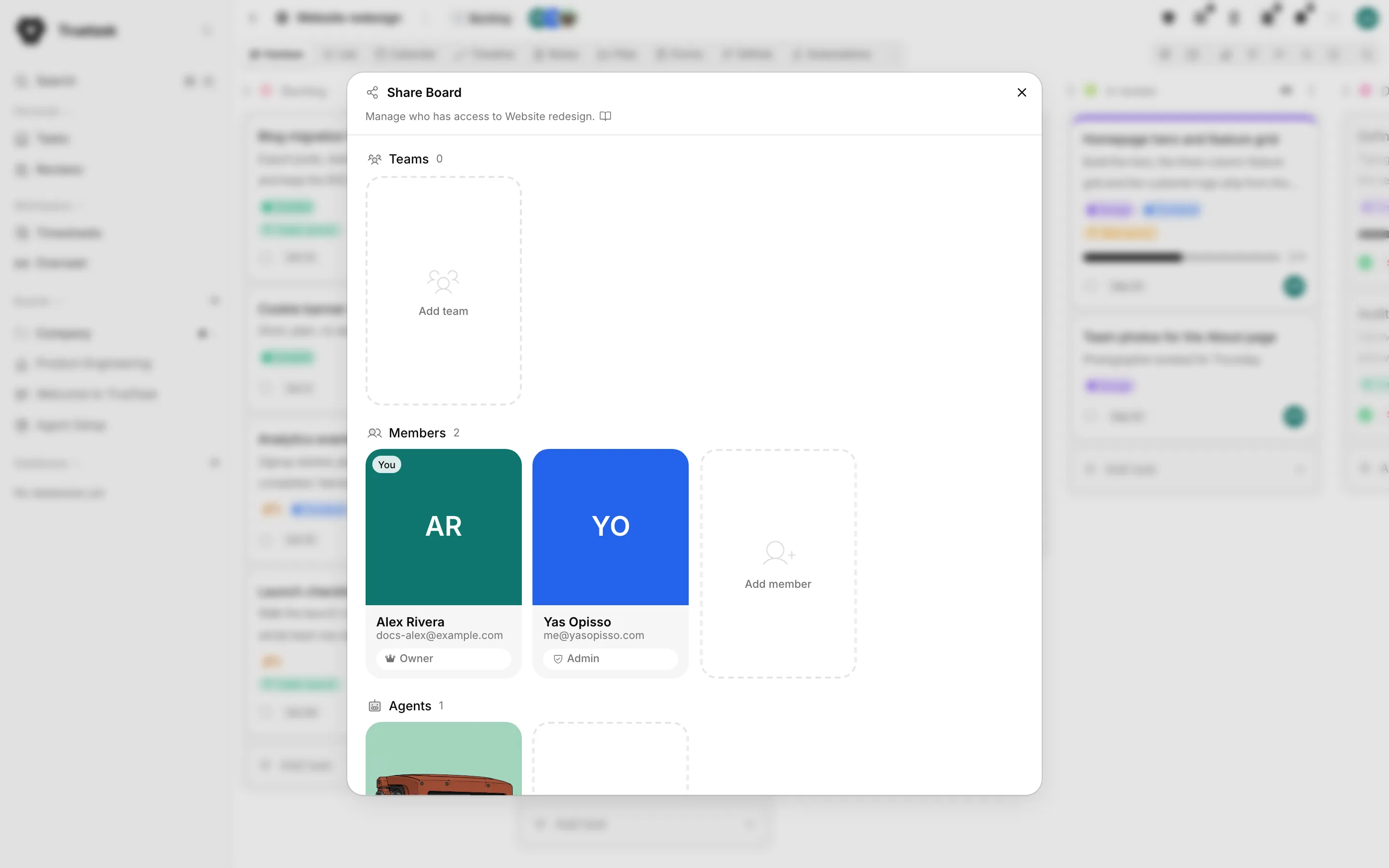
The dialog has three sections: Members, Agents and Teams.
| Role | What it allows |
|---|---|
| Admin | Can change board settings and manage members. |
| Editor | Can add, edit, and delete tasks on the board. |
| Viewer | Can view tasks but can't add, edit, or comment. |
| Owner | Owns the board. |
A member added without a role is an Editor. Site owners and admins always have admin access on every board, and their role row is locked.
The owner cannot leave or be removed. To hand a board over, the owner sets another member to Owner: that person takes ownership and the previous owner stays on as an admin. A board must always keep at least one admin, so the last admin cannot demote or remove themselves.
Leave board removes you from the board and you lose access until someone adds you back.
Agents are added by their own owner, never by someone else, and any member can bring their own agents to a board. See Members, roles and teams and Delegating work.
The board page menu
The dots next to the board title hold everything a board keeps coming back to.
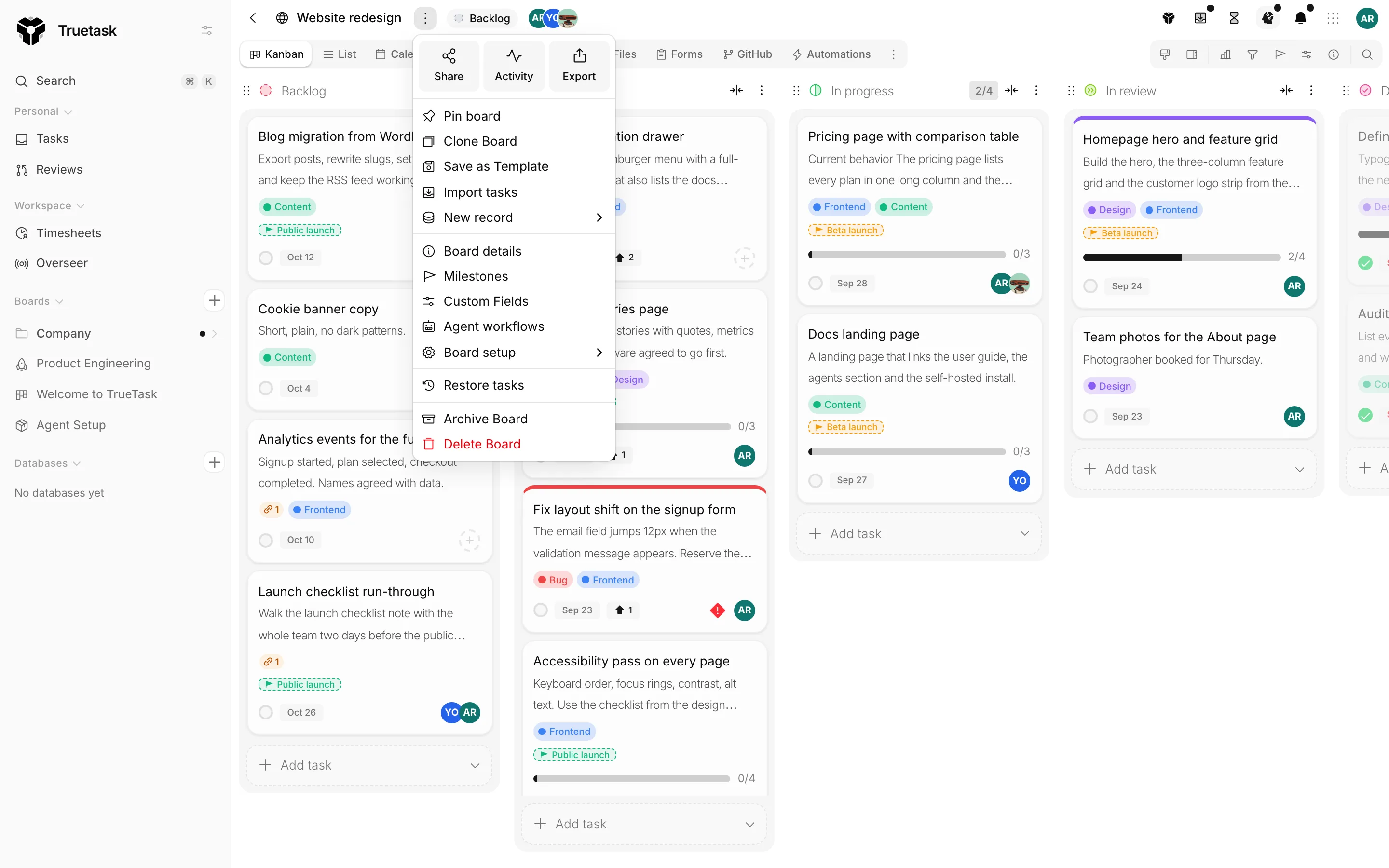
Three tiles sit at the top: Share, Activity and Export. Export needs board admin or a workspace owner or admin.
| Action | What it does |
|---|---|
| Pin | Keeps the board at the top of the sidebar tree. |
| Clone | Copies the board's structure into a new board, with no tasks. |
| Save as Template | Saves the board's structure as a reusable template. |
| Import tasks | Brings rows into this board through the import dialog. See Importing. |
| New record | Appears when this board's relation fields point at databases, one row per database. |
| Board details | Opens the details panel. |
| Milestones | Opens the milestones panel. See Milestones. |
| Custom fields | Opens the custom fields manager. See Custom fields. |
| Agent workflows | Opens the board's agent workflows. See Agent workflows. |
| Restore tasks | Opens Archive & Trash. |
| Archive Board | Takes the board out of the sidebar. Restore it from Settings > General > Archived boards. |
| Delete Board | Permanently removes the board and everything in it. |
Clone, Save as Template, Archive and Delete need board admin.
Board setup
The Board setup submenu holds the things you touch once.
| Item | What it does |
|---|---|
| Board flow | Sorts lists into lanes and caps work in progress. See Board flow and WIP limits. |
| Card voting | Turns voting on or off for this board. With it on, members can vote on tasks and the vote count shows on the task face; with it off, vote buttons and counts are hidden. |
| Create intake form | Starts a new form on the Forms view. See Forms. |
| Manage webhooks | Outbound webhooks scoped to this board. Global webhooks managed in Settings still fire here too. See Webhooks. |
| Link a repository | Connects a git repository to this board. See Connect a repository. |
| Agent behavior | How coding agents work tasks on this board. Behavior is set per workflow. See Agent workflows. |
| Subscribe to digests | A periodic summary of board activity instead of live notifications. |
Digests
Subscribe to digests gives you a summary of activity on a board with no real-time noise. Pick a Frequency (Daily or Weekly), a Delivery (In-app, Email or Both), and which events to include: Card changes, Comments, Member changes, Tag changes and Dependency changes. Daily digests go out in the morning, weekly ones on Monday morning. You can pause a subscription without losing its settings.
Activity
The Activity tile opens the board activity log: everything that has happened on this board, including task changes, comments, members and tags. Filter it by person, by what changed, by action, and by date range.
Export
The Export tile collects all board data including lists, tasks, tags and members and downloads it as a JSON file. A switch lets you include the board's automations. The export is recorded in the audit log. See Exporting.
Clone and Save as template
Clone creates a copy of the board with the same lists, tags and settings but no tasks. Switches let you carry the AI context, the automations (cloned automations start inactive), the saved board views, your own view preferences, the notes vault, the forms, the task templates and the agent workflows.
Save as Template captures the same structure as a reusable template, with a name, description and category, and an option to share it with the whole workspace. It can also carry up to 50 open tasks and their checklists as skeleton work. Workspace templates are managed in Settings > General > Board Templates.
Archive, trash and deletion
Restore tasks opens Archive & Trash. Archived tasks stay indefinitely. Trashed tasks are permanently deleted after the retention period, and the dialog shows how many days each has left. You can restore from either tab, delete a task permanently, or empty the trash.
Archive Board hides the whole board. Restore it from Settings > General > Archived boards, which also lets you delete an archived board for good.
Delete Board asks you to type DELETE. The board disappears from everyone's sidebar at once and its rows are purged in the background, so a large board never stalls the workspace. A board that another board's relation field points at cannot be deleted until those fields are removed. When a board links databases that nothing else uses, the dialog offers to take them along and names the ones that stay.
Related
- Views for the nine board views and who sees which
- Filters and search for narrowing a board
- Board templates for what you can start from
- Members, roles and teams for workspace-level access