

Appearance
List
The List view is the board as a table. Every task is a row, every field can be a column, and you can group, sort, edit in place and save the whole arrangement as a named view.
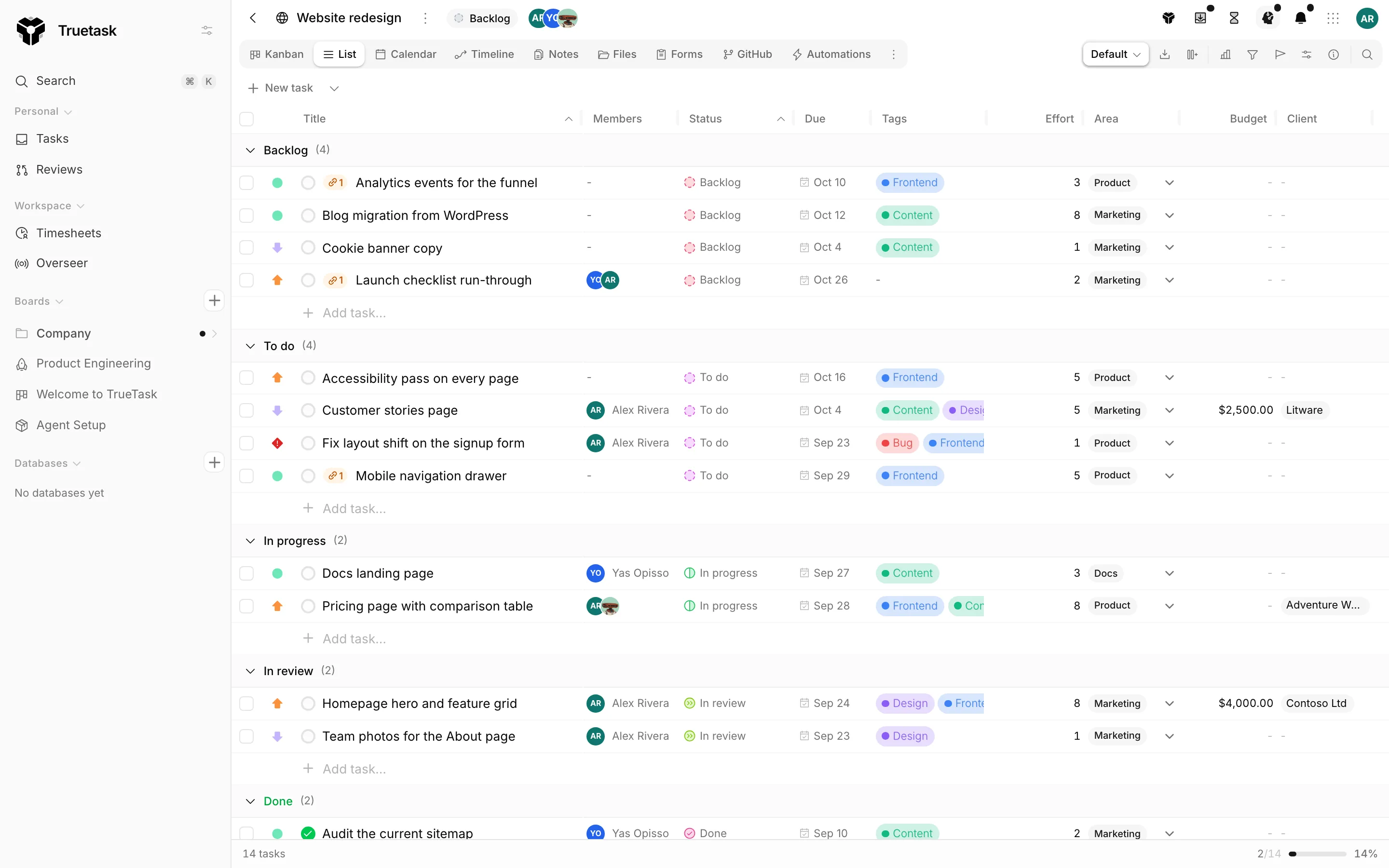
Columns
| Column | What it holds |
|---|---|
| Priority | The task priority. Shown by default. |
| Title | The task title. Always shown, cannot be hidden. |
| Members | The assignees. Shown by default. |
| Progress | Checklist progress. Shown by default. |
| Status | The list the task sits in. Shown by default. |
| Start, Due | The task dates. Shown by default. |
| Tags | The task tags. Shown by default. |
| Modified | When the task last changed. Hidden by default. |
| Milestone | The milestone the task belongs to. |
| Blocked by, Blocks | Dependency counts. Hidden by default. |
| Votes | The vote count. Only on boards with voting on, hidden by default. |
Every custom field on the board is a column too, shown by default. See Custom fields.
Drag a header to reorder columns. Drag a header's edge to resize it. Right-click a header for Sort ascending, Sort descending, Clear sort, Hide column, the full Columns list, and, on a custom field, its alignment, Rename field and Delete field.
Add field in the board tools tray creates a new custom field and puts it straight on the table.
Grouping
Open the view selector in the board tools tray and choose Group by. You can stack several groupings, each with its own ascending or descending order.
Groups are available on Status, Priority, Members, Tags, Milestone and Completed. Rows with no value collect under Unassigned, Untagged, No Milestone or No Priority.
With no grouping the table is one flat list.
Sorting
Click a header to sort by it, or use the header menu. Sorting is multi-column: add a second header and it breaks ties in the first. Clear sort in the header menu drops back to the default order.
Editing in place
Click a cell to edit it. Text and number cells become inputs, dates open a picker, selects and relations open their picker, checkboxes toggle, and the Status, Priority, Members, Tags and Milestone cells open the same pickers they use on the task itself.
When several rows are selected, editing one of them applies the change to all of them and the popover says how many tasks it is editing.
New task at the bottom of the table, or at the bottom of each group, adds a row.
Selecting rows
Tick the checkbox at the start of a row, or Shift-click to extend a range. A bar appears with the bulk actions: complete, mark incomplete, move, archive and delete. See Bulk actions.
You can also drag a row out onto a pipeline to hand it to an agent. See Pipelines.
Saved views
The view selector in the board tools tray saves the current arrangement (grouping, columns, column order and widths, sorting and filters) as a named view.
| Action | What it does |
|---|---|
| Save current as new view | Names the current arrangement and stores it on the board. |
| Save changes | Updates the active view. The selector marks it Modified until you do. |
| Revert to saved | Drops your unsaved changes. |
| Clear active view | Steps out of the view back to the plain table. |
| Share with everyone on this board | Moves your view into everyone's Shared with me list. |
| Pin as my default for this board | Opens the board on this view. |
| Set as board default | Board admins only. Makes it the view everyone lands on. |
| Rename, Delete | Housekeeping. |
Views you made sit under My views, views others shared under Shared with me. Un-sharing a view also removes it as the board default, and the dialog says so before it does.
Export
The download button in the board tools tray exports exactly what the table shows: the visible columns, in their current order, for the rows that pass the filters. Choose CSV or Excel.
Relation cells export the titles of what they point at, and rollups and formulas export their computed value. For a full board export including lists, tags and members, use Export in the board page menu instead. See Exporting.
The status bar
The bar at the bottom of the window reports the task count, how many are overdue, and completion as a count, a bar and a percentage. Click the overdue count to filter the board down to those tasks. See Filters and search.
On a database
A database board opens on this view and calls it Records. The task columns (priority, progress, status, dates, milestone, dependencies and votes) do not exist there, Title reads as Name and Members reads as Owner. See Databases.
Related
- Custom fields for the columns you add yourself
- Filters and search for narrowing the rows
- Bulk actions for acting on a selection
- Kanban for the same tasks as columns