

Appearance
Notes editor
The note editor is WYSIWYG, but what it stores is plain Markdown. That is the same Markdown you get from an export, from the API and from an agent reading the note.
The slash menu
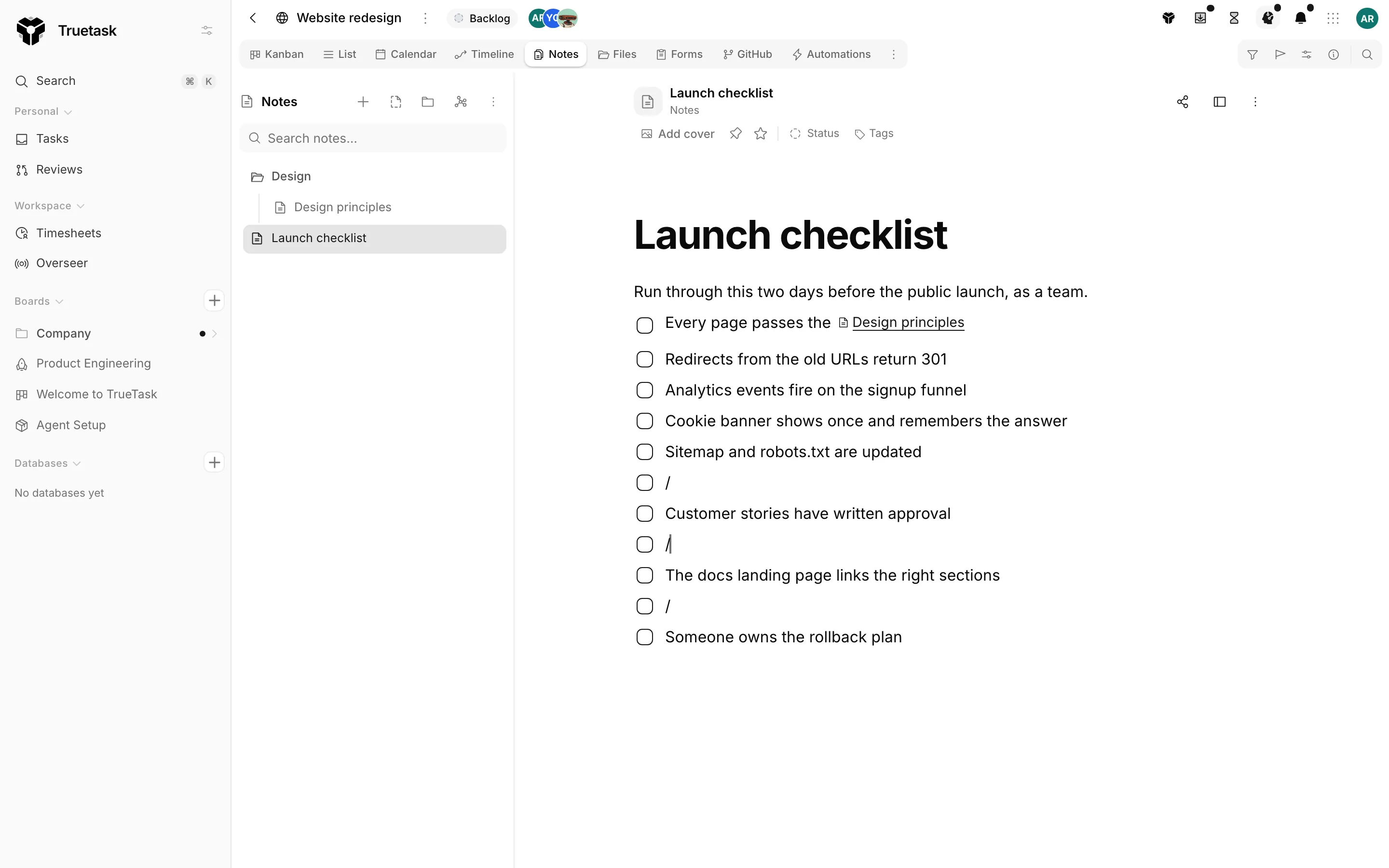
Put the cursor on an empty line and the placeholder says Write something, or press '/' for commands. Type / to open the menu, then keep typing to filter it.
| Group | Items |
|---|---|
| Basic blocks | Text, Heading 1 to Heading 6, Quote, Divider |
| Lists | Bulleted list, Numbered list, To-do list |
| Advanced | Code block, Table |
| Blocks | Toggle |
| Media | Image, Video |
| Link | Link to note, Link to task |
| People | Mention user |
| Embed | Embed task, Embed board view |
Three of those items can also be typed inline, and the menu shows the character beside them.
| Type | To get |
|---|---|
@ | The people picker, to mention a member or a group |
# | The task picker, to link a task |
[[ | The note picker, to link another note on this board |
In any of those pickers, Enter or Tab inserts the highlighted result and Esc closes it. A # mention of a task renders as a chip that carries the task's title, and it also files the note under that task's Linked notes.
See Linking and embeds for what the Link and Embed groups do.
Formatting a selection
Select text and a small toolbar appears over it with Bold, Italic, Strikethrough, Code, Link and Comment. The link control opens a small field with a Paste link... placeholder, and clicking an existing link offers edit and remove.
Toggles
A Toggle is a collapsible block: a summary line you click to fold and unfold a body. Toggles survive a round trip through Markdown, and they stay foldable on a published note.
Images and files
There are three ways to put a picture in a note.
- Image in the slash menu opens the board's file picker, where you can pick a file the board already has or upload a new one.
- Paste an image from the clipboard.
- Drop files onto the note.
A paste inserts images only, and only when the clipboard carries no real text beside them. That is deliberate: copying a spreadsheet selection also puts a picture of it on the clipboard, and pasting the picture over the text would be wrong.
A drop uploads everything you dropped. Images land as images and other files land as links.
Files a note owns travel with it: they are bundled into a notes export and served to readers of a published note. Inline-renderable types such as .html, .svg, .xml and .js are refused, because files are served from the app's own origin.
Video
Video in the slash menu takes a YouTube or Vimeo link. Truetask never hosts the video: the block is a player pointed at the provider, with the provider's name and an Open link under it.
Comments
Select a passage and click the comment button in the selection toolbar. The composer opens in the Comments tab of the side panel with the selected text quoted above it.
Comments are Markdown, they thread with replies, and you can mention people in them. Marking a thread Done resolves it and clears its highlight from the text. Commented passages are highlighted in the document, and clicking a highlight jumps to its thread.
Finding text in a note
The search control in the board toolbar becomes find-in-note while the Notes view is open. Press / to open it. It shows the match count and carries previous and next buttons; Enter steps forward and Shift+Enter steps back.
Outline and line length
The Outline tab of the side panel lists the note's headings and scrolls the document when you click one. Readable line length, in the note header's more menu, narrows the text column.
Live editing
Notes are edited collaboratively through the workspace's collaboration server. Everyone in a note sees the others' changes as they type, and the header counts the people editing. If the collaboration server is unreachable the editor keeps working on its own and the header says Solo mode.
Every edit is snapshotted into version history, so a bad paste is never final.
The same editor elsewhere
The rich editor also backs task descriptions and the comment composer. Those surfaces drop the note-specific pieces (collaboration, wikilinks, anchored comments) but keep the slash menu, mentions and formatting.