

Appearance
Custom fields
A custom field adds a column of your own to tasks: a story point estimate, a client, a contract value, a warranty date. Fields are defined once and attached to the boards that need them, and their values show on the task, in List view columns, in filters, on forms and in automations.
The three kinds of field
| Kind | Lives on | Where it shows |
|---|---|---|
| A board's own field | One board | Every task on that board. |
| Task fields | The workspace | Any board you add it to, on every task there. |
| Board fields | The workspace | The board itself, one value per board, on the Board details panel. |
A board field is a property of the board, not of a task: a Client or a Status for the whole board. See Boards.
The types
19 types, grouped by what they hold.
| Type | Holds | Options |
|---|---|---|
| Text | One line | |
| Long text | A paragraph, edited in a popover | |
| Number | A figure | |
| Select | One or several choices | The choices, and Single or Multiple |
| Date | A day | Highlight past dates |
| URL | A link, openable from the cell | |
| An address, validated | ||
| Phone | A number | |
| Checkbox | Yes or no | |
| Rating | Stars | Scale, 3 to 10 (default 5) |
| Currency | Money, formatted for your locale | The ISO code, 16 to choose from |
| Percent | A percentage | |
| Duration | A span, entered as 1h 30m, 90m or 1:30 | |
| Person | One or several board members | Single or multiple |
| Relation | Links to tasks or boards | See below |
| Rollup | A figure computed over other tasks | See below |
| Formula | A figure computed from this task's own fields | The expression |
| Created on | When the task was made | |
| Last modified | When it last changed |
Rollup, Formula, Created on and Last modified are computed. They are read-only, store no value of their own, and can never be edited on a task.
Every field also has an Alignment (left, center, right) that sets where its List view column sits. The default follows the type: prose left, checkboxes and ratings centred, figures and dates right.
Creating a field
- From a task. Expand the properties block and click Add field.
- From List view.Add field at the right-hand end of the column header row.
- From the manager.Add field, then either Create new or pick an existing one out of Task fields.
When you create a field you choose whether it is Available to other boards. A shared field can then be added to any board from the manager; a board-local one stays where it is. Only workspace owners and admins can create global task fields and board fields.
The Custom Fields manager
Open the board page menu (the dots next to the board title) and choose Custom Fields.
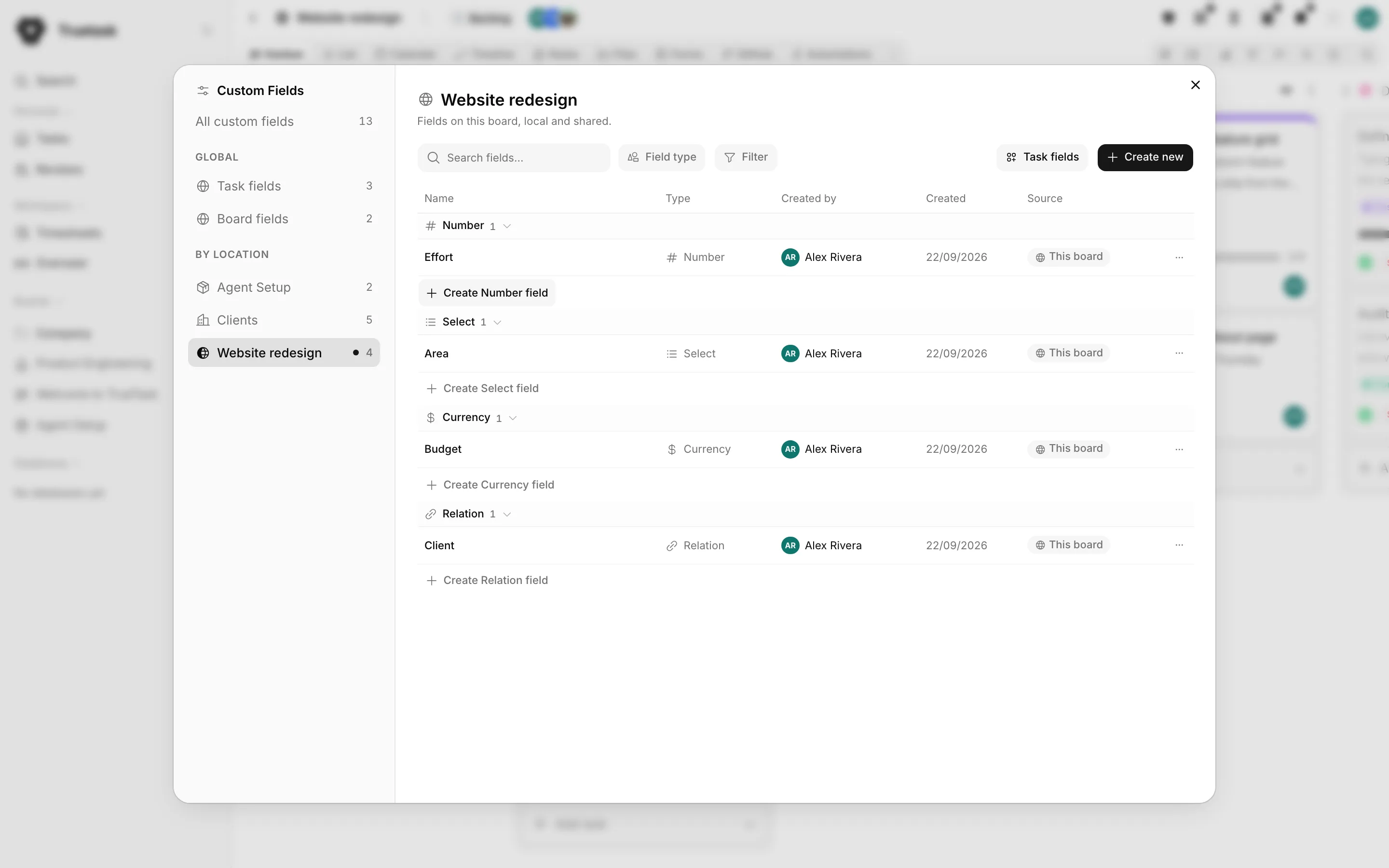
The left rail holds All custom fields, then the global groups Task fields and Board fields, then every board you can see. The table shows each field's name, type, who made it, when, and where it is used.
From a row's menu you can:
| Action | What it does |
|---|---|
| Duplicate | Copies the field and its options. |
| Move to workspace | Turns a board-local field into a global task field. |
| Make board-local | The reverse. |
| Remove from this board | Detaches the field. Values are kept. |
| Hide on this board | For a board field only: opts one board out. |
| Delete | Removes the field and every stored value. The confirmation says how many. |
Deleting is the only destructive one, and it is not reversible.
Layout and show rules
A board decides which fields appear on the task panel, in what order, and under what headings.
Click Arrange fields in the properties block. Drag fields into order, use New group to add a named section, and drop fields into it. Delete group returns its fields to the ungrouped section.
Each field, and each of the pinned built-in rows (Members, Dates, Tags, Milestone, Dependencies and a record's avatar), carries a Show rule:
| Rule | Behaviour |
|---|---|
| Always | The row is there whether or not it has a value. |
| Only when it has a value | The row appears once something is filled in. |
| Never | Hidden on the task panel. It still exists as a column and a filter. |
A computed field always counts as having a value. A field set to Never still holds its data; the rule is about the panel, not about storage.
Relations
A relation field links a task to other records.
| Option | Choices |
|---|---|
| Links to | Tasks, or Boards |
| From | Same board, Board or database, or Any board or database |
| Kind | Boards and databases, Boards, or Databases |
| New records | Auto (the target's default form, else its sheet), Record sheet / Task sheet, or Off |
| Show task status | Puts the flow-state glyph on each linked task |
| Single or multiple |
Linked records render as chips. Hold Shift over a chip to peek at the record without leaving the task. A record you have no access to shows as Private task or Private board.
The other side of a relation is Referenced by, a read-only row at the bottom of the properties block that lists everything pointing at this task. Relations are how database boards connect to work boards: a task links to a Client record, a Client record lists the tasks that reference it.
Rollups
A rollup aggregates over a set of tasks. It needs three answers.
Source says which tasks count:
| Source | Set |
|---|---|
| Linked tasks | The targets of one of this record's relation fields. |
| Tasks linking here | The tasks pointing at this one through one named relation field. |
| Any record linking here | Everything pointing at this one, through any relation field on any board. |
| The board's own tasks | Board fields only: every task on the board. |
Calculate says what to work out: Count, Sum, Average, Min, Max, Percent done, Earliest or Latest.
Of says which value to aggregate: a custom field of a number, rating, currency, percent, duration, date or formula type, or one of the built-ins Estimate, Time spent, Completed, Start date and Due date.
Tasks narrows the set to All tasks, Open tasks or Done tasks. Cancelled tasks never count as open, and they drop out of the Percent done denominator.
A rollup carries the kind of what it aggregates, not of the field it points at: a sum of money is money, a count of money rows is a plain number. Tasks you cannot see are excluded, and the editor says how many were left out.
Formulas
A formula reads this task's own fields by name in braces and produces one typed value.
{Quantity} * {Unit cost}
if({Quantity on hand} <= {Reorder point}, 1, 0)
days_until({Warranty end})| Operators | + - * /, comparisons = == != <> < <= > >=, and and / or / not |
| Functions | round, abs, min, max, if, coalesce, days_until, days_since, days_between |
| Built-ins | {estimate}, {time_spent}, {start}, {end}, {entered} |
| Readable field types | number, currency, percent, duration, rating, date, checkbox, rollup, formula |
The result kind (number, currency, percent, duration, date or boolean) is worked out from the operands, so a column never flips between money and plain numbers row by row. Nothing propagates: rounding an empty value gives an empty value, a comparison against an empty value is false, and dividing by zero gives an empty value rather than an error. Dates add and subtract whole days. A formula may read other formulas up to eight levels deep; deeper than that, or a cycle, shows as Invalid. The editor previews the live value on a real task as you type.
Where values show
| Surface | How |
|---|---|
| The task | The properties block, subject to the layout and show rule. |
| List view | A column you can sort, group and edit inline, including across a multi-selection. |
| Filters and the Tasks page | As filter columns. Board fields appear there as project fields. |
| Forms | Expose a field on a form and the submitter fills it in. |
| Automations | The Custom Field Changed trigger and the Set Custom Field action, plus field placeholders inside node text. |
| Export and the API | Values come along. See Exporting and the REST API. |