

Appearance
Timers and time entries
Time in Truetask is a list of entries, each one attached to a task and to a person. You can produce an entry two ways: run a timer and stop it, or type the times in yourself. This page covers both, plus estimates and the Timelogs week grid where you tidy it all up.
Turning time tracking on and off
Time tracking is part of every plan on Truetask Cloud and on self-hosted instances. What you can switch is whether it appears for you: open the App menu (the grid button before your avatar), choose Features, and toggle Time tracking.
That toggle is personal and hides the Timer and Timelogs toolbar buttons, the Timesheets view, and the Time tab on tasks. Nothing is switched off for anyone else and time already logged is untouched. See Customize the interface for the rest of the Features dialog.
Starting a timer
The timer button sits in the top bar, tooltip Time tracker. Open it and you get a search box plus the tasks you are assigned to and the tasks you recently tracked time on, each with a start button.
You can also start one from the Time tab of an open task with Start Timer.
Only one timer runs at a time. Starting a second timer closes the first one automatically and writes its duration. While a timer runs, the button shows the elapsed time and the popover says Recording.
A timer left running is capped
A nightly job stops any timer that has been running for more than 12 hours. It caps the entry at 12 hours, appends a note saying the system stopped it, and sends you a Timer stopped notification.
Stopping a timer
Stopping opens a short prompt titled Stopping timer so you can record what you did while it is fresh. It has three parts.
| Control | What it does |
|---|---|
| Note | Free text saved on the entry. Required if your workspace policy says so. |
| Billable | On by default. Uncheck it for work you are not charging for. |
| Suggestions | Up to three one-line notes written by AI from the task. Click one to fill the note box. |
Confirm with Save note & stop, or use Stop without note when there is nothing to say. Keep running closes the prompt and leaves the timer going.
Suggestions only appear when AI is configured for the workspace. Turn off in the suggestions panel switches them off for you permanently.
Logging time by hand
Use Add Entry on a task's Time tab, or draw the block straight onto the Timelogs week grid. The entry form asks for:
| Field | Notes |
|---|---|
| Task | Searchable picker, with Include completed if the work is already done. |
| Date | A single day. |
| Start and End | Clock times. The form shows the resulting Duration as you type. |
| Note | Marked required when the workspace policy says a note is needed. |
| Billable | On by default. |
When an entry is closed, its duration is added to the task's total tracked time.
Estimates
An estimate is the planned effort on a task, stored in seconds and shown as a duration. Set one from the Estimate control in a task's title bar, or from Budget on the Time tab.
Type a duration like 2h 30m or 1d 4h, or pick one of the quick chips (15m, 30m, 1h, 2h, 4h, 1d). Truetask reads 1d as 8 hours and 1w as 5 days, which the popover repeats as a hint. Clear removes the estimate.
Once a task has an estimate, the Time tab shows a Budget line with what is used so far and how much you are over, the timer popover shows the estimate next to the task, and Timesheets can compare estimated against tracked time.
The Timelogs week
Timelogs is a floating frame with your week as a grid: days across, hours down, one block per entry. Open it with Alt+T, from the App menu under Timelogs, from Timelogs in the command palette (Cmd/Ctrl+K), or from Open timelogs at the bottom of the timer popover.
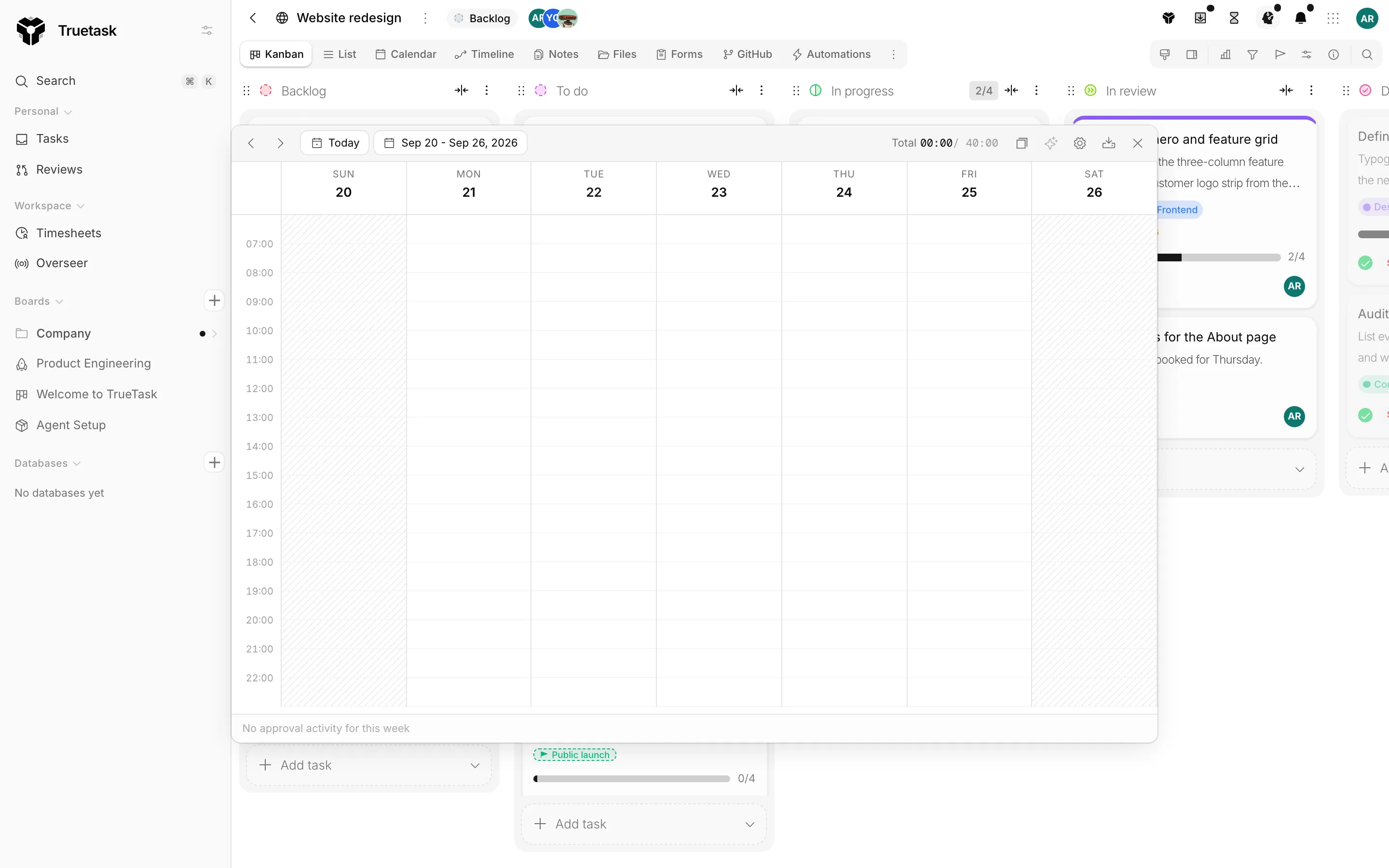
What you can do in the grid:
| Action | How |
|---|---|
| Create an entry | Press an empty cell and drag down to paint the range, then fill in the form. |
| Move an entry | Drag the block to another time or day. |
| Change its length | Drag the top or bottom edge. |
| Undo a move or resize | Use Undo on the toast that appears. |
| Edit, delete or jump to the task | Click the block. The popover names the task and its board and carries Open task, Delete and the entry fields. |
The header carries the week navigation, Today, and the week Total. A running timer appears in the grid marked running, with a stop control. Export downloads the entries for a date range you pick as CSV.
Copying a week
Copy last week in the header brings last week's entries forward seven days. To repeat a single day instead, right-click a day column header and choose Repeat last Tuesday (named for that column's weekday).
Either way you get a dialog listing the candidate entries with checkboxes, a running count of entries, hours and tasks, and a Skipped group for anything it cannot copy. Entries are skipped when the target day is locked by an approval or when the copy would overlap something already logged.
Capacity, display and suggestions
The gear opens Display settings:
| Setting | What it does |
|---|---|
| Work hours | The first and last hour drawn on the grid. |
| Visible hours | How many hours fit on screen at once. Scroll for the rest of the day. |
| Visible days | Which weekdays are shown. |
| Capacity | A Daily target in hours. The totals then read as under, met or over target. Set 0 to hide targets. |
The grid also expands its visible hours automatically when an entry falls outside them, and says so.
When the workspace has Timelog suggestions switched on, the grid also draws faint suggested blocks built from your board activity. Truetask clusters your edits on a task into sessions, snaps them to 15 minutes, drops anything under 15 minutes, and never draws a suggestion over time you already logged. Click a suggestion to open the entry form with those times filled in, or hide them with the suggestions toggle.
Submitting your week
If your workspace reviews timesheets, the frame also carries the approval state for the week you are looking at: Submit for approval, Waiting for review, an approval or rejection with the manager's note, and a reply box. Approved weeks are locked, and the grid refuses edits with a message telling you to ask a manager to reopen the week. See Timesheets and approvals for the manager side.
The Time tab on a task
Open a task and go to Time for everything logged against it.
The tab shows Start Timer / Stop Timer, Add Entry, the Total Tracked and Today figures, the Budget line when the task has an estimate, and a table of entries with user, date, start, end, duration and note. Non-billable entries are marked. You can edit or delete an entry from the row, and a delete offers Undo.
Workspace policies
An owner or admin sets the rules for everyone in Settings > General > Workspace, under Time tracking.
| Setting | What it does |
|---|---|
| Time rounding | Off (exact), 6 minutes or 15 minutes. Rounds durations in Timesheets reports and exports only. Logged time is never changed. |
| Notes required | Not required, Billable entries only, or All entries. |
| Timelog suggestions | Shows or hides the suggested blocks in the Timelogs week grid for everyone. |
The Week starts on setting in the same pane decides where a week begins, which is what approvals anchor to.