

Appearance
Members, roles and teams
Access in Truetask has two layers. A site role on your account decides what you can do in the workspace as a whole, and a board role decides what you can do on each board you are a member of. This page covers both, plus adding people, grouping them into teams, and sharing a board.
Site roles
Every account carries one of five site roles.
| Role | What it can do |
|---|---|
| OWNER | Everything. One per workspace. Ownership can be transferred. |
| ADMIN | Everything except being the owner: all settings, integrations, AI prompts, members, teams, boards. |
| LEAD | Add people and manage teams, create and delete boards, share boards. Sees only Members & Teams in Settings. |
| USER | Create and edit boards, create and edit tasks, comment. Can share and delete the boards they created, but no others. |
| GUEST | Read only. Can view boards they are a member of, and nothing else. A guest cannot create or edit a task or leave a comment. |
A few capabilities are narrower than the role list suggests:
- Integrations, backups and AI prompt customization are OWNER and ADMIN only, not LEAD.
- Deleting or sharing a board is OWNER, ADMIN and LEAD, plus the USER who created that particular board.
Board roles
Inside a board, each member has one of three roles.
| Board role | What it can do |
|---|---|
| Admin | Can change board settings and manage members. |
| Editor | Can add, edit, and delete tasks on the board. |
| Viewer | Can view tasks but can't add, edit, or comment. |
Three rules sit on top of that:
- Site OWNER and ADMIN always have board admin, on every board, and their role cannot be changed from the share dialog.
- The board's Owner is the person who created it, and is always an admin. The owner cannot leave or be removed until ownership is transferred.
- A member with no explicit role is an Editor.
A board must keep at least one admin, so the last admin cannot demote or remove themselves.
Adding people
Open Settings > Members & Teams > User Directory. It lists every account with its role, email, verification status, source (local, OAuth or LDAP) and join date, and you can search and filter by role or source.
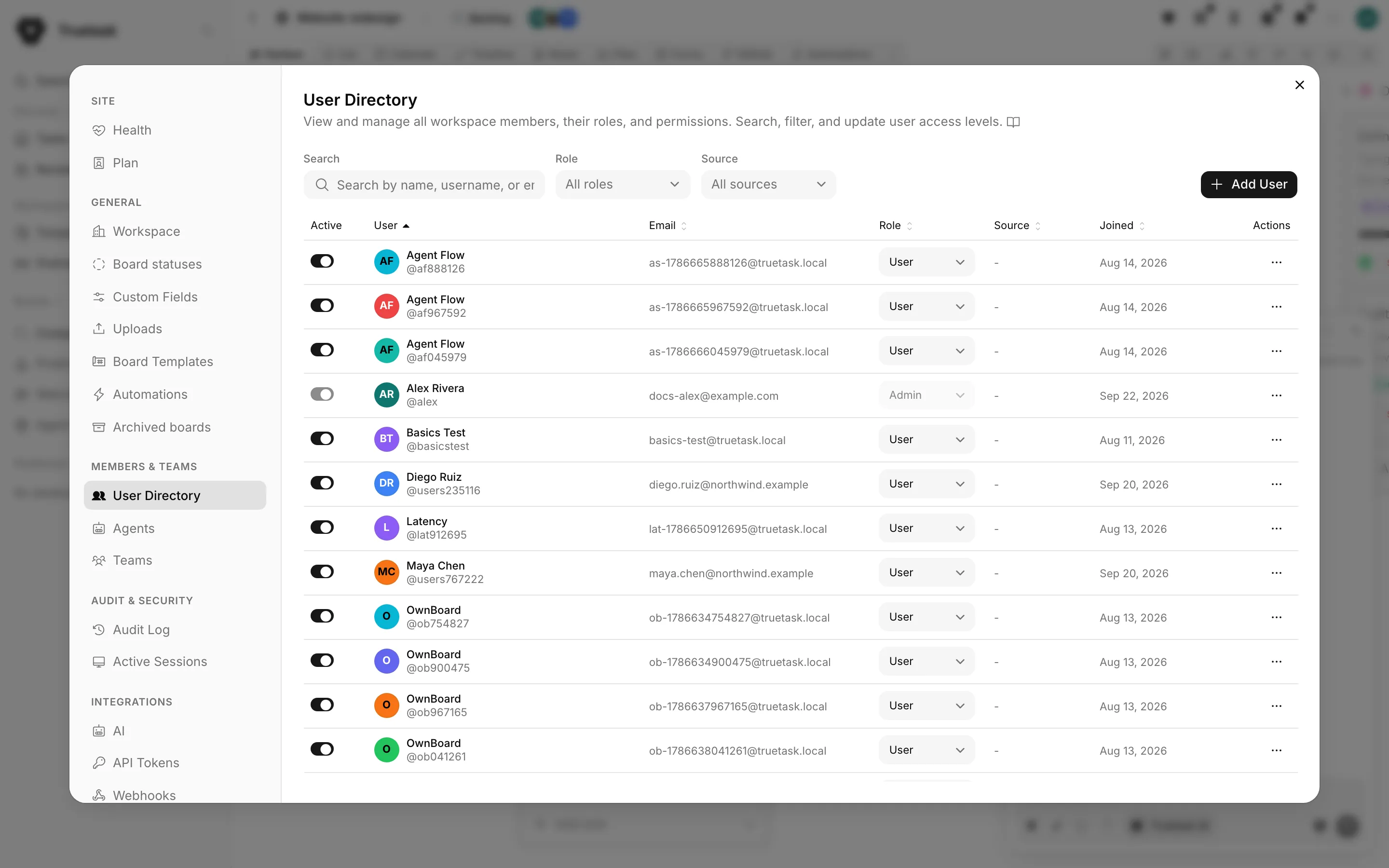
Add User creates an account with a name, username, email and role. How they get a password depends on whether email delivery is working:
- With email working, Truetask offers Send password reset email and mails a link. You never see or handle the password.
- Without it, you set a password manually. Generate password makes one, and Copy puts it on your clipboard. Copy it before saving, because it is not shown again.
- Require a password change on next sign-in makes the person choose their own password the first time they sign in.
If email is not set up or is failing, the dialog says so and points you at the email settings.
Other actions on a row:
| Action | Notes |
|---|---|
| Edit | Change name, username and role. Email is changed by the person from their own profile. |
| Enable or disable | Disabling keeps the account and its history but blocks sign-in. You cannot disable your own account. |
| Change role | Admins only, and you cannot change your own role. Only the owner can assign ownership. |
| Transfer Ownership | The person you pick becomes the workspace owner and you become an admin. This cannot be undone. |
| Delete | Removes the account. |
Teams
Teams are named groups of people, managed in Settings > Members & Teams > Teams.
Create one with a name and a set of members, then use it in two places:
- Mention a team in a comment to notify everyone in it at once.
- Share a board with a team so its members all get access from one entry.
Board membership from a team is computed, so adding someone to a team adds them to every board that team has been given, and removing them takes it away again. Deleting a team leaves its members' accounts and their direct board access untouched.
Sharing a board
Open the board page menu (the dots next to the board title) and choose Share, or use the Share tile.
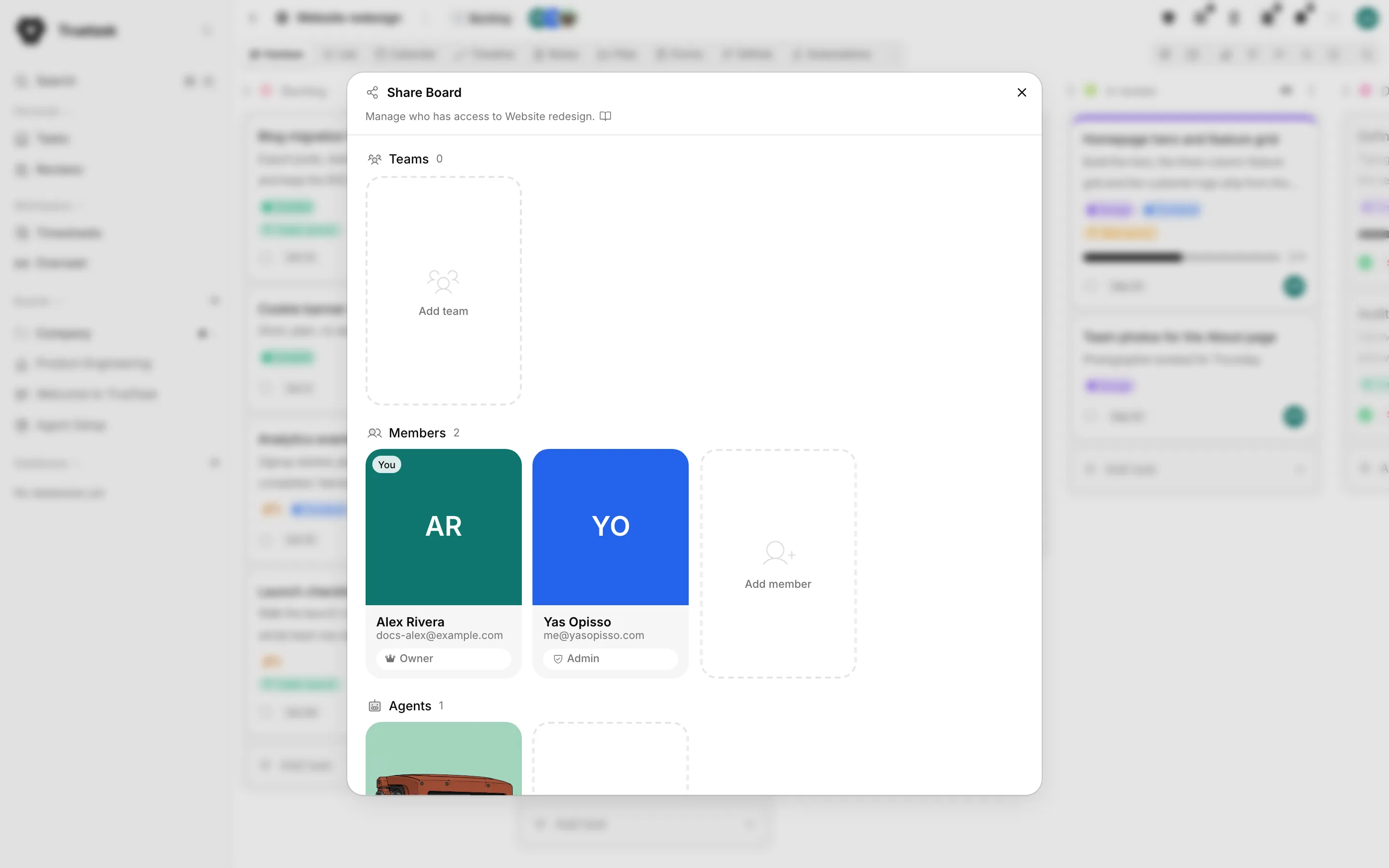
The dialog has three sections: Teams, Members and Agents, each with its own count.
Teams adds or removes whole teams, with the member count beside each one.
Members lists the people with access and their board role. Add member searches the workspace directory. A member who got in through a team is marked via team, and there is an indicator for anyone subscribed to the board's digests. Right-click a member for their role, Copy email, Remove from board or, on yourself, Leave board.
Agents gives an agent access to the board, the same way you would a person. Open agent on the row takes you to its profile. See Agents as teammates for what an agent does once it is on a board.
To hand a board over, pick Make owner on a member. They become the owner and the current owner stays on as an admin.
If you are the only admin, Truetask will not let you leave. Promote someone else to Admin first, otherwise the board is left without an owner.
Agents are members too
An agent in Truetask is an account like any other, owned by the person who created it. Agents appear in the Share dialog, on tasks, in comments and in the activity feed under their own name, so you can always tell what an agent did from what a person did.
An owner or admin can see every agent in the workspace in Settings > Members & Teams > Agents and disable or remove any of them without opening each board.
Everything updates live
Boards, tasks, comments, notifications and time entries all stream over a realtime connection. When a teammate moves a task or leaves a comment, it appears on your screen without a refresh, and an agent's progress shows the same way.