

Appearance
Tasks
A task is the unit of work in Truetask. It lives on a board, in a list, and it carries everything about that work: a description, people, dates, a checklist, files, comments and an activity trail.
Creating a task
| Where | How |
|---|---|
| Kanban | The add row at the top or bottom of a column. |
| List | New task on the list bar, or the draft row at the end of a group. |
| Calendar | Click a day. |
| A form | Fill it in and submit. See Forms. |
| The inbox | Capture an idea now, move it to a board later. See Inbox. |
| An import | Bring a whole backlog in from another tool. See Import and export. |
| An automation | The Create Card action. See Automation actions. |
| An agent, the API or MCP | See Delegating work to agents and REST API. |
Type a title and press Enter. Press / in the title box to open the template and form picker instead: the menu lists this board's task templates, its in-app forms, and Manage templates... at the foot. See Task templates and recurring tasks.
Task keys
Every board gets a short prefix taken from its name (up to four letters, uppercased), and every task on it gets the next number. Together they make the task key, like DEVE-584. The key shows next to the title in the task frame; click it to copy it, or use Copy git branch name to copy a branch name built from the key and title. Keys are what git integration matches commits and pull requests on, and what a search like DEVE-584 finds.
Drafts
The add row has a Draft toggle. A draft task is visible only to you until you publish it, so you can rough something out in the open without the rest of the board seeing half a thought. Open the draft and press Publish in the frame toolbar to share it.
Opening a task
A task opens in one of three lanes:
| Lane | What it looks like |
|---|---|
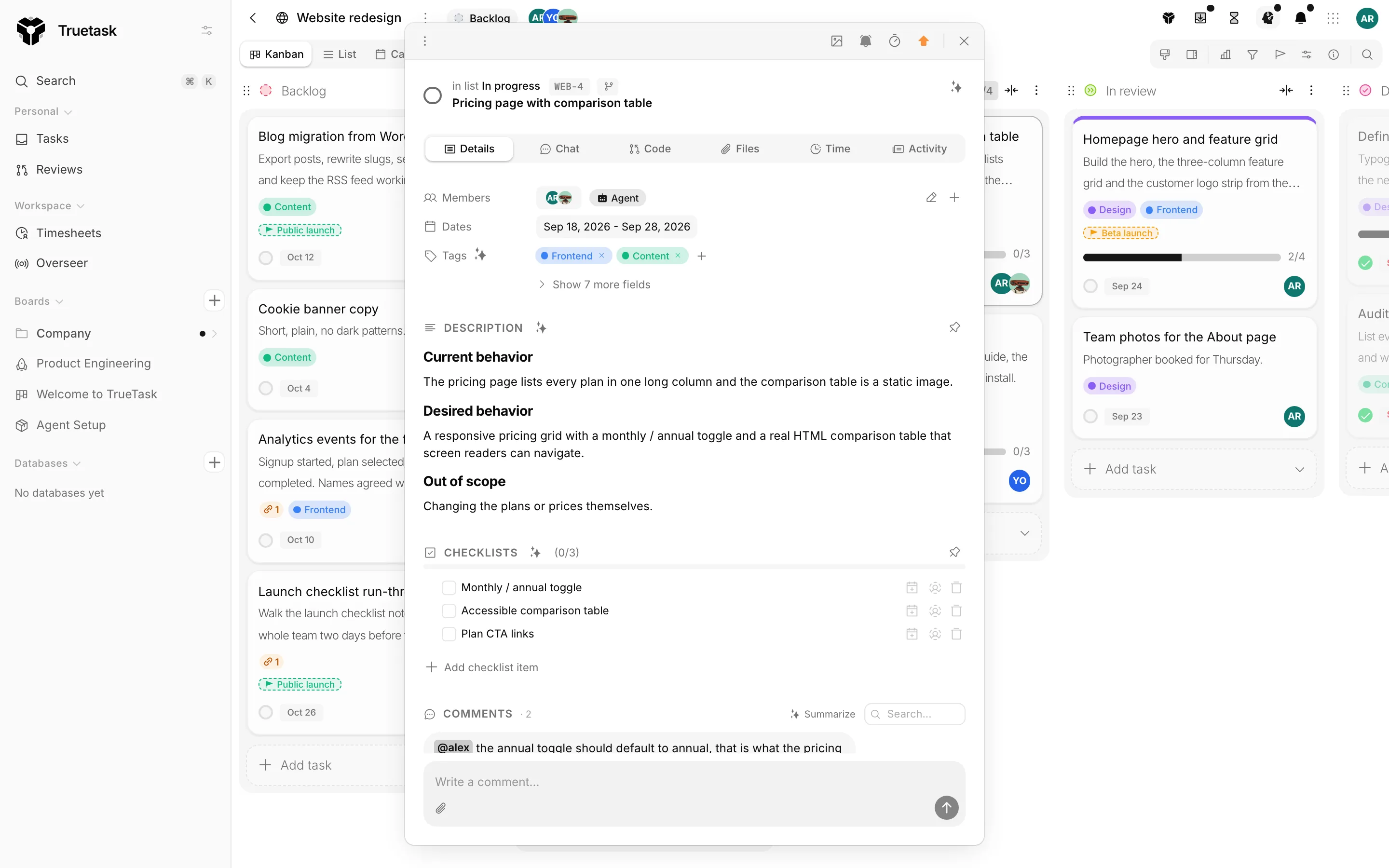
| Floating | A draggable, resizable window over the board. Several can be open at once. |
| Side | A panel docked beside the board. One task at a time. |
| Centered | A single modal in the middle of the screen. |
Each board view has a default: Kanban, Calendar and Timeline open a floating frame, List docks a side panel. Change it per board and per view in the view Preferences popover; the choice is remembered on that device. Switching views moves whatever is open into the destination's lane rather than leaving two lanes lit at once.
A floating frame can be dragged by its toolbar, resized from any edge, maximized by double-clicking the toolbar, and snapped by dragging it to the top, left or right edge of the screen. Dragging a snapped frame pops it back to the size it had before.
Links into a board carry the task in the query string: ?cards=<id> opens it in the view's own lane, ?panel=<id> forces the side panel and ?card=<id> forces the centered modal. Add &tab=<tab> to land on a specific tab. Copy link on any task copies exactly this kind of URL.
The frame toolbar
| Control | What it does |
|---|---|
| The dots menu | Copy as markdown, Copy agent kickoff, Move to, Break down with AI, Duplicate, Save as template..., Make recurring..., Archive, Delete. |
| The bolt | Runs one of the board's on-demand automations on this task. |
| Cover | Sets a cover colour or image. |
| The bell | Watch or stop watching. Assignees always watch, so the bell is fixed for them. |
| The hourglass | The estimate, the time tracked against it and the start/stop timer. |
| The flag | Priority. |
| Publish | Only on your own draft. |
| Open in board | Only when the task is in a side panel away from its board, for example on the Tasks page. |
Break down with AI and the AI helpers elsewhere in the frame only appear when AI is switched on for you and for the workspace. See AI settings.
Tabs
The frame has a Details tab plus up to five more: Chat, Code, Files, Time and Activity. Details can never be hidden. Right-click the tab strip to hide any of the others for yourself, or open Customize from the App menu and go to its Card tabs pane. Hiding is cosmetic: nothing about the task changes.
- Details is everything below.
- Chat is the agent surface: the conversation, the run, the definition of done, the sources an agent should read and the door to the working-context note. See Delegating work to agents.
- Code lists the linked pull requests and commits and holds the coding-tool launcher. It shows only on a board with a repository. See Tasks and code.
- Files is the attachment grid.
- Time is the time logged against this task. See Time tracking.
- Activity is the audit trail.
The Details tab
Properties come first, as a compact block. Members, Dates and Tags always show; Milestone, Dependencies, Pipeline, Votes, custom fields and Referenced by sit behind Show all fields. Hide empty fields trims the block to what actually has a value. Which rows appear and in what order is a board setting: see Custom fields.
Below that:
- Description is Markdown with an editor. Type
/for the command menu,@to mention a person or a board,#to reference another task and[[to link a note. It saves itself as you type, so there is no Save button. - Checklists is one ordered checklist with a progress bar. Each item can carry an assignee and a due date. Drag to reorder, drag an item out to turn it into a task of its own, or drag a task in to turn it into an item (the original task goes to the trash). Generate checklist with AI breaks the task down from its title and description.
- Attachments takes uploads, pastes and drops, and can also pull a file that already lives in the board's Files view.
- Linked notes lists the notes that point at this task.
- Comments is the thread. See Comments.
- Activity is the same feed as the Activity tab.
Priority ships with four levels: low, medium, high and critical, plus no priority. Votes only appear on a board that has voting switched on.
Pin a section to the preview
The pin on Description and on Checklists forces that section onto the task's Kanban preview even when the board's display settings hide it.
Covers
The cover picker offers three tabs: Color, Upload and Unsplash. A cover shows on the task's Kanban preview. If a description is nothing but a URL, Truetask can pull the page's hero image in as a cover automatically.
Self-hosted only
The Unsplash tab needs a key in Settings > General > Unsplash, and the automatic cover from a pasted link needs outbound fetching allowed in Network, which is off by default.
The right-click menu
Right-click a task anywhere it appears.
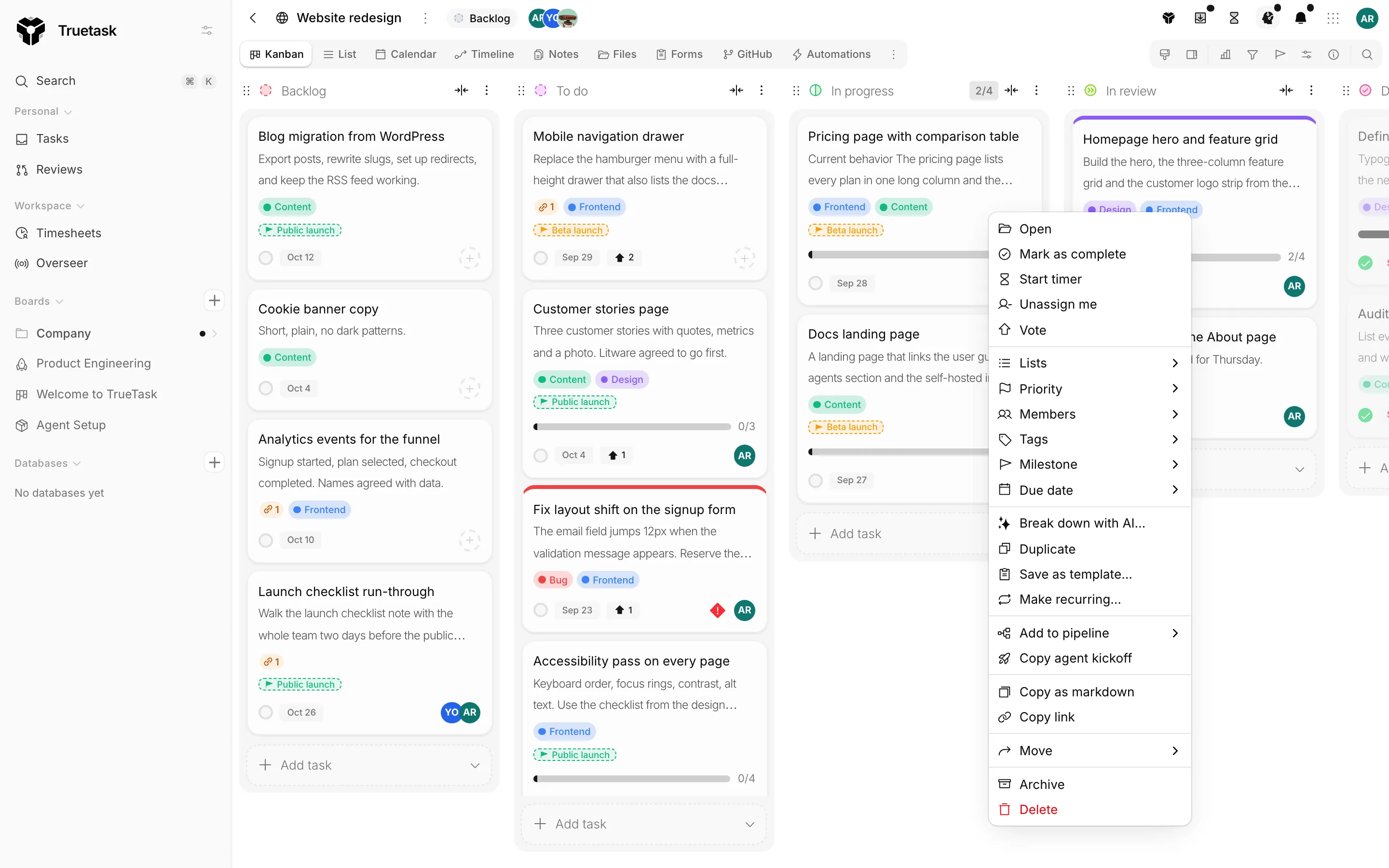
The menu reads in groups, top to bottom:
- Open, and Open in board when you are not on the board.
- Mark as complete or Mark as incomplete, Start timer, Assign to me, Watch, Vote.
- Lists, Priority, Members, Tags, Milestone, Due date.
- Break down with AI..., Duplicate, Save as template..., Make recurring..., Automations.
- The agent doors: Start agent run or View agent run, the pipeline submenu, Copy agent kickoff.
- Copy as markdown, Copy link.
- Move, then Archive and Delete.
Rows you cannot act on are simply absent: a viewer sees the read-only rows, Delete is board admins only, and the agent group needs an agent on the board. Selecting several rows in List view first turns the menu into the bulk menu. See Bulk actions.
Due date offers Today, Tomorrow, Next week, a calendar and Clear due date. Duplicate copies the title with " (copy)", the description, tags, priority, milestone, members, dates, cover colour, estimate, sources, custom field values and the checklist with every item unticked. It does not copy completion, comments, files, votes, watchers or agent state.
Archive, trash and delete
Archive takes a task off the board and keeps it indefinitely. Delete moves it to the trash, where it stays for 30 days and is then purged along with its comments, checklists and time entries.
Both are on the task itself, in the right-click menu and the frame's dots menu. Getting something back is a board-level surface: open the board page menu and choose Restore tasks, which opens a dialog with an Archived tab and a Trash tab. From there you restore a task, delete one permanently, or empty the trash. Trash rows show how many days they have left.
Self-hosted only
A workspace admin can change the 30-day window in Settings > Server > Data Retention. See Data retention.