

Appearance
Notifications
Truetask tells you about the work that needs you: assignments, mentions, comments, due dates and everything your agents do. This page covers the panel in the top bar, what fires each notification, and how to choose which ones reach you and where.
The panel
The bell in the top bar carries a count of unread notifications. Open it for the list, newest first.
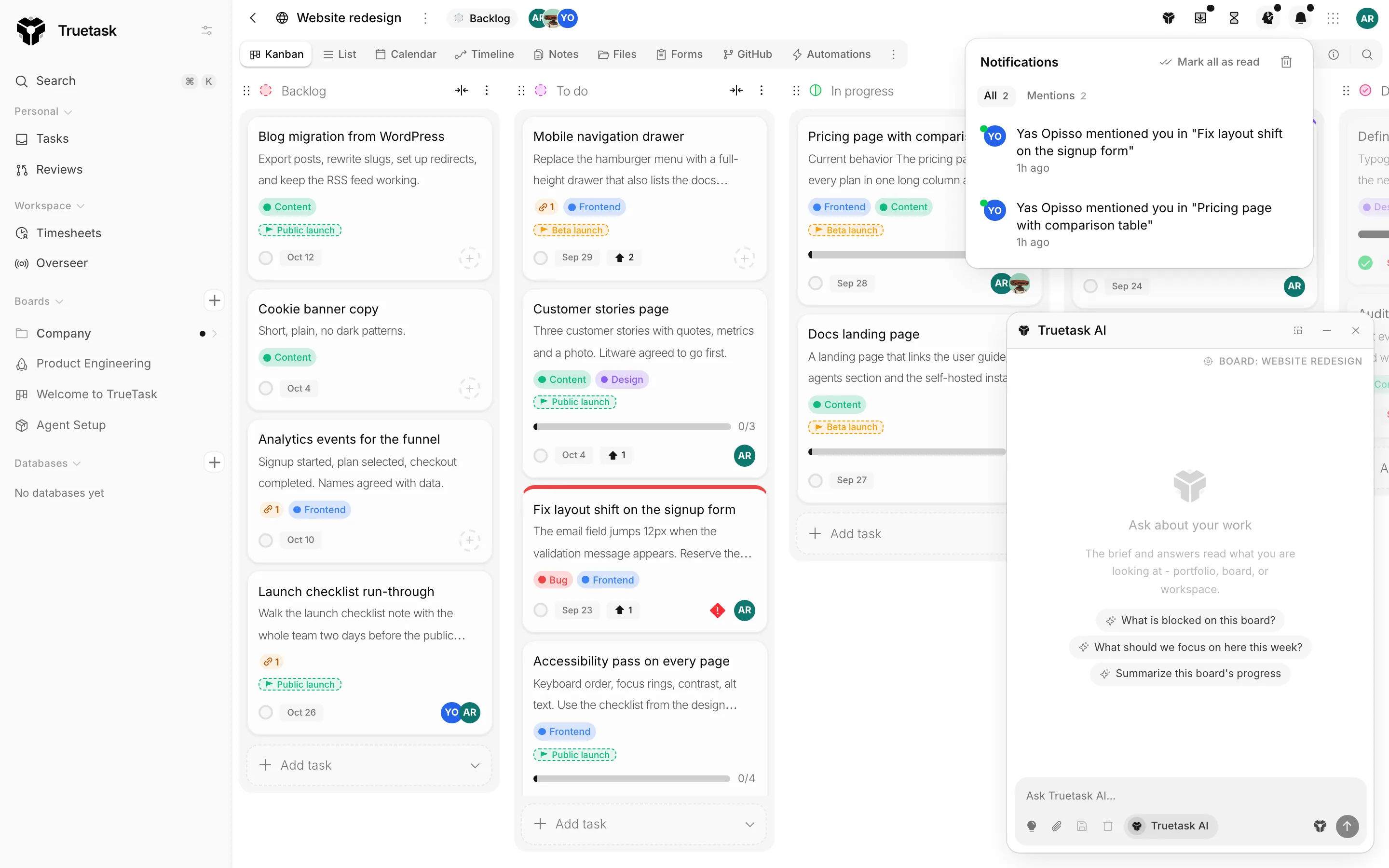
Tabs across the top narrow the list: All, Comments, Assignments, Mentions, Due dates and System. If the tab you are on empties out, you are moved back to All.
| Action | Where |
|---|---|
| Open what it is about | Click the notification. It takes you to the task, board or note. |
| Mark as read / Mark as unread | On the notification. |
| Mark all as read | In the panel header. |
| Dismiss | On the notification. It leaves the list. |
| Dismiss all | In the panel header, behind a confirmation. |
Dismissing is what removes a notification from the panel. Marking it read only clears the unread count.
New notifications arrive live, so the panel updates while it is open.
What fires a notification
| Type | When it fires |
|---|---|
| New assignment | Someone adds you to a task. |
| Removed from task | Someone takes you off a task. |
| Task updated | The start date or due date of a task you are on changes. |
| New comment | Someone comments on a task you are assigned to or watching. |
| New attachment | A file is added to a task you are on. |
| You were mentioned | Someone @-mentions you, or a team you are in, in a comment or a task description. |
| Due date approaching | About 24 hours before a task's due date. |
| Due soon | Less than an hour before it. |
| Task overdue | The due date has passed. |
| Timer stopped | A timer of yours ran past 12 hours and was stopped for you. |
Unless a row says otherwise, a notification goes to everyone assigned to the task and everyone watching it, and never to the person who caused it.
Due date reminders are sent once per task per stage, and completed and archived tasks are skipped.
Moving a task into an In Progress lane also warns the person it is assigned to when it puts them over their own work-in-progress limit. See Board flow.
Agents produce their own notifications: a question waiting on you, a proposal to mark a task done, a run that stalled or failed, a handoff, a pipeline that needs a human, and the note an agent leaves when it finishes. See Delegating work to agents.
Notes have a mention notification of their own, and the timesheet review loop notifies both sides when a week is approved, rejected, resubmitted or asked to be reopened.
Choosing what reaches you
Open your avatar, choose your profile, and go to Notifications.
There are four categories, each with an in-app switch and an email switch:
| Category | Covers |
|---|---|
| Assignments | When you are assigned to a task, and when you are removed. |
| Mentions | Mentions, new comments, new attachments and task updates. |
| Due Dates | Reminders for upcoming and overdue tasks. |
| Agents | Your agents' questions, proposals, finished work and stalls. |
Web Notifications are the ones shown in the app, and they are on unless you turn them off. Email Notifications are off unless you turn them on.
Anything outside those four categories, such as a timesheet decision or the work-in-progress warning, always shows in the app and is never emailed.
Email needs a working mail server
Email delivery only works when the workspace can send mail. On Truetask Cloud that is handled for you. On a self-hosted instance an admin configures it in Settings > Server > SMTP.
Your daily brief
The same pane carries a personal brief: a summary of what needs you, built from questions, proposals, finished work and overdue tasks.
| Setting | Options |
|---|---|
| Send me a brief | On or off. Switching it off keeps your other choices for when you switch it back on. |
| Frequency | Daily or Weekly. |
| Delivery | In the app, By email or Both. |
| Send at | Any hour, shown in your own clock format. Hours follow the workspace timezone. |
Each change saves on its own, so there is nothing to confirm.
Push notifications
Push reaches you on a device even when Truetask is closed.
It is per device, not per account, so you enable it once in each browser you use. The switch is This device, at the top of Notifications in your profile, and it only appears in browsers that support push at all.
Truetask may also offer a one-time banner at the bottom of the sidebar, Enable push notifications to stay updated on task changes, with Enable and Dismiss. It only shows on an account older than five minutes that has not already subscribed, and dismissing it is permanent for that browser.
The first time you enable push, the browser asks for permission. If you block it, the switch goes inactive and says so; you have to allow notifications in your browser settings before Truetask can turn it back on.
Self-hosted only
Push needs a VAPID key pair on the server. Without one, the app answers "Push notifications are not configured on this server" and the switch does nothing.
Push in privacy browsers
Web push does not travel directly from Truetask to your browser. Every browser relays push through its vendor's service: Chrome and other Chromium browsers use Google's, Firefox uses Mozilla's. Truetask hands the message to that service, and the service wakes your browser.
Hardened and privacy-focused browsers often block those services, and some have push messaging switched off by default. When that happens, subscribing never completes. Truetask gives up after 15 seconds and tells you "Your browser blocked the push service. Check that push messaging is enabled in browser settings and restart the browser."
What to try, in order:
- Turn push messaging on in your browser's own settings, then restart the browser completely.
- Check that notifications are allowed for the Truetask site, and not blocked globally.
- Turn off any extension, content blocker or network filter that blocks the browser vendor's push endpoints.
- Try the same workspace in a mainstream browser to confirm the server side is fine.
If push still will not subscribe, nothing else breaks. In-app notifications, email and the daily brief work exactly as before, and the panel keeps everything.
Board digests
A digest is a periodic summary of one board instead of a message per event.
Open the board page menu (the dots next to the board title), go to Board setup and choose Subscribe to digests.
| Setting | Options |
|---|---|
| Subscription active | Pause without losing your settings. |
| Frequency | Daily or Weekly. Weekly arrives on Monday. |
| Delivery | In-app, Email or Both. |
| What to include | Task changes, comments, member changes, tag changes and dependency changes. Pick at least one. |
Digests go out at 07:00 on the server's clock. The counts are drawn from the board's activity log, the same source as the board Activity dialog.
Unsubscribe stops them entirely.
How long notifications are kept
Self-hosted only
Read notifications are cleaned up on a schedule you control in Settings > Server > Data Retention, under Read Notifications. The cleanup job runs daily at 3:00 AM and removes anything older than the retention period you set. See Data retention.