

Appearance
Timesheets and approvals
Timesheets is the workspace view of logged time: everyone's entries, filtered and pivoted, plus the weekly approval queue. The people who log time work in the Timelogs week grid; this page is what their managers see.
Who can open it
Timesheets appears in the sidebar under Workspace for site OWNER, ADMIN and LEAD, and only when time tracking is switched on in your Features. Anyone else who reaches /timesheets is sent back to their Tasks page.
The API follows the same rule: a manager can list time entries, approvals and billing rates for other people, and everyone else only ever sees their own.
The toolbar
Across the top you pick what you are looking at.
| Control | What it does |
|---|---|
| View | Table, Chart and Calendar, with Approvals set apart on its own. |
| Date range | Presets This Week, Last Week, Last Two Weeks, This Month, Last Month, Last 30 Days, plus Custom with a calendar. |
| People | All Users, a team, or any set of individuals. Search by name. |
| Filters | Boards, tags, priority, duration band (under 30 min, 30 min to 2 h, over 2 h) and Only entries with notes. Clear all resets them. |
| Time format | The 0:00 / 0.00 button swaps every duration between hours and minutes and decimal hours. |
Above the view sits a summary strip: Total, Active Users, Tasks Worked with the board count, Avg / active day, Top contributor, and Est. vs tracked when any task in range has an estimate.
The estimate tile counts a task as over budget when its all-time tracked time passes its estimate, and says how many tasks are over.
Table
The default view pivots logged time into rows by day.
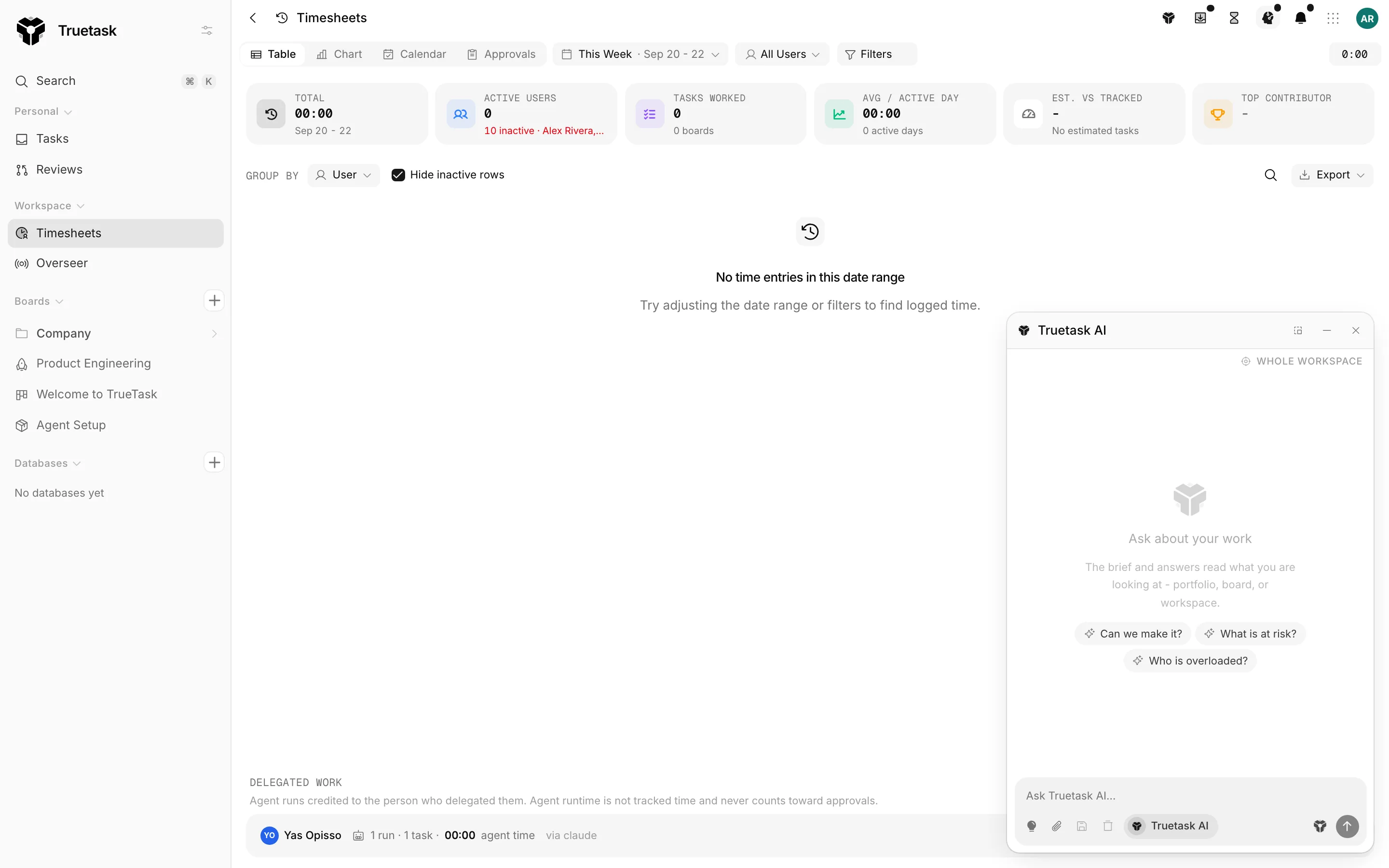
- Group by switches the rows between User, Board and Task.
- Hide inactive rows drops people with nothing logged in the range.
- The search box filters rows by user, board or task.
- A notes marker on a cell says the entries carry notes, and a separate marker flags entries missing one.
- An overlap warning appears when two entries cover the same time, and says how much of the total is double-counted.
- View & edit entries on a row opens the underlying entries so you can correct them.
- Export gives you Download CSV or Download Excel. Export lives in this view only.
Below the table, Delegated work lists agent runs credited to the person who delegated them, with the run and task counts and the agents involved. Agent runtime is not tracked time and never counts toward approvals. See Delegating work to agents.
Chart
Chart plots the daily total for the range.
Choose Bars or Area, stack by User, Board, Task, Tag or Priority, and rank the same way to get the top contributors or top boards. Clicking a day or a ranked item drills into the entries behind it, where Open task takes you to the task.
Calendar
Calendar shows one person's week as a grid of blocks, like their own Timelogs frame. Pick the person, walk the weeks with Previous week / Next week / This week, and set Visible hours from the calendar settings. Clicking a block shows when it ran, its duration, whose it is, and Open task.
Approvals
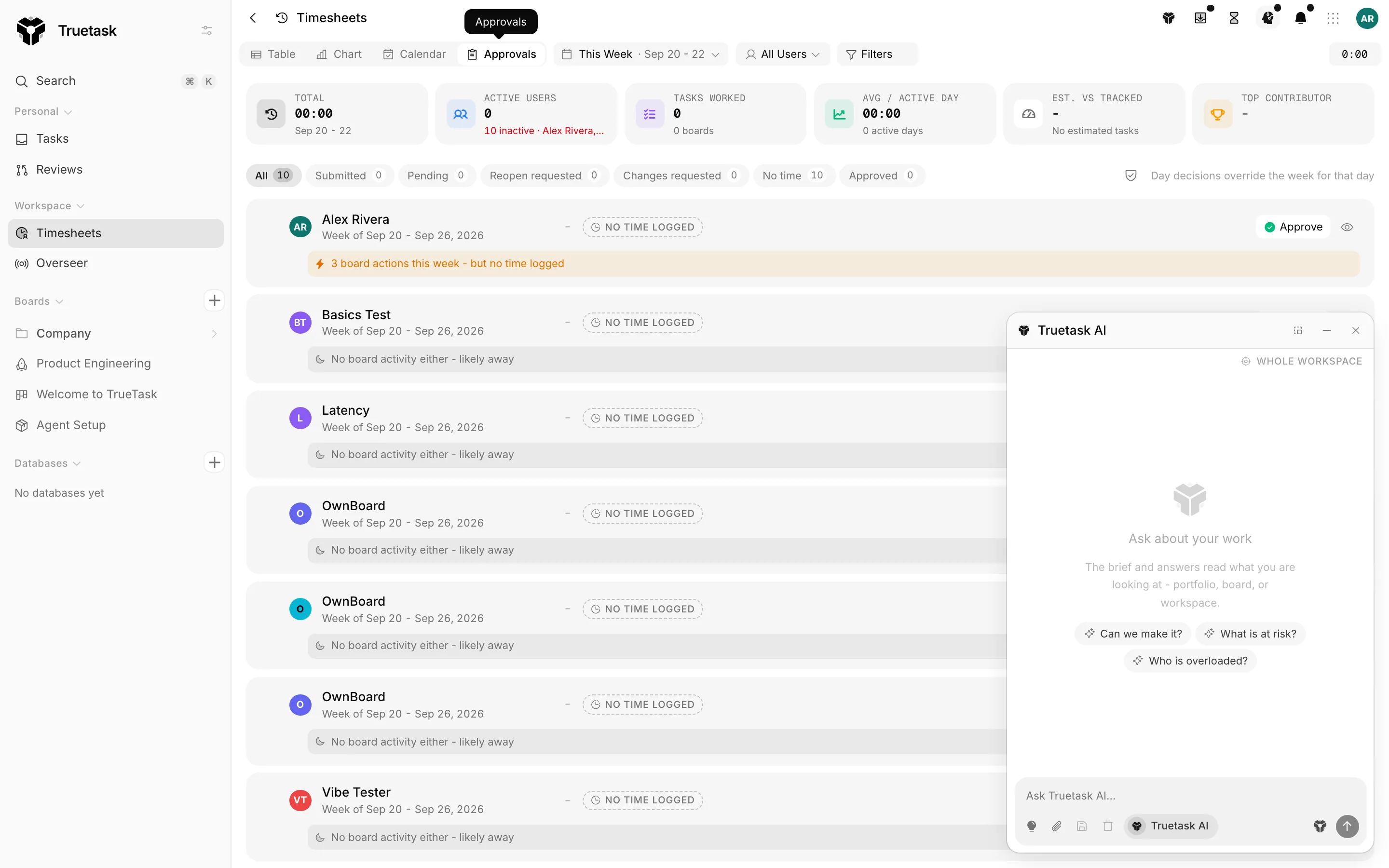
Approvals is the weekly review queue. Rows are (person, week) pairs, and a week can be Pending, Submitted, Approved, Rejected, Changes requested or Reopen requested.
The loop
- The person hands in their week with Submit for approval from their Timelogs frame. Submitted weeks rank above plain pending ones in the queue.
- You decide: Approve, Reject or Request changes. Reject and Request changes both ask for a note saying what needs to change.
- They reply from the Timelogs frame, and can Resubmit for review, which starts a fresh round.
- If they need to edit an approved week, they send a Request changes of their own. The week goes to Reopen requested and stays locked until you answer with Reopen or Keep approved.
A status change clears the previous reply and starts a new round. Editing only the note keeps the reply in place.
Approving locks the time
Approving a week locks its entries. After that, nobody can add, edit, move or delete time in that period, whether from the app, the REST API or MCP. A running timer started before the lock can still be stopped, because approvals only count closed entries.
Use Reopen to unlock a week.
Days inside a week
Open Show days on a row to decide a single day instead of the whole week. A day decision overrides the week for that day, and the view says so. Making a fresh week-level decision removes the day decisions underneath it.
Bulk decisions
Approve all takes every pending or submitted week in the current range that has time logged against it, and approves them with a progress counter. Close period… does the same but only up to a cut-off you set with Only weeks ending on or before. Either one can also take in the weeks with no time at all, with Also approve N empty weeks.
Both show the count of timesheets, people and hours before you commit, and both say that approving locks the time and that people can still request a reopen.
Reading the queue
- No time logged marks a week with nothing in it. Truetask then counts that person's board activity for the week, so the row can tell you "23 board actions this week, but no time logged" apart from "No board activity either, likely away".
- Self-approved marks a decision made by the person it belongs to.
- Decision history on a row is the audit trail: every decision and note edit, who made it and when.
- A status filter narrows the queue, and View entries jumps to the time behind a row.
Approval policy
The policy control in the Approvals view header carries one setting.
| Setting | What it does |
|---|---|
| Block self-approval | Stops a manager from deciding their own timesheet. The server rejects the decision and tells them to ask another manager. |
It is off unless you turn it on, and it applies to manager decisions only. Handing in your own week and replying to a request are never blocked by it.
Billable rates
Every time entry carries a billable flag, on by default, which you can see and filter on in the table and the export.
Each person also has a default hourly rate and currency behind /v1/user-billing-rates/. Rates are snapshots: an entry records the rate that applied when the time was logged, so changing a default never rewrites history. Managers can set another person's rate through the API; everyone else can only set their own.
Not surfaced yet
There is no screen for editing rates in the app today. The values are read and written through the API only.
Time-tracking policies
Rounding and the note requirement are set once for the workspace in Settings > General > Workspace, and are described in Timers and time entries. Rounding applies to what Timesheets reports and exports, not to what was logged.