

Appearance
Workspace
The General group holds the settings that shape the whole workspace: how it is named, how dates are written, how big an upload may be, and what happens to boards after you archive them.
Workspace pane
Settings > General > Workspace is three sections with one Save button at the bottom.
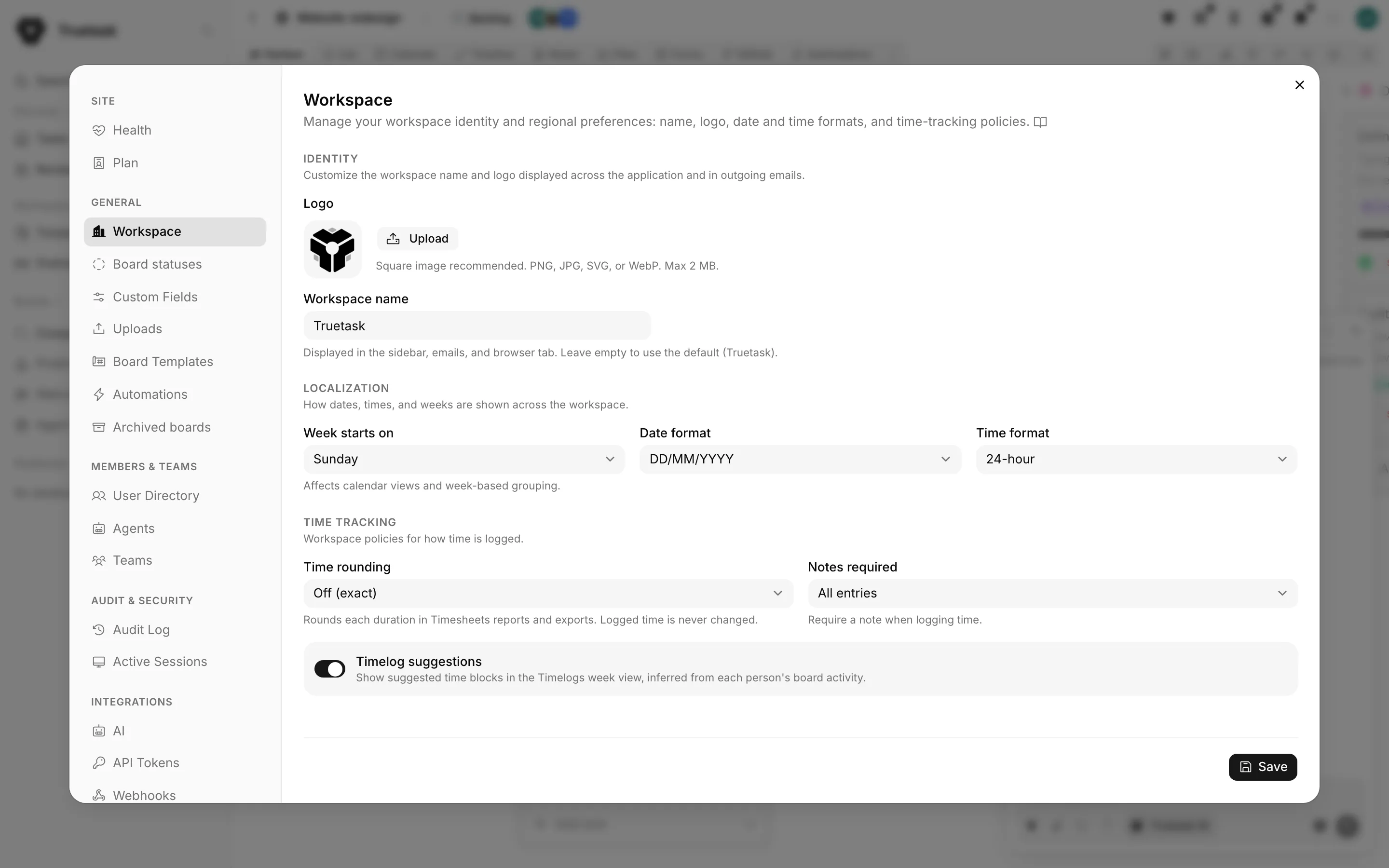
Identity
| Setting | What it does |
|---|---|
| Logo | The mark shown in the sidebar and in outgoing emails. Upload a PNG, JPG, SVG or WebP, or Remove to fall back to the Truetask mark. |
| Workspace name | Shown in the sidebar, in emails and in the browser tab. Leave it empty to use the default. |
Both are stored once for the workspace, so a change is visible to everyone.
Localization
| Setting | Options |
|---|---|
| Week starts on | Sunday or Monday. Affects calendar views and every week-based grouping. |
| Date format | DD/MM/YYYY, MM/DD/YYYY, YYYY-MM-DD, DD.MM.YYYY, DD-MM-YYYY. |
| Time format | 24-hour or 12-hour. |
These are workspace-wide, not per person.
Time tracking
| Setting | What it does |
|---|---|
| Time rounding | Off (exact), 6 minutes, or 15 minutes. Rounds each duration in Timesheets reports and exports. The logged time itself is never changed. |
| Notes required | Not required, Billable entries only, or All entries. |
| Timelog suggestions | Shows suggested time blocks in the Timelogs week view, inferred from each person's board activity. |
See Time tracking and Timesheets for what these policies change day to day.
Board statuses
Settings > General > Board statuses defines the statuses a board can be in. Each status carries a name, an icon, a colour and a kind, and the kind is what Overseer reads.
| Kind | What it means |
|---|---|
| Planned | Not started yet. Counts toward the portfolio like an active board until work begins. |
| Active | Work is under way. These boards make up the portfolio numbers. |
| Paused | On hold. Flagged as paused in Overseer and still counted in the portfolio numbers. |
| Done | Finished. Grouped apart from active boards and left out of the portfolio totals. |
| Cancelled | Stopped and will not finish. Grouped with finished boards and left out of the totals. |
Drag a row to reorder. One status is the Default that new boards start on, and the default can never be a finished kind. Deleting a status that boards are using asks you which status those boards should move to first, and the workspace always keeps at least one.
See Overseer for what the kinds drive.
Custom fields
The Custom Fields row is not a pane. Selecting it opens the Custom fields manager on its Workspace tab, where you define fields once and attach them to boards. See Custom fields.
Uploads
Settings > General > Uploads sets one number.
| Setting | What it does |
|---|---|
| Maximum file size | Applies to task attachments and comment files. Between 1 MB and 500 MB, 25 MB by default. |
| Image uploads | Fixed, not configurable. Avatars, covers and the workspace logo use their own image limit whatever you set above. |
A proxy can still say no
The setting only raises Truetask's own limit. If a reverse proxy in front of the instance has a smaller body limit, the upload still fails there.
Network Self-hosted
Truetask is offline-first. Nothing in the app reaches the internet unless you turn it on in Settings > General > Network, which also controls whether automations, webhooks and agent fetches may reach private addresses on your own network. See Network policy.
Truetask Cloud only
The Network pane is not shown.
Unsplash Self-hosted
Settings > General > Unsplash takes an Unsplash access key so people can set a note or task cover from Unsplash's library. Create a free app at unsplash.com/developers and paste its access key. The key is stored encrypted and is not shown again.
Two things to know:
- A key set in the server's environment takes precedence over one entered here.
- Unsplash also needs the Network setting Allow features that reach the internet turned on.
Board templates
Settings > General > Board Templates lists every template saved in the workspace, with its list, tag and field counts. Per template you can Rename, Share with everyone or Make private, and Delete. Templates are created from a board's page menu with Save as template, not here.
See Board templates.
Automations
Settings > General > Automations is the one place that shows every automation across every board. The header counts how many are currently active, and on Cloud it also shows how many your plan allows.
You can:
- Search by name or board, and filter by board or by state (Active, Disabled, Archived).
- Sort by automation, board, trigger, state, run count or last run.
- Flip one automation on or off with its switch.
- Select several and Enable, Disable, Archive or Delete them together.
Deleting is permanent and takes the run history with it.
Truetask Cloud only
Enabling an automation fails when it would take you past the active-automation limit on your plan. See Plans and billing.
See Automations for building them.
Archived boards
Settings > General > Archived boards lists the boards you archived, with their list and task counts and the date they were archived. Restore brings a board back into the sidebar. Delete permanently removes the board and all its data, and cannot be undone.