

Appearance
License Self-hosted
A self-hosted instance needs a license key. It runs without one for three days, then locks the app until you activate. This page covers the grace period, activation and everything the License pane does.
The grace period
The first time an unlicensed instance is asked for its license status, it starts a 3-day grace period. During those three days the app works normally, with two reminders:
- An amber banner across the top of every page: "No active license. This site will become inaccessible in N day(s)." Workspace owners and admins also get an Activate License link in it that opens the License pane.
- A dismissable License Required dialog with the same countdown, shown once per browser session.
When the grace period runs out, every page redirects to the activation screen and stays there until a valid key is accepted.
Activating
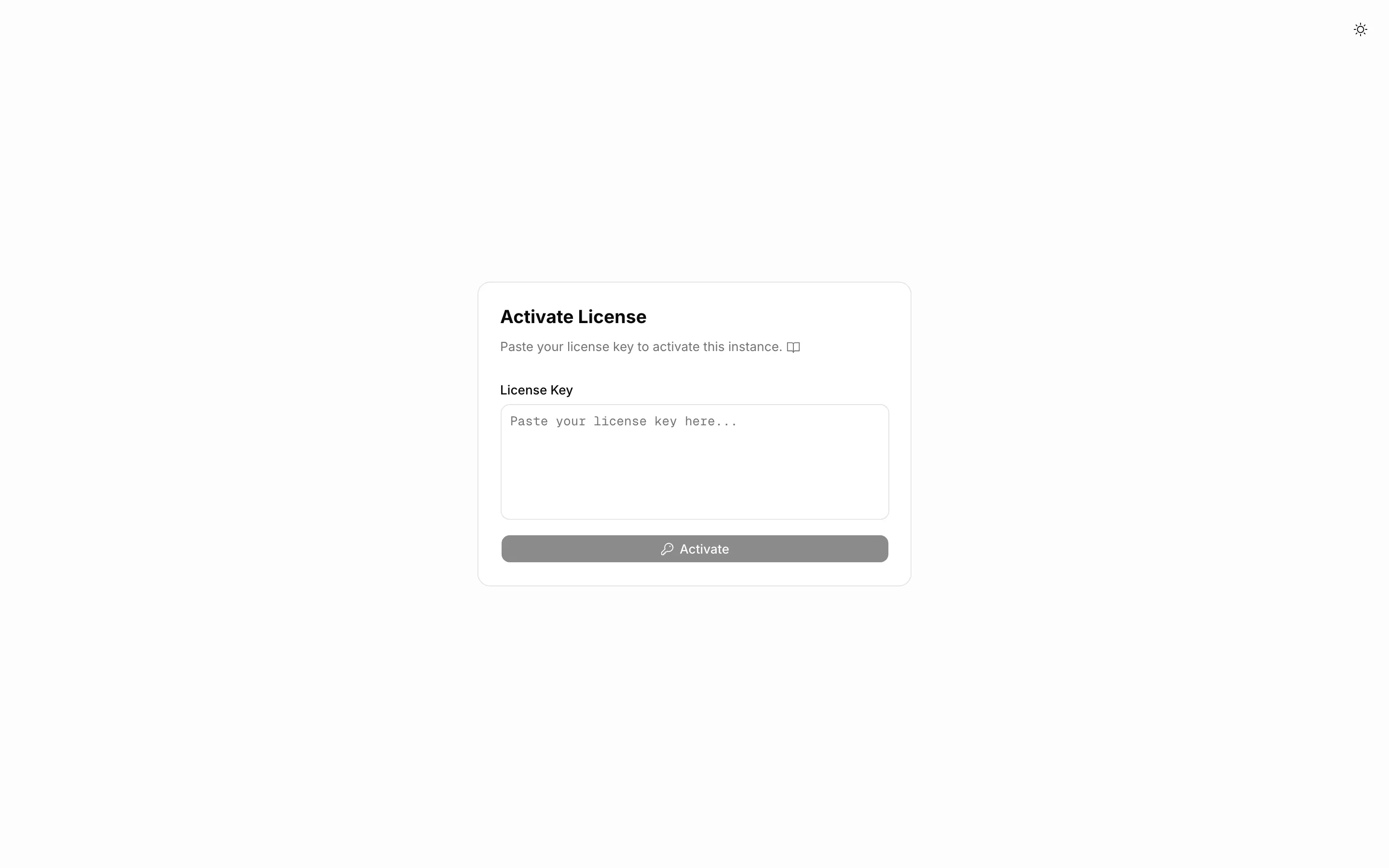
The key arrives by email from your Truetask portal account. Paste it into the License Key box and press Activate. Cmd/Ctrl+Enter submits without reaching for the mouse.
You can activate from two places and they behave the same way:
- The Activate License page at
/auth/activate, which is where an expired instance sends you. It does not need you to be signed in. - Settings > Site > License, for an instance that is still inside its grace period or is replacing a key.
Nothing restarts. The banner clears as soon as the key is accepted.
What gets checked
A key is two base64 segments separated by a dot. Your browser parses it and verifies its signature before anything is sent, so a mistyped or truncated key is rejected immediately with "Invalid license format" or "License signature verification failed".
The server checks it again: the payload has to be valid JSON carrying a type, an account id, an issue date and an updates-until date, and the type has to be one Truetask issues.
One installation, one account
The first key you activate binds this installation to the portal account that owns it. A key issued to a different account is refused after that, whatever else is in it. Contact support if you genuinely need to move a license between accounts.
What the License pane shows
Open Settings > Site > License. Only workspace owners and admins can read it.
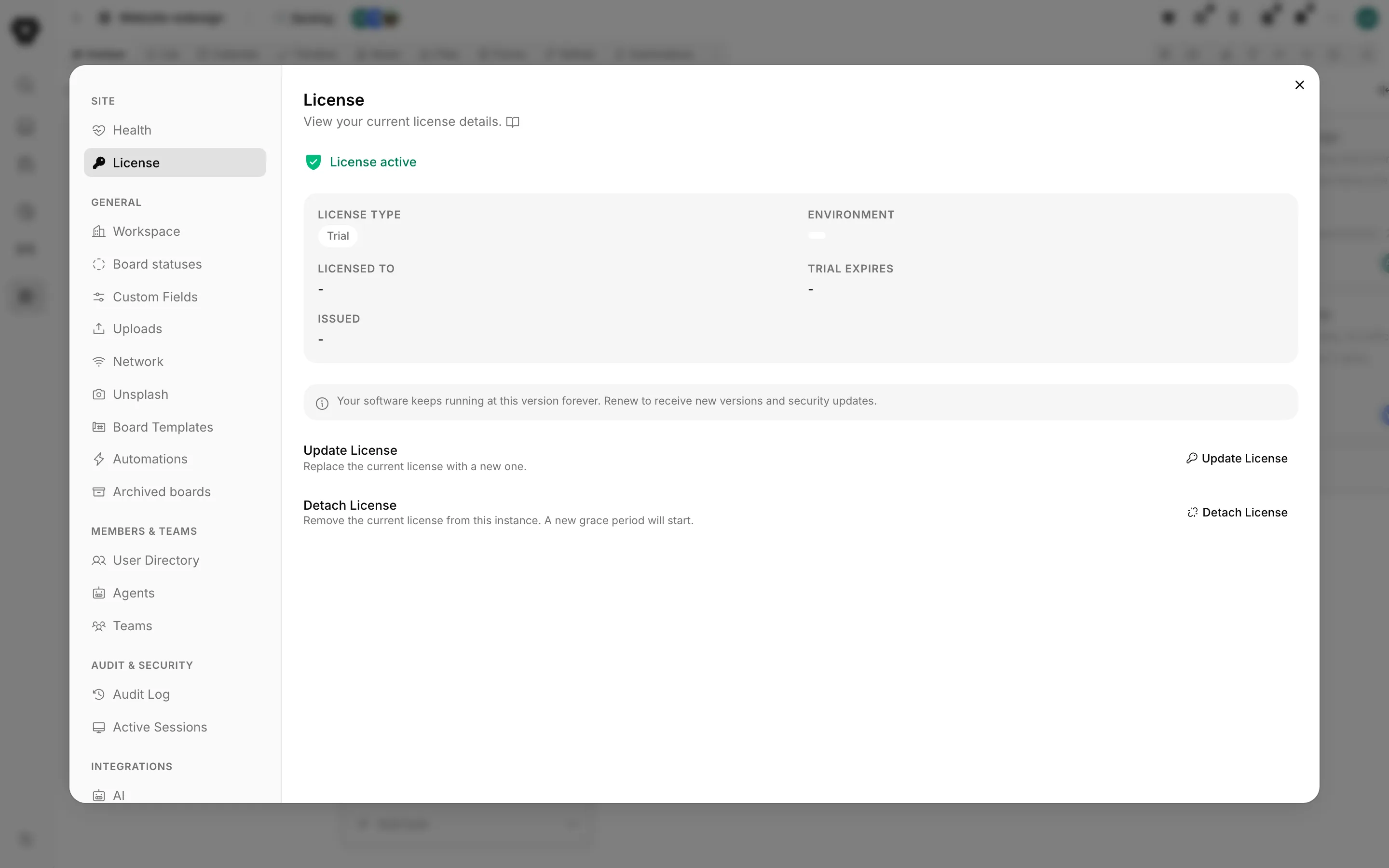
With a key installed you get a green License active line and five facts:
| Field | What it is |
|---|---|
| License Type | Your license type. The labels are Trial, Teams, Pro and Enterprise |
| Environment | Production, Staging or Development, as issued |
| Licensed To | The email the license was issued to |
| Updates included until | The end of your updates window. A trial shows Trial Expires here instead, with the days left |
| Issued | The date the license was generated |
Below that is the thing worth reading twice:
Your software keeps running at this version forever. Renew to receive new versions and security updates.
The license is perpetual. Only the updates window can lapse. An amber or red date here does not mean your instance is about to stop; it means new versions are no longer included.
Trials
A trial key carries its own expiry. When you activate one, the instance sets its cutoff to the trial's end date plus the key's own grace allowance, which is three days unless the key says otherwise. The pane counts the remaining days down next to Trial Expires.
Past that point the instance behaves like an unlicensed one: the activation screen, until you paste a paid key.
The updates window
Updates included until is a date on the key itself, so the instance never has to ask anyone whether it is still covered.
The color of the date tells you where you stand. More than 30 days left and it is plain. Thirty days or fewer and it turns amber with "ends in N days". Past the date it turns red with "ended N days ago".
Inside that last 30 days, and after it, two things appear. The pane adds its own note about cost: "Renewal is approximately 25-40% of the original license cost." And a Renew Updates panel appears with a button.
Pressing it opens a dialog with a ready-made email to [email protected], filled in with your license type, issue date, licensed-to address and expiry. Copy email puts the message on your clipboard, which is the reliable route because several mail clients mangle line breaks in mailto: links. Open in mail app is there for the clients that do not.
You do not have to wait for that panel. Seven days before the window closes, the daily license job emails every owner and admin and drops a notification in the app. That reminder is sent once per window.
Replacing, detaching and downgrading
Update License replaces the current key with a new one. Expand it, paste, press Update. Use this after a renewal or when moving from a trial to a paid license.
Detach License removes the key from this instance. A fresh 3-day grace period starts immediately, so the app keeps working while you activate a replacement. Press it once to arm it and again to confirm. Only the workspace owner can complete this.
If the key you are activating is for a lower tier than the one installed, a License Downgrade dialog lists the features that will be switched off and asks you to confirm. Confirming applies the key and turns those features off for you rather than leaving them half-configured.
When nothing is installed
The pane shows the activation form directly, under Activate License, with the note: "Paste the license key you received from your Truetask portal account."
If loading fails entirely, the pane says so rather than guessing. An instance that cannot read its own settings fails open and keeps serving, so a database hiccup never locks you out of your own workspace.
Truetask Cloud only
Truetask Cloud workspaces have no license key. They are entitled by plan instead, and the License pane is replaced by Plan. See Plans and billing.