

Appearance
AI settings
Settings > Integrations > AI is the workspace switchboard for everything AI: whether it runs at all, which models it may use, which model serves which job, and which AI affordances people see on a task. Owners and admins can open it.
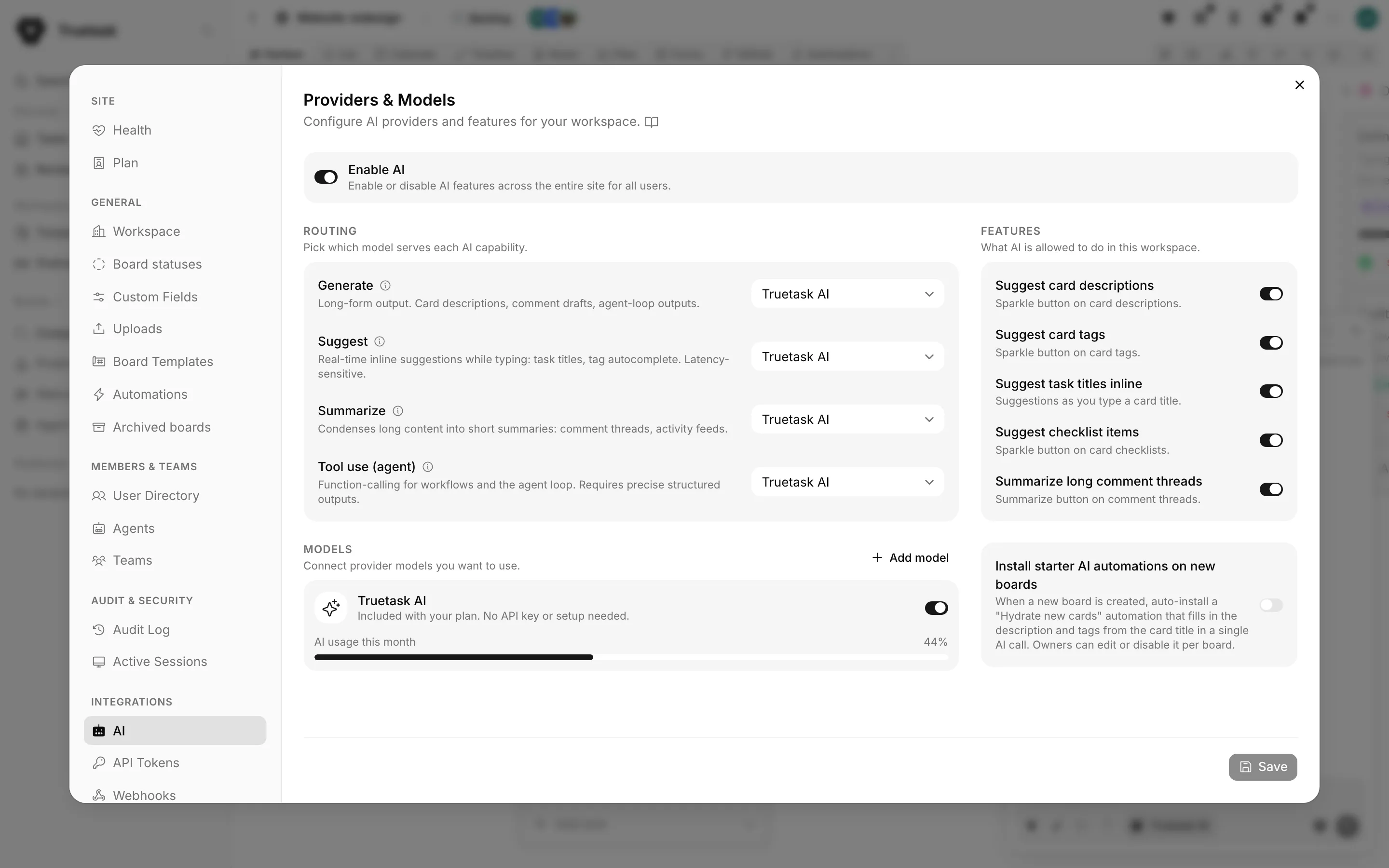
Enable AI
The pane opens with one master switch, Enable AI. Turn it off and every AI-powered feature is off for every user in the workspace, no exceptions. The rest of the pane collapses while it is off, with a notice saying why.
This is the kill switch. Individual people can hide AI from their own view without touching it: see Per-user AI features below.
Models
Models are what actually answers. The pane lists what the workspace has connected.
Truetask AI Cloud
A Cloud workspace already has a managed model called Truetask AI. It needs no API key and no setup, it is included with the plan, and the only control on its card is on or off. When it is on, a small meter shows how much of this month's allowance is used.
Truetask Cloud only
Running out of the monthly allowance stops AI calls until the month turns over. A top-up or a plan change is the fix. See Plans and billing.
Bring your own model
Add model connects a provider of your own.
| Field | Notes |
|---|---|
| Name | What the model is called in the routing list. |
| Provider | OpenAI, Anthropic, Gemini, OpenRouter, Ollama, LM Studio, oMLX, vMLX or Custom. |
| Model ID | The provider's identifier, for example gpt-4o. |
| API URL | Prefilled with the provider's default when you pick one, editable for anything else. |
| API Key | Not needed for the local runtimes. |
| Capabilities | Which of the four jobs below this model may serve. |
| Enabled | Whether routing may use it at all. |
Two helpers sit in the dialog. Fetch available models pulls the provider's catalog so you can pick the model ID rather than typing it, and Test checks that the endpoint is reachable and the key is accepted before you save.
Ollama, LM Studio, oMLX and vMLX all default to a localhost address, which is how a self-hosted instance runs AI with nothing leaving the machine.
Truetask Cloud only
Connecting your own provider needs a paid plan. See Plans and billing.
For which model to pick for what, see Choosing models.
Routing
Routing decides which model serves each capability. Each row carries a plain description of the job and an info icon with a recommendation.
| Capability | What it serves |
|---|---|
| Generate | Long-form output: task descriptions, comment drafts, agent-loop output. |
| Suggest | Real-time inline suggestions while you type, such as task titles and tag autocomplete. Latency matters more than quality. |
| Summarize | Condensing long content: comment threads, activity feeds. |
| Tool use (agent) | Function calling for workflows and the agent loop. Needs precise structured output. |
A row can only point at a model that is enabled and declares that capability. When nothing qualifies yet, the row says so and sends you to the Models section.
Truetask Cloud only
On a workspace using managed Truetask AI only, routing is fixed to that model and the rows are read-only.
Features
Features is the policy list: what AI is allowed to do in this workspace, independent of which model does it.
| Setting | What it turns on |
|---|---|
| Suggest card descriptions | The sparkle button on a task description. |
| Suggest card tags | The sparkle button on a task's tags. |
| Suggest task titles inline | Suggestions as you type a task title. |
| Suggest checklist items | The sparkle button on a task's checklists. |
| Summarize long comment threads | The Summarize button on a comment thread. |
| Install starter AI automations on new boards | Adds a "Hydrate new cards" automation to each new board, which fills in description and tags from the title in one AI call. Off by default. Board owners can edit or disable it per board. |
The first five are on by default. Turning one off removes the affordance everywhere rather than leaving a button that fails.
AI prompts Self-hosted
Every prompt the app sends to a model is editable on a self-hosted instance. Open your avatar in the top bar and choose Prompts. The item appears once AI is on and at least one model is enabled, and it is limited to owners and admins.
The dialog is grouped by the surface that consumes the prompt:
| Tab | Covers |
|---|---|
| Agent Loop | The rules every agent run starts with, plus the context blocks appended at run time. |
| Auto-fill Cards | The single call that writes a description and suggests tags on a new task. |
| Sparkle Actions | The manual AI buttons on a task: suggest title, describe, checklist, summarize comments, auto-tag, timelog notes. |
| Overseer | The weekly brief and the delivery questions answered over the portfolio dashboard. |
Each prompt says whether it still matches the factory text or has been edited. Edits take effect on the very next AI call, and Reset to default restores the factory text.
Truetask Cloud only
Prompt customization is not available on Truetask Cloud on any plan. Editing the system prompts that drive AI is deliberately kept out of a managed deployment.
Per-user AI features
Each person can hide AI from their own view without changing anything for anyone else. Open the App menu > Features and turn off AI features. That hides the agent command center, the AI actions on a task, the agent tabs and every other AI surface, for that person only.
See Customize.