

Appearance
Self-hosted Self-hosted
Self-hosted means you run the Truetask stack on your own machine and own the data directory. It is the same product as Truetask Cloud, with a few extra settings panes for the parts of the server you now control.
What you get
Every feature is available. There is no plan gating on a self-hosted instance: the entitlement check returns true for every feature when the instance runs in self-hosted mode, so groups, audit, sessions, API tokens, MCP, webhooks, S3 storage, time tracking and agent runs are all on.
Two things exist only here:
- The AI Prompts dialog, which lets you edit the system prompts behind AI surfaces. It is deliberately never available on Cloud.
- The server settings panes below.
Settings panes you only see here
| Pane | Where | What it covers |
|---|---|---|
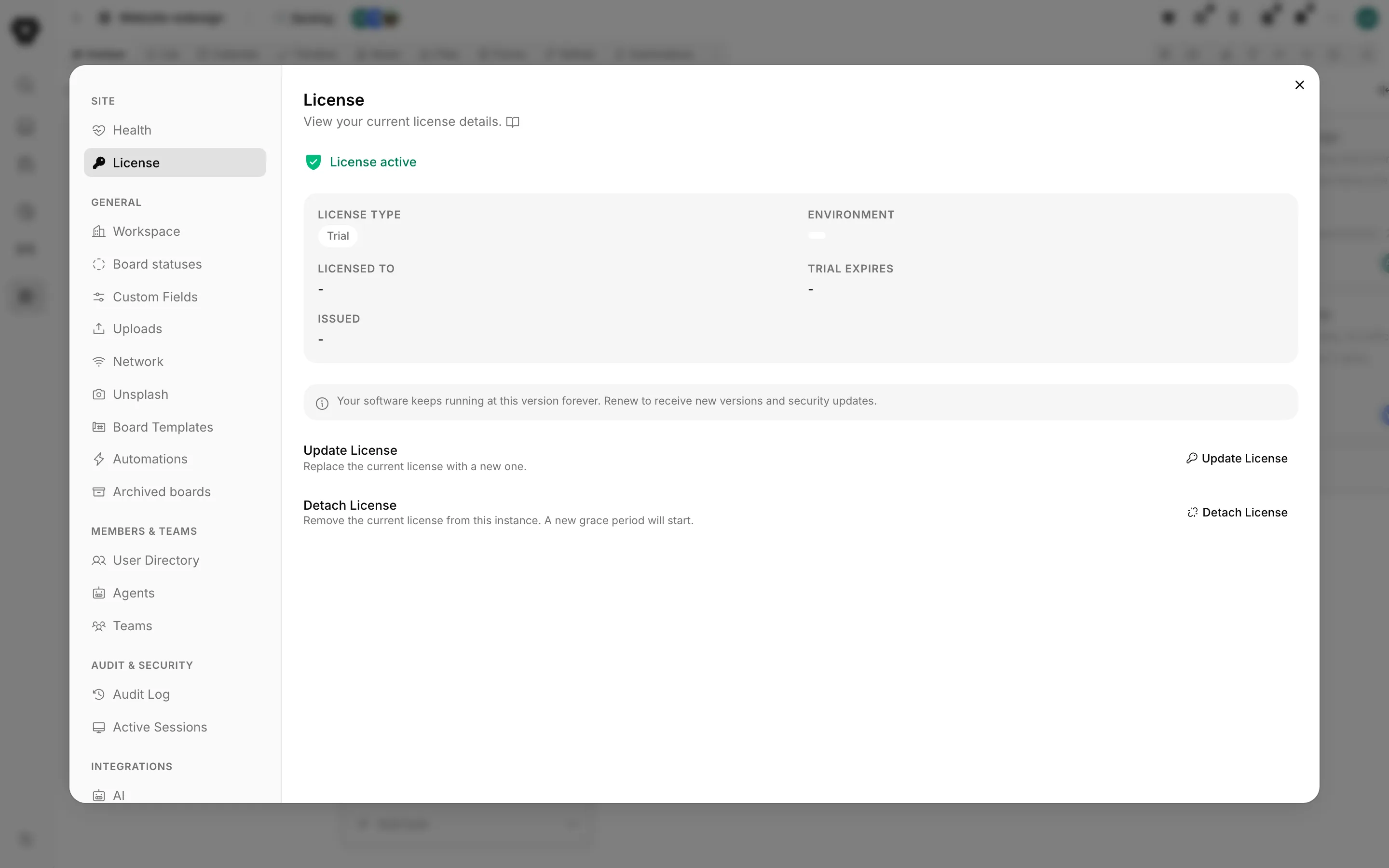
| License | Settings > Site > License | Your license key, type and updates window |
| Network | Settings > General > Network | Whether Truetask may reach the internet at all |
| Unsplash | Settings > General > Unsplash | Your own Unsplash access key for note and task covers |
| SMTP | Settings > Server > SMTP | Outgoing mail |
| Backups | Settings > Server > Backups | The backup schedule and the archive list |
| S3 Storage | Settings > Server > S3 Storage | Uploads and backups on object storage |
| Data Retention | Settings > Server > Data Retention | How long logs, sessions and trashed tasks are kept |
Truetask Cloud has one pane you will not see: Plan, which handles billing. On a self-hosted instance that slot is taken by License instead. The two are mutually exclusive.
The stack
A self-hosted instance is five containers on one Docker network.
| Container | Image | What it does |
|---|---|---|
<workspace>-caddy | caddy:2-alpine | Reverse proxy. Routes every path to the right service and is the only container with a published port |
<workspace>-pb | truetask-pb | PocketBase. Database, authentication, realtime, file storage, scheduled jobs, and it serves the web app |
<workspace>-api | truetask-api | FastAPI. The REST API at /v1, the automation engine, agent runs and push notifications |
<workspace>-mcp | truetask-mcp | The MCP server that AI tools connect to |
<workspace>-yjs | truetask-yjs | The collaboration server behind live note editing |
The four Truetask images are pulled from the registry at git.truetask.dev, never built on your host. The compose project is named after your WORKSPACE value, so several instances can run side by side on one server.
Only PocketBase holds state. Everything persistent lives under the data directory you choose at install time: pb_data for the database and uploads, logs for the API's log files, and mcp_config. That directory sits outside the application directory on purpose, so an update can replace the application directory without touching your data.
Offline by design
Truetask does not phone home. There is no telemetry, no automatic update check and no license re-validation over the network after activation.
Outbound access is off until you turn it on. Allow features that reach the internet in Network is off by default, which blocks link previews for covers, Unsplash and the pages your agents read with fetch_url. A second switch, Allow private network targets, controls whether automations, webhooks and agent fetches may reach addresses on your own network. It is off too.
What you need
- Docker and Docker Compose v2. The setup wizard checks for both and tells you which is missing.
- A Gitea access token for
git.truetask.devwith theread:packagesscope, so Docker can pull the images. - OpenSSL, if you want the wizard to generate your push-notification keys and settings encryption key for you. It falls back to
/dev/urandomfor the encryption key and skips push notifications when OpenSSL is absent. - A hostname and a TLS terminator in front, unless you are only running this on
localhost. The bundled Caddy container does not terminate TLS itself.
A license key is not needed to start. A fresh instance runs for a 3-day grace period, then every page redirects to the activation screen. See License.
Native desktop bundles
There are native macOS and Windows bundles that package the same services for a single machine, without Docker. They are still moving and are not documented here. Contact support if you want one.
The Truetask Desktop app is a different thing: it is a wrapper around a workspace you already run, and it works against Cloud and self-hosted alike.
Next
- Install walks the setup wizard prompt by prompt.
- License explains activation, the grace period and the updates window.
- Updates covers moving to a new version.
- Security is the hardening checklist for a production instance.
Frequently asked questions
What do I need to self-host Truetask?
A host with Docker and Docker Compose v2, and a Gitea access token for git.truetask.dev with the read:packages scope from your portal account. Clone the release repository, run ./build_env.sh, then docker compose up -d. See Install.
Do I need a license to run Truetask on my own server?
Yes. Without a key the instance runs for a 3-day grace period, then every page redirects to the Activate license page. Keys arrive by email and are pasted in Settings > Site > License with no restart. See License.
Is anything missing compared with Truetask Cloud?
No. Every feature is available and nothing is plan-gated. A self-hosted instance adds the License, Network, Unsplash, SMTP, Backups, S3 Storage and Data Retention panes, plus the AI Prompts dialog that Cloud never shows.
Does a self-hosted instance phone home?
No. Truetask does not check for updates and sends no data to external servers. Outbound fetching by features and agents stays off until an admin turns it on in the Network pane.
How do updates work?
Run truetask-update.sh in the release repository: it pulls the new compose file, pulls the images and restarts the stack. Your data directory and .env are untouched and migrations run at start. See Updates.