

Appearance
Settings overview
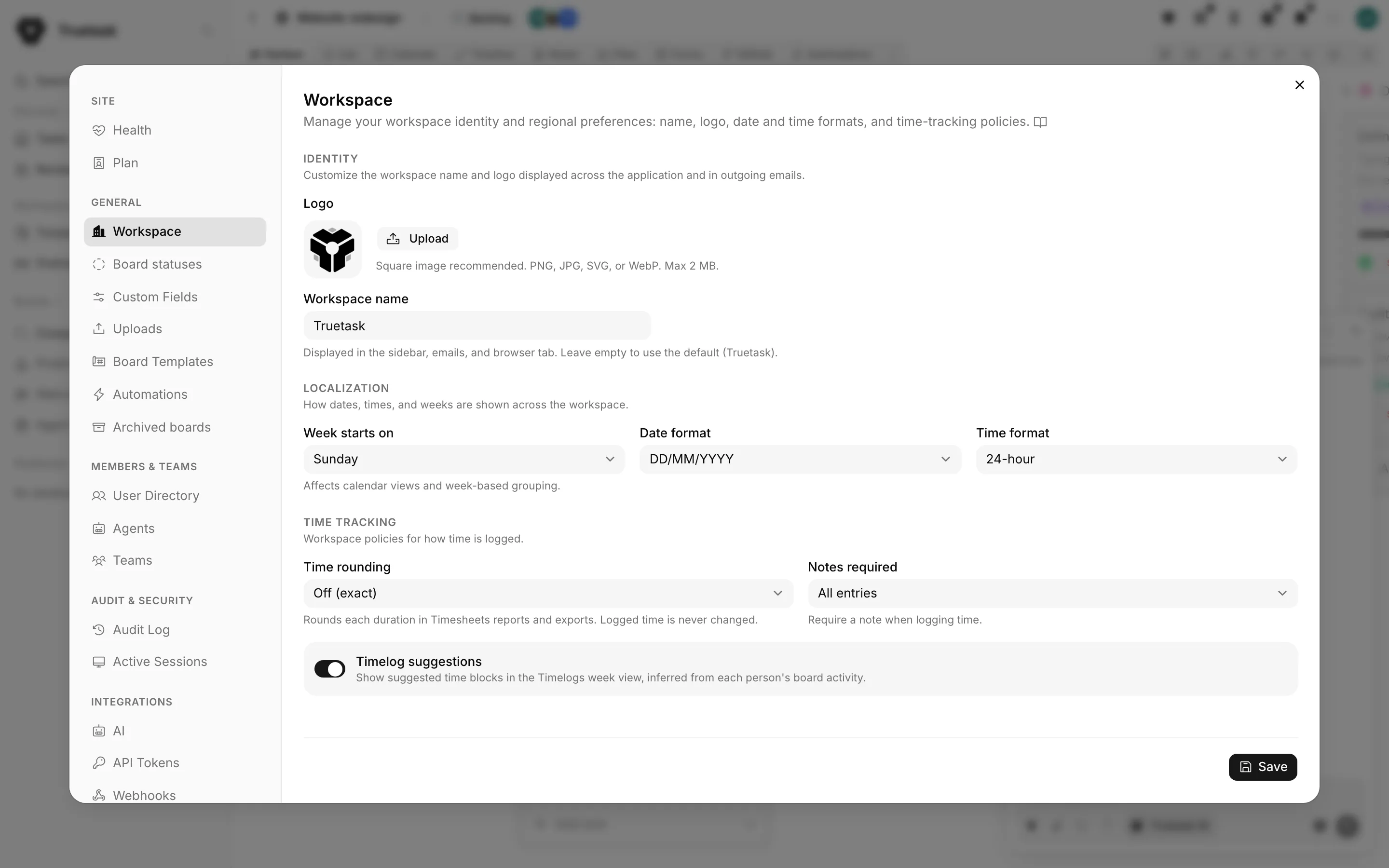
Settings is one dialog with a left rail of groups and panes. This page lists every pane and points at the guide that covers it.
Who can open Settings
Site owners and admins see the whole rail. Leads see the Members & Teams group only. Everyone else has no Settings entry at all, and the keyboard shortcut does nothing for them.
Two ways in:
| Action | Where |
|---|---|
| Open Settings | Your avatar in the top bar > Settings |
| Open Settings | Cmd/Ctrl+Shift+, |
| Jump straight to the plan | Your avatar in the top bar > Change plan (Cloud admins only) |
The shortcut is remappable in Customize > Shortcuts. See Keyboard shortcuts.
The rail, group by group
Site
| Pane | What it covers |
|---|---|
| Health | Service status, version and database. See Audit, sessions and logs. |
| Plan Cloud | Current plan, limits, add-ons and billing. See Plans and billing. |
| License Self-hosted | License key and renewal. See License. |
Plan and License are mutually exclusive. A Cloud workspace shows Plan, a self-hosted instance shows License, and neither ever shows both.
General
| Pane | What it covers |
|---|---|
| Workspace | Name, logo, date and time formats, week start, time tracking policies. See Workspace. |
| Board statuses | The statuses a board can be in and what each one means to Overseer. See Workspace. |
| Custom Fields | Not a pane: selecting it opens the Custom fields manager on its Workspace tab. See Custom fields. |
| Uploads | Maximum attachment size. See Workspace. |
| Network Self-hosted | Whether the instance may reach the internet or private addresses. See Network policy. |
| Unsplash Self-hosted | An Unsplash access key so people can pick photo covers. See Workspace. |
| Board Templates | Workspace templates: rename, share, delete. See Board templates. |
| Automations | Every automation across the workspace. See Workspace. |
| Archived boards | Restore an archived board or delete it permanently. See Workspace. |
Members & Teams
| Pane | What it covers |
|---|---|
| User Directory | People, roles, passwords, ownership. See Members and agents. |
| Agents | Every agent in the workspace, with a kill switch. See Members and agents. |
| Teams | Groups you can mention and notify. See Working together. |
Audit & Security
| Pane | What it covers |
|---|---|
| Audit Log | Every recorded change, with filters and exports. See Audit, sessions and logs. |
| Active Sessions | Who is signed in, from where, and how to sign them out. See Audit, sessions and logs. |
Integrations
| Pane | What it covers |
|---|---|
| AI | The workspace AI switch, models, routing and feature policy. See AI settings. |
| API Tokens | Personal access tokens for the REST API. See REST API. |
| Webhooks | Incoming endpoints and outgoing subscriptions. See Webhooks. |
| Git Provider | Connect GitHub, GitLab or Gitea. See Git. |
Server
| Pane | What it covers |
|---|---|
| SMTP Self-hosted | Outgoing mail. See SMTP. |
| OAuth2 | Sign in with an external provider. See Sign-in and identity. |
| Active Directory | Sync users from LDAP or Active Directory. See Sign-in and identity. |
| Backups Self-hosted | Scheduled and manual database snapshots. See Backups. |
| S3 Storage Self-hosted | S3-compatible storage for files and backups. See S3 storage. |
| Data Retention Self-hosted | How long logs, sessions and trashed tasks are kept. See Data retention. |
| Logs | API and hook logs, searchable by the ERR reference a user reports. See Audit, sessions and logs. |
| Export | Download the whole workspace as a ZIP. See Exporting. |
OAuth2 and Active Directory are on both
Both identity panes live in the Server group, but neither is self-hosted only. A Cloud workspace gets them too.
What the crown means
Truetask Cloud only
A pane whose feature is not part of your plan still appears in the rail, with a small crown next to its name. Opening it explains which plan unlocks it and offers a way to change plan. See Plans and billing.
Self-hosted only
There is no plan gating. Every pane is available, and no crown is ever shown.
Health at a glance
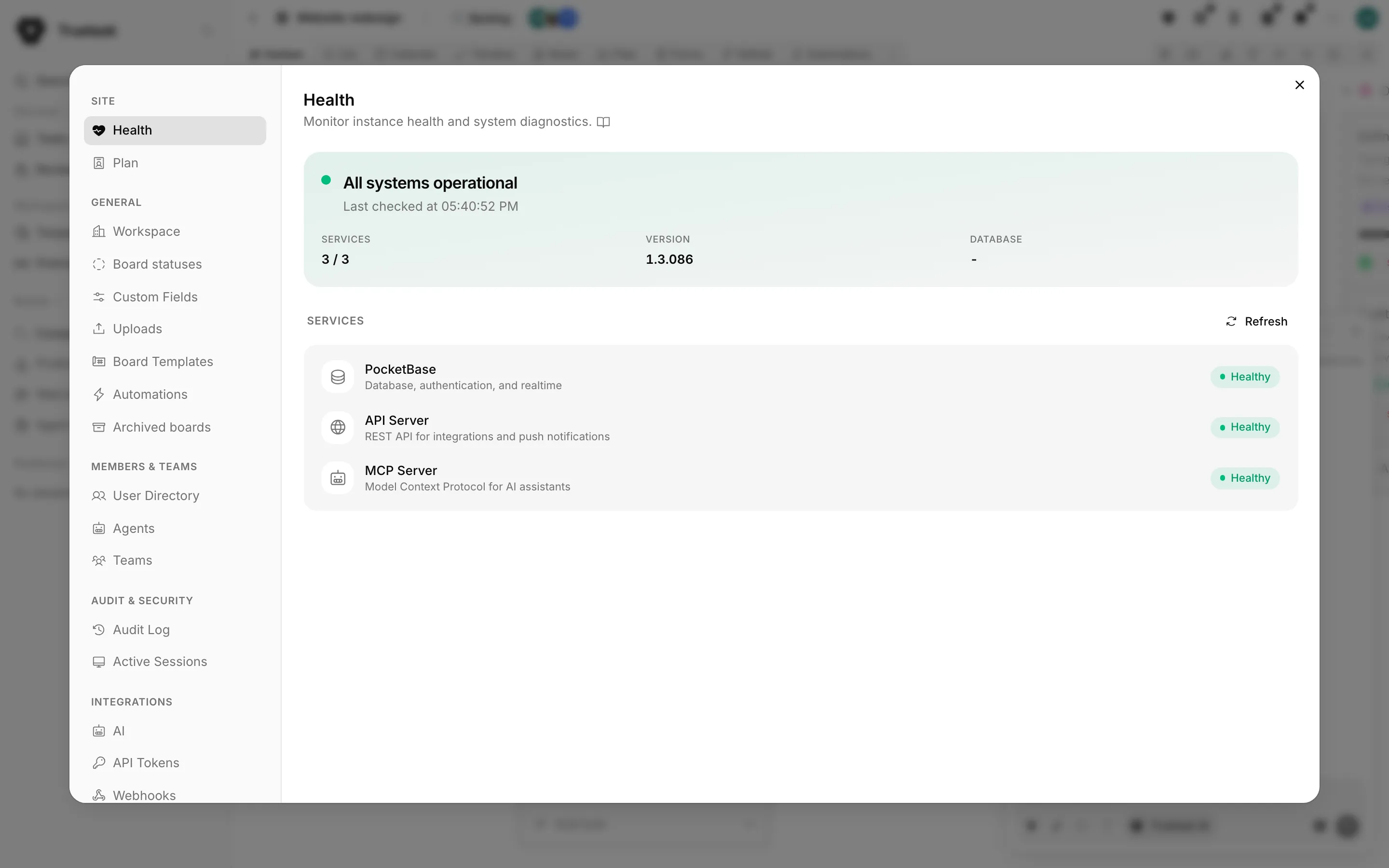
The Health pane is the fastest answer to "is something broken". It checks PocketBase, the API server and the MCP server, and reports the app version and the database version beside them.
Getting to the docs from the app
Most panes carry a small book icon next to their description. It opens the page on this site that covers that pane.