

Appearance
Keyboard shortcuts
Truetask has two kinds of shortcut. Global bindings work from any screen and you can remap them. Everything else is fixed to the surface it belongs to.
Modifier keys
A binding written with command is platform aware: it fires on Cmd on macOS and on Ctrl on Windows and Linux. A binding written with ctrl always means the Control key on every platform.
The app prints the combination the way your platform writes it. On macOS you see the glyphs ⌘, ⌃, ⌥ and ⇧. On Windows and Linux you see Ctrl, Alt and Shift. This page writes the macOS form first.
Global shortcuts
These fire from anywhere in the app. The defaults are listed below; the labels are the ones the app shows in Customize > Shortcuts.
| Action | Default | What it does |
|---|---|---|
| Toggle left sidebar | B | Shows or hides the left sidebar with your boards, folders and pages. |
| New folder | ⌥+F | Starts a new folder in the sidebar to group boards. |
| New board | ⌥+B | Starts a new board from the sidebar, opening it if it is hidden. |
| New database | ⌥+D | Starts a new database from the sidebar. |
| Import | ⌥+I | Opens Import to bring tasks or records in from a file or another tool. |
| Command palette | ⌘/Ctrl+K | Opens the palette to jump to boards, tasks, notes and actions. |
| Open settings | ⌘/Ctrl+Shift+, | Opens the workspace settings. |
| Open the inbox | I | Opens the inbox dock beside the page you are on with the composer focused. Press again to close it. |
| Open the pipeline drawer | P | Opens the pipeline drawer along the bottom of the page you are on. Press again to close it. |
| Open last-used coding tool | ⌘/Ctrl+⌥+O | Opens the task in front of you in the coding tool you used last. |
| Open timelogs | ⌥+T | Opens the timelogs week to log and review your time. |
| My tasks filter | Q | On a board, filters to the tasks assigned to you. Press again to clear the filter. |
Three of these only exist for some people. Open settings needs a role that can see Settings, which is OWNER, ADMIN or LEAD. Open the pipeline drawer needs the workspace's AI functions turned on. Open timelogs needs time tracking on your plan.
Bare keys never fire while you type
The single-letter bindings (B, I, P, Q) are ignored while the focus is in a text field. Combinations that use a modifier still work there.
Change a shortcut
Open the App menu (the grid button before your avatar), choose Customize, then the Shortcuts tab. Click the combination pill on a row, press the keys you want, and the new binding saves at once. The circular arrow beside a row restores that one default; Restore defaults at the top of the pane resets every row you changed. Your bindings follow you across devices.
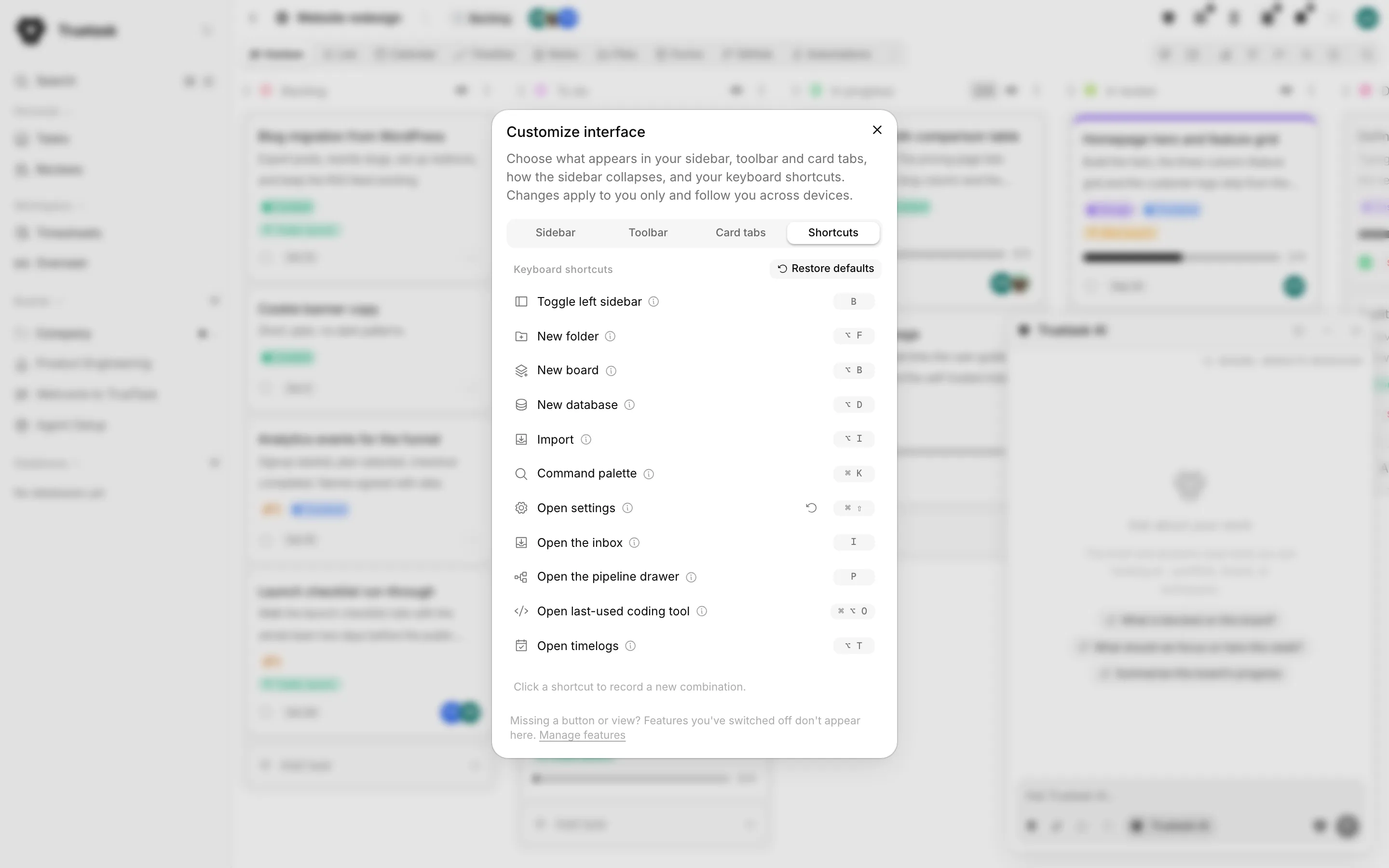
My tasks filter is not listed in that pane. It is fixed to Q and the board's filters dropdown shows the key on the My tasks row.
See Shortcuts for the pane itself and Customize for the rest of the dialog.
Boards
Kanban
| Key | What it does |
|---|---|
| Shift or ⌘/Ctrl + click a task | Adds the task to the selection instead of opening it. |
| Esc | Clears the selection. |
List
The list view is a grid you can drive entirely from the keyboard once a cell has focus.
| Key | What it does |
|---|---|
| ↑ ↓ or K J | Moves the focused row up and down. |
| ← → or H L | Moves the focused cell left and right. |
| Tab / Shift+Tab | Moves to the next or previous cell, wrapping to the next or previous row. |
| Enter or Space | Activates the focused cell: opens the task from the title cell, opens the editor or picker on the others. |
| Esc | Clears the focus and the selection. |
| Shift + click a row | Selects the range from the last row you clicked. |
| ⌘/Ctrl + click a row | Adds or removes that one row from the selection. |
| / in the empty new-task row | Opens the picker of task templates and in-app forms, when the board has any. |
| Enter in the new-task row | Creates the task. Esc discards the draft. |
Arrow keys are handed to a cell editor, picker or menu while one is open, so they never drive both at once.
Calendar
Month and week grids take arrow keys; the day view does not.
| Key | What it does |
|---|---|
| ← → | Moves the focus one day back or forward. |
| ↑ ↓ | Moves the focus one week back or forward, in the month grid. |
| Enter | Opens the first task on the focused day, or starts a new one on an empty day. |
| Esc | Cancels the task you are creating, or clears the focus. |
Timeline
| Key or gesture | What it does |
|---|---|
| ↑ ↓ | Moves the focus between task rows, wrapping at the ends. |
| Enter | Opens the focused task. |
| Space | Adds the focused task to the selection. |
| Esc | Cancels the bar you are drawing, then clears the selection, then the focus. |
| ⌘/Ctrl+Z | Undoes the last schedule change. |
| ⌘/Ctrl+Shift+Z or ⌘/Ctrl+Y | Redoes it. |
| ⌥ + wheel, or a trackpad pinch | Zooms in and out around the pointer. |
| Ctrl or ⌘ + wheel | Scrolls the timeline sideways. |
| Space + drag | Pans in both directions. |
| Ctrl/⌘ + drag | Pans sideways only. |
Tasks
These keys work in the task frame and anywhere the same editors appear.
| Key | Where | What it does |
|---|---|---|
| Enter | Comment composer | Posts the comment. |
| Shift+Enter | Comment composer | Starts a new line instead of posting. |
| / | Comment and note editors | Opens the slash menu of blocks and commands. |
| @ | Comment and note editors | Opens the mention picker; ↑ ↓ move through it and Enter picks. |
| Enter | An inline title or field editor | Commits the value. |
| Esc | An inline title or field editor | Cancels the edit. |
| ⌘/Ctrl+Enter | Inbox task details | Saves the details you typed. |
| Esc | Inbox task details | Closes the details without saving. |
| ⌘/Ctrl+Enter | Stop-timer prompt | Stops the running timer. |
The task description saves itself as you type, so it has no save key. See Tasks and Comments and mentions.
Code review drawer
The review drawer takes single keys whenever you are not typing and no popover is open.
| Key | What it does |
|---|---|
| J | Next file in the diff. |
| K | Previous file. |
| V | Marks the current file viewed, or unmarks it. |
| Esc | Closes the drawer, after closing any open popover first. |
See Code review.
Command palette
Open it with ⌘/Ctrl+K, or press the same keys again to close it.
| Key | What it does |
|---|---|
| ↑ ↓ | Moves through the results. |
| Enter | Runs the highlighted result. |
| Esc | Closes the palette. |
Typing t followed by some text turns the palette into a quick todo composer, and Enter creates the todo. A task key such as DEVE-412 jumps straight to that task. See Search and the command palette.
Desktop app palette
The desktop app registers one system-wide key that opens its capture and search palette. The default is Alt+Space, which is Option+Space on macOS, and you can change it in the app's settings.
| Key | What it does |
|---|---|
| ↑ ↓ | Moves through the results. |
| Enter | Opens the highlighted result, or creates the task when the create row is highlighted. |
| Tab | Switches from searching to capturing a new task. |
| ⌘/Ctrl+N | Starts a capture. |
| ⌘/Ctrl+K | Opens the actions menu for the highlighted result. |
| ⌘/Ctrl+Shift+C | Copies a link to the highlighted result. |
| ⌘/Ctrl+1 to 9, 0 | Opens the numbered result. |
| Esc | Clears the query, then the captured context, then hides the palette. |
While you are capturing, Tab on an inbox capture opens the board picker, and ⌘/Ctrl+Enter always creates the task even from the description field. See The desktop palette.