

Appearance
Files
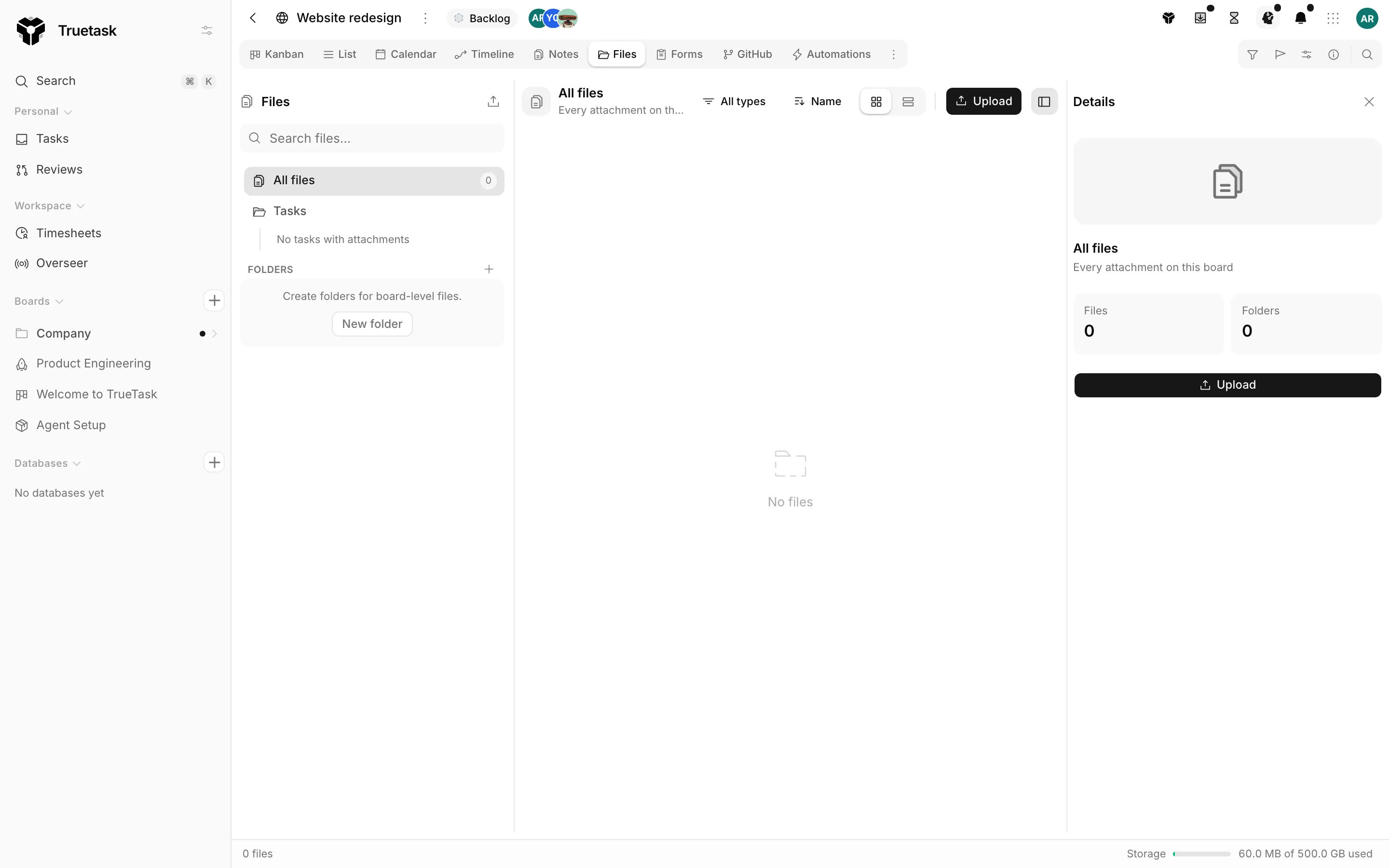
The Files view collects every attachment on the board in one place. Task attachments appear automatically; you can also make board folders for files that do not belong to any one task.
The tree
The left column holds three sections.
| Node | What it holds |
|---|---|
| All files | Every attachment on this board. |
| Tasks | One node per task that has attachments, named after the task. |
| Folders | Board folders you create, for files that are not on a task. |
Files uploaded outside a folder collect under Unfiled files. Folders organize files in this board only.
Drag the divider to resize the tree.
Browsing
Above the file area sit the browsing controls.
| Control | What it does |
|---|---|
| Search | Filters by file name. |
| Type filter | All types, Images, Documents, Media, Archives, Code, Other. |
| Sort | Name, Modified, Size or Type, ascending or descending. |
| Thumbnails / List | Switches between the tile grid and the table. |
| Toggle details | Opens the details pane on the right. |
The table shows Name, Size, Source and Modified. Source says whether the file came from a task or a folder.
The details pane reports the file's size, where it lives, when it was added and when it last changed. Select several files and it reports the count instead.
Working with files
| Action | What it does |
|---|---|
| Preview | Opens the file in the viewer. |
| Open in new tab | Opens the raw file in a browser tab. |
| Download | Saves the file. |
| Move | Sends the file to another folder or onto a task. Moving keeps the same file record. |
| Open task | Jumps to the task the attachment belongs to. |
| Rename | Changes the display filename. Keep the extension if the file type needs one. |
| Delete | Permanently deletes the file. |
Select several files and the same menu offers Download n files, Move n files and Delete n files.
Deleting a folder hides the files inside it rather than destroying them. Deleting a file is permanent and cannot be undone.
Uploading
Upload sends files into whatever the tree has selected. New folder creates a board folder first.
You can also drop files straight onto the view. When the selected node is an aggregate, such as All files, Truetask asks where the files should land: a folder, a task, or a new folder you name on the spot.
Board viewers can search, preview and download, but cannot upload, rename, move or delete.
The status bar
The bar at the bottom of the window reports how many files and folders are showing and their total size.
Truetask Cloud only
Workspace owners and admins also see a storage meter there, with a link to the plan where storage packs live. See Plans and billing.