

Appearance
First steps
This page walks you from the sign-in page to a board of your own with work moving on it. It takes about ten minutes.
Sign in
Open your workspace address in a browser. The sign-in page offers up to three ways in, depending on how the workspace is set up.
| Method | How it works |
|---|---|
| Password | Type your email or username, then your password. This is the default. |
| Sign-in code | Choose Email me a sign-in code. Truetask emails you a one-time code, you type it in, and you are signed in. Use password instead takes you back. |
| Single sign-on | When an administrator has configured OAuth2, a Sign in with {provider} button appears under the form. |
Under the password field, Forgot your password? sends a reset link to your email address.
The server has to be able to send email
Reset links and sign-in codes both arrive by email. If the workspace cannot send mail, the sign-in page says so and both options stop working, leaving only your password. On a self-hosted instance an administrator fixes this by configuring SMTP.
If an administrator gave you a temporary password, Truetask asks you to choose your own before it lets you in.
First sign-in on your own server
The first account is the administrator account you entered during the install, so sign in with that email and password and create the rest of your team from Members. Until a license key is activated, a banner across the top counts down the remaining days of the 3-day grace period. See Licensing.
The setup wizard
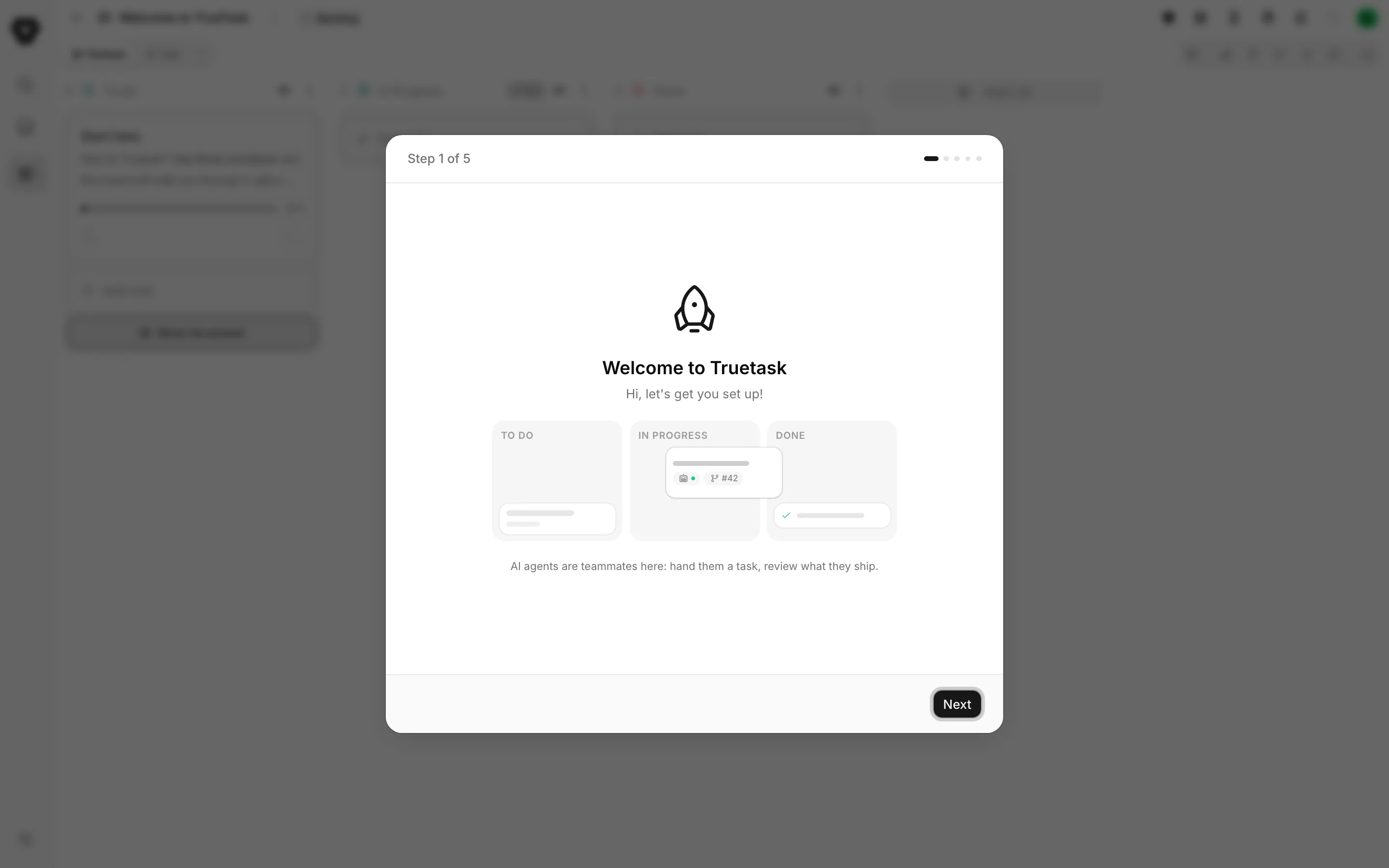
The first time a new account signs in, Truetask opens a five-step wizard. It runs once and cannot be dismissed, so finish it and everything it asks about stays changeable afterwards.
| Step | What it asks |
|---|---|
| Welcome to Truetask | Nothing. It shows the idea in one picture: a task picked up by an agent, worked, and landed in Done. |
| Complete your profile | Your name, a username and, if you want, a photo or a colour. Teammates use the username to mention you. |
| Show only what you need | Four switches: Time tracking, AI features, Code & reviews and Overseer. Turning one off hides its buttons, views and task tabs for you alone. Nothing is deleted and nothing stops working. Time tracking starts off here. |
| Pick your start page | Where Truetask opens when you visit the workspace root. The default is the page you visited last. |
| You're all set! | Three pointers: the sidebar, the quick-search shortcut, and the Welcome board that was created for you. |
Get started finishes the wizard and drops you on that Welcome board, which has a task waiting to be dragged into Done.
Everything the wizard asked can be changed later: the profile fields in the Profile dialog, the four switches under Features, and the start page in your profile. See Customize the interface.
Administrators
If you are an owner or an admin and mail delivery is not configured yet, finishing the wizard raises a reminder with a Set up now button that takes you straight to the SMTP settings.
The interface at a glance
Three regions make up the app. The sidebar on the left holds global search, your personal views, the workspace views, and the tree of boards and databases. The top bar holds the buttons that follow you everywhere: Truetask AI, the inbox, the timer, agent activity, notifications, the App menu and your avatar. The rest of the window is whatever you opened, which on a board means a title, a page menu, the view tabs and the view you picked.
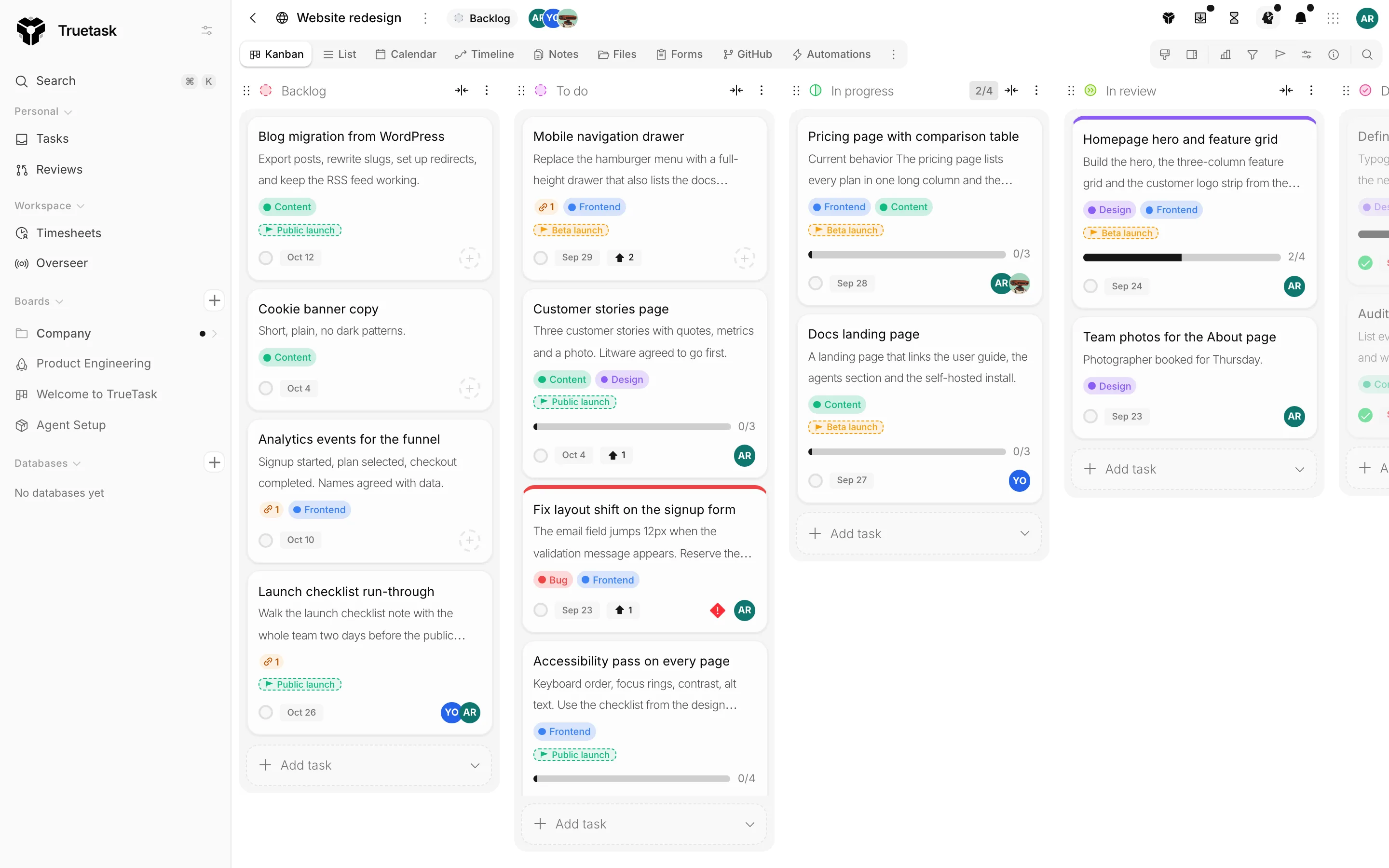
Navigation names every one of those parts.
Create your first board
Open the App menu, the grid button just before your avatar, and choose New board. Alt+B does the same thing from anywhere.
The wizard opens on a row of tiles:
| Tile | What it does |
|---|---|
| Describe it | You write what the board should manage and AI drafts the whole thing: lists, fields, forms and automations. You review the plan before anything is created. The tile only appears when the workspace has AI set up with a working model. |
| Blank board | An empty board. You pick the views it offers. |
| Database | A shared table of records that other boards can link to. |
| Templates | Expands a gallery in place: the templates that ship with Truetask, the ones shared with your workspace, and any board you saved as a template yourself. |
Import... at the bottom of the dialog brings work in from another tool instead. See Importing.
Pick a tile and the wizard moves to the details step, which asks for four things:
- Name & Icon, the board's name and the icon the sidebar shows.
- Location, the folder it lives in, or Top level.
- Opens in, the view members land on first.
- Views, the tabs this board shows. You can add or remove any of them later.
Create it and Truetask takes you to the new board. See Board templates for the gallery and Databases for boards of records.
Create your first task
On a Kanban board, click Add task at the bottom of a list, type a title and press Enter. The task appears and the composer stays open, so you can keep typing the next one.
Click the task to open its frame. The Details tab is where a task grows: a Markdown description, members, tags, checklists, attachments, a milestone, votes, time, comments, linked notes, dependencies and its activity. Along the top of the frame sit the other tabs: Code, Files, Time, Activity, Agent and Chat.
Tasks covers the frame in full, and Custom fields covers the fields you add yourself.
Move work
Drag a task from one list to another. That is the whole interaction, and it is what drives the rest of the board.
Each list carries a state, and the state is what Truetask reasons about, not the name you gave the list:
- Idle is work that has not started. It never counts toward a work-in-progress limit.
- In Progress is active work. This is the one phase you can cap.
- Review is an optional stop inside In Progress for work waiting on someone. It is still active work, but it sits outside the limit.
- Done is the finish line. A task dropped into a Done list is marked complete.
- Cancelled is a second finish line for work you will not do.
So dropping a task into a Done list completes it, and dragging it back out reopens it. Board flow and WIP limits explains how to set the states and cap work in progress.
Find your own work
Your tasks are spread across every board you belong to, so Truetask gathers them in one place. Tasks is the first row of the sidebar. It collects what is assigned to you, what needs attention, and the saved views you pin.
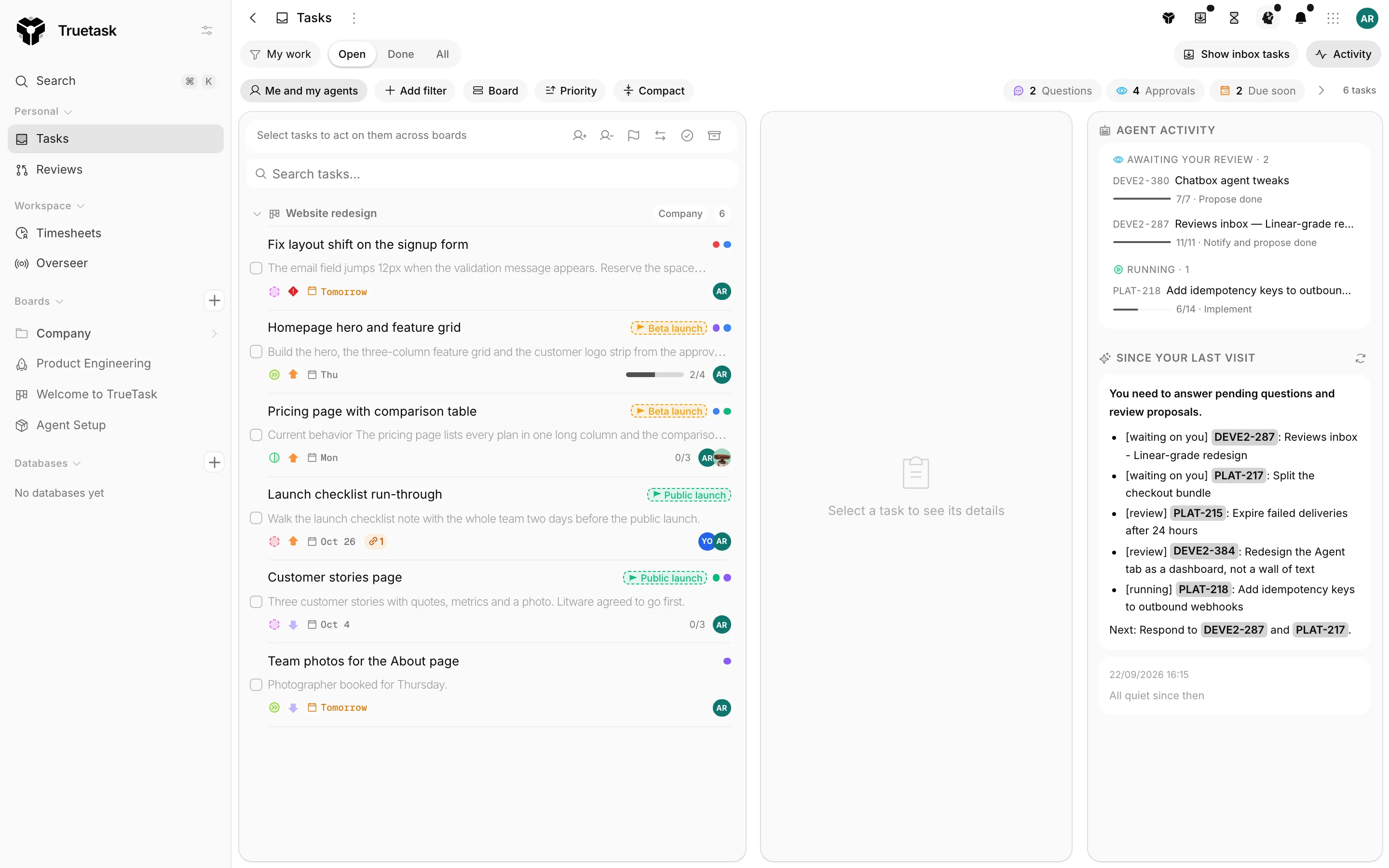
See Tasks page and work views.
Learn the ideas behind it
Truetask ships a short course inside the app. Open the command palette with Cmd/Ctrl+K and choose Learn about Truetask.
Seven lessons are on offer, filtered to what your role can actually reach:
- The agent delivery loop
- Connect your codebase
- Connect a coding agent
- Models, behavior and guardrails
- Agent workflows and handoffs
- Board workflows, fields and automations
- The Agent Command Center
Each lesson is a written transcript rather than a video you have to sit through. Where the idea has something you can go and set up, the lesson also offers Guide me, which walks you through it in the real app.
The two agent lessons add Practise it, a Playground where you run the whole delegate, answer and approve loop on made-up work. Nothing in it touches your workspace, and no task, agent or run is created.
Truetask AI can also offer a guided walkthrough when it fits what you asked, as a chip in its reply like "Show me how to create a task" or "Show me how to invite a teammate".