

Appearance
Importing
Truetask imports from eight other tools plus any spreadsheet, and from its own JSON export. Most imports create a new board. A spreadsheet can also add rows to a board or database you already have.
Where to start
| Where | What it does |
|---|---|
| App menu > Import (Alt+I) | The full source picker. Nothing is preselected, so the spreadsheet path asks whether you want a board or a database. |
| Board page menu > Import tasks | Adds rows from a spreadsheet to the board you have open. Skips the source picker. |
| Database page menu > Import records | The same, into an open database. |
| Import... on the new board wizard's first step | Creates a new task board through the source picker. |
Importing into an existing board needs edit rights on it. Viewers do not see the menu item.
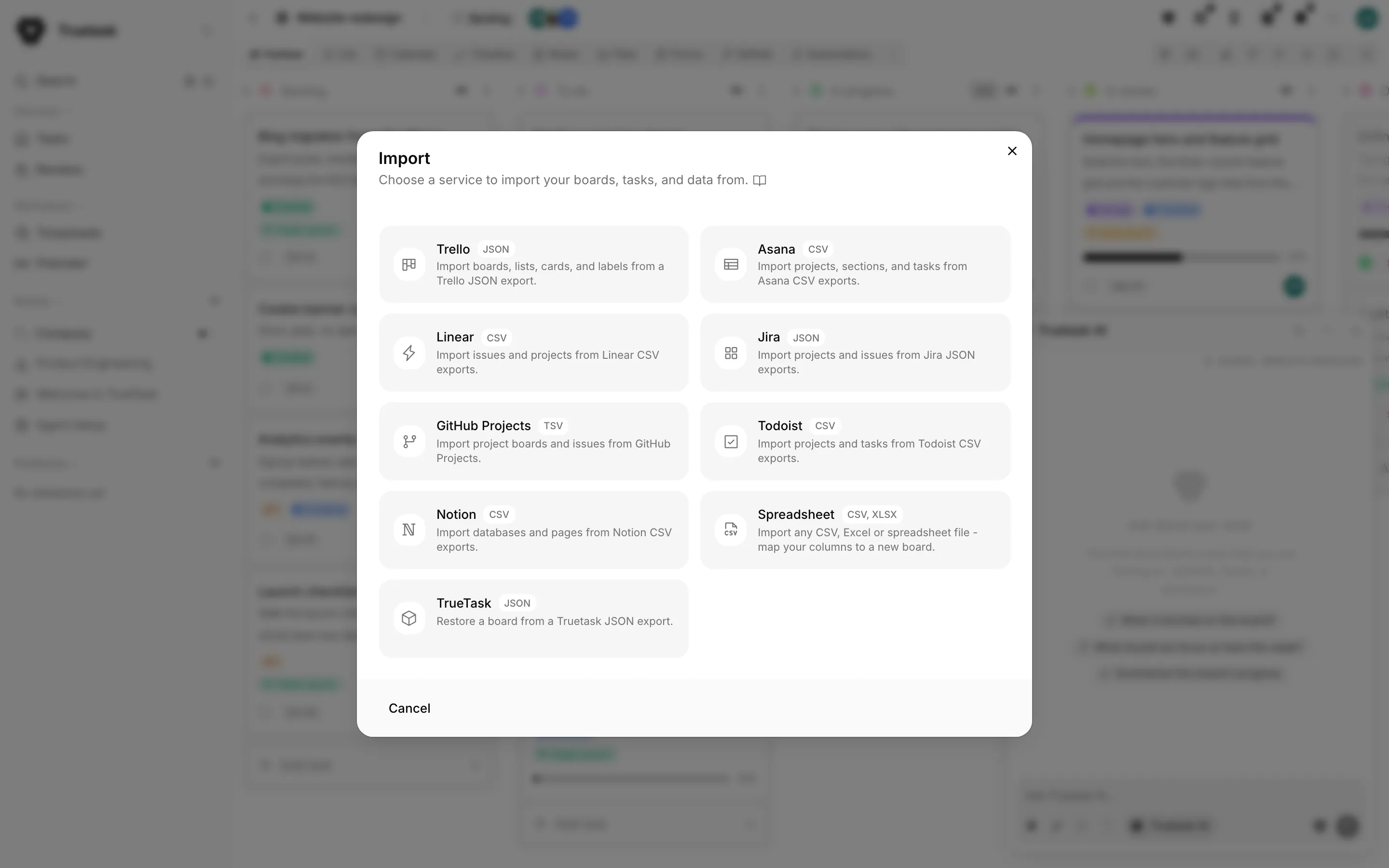
Sources
Every source except the spreadsheet importer accepts a file or pasted text, and shows you a count of what it found before anything is created.
| Source | Give it | Notes |
|---|---|---|
| Trello | A board JSON export | Lists, tasks, labels, checklists, custom fields and attachments. |
| Asana | A CSV export | Needs a Name column. Sections become lists. |
| Linear | A CSV export | Needs Title and Status columns. Statuses become lists. |
| Jira | A JSON export from the REST API | Needs an issues array. Statuses become lists. |
| GitHub Projects | A TSV, CSV or TXT file, or the table copied straight off the project board | Needs a Title column. Statuses become lists. |
| Todoist | A CSV export | Needs TYPE and CONTENT columns. Sections become lists. |
| Notion | A database CSV export | Needs a Name column. You pick which column groups the rows into lists. |
| Spreadsheet | CSV, TSV, Excel (.xlsx, .xlsm, .xls) or OpenDocument (.ods) | Map any columns onto a new board, a new database, or an existing one. |
| Truetask | A board JSON export | Restores a board. Include automations is on by default. |
Mapping people
Trello, Asana, Linear, Jira, GitHub, Notion and Truetask all show a Map Members step. Match each person in the export to a user in this workspace, or choose Skip. Unmapped people are skipped rather than invented, so assignments simply do not carry over for them.
Picking the done list
Most sources ask you for a Done List before the import runs, and it is required. Truetask needs to know which of the incoming lists means completed so the board flow is correct from the first day. See Board flow and WIP limits.
Trello attachments
Trello's attachment URLs need authentication, so the importer asks for a Trello API key and token if you want the files. Skip that step and the tasks arrive without their attachments.
The spreadsheet wizard
The spreadsheet importer is the general path, and it has four steps.
1. Upload
Drop the file or pick it. A workbook with several tabs asks which Sheet to use. If you started from the App menu, this step also asks for the destination: Board (tasks on lists with a flow) or Database (typed records in a table).
The first row must be your column headers.
2. Map columns
One row per column: the spreadsheet column on the left, what it becomes in the middle, and a field type on the right.
You can send a column to Title, Description, Status (list), Tags, Priority, Start date, Due date, Assignee, a Custom field, or Don't import. Exactly one column must be the Title. Include all columns flips every column on at once.
When your workspace has AI on and a usable model enabled, Auto-map with AI fills the dropdowns for you. Only the column headers, inferred types, counts, a short sample and, for columns with few distinct values, those values are sent. You still review and confirm every choice afterwards. See AI settings.
3. Board flow
Each distinct value in your Status column gets a flow lane. The board needs at least one In Progress and at least one Done lane before you can continue.
No Status column means this step is skipped: the board gets Todo, In Progress and Done, and every task starts in Todo.
4. Review
A last look at the counts, the lists and the first rows, then the board or database is created.
Importing into something that already exists
When the destination is a board or database you already have, the wizard maps onto its existing fields and lists instead of inventing new ones, and the Review step gains two controls:
- Skip rows whose title already exists, on by default, so re-importing the same file never creates duplicates.
- Default list, where rows whose status matches nothing land.
Rows are sent 500 at a time. The result tells you how many were created, how many skipped, and how many relation cells named nothing.
Warnings, not failures
Bad values never fail a row. An unknown list, an unknown priority, an assignee that matches nobody, or a date that will not parse becomes a warning you see after the import, and the task is created without that value. Tags that do not exist yet are created on the board.
Five custom field types cannot be written by an import and never appear as targets: rollup, formula, user, created on and updated on. Assign people through the Assignee target instead. See Custom fields.
Importing with Truetask AI
Attach a spreadsheet to a message in Truetask AI and it proposes an import: a destination, a column mapping and a title column. Approve runs exactly the importer described above. Review opens the import dialog on its Review step with everything already filled in, so you can change the mapping first.
The rows themselves never leave your browser. Only the headers, the row count and five sample rows are sent to the model.
Importing notes
Notes come in separately, from the Notes view of a board: Import Obsidian vault takes a vault folder and recreates every Markdown file and folder inside it. See Notes.