

Appearance
Views
One board, nine ways to look at it. This page covers what each view is for, how the tab strip works, and how to decide which tabs appear for the board and which appear only for you.
The nine views
| View | What it is for |
|---|---|
| Kanban | Tasks on lists, dragged along to move work forward. See Kanban. |
| List | A flat table with grouping, sorting and fields. See List. |
| Calendar | Tasks plotted on their dates. See Calendar. |
| Timeline | Planning across time with bars and dependencies. See Timeline. |
| Notes | A Markdown vault of documents for this board. See Notes. |
| Files | Every attachment on the board, in one place. See Files. |
| Forms | Public intake forms that create tasks. See Forms. |
| Code | Branches, pull requests and issues from your repository. See Code view. |
| Automations | Rules that react to board events. Board admins only. See Automations. |
The tab order is fixed: the task views first, then the content surfaces, then Code and Automations.
Two views have hard rules. Automations exists only for board admins, so a board can never land a member on it. Code is offered on every board, but a board with no repository linked would open into the git setup screen, so it cannot be a default either. Both are still perfectly valid tabs to leave switched on.
Database boards have a fixed surface: List, Forms and, for admins, Automations. Nothing can widen or narrow it. See Databases.
The tab strip
The tabs sit in the board toolbar, next to the board title. Click one to switch. The view you were on is kept alive behind the one you switch to, so coming back is instant.
Right-click a tab for its own menu: Set view as default view, the visibility toggles, and View preferences....
At the right end of the strip is the views menu, the dots handle. It lists every view with a tick beside the ones you can see, so you can flip several in one visit, and it carries the active view's own tools underneath.
| View | Tools in the views menu |
|---|---|
| Kanban | Stats, Unlinked issues & PRs |
| List | Stats |
| Calendar | Stats, Today |
| Timeline | Stats, Today, Fit to content |
| Notes | New note, New folder, Graph |
| Forms | New form |
| Code | Sync |
| Automations | New automation |
Stats opens the board statistics panel and is offered on the four task views only. See Board stats.
Who sees which views
Visibility has two scopes.
A board admin sets the board's tabs for Everyone: that is the board default, the set a member sees before they touch anything. Any member can then override the set for themselves under You. Your personal override is stored on your account, not on the device, so it follows you to every browser you sign in from.
You must keep at least one view visible. The board-wide set must always keep Kanban or List, so a board is never left without a task view.
The same two scopes apply to the default view, the tab you land on when you open the board. The board has one, and you can pin your own on top of it.
Opening a hidden view
Pick a menu item that lives in a view you have switched off and Truetask asks first: Enable for me, or, if you are a board admin, Enable for everyone. It then turns the view on and takes you there.
View preferences
Open the views menu and choose View preferences....
| Setting | What it does |
|---|---|
| Default view | The view you land on. Choose Board default to follow the board. |
| Visible views | Which tabs you see. Choose Use board default to stop overriding. |
| Tab labels | Auto, Show or Hide, for whether the tabs carry text next to their icons. |
Board admins see the same list as a matrix, with a slim You and Everyone column on every row, plus a second row for the board's own default view. Every pick applies at once: there is no Save button.
Preferences
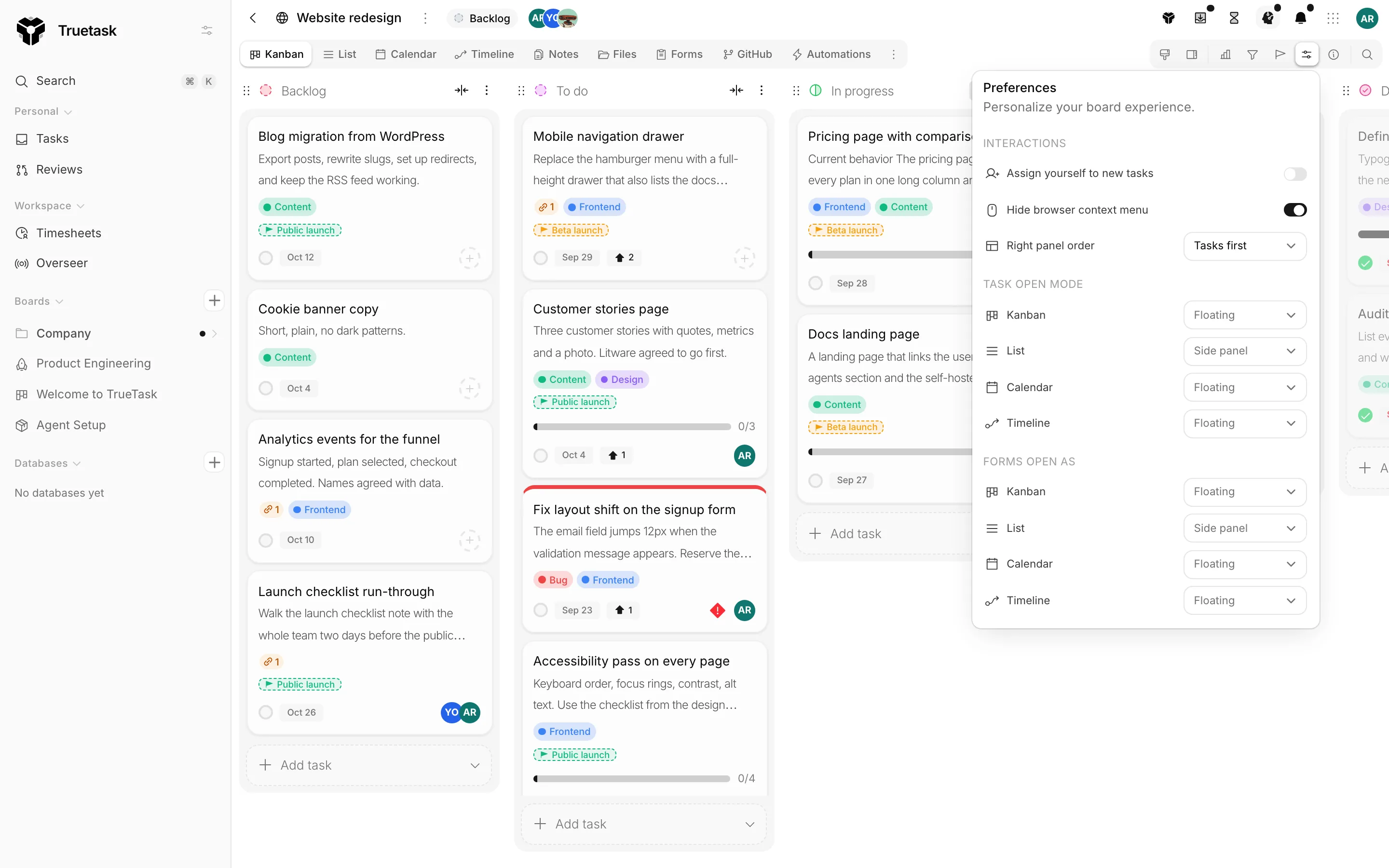
The Preferences button in the board tools tray holds the personal settings that are not about tabs. It is available on every view.
| Setting | What it does |
|---|---|
| Assign yourself to new tasks | Automatically add yourself as a member when you create a new task. |
| Hide browser context menu | Disable the browser's default right-click menu so Truetask's context menus work without interference. |
| Right panel order | When the side task panel and the board statistics panel are both docked on the right, which one sits closest to the board. |
| Task open mode | Where a task lands when you click it on each view: Floating, Centered or Side panel, or Default to follow that view's own behaviour. |
| Forms open as | Where a form opens on each view. Default follows the task open mode, and Popover is the extra option. |
On the Kanban view a second button, Kanban style, controls how tasks and columns look. See Kanban.
Saved board views
On the List view you can save the whole arrangement (grouping, columns, sorting and filters) as a named view and come back to it. Saved views are per board and split into My views and Shared with me. You can share one with everyone on the board, pin one as your own default, or, as an admin, set one as the board default. See List.
Filters have their own saved list, separate from board views, and it lives in the filters dropdown. See Filters and search.
Related
- Kanban and List, the two task views a board must keep
- Filters and search for narrowing whichever view you are on
- Board stats for the panel the Stats toggle opens
- Customize the interface for workspace-wide interface settings