

Appearance
Templates
A template is a finished automation you install on your board. The gallery has fifty of them, from "Archive completed cards after 7 days" to "Merge the PR when CI passes". Installing one maps every list, tag, member, priority, custom field and board it mentions to something that exists on your board, so it works the moment it lands.
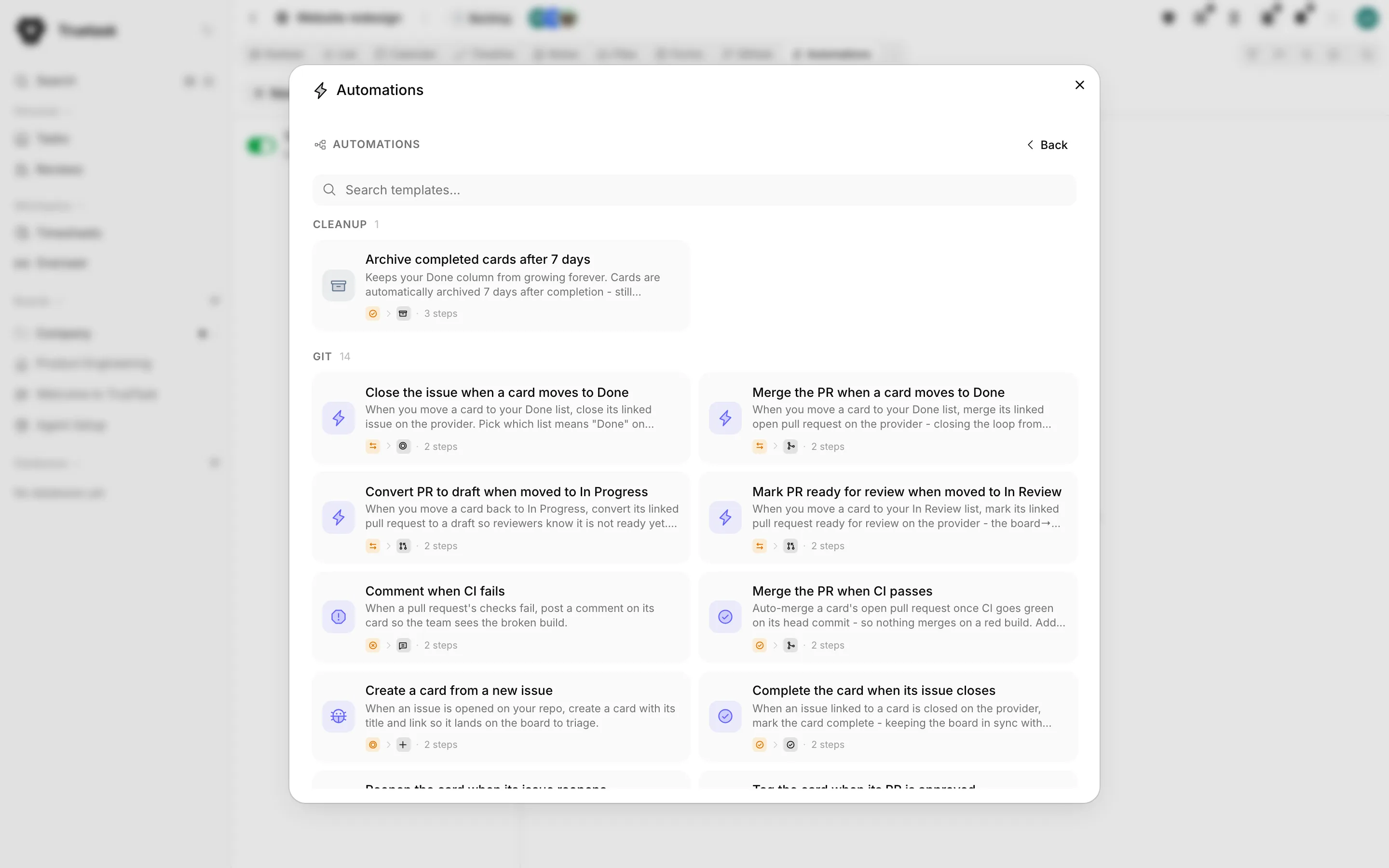
Opening the gallery
- The board's Automations view: the templates button in the rail header.
- The empty state of a board with no automations: Quick starts for a handful, Browse all templates for the gallery.
Search filters by name, and the category tabs are All, Automation, Git, Notifications, Cleanup, Organization and Recurrence. Each card shows the template's name, what it does, and how many steps it has.
A template whose nodes cannot run on this board is not offered. On a database board that removes anything built on lists, flow, notes, git or agents; three templates are written for databases instead. Git templates ask you to connect a provider or link a repository first, with a button to do it.
Installing one
The install step lists every reference the template makes and how it resolved it against your board. When everything matches you see "Everything matches your board, ready to install". When something does not, you choose for each one:
| Choice | What happens |
|---|---|
| Pick an existing list, tag, member, priority, field or board | The template uses yours instead |
| Create new | A new list, tag or custom field is created on this board when you install |
| Leave it | The reference is cleared |
Below that, What this will do lists the template's nodes so you can see the shape before you commit.
Most templates install switched on: they are curated and everything is already resolved, so there is nothing left to set up. A template with an Agent node or a Kick off Agent node installs paused, because somebody has to read the prompt and pick which agent runs it first.
Truetask Cloud only
If activating would put you over your plan's active-automation cap, the install still succeeds and the automation stays paused.
Automate this
You do not have to go to the gallery. Several surfaces offer the templates that fit what you clicked, with the entity already filled in.
| Where | What you get |
|---|---|
| A list's menu on a Kanban board, Automate this list | Rules that fit that list's flow state, with the list already selected |
| A tag, Automate this tag | Rules that fire when a task gets that tag |
| The Milestones panel, Automate milestones | The two milestone templates |
| The Code view, Automate git | The pull request, CI and issue templates |
| A form's menu, Automate this form | Rules for the tasks a submission creates, on the list the form writes to |
A list scoped to the Done lane offers Done rules, a Backlog list does not. Git scenarios only appear when the board has a repository linked. Show more automations at the bottom of the picker opens the full gallery.
Make recurring
Make recurring on a task's menu is the templates gallery aimed at one job: making this task come back. It offers four ways.
| Option | How it repeats |
|---|---|
| Recurring work an agent does | On a schedule, a fresh copy is created from a template and handed to an agent |
| Recurring weekly task (on completion) | Completing the tagged task drops a fresh copy in your first open list |
| Duplicate card on demand | A Run button on the task drops a ready-to-go copy into the same list |
| Finish here, recreate on another board | Completing the tagged task creates the next one on a board you choose |
The agent option has its own setup: the schedule, who does the work (the agent, its workflow, model and effort), and what each run creates. It saves the task as a task template first, so every copy starts from the same description, checklist, tags, fields, priority, estimate and cover. Assignees do not travel, because the agent takes each copy.
The other three go through the normal install step, and the one they key on is settled for you: the task is tagged with the recurrence tag so "make recurring" really means this task, not a rule waiting for a tag. Run it by hand too adds a Run button next to the schedule.
The agent option is hidden when AI is switched off for you in your own Features. See Task templates and Delegating work to agents.
The catalog
Automation
| Template | What it does |
|---|---|
| Onboard new cards | When a task is created in your intake list, tag it as new and set a default priority. |
| Auto-set due date on creation | A task created in the list you choose gets a due date 7 days out. |
| Move to In Progress when assigned | Adding a member to a task moves it to the In Progress list. |
| Bug triage | A task tagged "bug" moves to your triage list and gets the triage owner. |
| Hydrate new cards | A new task gets a description and tags from its title in a single AI call. |
| AI triage note on new cards | An AI agent reads a new task and posts a triage note: a summary, a suggested priority, and labels. Installs paused. |
| Improve the title of new cards | An AI rewrites a new task's title to be clearer and more specific. |
| Suggest tags for new cards | An AI reads a new task and applies relevant tags. |
| Summarize a card when it's done | An AI posts a short summary comment of what was delivered. |
| Continue the pipeline | When a task becomes unblocked, kick off its agent so the next stage starts on its own. |
| Launch the next agent on handoff | When an agent run hands off to another agent, post the run, step and agent to your runner. |
| Create a task from a webhook | An external system posts to an incoming endpoint and a task is created from the body. |
| Webhook on archive | Archiving a task posts to a URL you configure. |
| Tag new records | On a database, a new record is tagged as new. |
| Send new records to a webhook | On a database, each new record is posted to a URL you choose. |
Git
| Template | What it does |
|---|---|
| Move to In Review when a PR opens | A linked pull request opening moves its task to your In Review list. |
| Mark PR ready for review when moved to In Review | Moving a task to In Review flags its pull request ready on the provider. |
| Convert PR to draft when moved to In Progress | Moving a task back to In Progress converts its pull request to a draft. |
| Tag the card when its PR is approved | An approved pull request tags its task so you can see what is ready to merge. |
| Move back when changes are requested | A reviewer requesting changes moves the task back to In Progress. |
| Comment when CI fails | Failing checks post a comment on the task. |
| Merge the PR when CI passes | A task's open pull request merges once CI goes green on its head commit. |
| Complete the card when its PR merges | A merged pull request marks its task complete. |
| Move card back to To Do when its PR is closed | A pull request closed without merging returns the task to your To Do list. |
| Merge the PR when a card moves to Done | Moving a task to Done merges its linked open pull request. |
| Create a card from a new issue | An issue opened on your repository becomes a task with its title and link. |
| Complete the card when its issue closes | A closed issue marks its task complete. |
| Reopen the card when its issue reopens | A reopened issue moves its task back to To Do. |
| Close the issue when a card moves to Done | Moving a task to Done closes its linked issue. |
Several of these ask which of your lists means "Done", "In Review", "In Progress" or "To Do" when you install them. See Git integration.
Notifications
| Template | What it does |
|---|---|
| Email when assigned to a card | Adding someone to a task emails the assignees. |
| Email a due-date reminder | 24 hours before a task is due, its assignees get an email. |
| Due date reminder (1 day before) | A reminder comment 24 hours before the due date. |
| Overdue card reminder | A task past its due date without being completed gets a reminder comment. |
| Escalate overdue cards | An overdue task has its priority bumped to high and gets a comment. |
| Comment "Completed by ..." when a card is done | An audit-trail comment noting who finished it and when. |
| Nudge stale In Progress cards | Every Monday at 9 AM, a comment on each incomplete task in your In Progress list asking for an update. |
| Email the new owner | On a database, a record getting an owner emails them a link to it. |
Cleanup
| Template | What it does |
|---|---|
| Archive completed cards after 7 days | Tasks are archived 7 days after completion: still searchable, out of the way. |
Organization
| Template | What it does |
|---|---|
| Tag cards moved to Blocked | A task moved to your Blocked list gets a "blocked" tag. |
| Mark urgent tags as high priority | A task tagged "urgent" has its priority set to high. |
Recurrence
| Template | What it does |
|---|---|
| Daily standup card | A "Daily standup" task every morning at 9 AM in the list you choose. |
| Weekly review card | A "Weekly review" task every Monday at 9 AM. |
| Recurring weekly task (on completion) | Completing a task tagged for weekly recurrence drops a fresh copy in your first open list. |
| Finish here, recreate on another board | Completing a tagged task creates the next copy on a board you choose. |
| Duplicate card on demand | Run it from any task to drop a copy, checklist and tags included, into the same list. |
| Recurring task from a template | Every Monday at 9 AM, a task is created from one of your task templates. |
| Recurring work an agent does | On a schedule, a fresh copy is made from a template and handed to an agent. |
| Nightly report by an agent | Every night at 10 PM, a task from your "Nightly report" template goes to an agent that writes the status note. |
| AI milestone prep brief | About a week before a milestone, an AI agent drafts a prep brief. Installs paused. |
| AI milestone retrospective | When a milestone is reached, an AI agent drafts a retrospective task. Installs paused. |