

Appearance
Code view
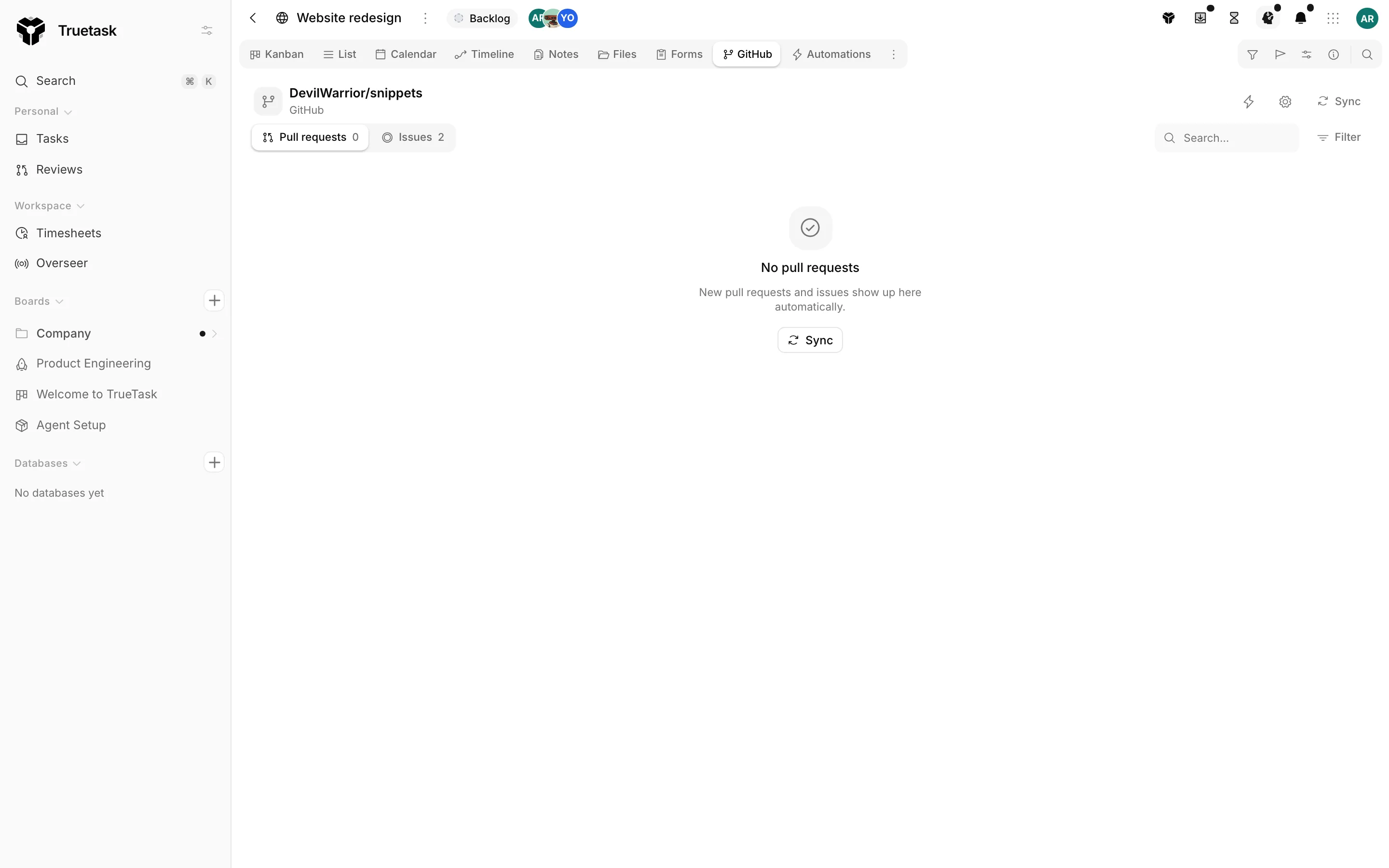
Every board can have a Code view. It lists the linked repository's pull requests and issues, shows which task each one belongs to, and holds the repository's settings.
The tab is named after the provider, so it reads GitHub, GitLab or Gitea rather than "Code". Database boards do not have it: a database is limited to List, Forms and Automations. The Code view can also never be a board's default view, because a board with no repository would open on the setup screen.
Before a repository is linked
The view is not hidden when there is nothing linked yet. It shows a two-step setup instead: Connect a provider and Link a repository. Members who are not a workspace owner or admin see the same steps with a disabled action and a line asking them to get an admin to set it up. See Connect a repository for the full walkthrough.
Pull requests and issues
Once a repository is linked the view has two tabs, Pull requests and Issues. Inside each tab, items are grouped by how they relate to tasks.
| Group | Meaning |
|---|---|
| Linked | The work is the task. Merging or closing on the provider completes the task, and automations fire. |
| Referenced | Related context only. It never completes a task and drives no automation. |
| Unlinked | Nothing on this board points at it yet. |
Groups collapse, and Truetask remembers which ones you closed per board and tab.
Each row shows the state (Open, Draft, Merged, Closed), the review state when there is one, the CI badge, the number, the source and target branch, and the author rendered as their mapped teammate.
Row actions appear on hover:
| Action | What it does |
|---|---|
| Open review | Opens the code review drawer on that pull request. |
| Coding tool button | Launches your coding tool with this pull request and its task. |
| Make a task | Creates a task from the issue or pull request and links it. The caret picks which list it lands in. |
| Link a task | Attaches the item to an existing task as a link or as a reference. |
| Close issue / Reopen issue | Changes the issue's state on the provider. |
| Open on provider | Opens the issue on the provider in a new tab. |
Clicking an issue's title opens the issue drawer: its body, its comments, and the labels, assignees and milestone you can edit from here. You can post a comment from the drawer, and it goes to the provider. The drawer also lists the issue's linked tasks and referenced tasks.
Search and filters
The header carries a search box and a filter popover that work on what is loaded.
- Search matches a pull request's title, source branch and author, and an issue's title, body and author.
- State filters by Open, Draft, Merged or Closed on pull requests, and Open or Closed on issues.
- Link status filters by Linked, Referenced or Unlinked.
- Issues can also be filtered by label and by assignee, built from the labels and assignees actually present.
State, label and assignee filters reset when you switch tabs; the text query carries over.
Sync
Sync pulls the repository's pull requests and issues from the provider. It is in the view header and in the views menu in the tab strip.
You rarely need it. Linking a repository does an initial sync, and after that the provider's webhook delivers changes as they happen. Sync is the repair action for a repository whose webhook is not registered, or after a long outage.
The Unlinked rail on Kanban
Git issues and pull requests that are not linked to a task can be triaged from the Kanban view without leaving it. Open the views menu in the tab strip and turn on Unlinked issues & PRs.
The rail lists everything unlinked and lets you work through it:
- Drag an item onto a list to turn it into a task.
- Right-click for Promote to task, Link to a task, Reference to a task, Mark as duplicate, Open issue and Open in {Provider}.
- Mark as duplicate asks which issue it duplicates, comments "Duplicate of #N" on the provider and closes it.
Repository settings
The gear in the view header opens Repository settings for the selected repository. It has six sections, and the automation sections are reserved for workspace owners and admins.
Webhook
Shows whether the provider's webhook is Registered, when the last event arrived, and the callback URL. Test delivery asks the provider to send one, and Re-register re-creates the hook. If it never shows an event, the provider cannot reach this instance: set a public URL and re-register, or send a test delivery.
CI gate
Controls whether CI can block merges for this repository.
| Merge gate | Effect |
|---|---|
| Off | CI never blocks a merge. |
| Block failed CI | A failed or cancelled CI run blocks the merge. |
| Block failed or pending CI | A pending or unknown CI run blocks it too. |
Admin bypass lets board admins explicitly bypass a blocked gate. The badge on a pull request reflects the resulting state; see Branches, issues and pull requests.
Slack and Teams notifications
Sends this repository's events to a team channel. Pick Slack or Microsoft Teams, paste the incoming webhook URL, and choose the events. By default all supported events are sent; unticking narrows it to the ones you keep. The section also reports the last delivery's HTTP status, so a broken channel is visible.
Labels and tags
Maps a provider label to a board tag. A linked or promoted task inherits the tag. It works the other way too: creating an issue from a task adds the task's tags as labels here.
Refresh labels pulls the latest labels from the provider.
Automation
Two switches for the everyday behaviors between repository and board.
| Setting | What it does |
|---|---|
| Create a task from each new issue | New issues that do not reference a task key are added as tasks and linked. Add to list chooses where they land, defaulting to the first open list. |
| Close linked issues when a task is completed | Completing a linked task closes its open issues on the provider. Linked pull requests are left for you to merge or close, and references are never touched. |
Recommended automations
The same starter automations offered when you link the repository. Each one shows its status: Not installed, Current, Update available, or Newer than template. You can install one, enable or disable it, reset it to the current template, or delete it.
Automate from here
The lightning button in the view header opens the automations surface scoped to git triggers, so you can build your own rules on top of the starters. See Automations and Triggers.