

Appearance
Agent activity
Agent work is spread across boards by design, so there is one place that gathers it. The Agent activity panel in the top bar holds everything your agents are doing and everything of theirs that waits on you.
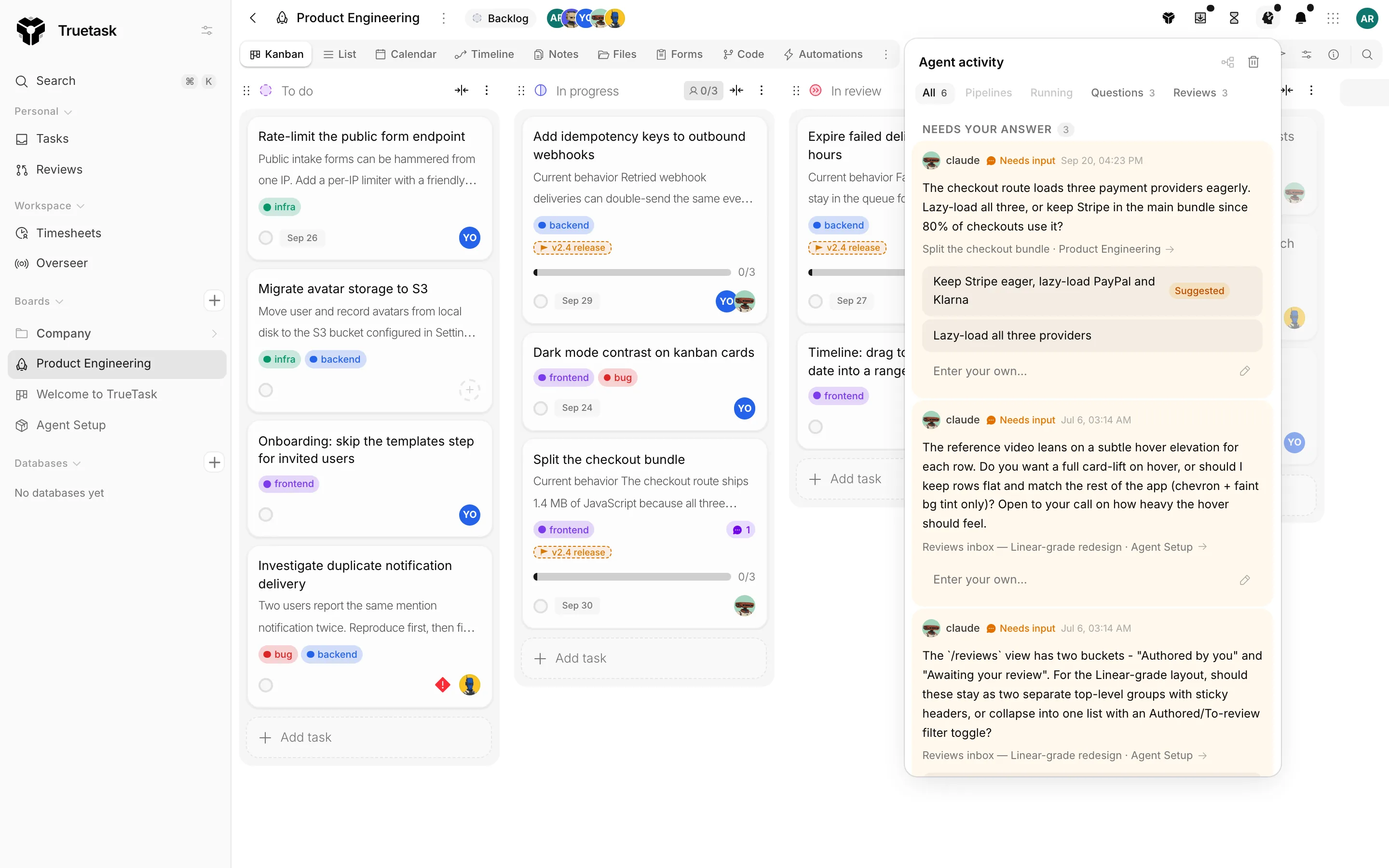
The panel
Click the agent button in the top bar to open it. A dot sits on the button while something waits on you, so the toolbar carries the story without opening the panel.
Four sections, in order of who is waiting on whom.
| Section | What it holds |
|---|---|
| Pipelines | Your chains of tasks, with the task running now. "A pipeline chains tasks so your agents work them in order. It is yours, and its tasks can sit on any of your boards." |
| Running | Tasks your agents are working right now, on any board, plus what is still waiting for a computer to pick it up. |
| Needs your answer | Open questions an agent is blocked on. |
| Ready to review | Tasks an agent has proposed as done. |
Filter tabs across the top narrow the list: All, Pipelines, Running, Questions and Reviews. A tab with nothing in it says "Nothing here right now".
An empty panel reads "No agent activity" with "Start a task with one of your agents and it shows up here."
Statuses
Rows carry the run's state.
| Status | Meaning |
|---|---|
| Working | The agent is on it. |
| Blocked | The run reported a blocker. |
| Needs input | An agent question is waiting for a person. |
| Waiting for next agent | The run handed off and is waiting for its new owner. |
| Stalled | The run went silent past the watchdog window. |
| Returned for more work | You declined a done proposal and sent it back. |
| Approved | You approved the work. |
Waiting rows explain the wait instead of spinning: "Waiting for a computer to pick it up", "Handed to" plus the agent's name, "Waiting for a task to finish", or how long ago the work was proposed.
What the panel does and does not do
Rows navigate, and nothing else. Clicking one takes you to the task or the pipeline where the work lives, and that is where you approve, cancel, retry or reassign. The exception is a question: you can answer it straight from the panel.
Dismiss hides one row. The context menu's Dismiss all hides everything currently listed: "Agents keep working, and items return when they need you again."
On the Tasks page
The Tasks page carries the same information in two shapes.
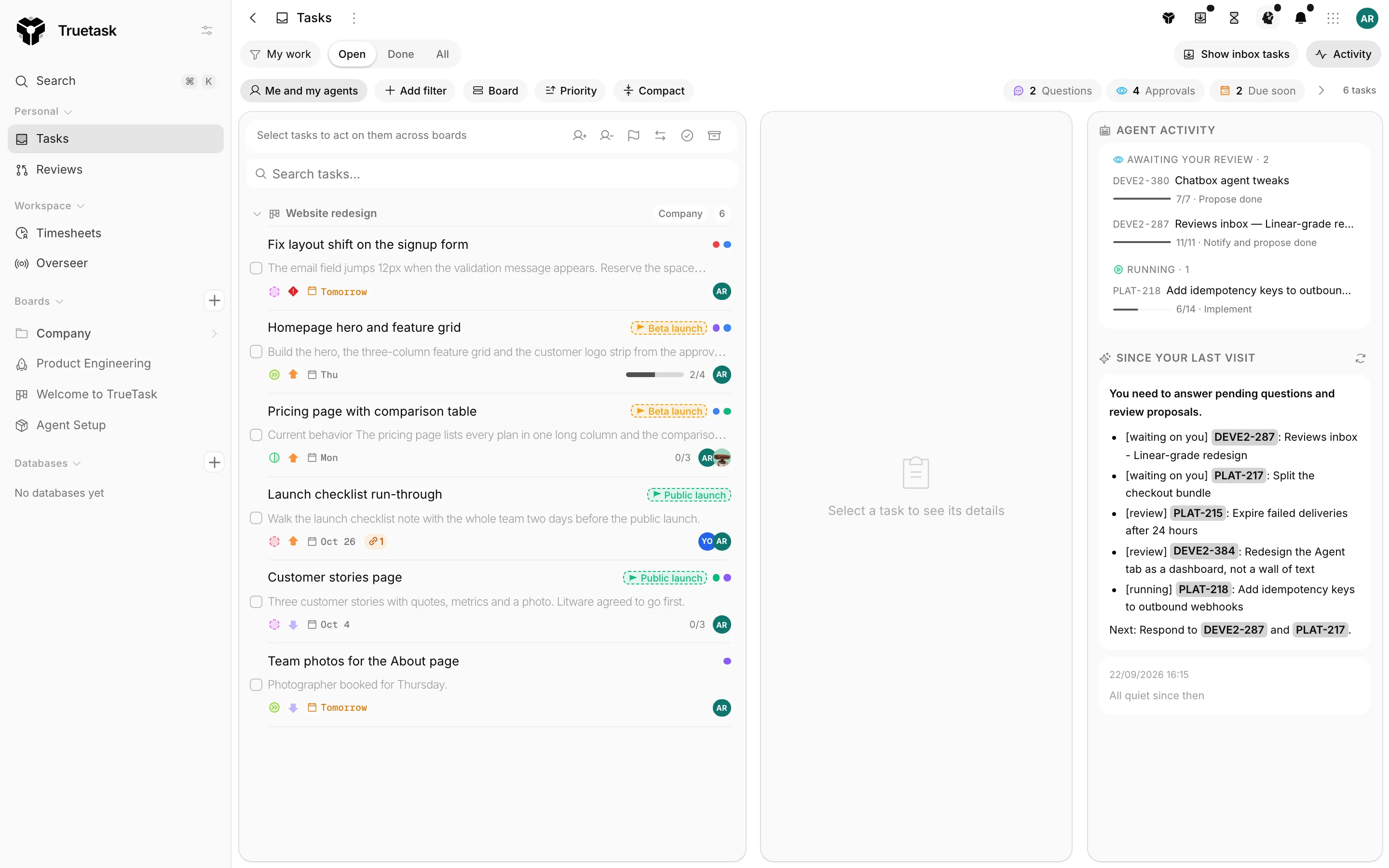
The attention strip at the top counts what needs you, with a row per kind: Questions, Approvals, Failed runs, Stalled, Pipelines need a human, Ready to read, plus Overdue and Due soon for your own work. With nothing outstanding it reads "All clear, nothing needs you". It expands and collapses.
The activity rail on the side carries Agent activity with a lane per state: Needs your input, Awaiting your review, Failed, Handing off and Running, plus how many pipelines are running. Below that, Since your last visit writes a short brief of what changed on your boards, with counts of what was completed, created and commented on. With no delegated runs it says "No delegated agent runs right now".
See The Tasks page.
Notifications
Agent events reach you through the normal notifications panel as well, so you hear about them when the app is not open in front of you.
The agent notifications cover: an agent asked a question on a task, an agent proposes to complete a task, an agent is waiting to pick a task up, an agent went silent while working, a run could not finish, a kickoff could not be started, an agent left a note, and a pipeline auto-approved an agent's work.
See Notifications.
For admins: Overseer
Overseer is the workspace-wide activity feed, and agents appear in it as actors alongside people, marked "Agent" with the agent's name in the tooltip. It is the view to use when you want to see everything that happened on the workspace, not only your own agents' work.
Overseer is available to workspace owners and admins when the Overseer feature is on. See Overseer.
For other systems: webhooks
Everything in this panel also fires an event you can subscribe to, so a dashboard or a chat channel can follow agent work without anyone watching a browser tab. See Webhook events.