

Appearance
Twilio and WhatsApp
Connect one of these and two things appear in your automation palette: a node that sends a message and a trigger that runs when one arrives. Replies land on the task that sent the message, as a comment, so the conversation lives where the work does.
Only a workspace owner or admin can connect a service. Everyone else sees the catalog and a line telling them to ask an admin.
Connect Twilio
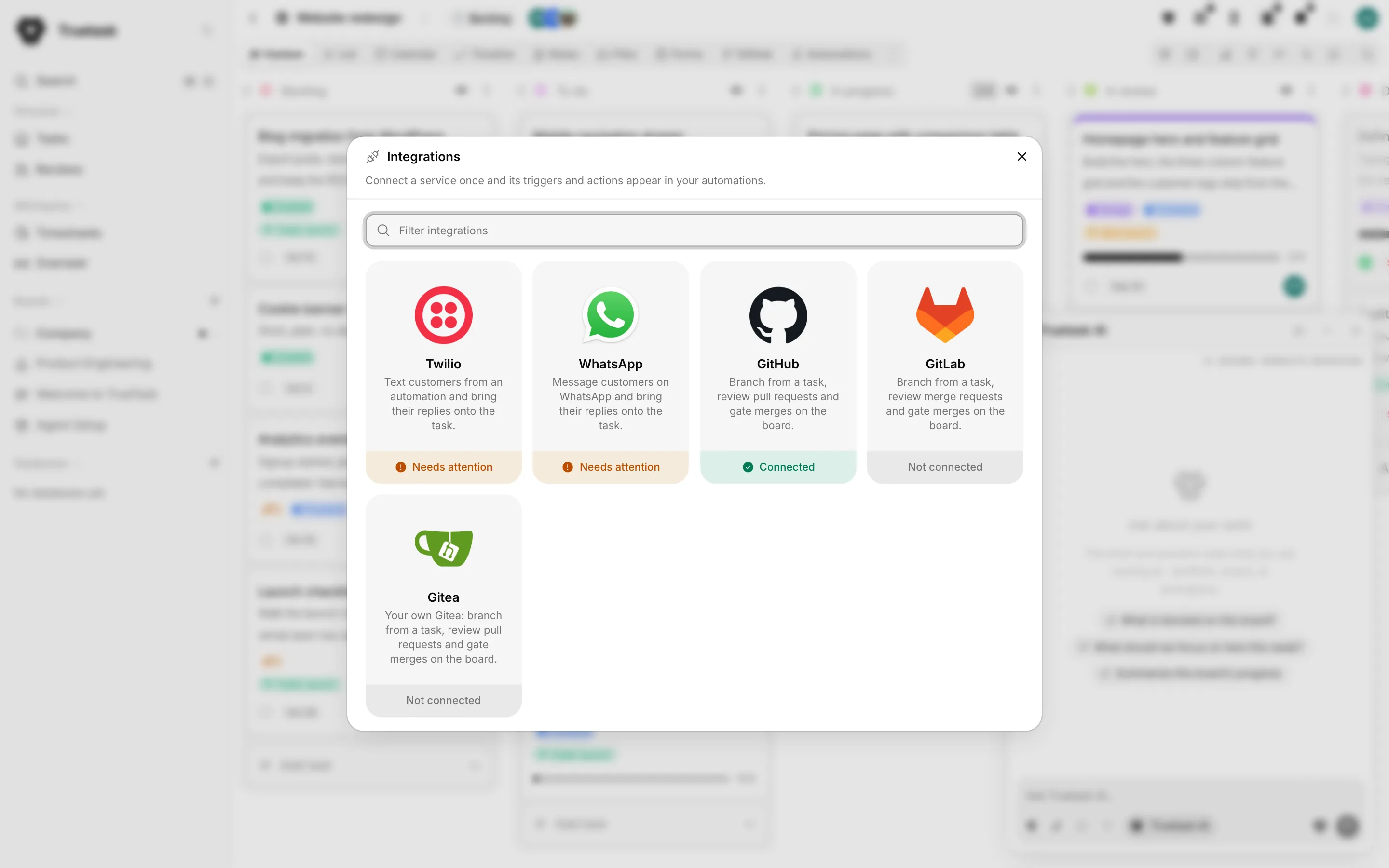
Open the App menu and choose Integrations, then the Twilio card. The connect flow has three steps.
1. Credentials
| Field | Where it is |
|---|---|
| Account SID | Twilio Console home, Account Info. It starts with AC and is 34 characters |
| Auth Token | The same panel, beside the SID |
Truetask asks for the Auth Token rather than an API key because the token is what Twilio signs its webhooks with. Holding it is what lets Truetask prove a reply really came from Twilio.
The Where to find this panel spells that out, and its Ask an assistant button opens ChatGPT, Perplexity or Google AI Mode with the question already written.
2. Check
Truetask verifies the credentials against Twilio and shows what it found: the account it connected to, the account id and how many of its numbers can send text messages. If the account has no number that can text, buy one in the Twilio Console and come back to this card to choose it.
3. Choices
Pick the number under Send texts from.
Leave Point this number at Truetask on. That sets the number's inbound message webhook, which is what makes replies land on the task and lets them start automations.
Connect WhatsApp
Open the WhatsApp card. Meta splits the roles between two secrets: the access token sends, and the app secret signs the inbound webhook.
| Field | Where it is |
|---|---|
| Phone number ID | developers.facebook.com, your app, WhatsApp, API Setup |
| Access token | The same page. Use a permanent token |
| App secret | App settings, Basic |
Truetask verifies the number against Meta, then hands you the last piece: a Callback URL and a Verify token to paste into the Meta dashboard. Replies do not arrive until you finish that side.
In the Meta app dashboard:
- Open your app, WhatsApp, Configuration, and edit the webhook.
- Paste the Callback URL and Verify token, then verify and save.
- Subscribe to the messages field.
Truetask answers Meta's verification handshake and remembers that the webhook is wired up. If you ever need those two values again, open the card and use Webhook setup. The verify token is kept across a reconnect, so a working webhook keeps working.
Managing a connection
Open a connected card from the catalog to see its state and act on it.
| Row | What it shows |
|---|---|
| Account | The Twilio account, or the WhatsApp number and its verified name |
| Sending number | The number messages go out from, with Change number |
| Replies | Whether the number points at Truetask, or Not pointed at Truetask |
| Last checked | When the credentials were last verified |
Check connection re-verifies the stored credentials right now and, for Twilio, re-reads the account's numbers so one you bought since connecting shows up. A card whose credentials were revoked reads Needs attention in the catalog and asks you to connect again with the current token.
Disconnect removes the stored credentials. Automations that send or start on a message will fail until the service is connected again. Your settings at Twilio or Meta are left as they are.
What it unlocks in automations
Connecting a service adds its nodes to the automation palette.
| Node | What it does |
|---|---|
| Send text | Sends a text through the workspace's Twilio number, with placeholders in the message |
| Text received | Runs when a text reaches the workspace's Twilio number |
| Send WhatsApp | Sends a WhatsApp message through the workspace's number |
| WhatsApp received | Runs when a WhatsApp message reaches the workspace's number |
Sending
To takes one phone number in international format, or a placeholder. The recipient is usually a phone custom field on the task, so the value is normally something like {card.xattr.Customer_phone} rather than a literal number. See Custom fields and Placeholders.
Message is the body, and placeholders work for any task or board field. A long text is sent as several segments.
For Twilio, From picks which of your numbers sends it, defaulting to the connection's number. Replies come back to Truetask when that number is pointed here.
WhatsApp has a 24 hour window
WhatsApp only delivers free-form text within 24 hours of the customer's last message. Outside that window Meta requires an approved template.
Receiving
Both triggers have a Start on choice:
| Option | What starts the run |
|---|---|
| Replies to this board's texts or messages | A message answering one this board sent. That task becomes the focus of the run |
| Any text to the number or Any message to the number | Every message the number receives, matched to a task when there is one |
The Twilio trigger can also narrow to one of the account's numbers instead of any of them.
The message itself is available to the steps that follow: sender number, the number it was sent to, the message text, the message id, and the attachment count for a text or the sender name for WhatsApp.
How a reply finds its task
When a message arrives, Truetask looks for the most recent message this workspace sent to that number on that service, within the last 30 days, and takes the task it went out from. The reply is posted there as a comment headed with who it came from, and that task becomes the focus of any automation run the message starts.
A message with no match is still received and can still start an automation. It simply has no task to attach itself to.
Every inbound request is verified before any of that happens: Twilio's signature against the Auth Token, Meta's against the app secret. A message that a service retries is only ever processed once.
What your instance needs
Both directions cross the internet.
- Outbound: your instance must be able to reach the service's API to send a message and to verify credentials.
- Inbound: the service must be able to reach your instance. The callback URL Truetask hands out is built from the instance's public URL, so that address has to be reachable from outside for replies to arrive.
Self-hosted only
An instance with no route to the internet cannot use either service. If Truetask sits behind a proxy, make sure its public URL is the address the outside world uses, because that is the URL Twilio and Meta are pointed at. See Network.