Appearance
Automations
Automations let you build workflows that react to events on a board. "When a task moves to Done, add a tag." "When a task becomes overdue, notify the assignee." "Every Monday at 9am, create a weekly status task."
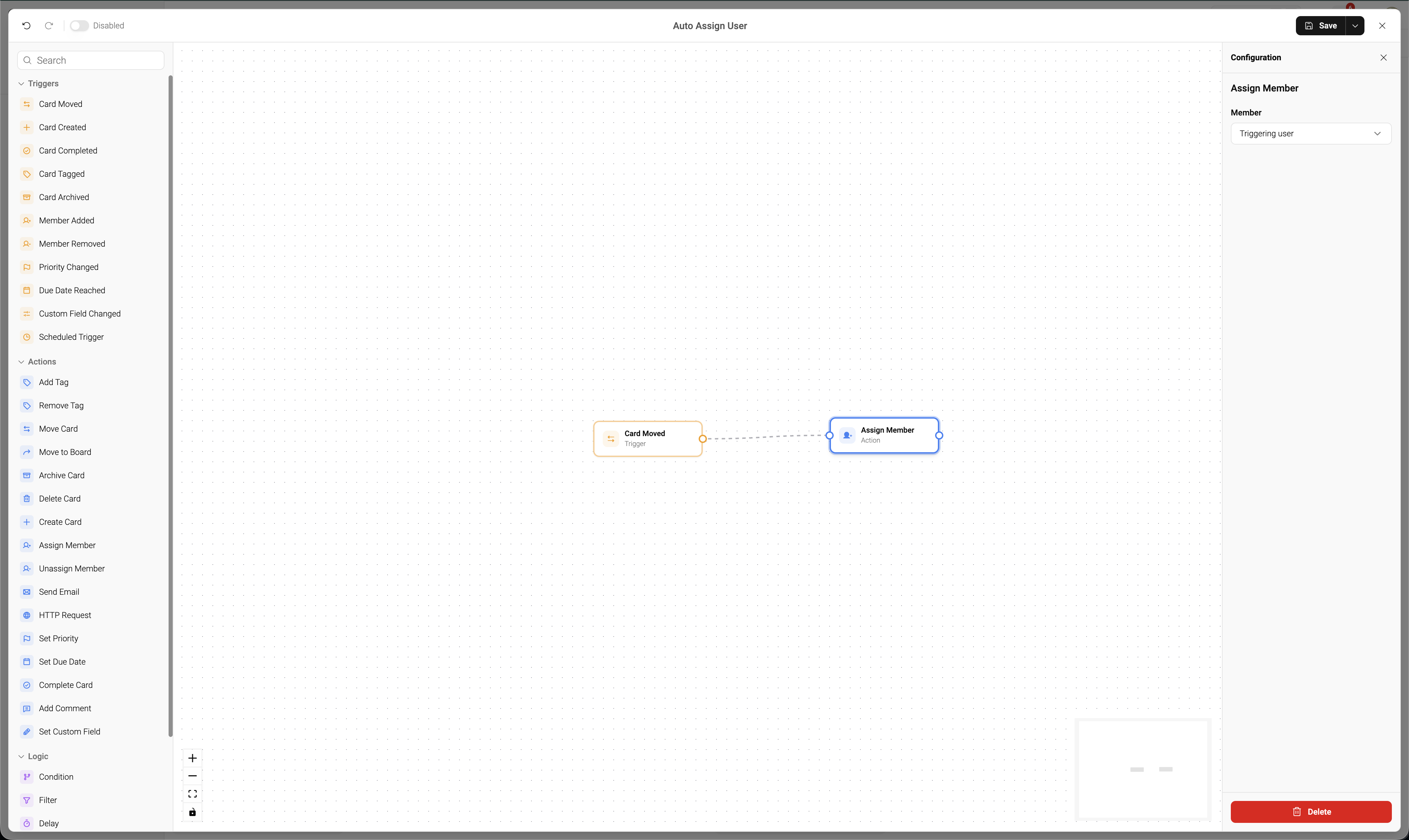
Automations are node-based — you drag triggers, actions, and logic nodes onto a canvas and connect them to build the flow. They run server-side, so they work even when no one has the board open.
Access
Automations are built and managed by board Admins. Everyone sees the effects; only Admins can create or edit flows.
Open the Automations manager from the board's view toolbar. It opens a dialog with two tabs:
- Automations — every automation on the current board (edit, toggle, duplicate, export, delete)
- Templates — a gallery of pre-built flows you can install in one click
The Automation List
The main view lists every automation on the current board:
| Column | Description |
|---|---|
| Name | The automation's name |
| Trigger | The event that starts it |
| Runs | Total times the automation has executed |
| Last run | When it last fired |
| Active toggle | Flip to pause or resume |
Toolbar Actions
- New Automation — open the builder on a blank canvas
- Import — upload a
.jsonautomation exported from another board - Archived — view and restore archived automations
- Edit (pencil icon) — open an automation in the builder
- Delete (trash icon) — remove an automation and its execution logs
Templates
The Templates tab is a gallery of pre-built automations for the most common workflows. Browse, pick one, answer a few setup questions, and install — no need to start from a blank canvas.
Installing a template
- Open the Automations manager and click the Templates tab
- Pick a template that matches what you want to do
- The installer opens and inspects your board — for any list, tag, member, or priority it needs, it fuzzy-matches against what already exists and suggests a choice. Confirm, or pick a different entity. You can also create a missing tag/list on the fly from the dropdown
- Click Install — the automation is created on the current board inactive so you can review the flow before enabling it
Available templates
| Template | What it does |
|---|---|
| Daily standup card | Creates a daily standup card every morning at 9 AM in the list you pick |
| Weekly review card | Same idea, every Monday — great for retrospectives |
| Archive completed cards after 7 days | Keeps Done columns from growing forever |
| Recurring weekly task | Tag a card for weekly recurrence — completing it spawns next week's copy |
| Tag cards moved to Blocked | Auto-tag "blocked" when cards enter your Blocked list |
| Mark urgent tags as high priority | Cards tagged "urgent" get priority set automatically |
| Comment "Completed by …" | Audit-trail comment when cards are completed |
| Due date reminder | Comment 24h before a card's due date |
| Overdue card reminder | Comment when a card passes its due date |
| Escalate overdue cards | Bump priority to high + comment on overdue cards |
| Nudge stale In Progress cards | Weekly ping on cards that haven't moved in a while |
| Auto-move assigned cards | When a member is added, move the card to "In Progress" |
| Bug triage | Tagged "bug" → move to triage list + assign the triage owner |
| Onboard new cards | New card in your intake list → tag + set default priority |
| Auto-set due date on creation | Sprint cards get a due date 7 days out automatically |
| Webhook on archive | POST to any URL when a card is archived — Slack, data warehouse, anything |
Templates are portable and respect the same name-based references as imported automations, so "which list is your 'In Progress'?" resolves against whatever your actual list is called.
The Visual Builder
The builder is a full-screen canvas for designing flows.
Layout
| Area | Purpose |
|---|---|
| Left sidebar | Node palette — drag or click to add nodes |
| Center canvas | Your flow — arrange and connect nodes here |
| Right sidebar | Configuration panel for the selected node |
| Top toolbar | Undo/redo, automation name, Enabled/Disabled toggle, Save (with Export and Download as image in its dropdown) |
The Enabled toggle sits right next to Save so you can see at a glance whether the automation is live before you click Save.
Working with nodes
- Add — click a node type in the palette, or drag it onto the canvas. Each section (Triggers, Actions, Logic, AI) is organised into category subgroups with subheaders, so related nodes sit together rather than in a flat alphabetical list
- Connect — drag from a node's output handle (right) to another node's input handle (left). Invalid drops (trigger→trigger, self-connect, duplicates, sticky notes) are rejected during the drag
- Select — click a node to open its config panel on the right
- Delete — select it and press Backspace, or right-click for the context menu
- Move — drag nodes around to arrange
- Pan / zoom — scroll to zoom, drag the canvas background to pan
- Right-click — a context menu appears. On a node: Duplicate (hidden for triggers since only one is allowed) and Delete. On empty canvas: add a sticky note where you clicked, tidy up the layout, or download the graph as an image
- Edges — connections are animated and have an arrowhead pointing to the target. Edges from a Condition node's true/false handles are automatically labelled True (green) or False (red)
Click Save in the toolbar to persist your work.
Canvas actions
Several helpers live on the canvas itself:
- Tidy up (top-right of the canvas) — auto-lays out the graph left-to-right using a hierarchical algorithm. Useful after importing a template or when things get messy. Sticky notes are preserved where you placed them
- Download as image (in the Save dropdown) — exports the entire graph as a PNG, including all nodes and edges but excluding the minimap, controls, and floating panels. Useful for documentation and sharing
- Export (in the Save dropdown) — download the flow as a
.jsonfile
Annotations
Annotations are visual-only nodes that help document a complex flow. They don't execute and don't affect the graph.
| Node | What it does |
|---|---|
| Sticky note | Free-form text block. Set content (multi-line, supports newlines), pick from 8 preset colors or a custom hex. Resizable from the corners when selected |
Group  | Container that visually groups related nodes. Drag nodes inside or drop the group over existing nodes — the group adopts any orphan node that falls inside its bounds. Resizable, with an optional label and color |
Sticky notes are available to all tiers and don't count toward automation limits.
Triggers
Every automation starts with one trigger. Adding a new trigger replaces the previous one. The palette groups triggers into Manual, Card events, People, and Time.
Card events
| Trigger | Fires when… |
|---|---|
| Card Created | A new task is created (optionally in a specific list) |
| Card Moved | A task moves between lists (optionally from / to specific lists) |
| Card Completed | A task is marked complete or incomplete |
| Card Tagged | A tag is added to a task (optionally a specific tag) |
| Card Archived | A task is archived |
| Priority Changed | A task's priority is set or changed |
| Due Date Changed | A task's due date is added, removed, or changed |
| Custom Field Changed | A specific custom field on a task is updated |
People
| Trigger | Fires when… |
|---|---|
| Member Added | A member is assigned (optionally a specific member) |
| Member Removed | A member is unassigned (optionally a specific member) |
Time
| Trigger | Fires when… |
|---|---|
| Due Date Reached | On or before a task's due date, with configurable offset |
| Milestone Approaching | N days before a milestone's date (configurable, default 7). Useful for reminders or pre-release checklists |
| Milestone Reached | On a milestone's date. Useful for retros, archiving, post-launch notifications |
Schedule  | A fixed schedule — daily, weekly, monthly, or a custom cron expression. Useful for recurring tasks: weekly cleanup, monthly reports, daily stand-up reminders |
Milestone triggers have no card context
Both milestone triggers fire once per milestone with no card attached by default. They run hourly via a cron and are deduped per (automation, milestone) within 23 hours. To act on cards related to the milestone, add a Target Card or For Each step downstream and resolve from there. Milestone triggers also expose new placeholders — see Milestone below.
Actions
Actions do things to tasks or the board. The palette groups actions into Card lifecycle, Card content, Tags, People, Communication, and Integrations.
Task Actions
| Action | What it does |
|---|---|
| Move Card | Move to a specific list |
| Complete Card | Mark complete or incomplete |
| Archive Card | Archive the task |
| Delete Card | Permanently delete the task |
| Add Tag / Remove Tag | Modify tags |
| Assign Member / Unassign Member | Modify assignees |
| Set Priority | Change priority level |
| Set Due Date | Set a due date relative to now (e.g. "+3 days") |
| Set Custom Field | Update a custom field value |
| Add Comment | Post an automated comment (supports placeholders) |
| Create Card | Create a new task with a title, description, list, and members |
Notification Actions
| Action | What it does |
|---|---|
| Send Email | Send an email with custom subject and body (SMTP required) |
| HTTP Request | POST, GET, PUT, or DELETE to any URL — webhook-style integrations with other services |
Placeholders
Text fields in actions (comment body, email subject/body, HTTP URL/body, custom-field value, new-card title/description) support placeholders that get replaced at runtime. Unknown placeholders are left as literal text; missing values resolve to an empty string.
Each placeholder-aware field has a small { } button on the right side. Click it to open a picker grouped by Card / Board / Actor / Custom fields and insert the chosen token at your cursor — handy if you don't remember the exact name. Custom-field tokens auto-list whatever fields exist on the current board.
Card
| Placeholder | Resolves to |
|---|---|
{card.id} | Internal card identifier |
{card.title} | Card title |
{card.description} | Description (raw Markdown) |
{card.priority} | Priority id |
{card.list} | List id the card is on |
{card.board} | Board id the card belongs to |
{card.start_date} | ISO start date |
{card.due_date} | ISO due date |
{card.created} | ISO creation timestamp |
{card.updated} | ISO last-update timestamp |
{card.archived} | true or false |
{card.completed} | true or false |
{card.url} | Deep link to the card (uses your configured app URL) |
Board
| Placeholder | Resolves to |
|---|---|
{board.id} | Board id |
{board.name} | Board name |
Actor
The actor is the user who triggered the automation. For scheduled or system-triggered runs these resolve to empty strings.
| Placeholder | Resolves to |
|---|---|
{actor.id} | Triggering user id |
{actor.name} | Triggering user's name |
{actor.email} | Triggering user's email |
Custom fields
| Placeholder | Resolves to |
|---|---|
{card.xattr.<field_name>} | Value of the named custom field on the triggering card. Match the field name exactly (case-sensitive). Empty string if the field doesn't exist or has no value. |
Example: {card.xattr.Estimate} substitutes the value of a custom field named Estimate.
Milestone
Available when the trigger is Milestone Approaching or Milestone Reached. Use these in Send Email, HTTP Request, and Create Card bodies.
| Placeholder | Resolves to |
|---|---|
{milestone.id} | Milestone id |
{milestone.name} | Milestone name |
{milestone.date} | ISO milestone date |
Agent loop output
Available in any node downstream of an Agent Loop node.
| Placeholder | Resolves to |
|---|---|
{agent.output} | The most recent agent_loop's final text on this run |
{agent.output.<node_id>} | A specific agent_loop's output by graph node id (use when multiple agents run in one graph) |
Example: pipe an agent's summary into both a comment and an email by referencing {agent.output} from a Send Email node downstream of the Agent Loop.
Logic Nodes
Logic nodes control which paths of your flow run. The palette groups them into Flow control (Condition, Filter, For Each, Delay), Data (Parse JSON, Parse XML), and Focus (Target Card).
| Node | What it does |
|---|---|
| Condition | If/else branch — evaluates a condition and sends execution down True or False |
| Filter | Stop execution if the condition doesn't match — simpler one-way check |
| Delay | Pause execution for a specified duration before continuing |
Condition operators
equals, not equals, contains, not contains, is empty, is not empty
Condition fields
title, description, priority, tags, members, list, due_date, start_date, completed, or any custom field.
Subflow
Call another automation from inside this one. Useful for reusing common sequences — a single "notify stakeholders" subflow that many automations invoke.
AI Nodes
Only available when AI is enabled for your workspace. The palette groups AI nodes into Agents (Agent, Agent Loop) and Quick AI actions (Smart Hydrate, Generate Description, Suggest Tags, Improve Title, Summarize Comments).
| Node | What it does |
|---|---|
| AI Generate | Use AI to generate, summarize, or suggest content — write a prompt and pick a target field to populate |
| Agent Loop | Run an AI agent in a tool-calling loop against your board. The model picks tools (read board state, search, post comments, etc.) until it returns a final answer |
AI nodes consume your workspace's AI credits (or hit your configured provider, depending on your setup).
Agent Loop
The Agent Loop node lets the model do work, not just write text. You give it a prompt and a list of tools it's allowed to use; the model calls those tools (gathering context, posting comments, updating cards) until it returns a final message. That final message is then routed to the destination you choose.
Configuration
| Field | What it does |
|---|---|
| Prompt | The instruction the model receives. Supports the same {card.title}, {card.description}, {card.xattr.*}, {actor.name} placeholders as other nodes |
| Model | Which AI model handles the loop. Only models with the tool_use capability appear here. "Auto" picks the first enabled one |
| Agent capabilities | A security gate — what the agent MAY use during its loop. Read tools are safe defaults; write tools (add comment, update card, create card, etc.) are opt-in. Ticking a write tool gives the agent the capability; it isn't an instruction to use it |
| Max iterations | Hard cap on the model → tools → model cycle (default 8, max 20). Prevents runaway loops |
| Max tokens | Total input + output token budget for the run (default 8000) |
| Timeout (seconds) | Wall-clock cap (default 60s, max 120s) |
| Output targets | What the system does with the agent's final text — pick zero or more of: post as comment, append to description, set a custom field, discard. Multi-select: the same final text is sent to every selected target |
Output targets vs agent capabilities
"Output targets" is a deterministic action the system runs at the END of the loop. "Agent capabilities" is what the agent can call DURING the loop. They share zero code — neither needs the other.
- Use output targets when you want the system to handle posting/writing — agent reasons, system writes.
- Use agent capabilities with write tools ticked when you want the agent itself to make many writes during the loop (e.g. drafting multiple checklist items, posting comments on related cards).
Both at once works but can double-post. The config panel surfaces a warning if add_comment is a capability AND card_comment is an output target.
Tools available in v1
- Reads (safe defaults):
get_card,list_cards,list_lists,list_tags,list_priorities,list_comments,list_checklists,search - Writes (opt-in per automation):
add_comment,create_checklist_item,update_card,create_card
Every tool is scoped to the automation's board. The agent cannot reach other boards, even if it tries — calls that reference cards on a different board are rejected.
Card context is auto-injected
The triggering card's id, title, and board are automatically prepended to the system prompt. You can write Summarise the work on this card instead of having to pass {card.id} — the agent knows which card it's running for and goes straight to get_card without needing a lookup.
Piping the agent's output to downstream nodes
The final assistant message is exposed to subsequent nodes as a placeholder so you can avoid duplicate work:
{agent.output}— the most recent agent_loop's final text{agent.output.<node_id>}— a specific agent_loop's output (use when the graph has multiple agents)
This lets you run an Agent Loop once and send its output to a comment, an email, and a custom field via the existing nodes without re-asking the model.
Worked example: card-completed → summary comment
- Add a Trigger: Card Completed node.
- Add an Agent Loop node and connect them.
- In the Agent Loop config:
- Prompt:
Summarise the work on this card. Read the description, comments, and checklist; produce a 3-bullet recap with what was done, decisions made, and any open questions. - Agent capabilities:
get_card,list_comments,list_checklists - Output targets:
Post as comment on the card
- Prompt:
- Save and activate.
When a card on this board is completed, the agent fetches the description / comments / checklist and the system posts the recap as a single comment.
Worked example: card-completed → comment + email + custom field, in one agent run
- Trigger: Card Completed → Agent Loop → Send Email → Set Xattr (chained).
- Agent Loop config: prompt as above; agent capabilities
get_card, list_comments, list_checklists; output targets Post as comment on the card AND Set a custom field (xattr) with field namelast_summary. - Send Email node: subject
Card "{card.title}" completed, body{agent.output}.
Result: the agent runs once. The system posts the summary as a comment, sets the last_summary xattr, and the email contains the same text — all without a second model call.
Safety
- Demo mode disables the node entirely.
- Loop prevention: every outgoing API call carries an
x-truetask-source: agent-loopheader so the agent's own activity is distinguishable in logs and never re-triggers itself. - Audit trail: every iteration's tool calls and assistant messages are written to the automation's execution log (
event_data.agent.transcript), with each entry truncated to 4 KB to keep logs bounded.
Provider support
Tool-using Agent Loop runs against Anthropic, OpenAI, Google Gemini, Ollama, and any OpenAI-compatible provider (LM Studio and others). Pick any model with the tool_use capability in the Model dropdown.
- Anthropic — Claude 3.x and newer.
- OpenAI — any tool-capable model (e.g.
gpt-3.5-turbo,gpt-4o,gpt-5). - Google Gemini — Gemini 2.5 and newer.
- Ollama — any tag with tools support (e.g.
gemma4,llama3.1+,qwen2.5+,mistral-nemo). - LM Studio / other OpenAI-compatible — supported when the served model exposes tool calling.
Node Visual Guide
Each category has a distinct color for quick recognition:
| Category | Border |
|---|---|
| Trigger | Amber |
| Action | Blue |
| Logic | Purple |
| AI | Green |
| Annotations (sticky note, group) | Dashed / translucent — no handles |
Condition nodes show two output handles: green for the true path, red for the false path. Edges leaving those handles carry a True / False label so you can tell branches apart at a glance.
Portable References
Automation configurations reference entities by name, not by internal IDs:
- Lists by name
- Tags by name
- Members by display name or email
- Custom fields by field name
This is what makes automations portable — export one from board A, import it on board B or another Truetask instance entirely, and as long as the referenced names exist on the target board, it works. Names are resolved to IDs at execution time.
Import and Export
Export
- Open an automation in the builder
- Click Export in the toolbar
- Download the
.jsonfile
Import
- Click Import on the automation list
- Pick the
.jsonfile - The automation is created on the current board inactive — toggle it on when you're ready
On import, internal node and edge IDs are regenerated so they don't collide. Entity references (list names, tag names, etc.) are preserved as-is.
Export format
json
{
  "version": 1,
  "type": "truetask_automation",
  "exported_at": "2026-04-17T12:00:00Z",
  "name": "Auto-archive completed tasks",
  "graph": {
    "nodes": [...],
    "edges": [...]
  }
}
Example Workflows
Auto-archive completed tasks
- Trigger: Card Completed (completed: true)
- Action: Archive Card
Tag urgent tasks approaching deadline
- Trigger: Due Date Reached (before due, 24 hours)
- Action: Add Tag (tag: "urgent")
- Action: Assign Member (member: "Project Lead")
Route tasks by priority
- Trigger: Card Created
- Logic: Condition (field: priority, equals: "High")
- True → Move Card (list: "In Progress") → Assign Member (member: "Senior Dev")
- False → Move Card (list: "Backlog")
Weekly status check-in
- Trigger: Schedule (every Monday at 9:00)
- Action: Create Card (title: "Weekly status — {date}", list: "This Week")
Notify Slack when a task is completed
- Trigger: Card Completed (completed: true)
- Action: HTTP Request (POST to your Slack webhook URL with a JSON body)
Programmatic Access
Automations can be managed through the MCP server or REST API:
| MCP Tool | Description |
|---|---|
list_automations | List all automations on a board |
get_automation | Get one with its full graph |
create_automation | Create a new one |
update_automation | Update name, active state, or graph |
delete_automation | Delete |
get_automation_logs | View execution history |
export_automation | Export as JSON |
import_automation | Import from JSON |
See Connect AI Assistant and API & Webhooks for details.
Permissions
| Action | Who can do it |
|---|---|
| View Automations tab | Board Admin |
| Create / edit / delete automations | Board Admin |
| Toggle active / inactive | Board Admin |
| Import / export | Board Admin |
Site Owners and Admins always have full access to every board's automations, regardless of their board role.