Appearance
Timeline View
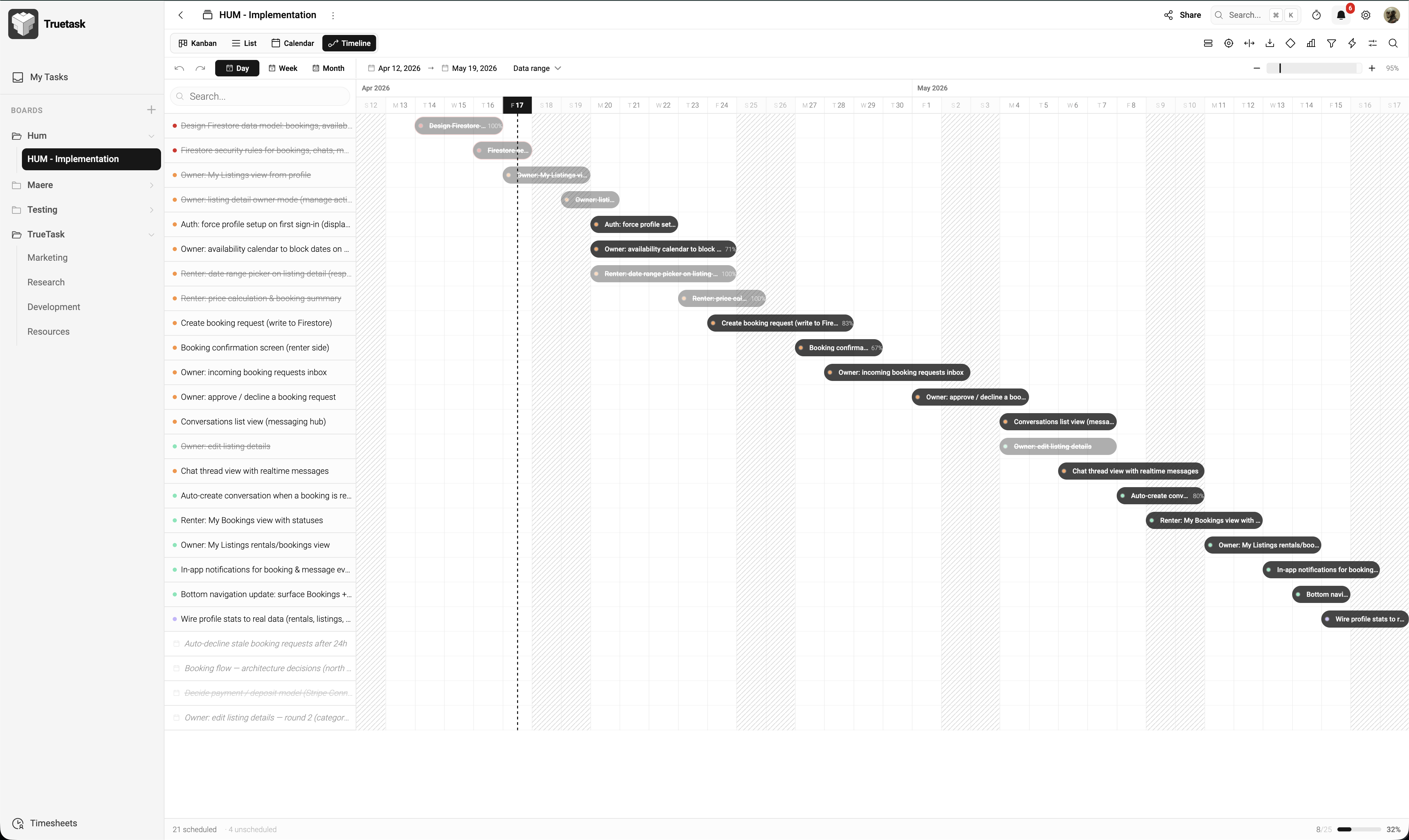
The timeline view shows tasks as horizontal bars on a date axis — a classic Gantt-style layout. It's the best view for understanding project duration, spotting overlaps, and tracking milestones.
Reading the Timeline
Each task with both a start date and due date is drawn as a bar that spans the range. Tasks with only one date show up as a single-day bar — drag either edge to schedule the other date.
- Horizontal axis — dates
- Vertical axis — tasks, optionally grouped by list, priority, member, or tag
- Red vertical line — today
Navigating
| Action | How |
|---|---|
| Pan the timeline | Click-and-drag an empty area |
| Zoom in / out | Scroll wheel or pinch |
| Jump to today | Today button |
| Auto-zoom to fit all tasks | Fit button |
| Group rows | Group by menu in the toolbar |
Editing Tasks
- Drag a bar left or right to shift both start and due dates at once
- Drag the left edge to change the start date
- Drag the right edge to change the due date
- Click a bar to open the task in the side panel
Scheduling single-date tasks
Tasks with only one date (start or due) appear as a 1-day bar. When you drag its handle, Truetask automatically creates a range: the original date stays as one endpoint, and the drop position becomes the other.
Milestones
Milestones are named date markers — useful for release dates, deadlines, or checkpoints. They appear as diamond icons on the timeline.
Add a milestone
- Click Add Milestone in the toolbar
- Enter a name, date, and optional color and description
- The milestone appears immediately on the timeline
Milestones live at the board level — everyone viewing the board sees them. Drag a milestone to reschedule it.
Edit or delete
Right-click a milestone diamond for options to rename, recolor, or delete it.
Export
Click Export in the toolbar to download the visible timeline as a PNG image. Useful for reports, presentations, or sharing with stakeholders who don't have a Truetask account.
Tips
- Use Fit after adding a lot of tasks to see the full project shape
- Tasks that don't have any dates don't appear here — they live only in Kanban and List views
- Combine grouping with filters for focused timelines (e.g. "Group by Member, filter to this sprint")
- The timeline respects the board's active filters