Appearance
Getting Started
Welcome to Truetask — a self-hosted project management tool built around boards, lists, and tasks. Everything you create lives on your team's own server and syncs across devices in real time.
This guide walks you through your first few minutes in the app.
Signing In
Open your Truetask URL in a browser. You'll see a login screen with up to two options:
| Method | When to use |
|---|---|
| Email & password | The default for most teams. Enter your credentials and press Enter. |
| Single sign-on (SSO) | If your admin configured GitHub, GitLab, Gitea, or another provider, click the SSO button instead. |
Forgot your password?
Click Forgot password? on the login screen to receive a reset link by email. This requires SMTP to be configured on your server — if it isn't, ask your admin to reset your password manually.
After signing in you land on My Tasks, a personal view of everything assigned to you across all boards.
First-Time Setup
New users are guided through a short wizard that covers:
- Welcome — quick overview of the app
- Profile — set your display name, color, and avatar
- Explore — pointers to where the main features live
You can close the wizard at any time — it won't appear again.
Admins: SMTP reminder
If you're signing in as an admin and SMTP hasn't been configured yet, the wizard finishes with a toast reminder that email features (password resets, notifications, invites) won't work until you set it up in Settings → Integrations → SMTP. The wizard itself no longer includes an SMTP step — configure it whenever you're ready.
The Interface at a Glance
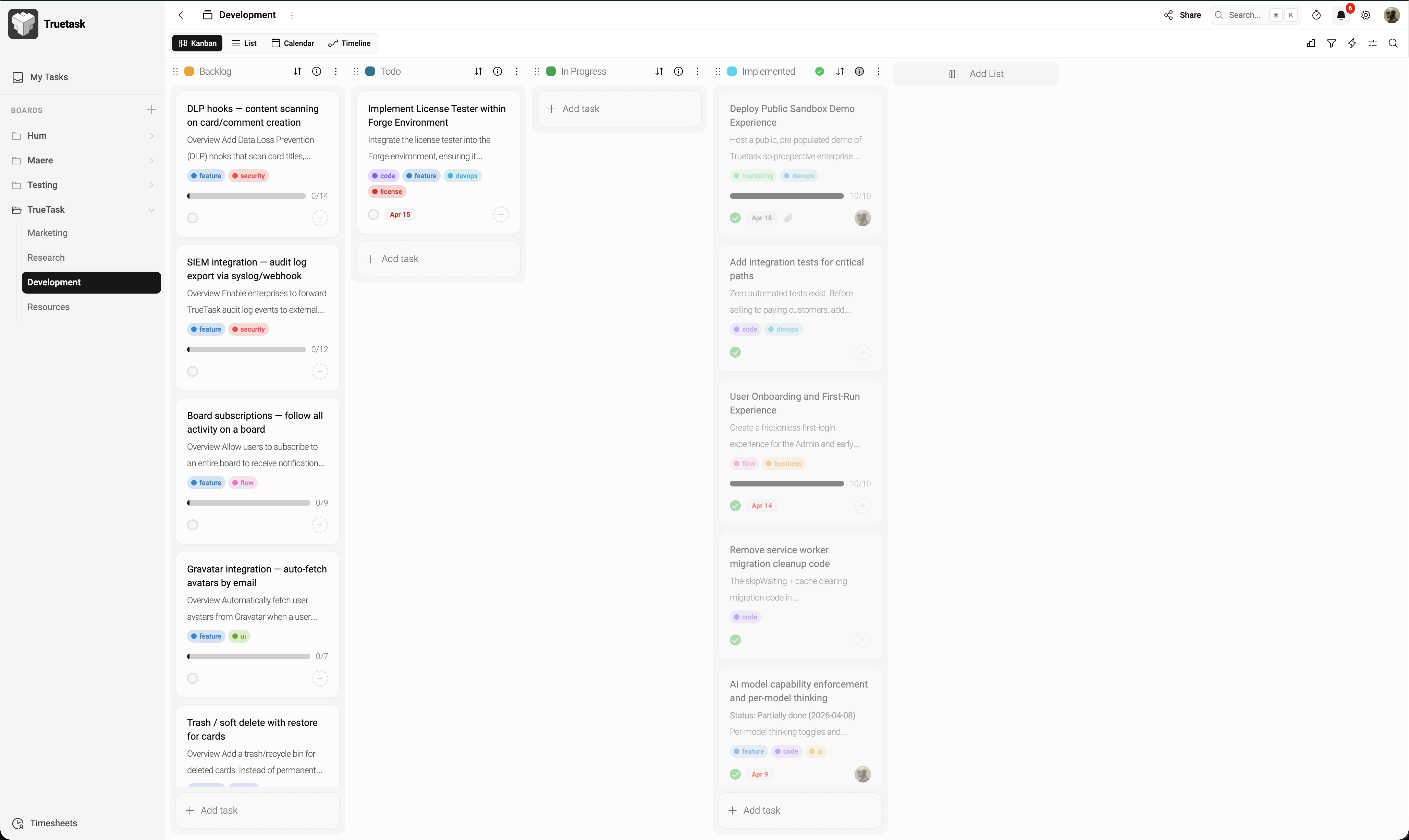
Three regions make up the main layout:
- Left sidebar — your boards, folders, and navigation shortcuts. Toggle it with Q.
- Global toolbar (top) — board title, share button, timer, search, and notifications.
- Main content area — whatever you've navigated to (a board, My Tasks, Insights, etc.).
Create Your First Board
A board is a workspace for a project, team, or area of focus. Each board contains lists (columns like "To Do" or "Done") and tasks (the work items you move between them).
- Click the + next to Boards in the sidebar — or press Alt+B.
- Type a name and press Enter.
Every new board starts with three lists: To Do, In Progress, and Done. Rename, add, or remove them anytime.
Create Your First Task
- Click + Add at the bottom of any list.
- Type a title and press Enter.
That's it — the task appears right away. Click it to open the detail panel, where you can:
- Write a description (supports Markdown, @mentions, and #task references)
- Assign members
- Add tags, priority, start and due dates
- Break work into checklists
- Attach files
- Track time with a built-in timer
Any field you leave blank is simply hidden — add only what's useful.
Move Work Through Your Board
You can rearrange anything by dragging:
- Task → another list to change its status
- Task → within a list to reorder by priority or whatever order you like
- List header → left or right to rearrange columns
When you drag a task into a Done list, Truetask automatically marks it complete.
Switch Views
The same board can be displayed in different ways. Use the view switcher in the board toolbar:
| View | Best for |
|---|---|
| Kanban | Visual status tracking, drag-and-drop workflows |
| List | Sorting, filtering, and bulk editing many tasks at once |
| Calendar | Planning deadlines and seeing what's due when |
| Timeline | Gantt-style scheduling with dependencies and milestones |
Learn more in Board Toolbar.
Keyboard Shortcuts to Remember
| Action | Shortcut |
|---|---|
| Open Command Palette (search anything) | Cmd/Ctrl+K |
| New board | Alt+B |
| New folder | Alt+F |
| Toggle sidebar | Q |
All shortcuts can be remapped in Profile → Shortcuts.
What's Next?
- Navigation — master the sidebar, Command Palette, and notifications
- Boards — structure, templates, sharing, and roles
- Tasks — the full breakdown of every task feature
- Board Toolbar — views, filters, and display preferences